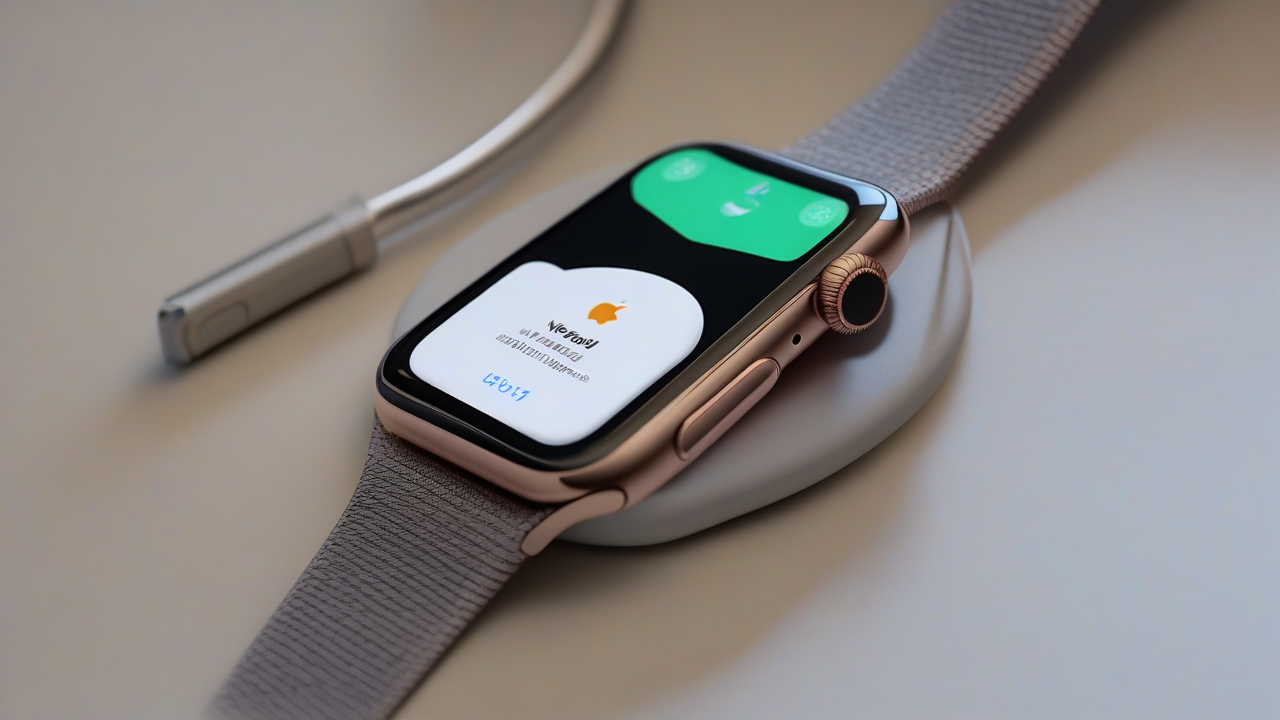
Did your Apple Watch, a loyal companion of every day, begin to show itself less brilliant than usual? If you notice a frustrating slowness, drastically reduced battery autonomy or if some essential features, such as localization-based complications (for example, weather), have stopped working properly, it is not said that the solution is the purchase of a new device.
Often, before considering more drastic options, a simple reset to factory settings can solve most of these problems, returning to your smartwatch the original responsiveness and efficiency. Don't worry, the process is easier than it looks and this detailed guide will accompany you step by step through the different modes to reset your Apple Watch, match it to your iPhone and bring it back to an optimal condition.
Why and When to Reset Your Smartwatch
The reset of an Apple Watch is the equivalent of a “new installation” for a computer. This operation reports the device to the state where it was at the time of purchase, eliminating all custom configurations, user-installed apps, preferences and data accumulated over time. It is an effective solution in different circumstances:
- Performance Issues: If the clock is too slow, the apps frequently block or the response times are long.
- Battery Autonomy Reduced: When battery life is reduced abnormally without a clear cause.
- Complications or Non-Operational Features: If specific functions, especially those requiring localization services or other integrations, they no longer work.
- Sale or Delivery: Before selling or giving your Apple Watch, it is essential to delete all your personal data to protect your privacy.
- Critical Blocks or Malfunctions: In situations where the clock does not respond to commands or shows persistent errors.
Understanding the impact of the reset is crucial: all personal data will be deleted. However, the good news is that you can restore most of your information via a backup as we will see shortly.
Preparation for Reset: The Importance of Backup
Before proceeding with any restore operation, it is essential to make sure you have a recent backup of your Apple Watch. Fortunately, the Apple system manages this part almost automatically and transparently. The Apple Watch backup is not a separate manual process, but it is closely connected to that of your iPhone.
When you backup your iPhone (both iCloud and Finder/iTunes on your computer), a backup of your paired Apple Watch is automatically included. Also, whenever you dissociate the Apple Watch from your smartphone, a backup is created and saved on the iPhone itself.
What exactly does this backup include? It is quite complete and will allow you to get back most of your settings and data without having to start again from scratch:
- Specific data and settings of the installed apps.
- The app layout on the Home screen.
- Settings and customizations of the clock squares.
- General system settings.
- Data collected from Health and Fitness apps.
- Preferences for notifications.
- Playlists, albums and music mixes synchronized, including the custom settings of the Music app.
- Siri voice feedback settings.
- The synchronized photo album.
- The time zone configured.
Make sure your iPhone is regularly backed up is therefore the best way to protect your Apple Watch data.
Methods of Reset: Choose Your Way
The factory restoration of your Apple Watch can be performed in two main ways, both effective in bringing the device back to the original conditions:
- Using the paired iPhone: This is the most common method and often the most recommended, as it offers greater control and automatically manages dissociation.
- Directly from the Apple Watch: Useful in situations where the iPhone is not available or in case of communication problems between the two devices, although it has some important limitations, especially regarding the Activation Lock.
We analyze each procedure in detail.
Reset Standard via iPhone: The Recommended Procedure
This is the most direct procedure to restore your Apple Watch while keeping it matched to your iPhone, ideal if you want to continue using it after reset to fix performance issues. Make sure Bluetooth is active on your iPhone to ensure the connection with the watch.
Detailed steps:
- Bluetooth verification: On your iPhone, open the app Settings (enlargement icon), tap Bluetooth and make sure the switch is on ♪. Check that your Apple Watch’s name appears as “Connect” in the list “My Devices”.
- Open the Watch app: From the Home screen or the iPhone app library, tap the app icon Watch (an Apple Watch on a black background).
- Access Settings: Once in the Watch app, tap the voice Apple Watch in the menu below to access the section dedicated to your device.
- Start the Device:
- Tape General.
- Scroll down and select Initiate.
- Tape Initiate Content and Settings from Apple Watch.
- Confirmation and Authenticity: An alert will be displayed. Confirm your intentions by pressing again Initiate content and settings twice. If required, enter your Apple ID password.
- Cellular Piano Management (only GPS models + Cellular): If you have a model like Apple Watch Ultra or others with cell connectivity, you will be asked if you want Store Mobile Plan or Remove mobile phone plan. Choose the appropriate option according to your needs (usually, if you hold it, you can store it).
- Wait for the Completion: The initialization process will begin. You will see a load wheel around the Apple logo on your smartwatch. The procedure will be completed when the watch’s welcome screen appears.
Prepare your Smartwatch for Sale or Transfer: Dissociate for Security
If your intention is to sell, give or otherwise transfer your Apple Watch to another person, the reset procedure requires an additional and fundamental step: the complete dissociation from your iPhone. This step is crucial to remove the “Enablement Lock”, a security feature that prevents anyone else from using your device without your Apple ID credentials.
Detailed steps for Dissociation:
- Open the Watch app: On your iPhone, start the app Watch.
- Access the Apple Watch section: Touch your voice Apple Watch in the menu below.
- Select All Watches: Up, tap the word All Apple Watch.
- Dissociation begins:
- Next to your Apple Watch’s name, tap the icon “i” (information).
- Scroll down and tap the option Cancel Apple Watch Match.
- Confirm the Dissociation: Confirm your choice by touching again Cancel match [name of your Apple Watch] at the bottom of the screen.
- Cellular Piano Management (only GPS models + Cellular): Even here, if you have a GPS model + Cellular, you will be asked if Store Mobile Plan or Remove mobile phone plan. If you are selling the watch, it is advisable to remove it.
- Disable Activation Block: Enter your Apple ID password. This is the step that deactivates the Activation Lock, making the clock usable by a new owner. Tape Continue top right.
- Wait for the Completion: Tap the button Cancel match and wait a few minutes. The iPhone and Apple Watch will complete the dissociation and the watch will be initialized. Once finished, the Apple Watch will be ready to be paired with a new iPhone.
Reset Directly from Apple Watch: Quick Solution (with Warnings)
Under certain circumstances, you may need to reset your Apple Watch directly from your device without the help of the paired iPhone. Although this option is available, it is essential to emphasize that will not remove the Activation Block. For sale or sale, dissociation via iPhone is always the mandatory procedure to protect your security and allow the new owner to use the watch.
Steps to Reset from Device:
- Wear and Unlock the Clock: Make sure the Apple Watch is on your wrist and unlocked.
- Access the Menu App: Press the Digital Crown (the side wheel) to display the app menu.
- Open Settings: Tap the icon of the Settings (in the form of gear).
- Initiality:
- Scroll and touch General.
- Tape Initiate.
- Select Content and settings.
- Authorize Operation: If required, enter the unlock code of the watch to authorize initialization.
- Option for GPS models + Cellular: If you have a model with cell connectivity, you may see the option Initiate everything and keep the plan, which allows you to reset the watch while keeping the mobile plan active.
Once the procedure is completed, the Apple Watch will be restored, but will remain connected to your Apple ID until it is dissociated via the iPhone.
Manage Complex Situations
Sometimes, restoration is not a choice but a need dictated by more serious problems, such as the blocked clock or the forgetfulness of the unlock code. This is how to deal with these eventualities.
Reset with Forgotten Unlock Code:
If you do not remember your Apple Watch code and you cannot access the settings menu, there is a specific procedure to initialize it:
- Place on the Charger: Put your Apple Watch on its magnetic charger.
- Press the Lateral Key: Press and hold side button (the one under the Digital Crown) until the shutdown button appears in the upper right corner of the screen.
- Press the Digital Crown: At this point, press and hold Digital Crown.
- Select Initiality: After a few moments, you will see the option Initiate content and settings. Tap it to start the reset.
It is important to know that, for security reasons, if the “Data Start” option is active in your Apple Watch settings, the device will automatically start after ten failed attempts to insert the code.
Reset of an Apple Watch Blocked or Non-Reactive:
If your Apple Watch is blocked and no longer responds to commands, you can try a forced restart or an emergency recovery.
- Reboot Forced (for non-reactive watch):
- Put the Apple Watch on the charger.
- Press and hold side button until the power button on the screen appears.
- Now, hold the switch Digital Crown until the key appears Initiate content and settings and press it.
- Problem Detected (restoration screen or red exclamation point):
If a message appears on the screen that asks you to approach the Apple Watch to your iPhone for a recovery/update, or if you see a red exclamation point, you can fix it via your iPhone. This procedure requires your iPhone to be updated to iOS 15.4 or later and Apple Watch to watchOS 8.5 or later.
- Make sure iPhone and Apple Watch are close, unlocked, and that Wi-Fi and Bluetooth are active on your iPhone.
- Place the Apple Watch on its charger.
- Press the side button apple Watch for two consecutive times.
- Follow the instructions that will appear on your iPhone screen to complete the recovery.
If this procedure does not work, check the Wi-Fi connection: try using 2.4 GHz networks instead of 5 GHz and avoid 802.1X or “captive” networks (those requiring registration or payment, as in hotels).
After the Reset: New Configuration of Your Apple Watch
Once the reset is completed, the Apple Watch will be a “vergin” device. If you want to continue using it, you will need to configure it again. The process is very similar to when you first configured the clock.
Configuration for Personal Use:
- Prepare your iPhone: Make sure Bluetooth is active on your iPhone and is unlocked.
- Matching begins: Approach Apple Watch to iPhone. A message should appear “To configure this Apple Watch, use iPhone”. Tape Continue.
- Scan or Match Manually: Pane the Apple Watch dial with your iPhone camera. If automatic matching does not work, tap Match Apple Watch manually and select the name of your watch from the list.
- Alternative configuration: If the configuration message does not appear, open the app Watch on the iPhone, go up Apple Watch (menu down), tap All Apple Watch (top) and then Add Apple Watch.
- Restoration or New Configuration: At this point, you can choose if restore from a previous backup (recommended choice not to lose your data) or configure the clock as a new device. Follow the guided questions on your iPhone.
- Personal Details and Settings:
- Login with your Apple ID (if required).
- Specifies whether you wear the Apple Watch on your left or right wrist.
- Accept the terms and conditions of use.
- Decide whether to enable tracking and sharing usage statistics with Apple.
- Release Code and Apple Pay:
- Set a unlock code for Apple Watch. You can create a simple or extended code.
- Configure Apple Pay, adding your cards and accepting the conditions. If you want to skip this step, tap Don't add code.
- Final Customization: Select the size of the text, use the bold and display the settings that the Apple Watch will share with your iPhone. Add or update details such as date of birth and decide whether to activate health-related notifications.
- Cellular configuration (only GPS models + Cellular): If you have a GPS + Cellular model, a wizard will be presented to configure your mobile connection.
Configuration for a New Owner:
If, instead, you reset the Apple Watch to give it to someone else, your part is over. After reset, you can simply turn off the device and let the new owner take care of the initial configuration, matching it to your iPhone and your Apple ID.
Dubbi or Further Problems
If, despite carefully following all the instructions, you still have problems with your Apple Watch or having specific doubts, the best resource is Apple's official support site. The Apple Watch section offers detailed guides and solutions for a wide range of issues.
If you think you need more direct contact, Apple assistance is available through various channels, including telephone support, online chat or the possibility to go to an authorized Apple Store.


