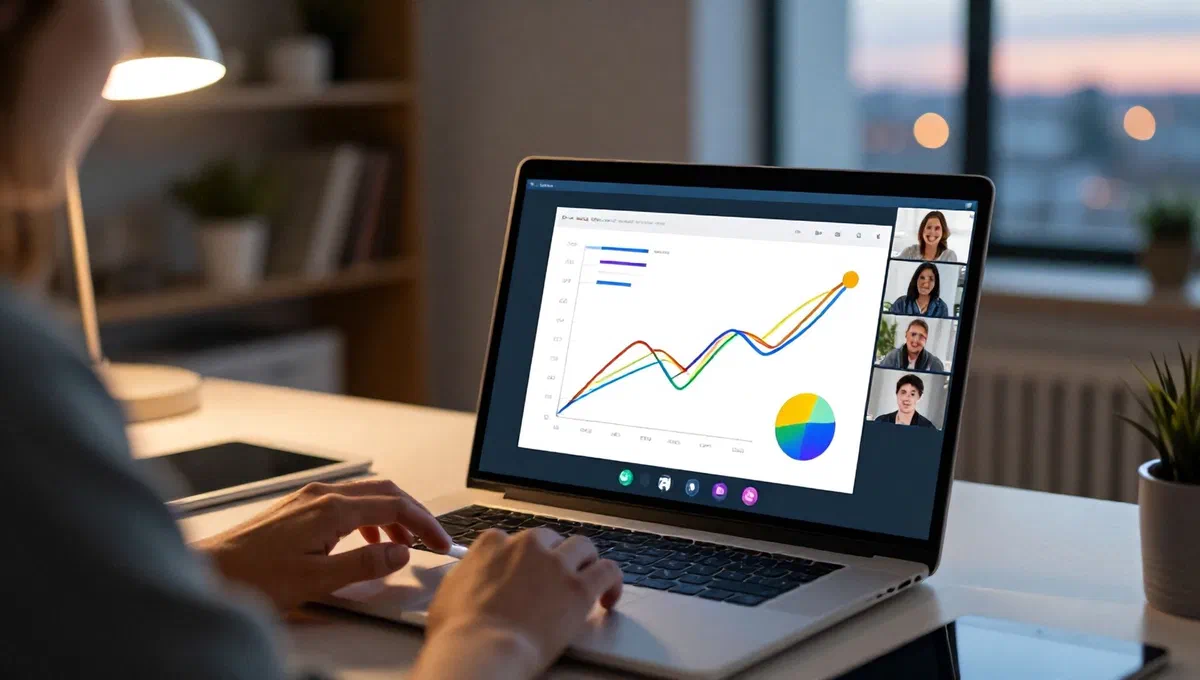
In an era where distance interactions are the norm, tools like meet have become indispensable for meetings, lectures and online presentations. one of the most popular and useful features is the ability to share your screen, allowing participants to view content directly from the host device. if you’re wondering how to master this function, you’re in the right place. this complete guide will accompany you step by step through the screen sharing modes on meet, whether you want to include audio or prefer a silent presentation, and will show you the procedures both from computer and smartphones and tablets.
The essence of sharing screen in meet #
Screen sharing is a key feature that transforms a simple video call into a dynamic platform for collaboration and teaching. whether you need to show a document, a presentation, a specific application or even a video, meet offers the tools to do so with ease. the process varies slightly depending on the device used and the need to include or not audio in the transmission, aspects that we will deepen in the following paragraphs.
Share the screen with audio: aspects and procedures #
Integrating audio into screen sharing can greatly enrich your presentation, allowing you to play videos, music or sounds directly from your device to other participants. however, there are specificities to be known, especially in relation to the type of device and content that you intend to share.
From computer: a question of browsers and content #
If you use a computer for your meeting on meet and want to share the screen including audio, it is essential to know that this option is optimally supported only through the chrome browser and only when the source of sharing is a single ** browser card**. you cannot transmit the audio of the system if you choose to share the entire screen or a specific application. this limit is important to ensure the quality and stability of transmission.
Steps for audio sharing from computer: #
- add to meet:* launch google chrome and link to meet official website. make sure you log in with your google account.
- start or join a meeting**** click new meeting* and select start a meeting now* to create one. if you need to attend an existing meeting, enter the link or code on the main screen and choose call to participate or participate*.
- start sharing: once in the meeting, locate and click on the icon presenta now* (usually an arrow up or a rectangle with an arrow) in the menu below.
- select the chrome card: from the drop-down menu that appears, choose the option a chrome tab. this will allow you to select one of the open tabs in your browser.
- audio enable:* before proceeding, make sure that the share card audio box is selected. this step is crucial to include the audio of the content played on the tab.
- confirm the sharing:** click the share* button to start the transmission of the selected card with its audio.
When sharing a card, any multimedia content played (for example, a youtube video or an audio file from google drive) will be transmitted with its audio. you can also turn on or off your voice microphone at any time. to temporarily disable the audio of the presentation without interrupting the sharing, you can use the audio of the presentation* (usually visible in a control bar) bringing it from on to off. to complete the sharing, click the share button.
From smartphones and tablets: differences between android and ios #
Screen sharing with audio from mobile devices shows significant distinctions between android and ios (iphone/ipad).
Android devices: audio via microphone #
On android devices, meet app does not offer a dedicated option for optimized sharing of system audio during screen transmission. any sound played by the device will be captured and transmitted through the telephone microphone, with a quality that could be poor and potentially disturbed by ambient noise. although you can turn off the microphone, this will also stop the transmission of your voice and audio of your device.
Iphone and ipad: optimized audio #
Iphone and ipad users benefit from a specific feature that allows optimized audio transmission directly from the device. this greatly improves the quality of shared audio compared to what can be achieved on android via the microphone.
Audio sharing steps from mobile (iphone/ipad): #
- start or join a meeting:* open the google meet app. click on new** and then create a new meeting*****************************. or, enter the code or link of an existing meeting via the search or enter code.
- start sharing: once in the meeting, tap the icon of the three dots below right.
- select share screen: from the menu that opens, choose the *share screen option.
- enable audio (only ios): if you have an iphone or ipad, in the present for all screen, be sure to select the box next to *** also share the audio of your device**.
- start transmission:***************************************************** (on android).
With iphone/ipad, optimized audio screen sharing also includes your voice, if the microphone is active. by deactivating the microphone from the app, your voice will not only be transmitted but also the audio of the device. regardless of the device, you can end the screen sharing by returning to the meet app and selecting share.
Share the screen without audio: focus on visual content #
There are situations where audio sharing is not necessary or is even not recommended, for example to avoid distractions or to maintain an exclusive focus on visual content. meet offers two main ways to share your screen without audio.
Method 1: manual deactivation of the microphone #
This is the most flexible solution and can be applied at any time during a meeting, both from computer and from mobile devices.
From computer: #
- start or join a meeting:* log in to meet as usual.
- start sharing:* click present now* (the arrow icon facing up).
- select source:* choose whether to share your entire screen*, a window or a chrome tab*.
- share:* click the share button.
- disable microphone:* to ensure that no audio is transmitted, click on the microphone icon in the meet bottom bar to disable it.
If you’re sharing a chrome tab, remember to uncheck the share tab audio before you start sharing, or move the audio presentation*** from on to off if you’ve already started sharing.
From smartphones and tablets: #
Access the meeting as usual and follow the steps to share the screen as described in the previous section. once you start sharing, tap the microphone icon to turn it off. this will prevent the transmission of both your voice and any sound coming from the device.
Method 2: the “present” mode (available before accessing the meeting) #
The “presenta” mode is a specific option that allows you to access a meeting directly as a presenter, with the microphone deactivated by default and without the possibility to reactivate it during the presentation. this mode is ideal when your only purpose is to show visual content.
From computer: #
- create a link for a future reunion: from meet’s main page, click on new meeting and choose create a meeting to start at a later time. copy the generated link.
- acces in presentation mode: use the link to access the meeting. on the access screen (where you would usually appear “call to participate”), select the presenta option.
- select source: choose what you want to share (full screen, window or chrome tab).
- start transmission:* click share. your screen will be transmitted without audio, and the microphone will be disabled automatically.
This mode is also available to attend meetings organized by others: enter the link or meeting code and select presenta* in the pre-entry screen. also in this case, if you share a chrome tab, remember to manually turn off the share the card audio.
From smartphones and tablets: #
Also from mobile devices you can enter presentation mode:
- Access to the meeting* on the access screen of a meeting (both created by you with future and existing links), tap the option to participate.
- select share screen: on the next screen, press the share screen and then continue*.
- start transmission: follow the instructions to start the transmission of your screen. also in this case, the microphone will be disabled.
As an alternative to the “presenta” mode, you can always access the meeting normally and manually disable your microphone as described in the “metodo 1” to get a screen sharing without audio.
End screen sharing #
Regardless of the mode or device used, interrupting the screen sharing is simple. during the transmission, a control bar will appear (usually up or down on the screen, depending on the device). click or tap the share*** button to return to normal meeting display. the pass will be instantaneous, and you can continue the meeting or start another sharing.
Final considerations #
The ability to share the screen on meet is a powerful resource that facilitates communication and collaboration in virtual environments. understanding the different options for audio management and specific procedures for each type of device will allow you to conduct more effective and professional presentations. experience the various ways to find the one that best suits your needs and maximizes the potential of this tool.