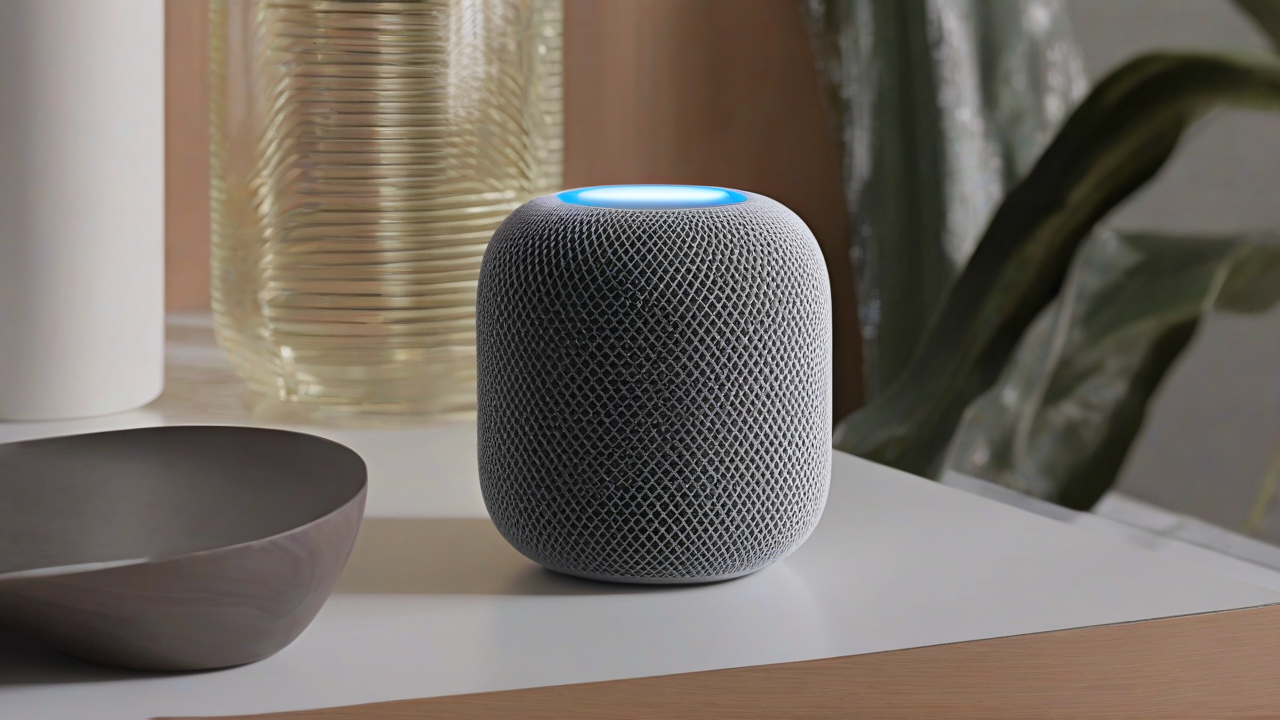
The world of domestic technology is constantly changing, and smart speakers have become an essential hub for many modern homes. Among the various options available, theApple HomePod mini stands out for its compact design, deep integration with the Apple ecosystem and its amazing audio capabilities. Designed not only for musical playback, but also as a control center for smart home automation and voice assistant, HomePod mini offers a rich and intuitive user experience. If you are approaching this device for the first time and want to fully understand its operation, you are in the right place. This complete guide will accompany you through every aspect, from its identity to everyday configuration and usage procedures.
What is Apple HomePod mini?
The HomePod mini is a smart speaker produced by Apple, launched on the Italian market on 23 November 2021. It is positioned as a more accessible and compact solution than its predecessor, the largest and now released original HomePod, which had never officially arrived in Italy. This device was designed to compete directly with other popular smart speakers such as Amazon Echo with Alexa and Google Nest with Google Assistant, offering a high quality alternative for Apple ecosystem users.
Its main features are multiple: not only allows you to play music, podcasts and other multimedia content from a wide range of sources, but also acts as a hub for Apple HomeKit, the domotic system of the Cupertino house, allowing to control smart devices compatible with the voice. At the heart of the HomePod mini experience Siri, Apple’s virtual assistant, who responds to voice commands to provide information, set reminders, send messages and much more.
Design and Technical Specifications
With its small size – 84.3 mm high, 97.9 mm wide and a weight of 345 grams – HomePod mini fits discreetly in any environment. Its spherical shape is wrapped in an elegant synthetic woven fabric, which merges with a top panel in backlit glass. This panel not only hosts touch controls for playback and volume, but also illuminates with kaleidoscopic effects when Siri is active or while playing audio, offering immediate visual feedback.
Under its refined aesthetics, HomePod mini hides advanced audio technology: it includes a full-range driver, two passive radiators and four microphones. This configuration, orchestrated by apple S5 Chip (the same as Apple Watch Series 5 and SE), it guarantees a powerful and enveloping 360 degree sound. On the connectivity front, it supports Wi-Fi 802.11n, Bluetooth 5.0, direct access to guests and home protocol Thread, essential for an efficient and responsive smart home network.
Advanced Compatibility and Functionality
HomePod mini is extremely versatile for audio sources. Supports naturally Apple Music, music purchased from iTunes and the iCloud music library, but is also compatible with different third-party music services, Apple Music Radio, on-demand episodes and radio stations via TuneIn, as well as Apple Podcast and News in short. Thanks to technology Airplay, you can broadcast audio from iPhone, iPad, iPod Touch, Apple TV and Mac, further expanding the listening possibilities.
Its features are not limited to audio: you can pair multiple HomePod mini to create a stereo or multi-store audio system, ideal for sounding the whole house. A practical function is the intercom, which allows you to communicate between different rooms of the house using the HomePod mini as transmission devices. In addition ultra Wideband Chip allows smart audio transfer: just approach an Apple compatible device to the HomePod mini to instantly move playback from one to another.
Other noteworthy features include the possibility to use the shortcuts of Siri created on iPhone and iPad, the playback of relaxing ambient sounds, the location of other Apple devices via the Where app, the reception of the results of Siri web searches directly on the iPhone and the setting of musical alarms. One of the most intelligent functions is the ability to recognize the voices of up to six family members, adapting personal responses and requests.
Privacy and System Requirements
Apple places great emphasis on privacy. The company guarantees that voice requests sent to HomePod mini are not associated with Apple ID, communications are encrypted and users can not save voice recordings, offering greater control over their personal data.
For configuration and use of HomePod mini, you must have a compatible and up-to-date Apple device. Requirements include iPhone SE, iPhone 6s or later, or iPod touch (7th generation) with iOS 15 or later; or iPad Pro, iPad (5th generation or later), iPad Air 2 or later, or iPad mini 4 or later, all updated to iPadOS 15 or later. These requirements ensure full compatibility and access to all the features offered.
Price and Availability
The Apple HomePod mini is proposed at the list price of 99,00 euros. The sales package includes the smart speaker, its documentation, power cord and a 20W power supply, providing everything you need to start the experience immediately.
You can buy HomePod mini directly from the Apple website, the physical Apple Stores, or at major electronics retailers, both online and offline. The device is available in different eye-catching colors: sidereal gray, white, blue, yellow and orange, allowing you to choose the option that best suits your personal style and home decor.
For those who want more tranquility, you can add AppleCare+ at the cost of 15,00 euro. This service extends technical assistance coverage and includes protection for accidental damage for a period of two years. Various accessories and supports are also available on the market, designed to optimize the HomePod mini’s use experience, such as bases or enclosures that improve its integration into the home environment.
How HomePod Mini Works: Configuration and Use
Once you understand what HomePod mini is and what its capabilities are, it’s time to switch to action and find out how to configure it and use it to the best. The process is intuitive and designed to seamlessly integrate with the Apple ecosystem.
Preliminary operations
Before starting the actual configuration, a few simple preparatory steps are needed:
- Dispacking and Feeding: Extract the HomePod mini from its packaging. Connect the power cord to the speaker and the other end to the supplied 20W power supply. Then connect the power supply to a power outlet. Wait a few moments for the device to turn on; you will be alerted by a white illumination button on the top.
- IOS/iPadOS Device Preparation: Take your iPhone, iPad or iPod Touch compatible. Login to the Home screen of the device, tap the icon of the Settings (the gearbox) and then select the voice Bluetooth. Make sure the switch is set to ♪.
- Wi-Fi connection: From the main screen of iOS/iPadOS Settings, tap the voice Wi-Fi. Check that the switch is on ♪ and, if necessary, select the wireless network you want to connect to and enter the required password. HomePod mini requires a stable Wi-Fi connection to work.
Configuration process
With the completed preliminary operations, you can proceed with the actual configuration:
- Automatic start: Approach your iPhone, iPad or iPod Touch at the HomePod mini. In seconds, a popup should automatically appear on the display of the mobile device depicting the smart speaker. Tap the button Configure to start the process. Follow the guided instructions that will appear on the screen.
- Manual setup (if the popup does not appear): If the configuration popup does not appear automatically, open the app Home (the yellow house icon on white background) found on the Home screen or in the iOS/iPadOS app library. Tap the button (+) top left and select Add accessory from the menu that opens. Next, choose the option Other options and then tap the HomePod mini icon from the list of accessories nearby. Then proceed by following the instructions as indicated above.
- Guided passages: During the setup, you will be asked to specify the room where you placed the HomePod mini (e.g. Living room, Kitchen). You will also have to decide whether to enable personal requests (which allow HomePod mini to access messages, reminders, etc. when your iOS/iPadOS device is nearby) and accept the terms and conditions of use.
- Transfer Settings and Alignment: Press the button to transfer settings from your Apple account. At this point, you will need to frame the top panel of the HomePod mini with the camera of your device, aligning it to the center of the visible circle on the screen. A notification sound will confirm the success of the process. Shortly after, Siri will health you from the HomePod mini, indicating that the configuration is complete and the device is ready to use.
Later and Advanced configurations: Any changes or additional configurations can be managed via the Home app. By accessing the main screen of the app on iOS/iPadOS and selecting Home Settings, you can manage your account, activate voice recognition, enable Apple Music usage, remotely control access, configure intercom and manage software updates.
It is important to note that although it is possible to manage HomePod mini from the Home app on Mac, the first initial configuration always requires an iOS or iPadOS device.
Daily use of HomePod mini
Once configured, the use of the HomePod mini becomes extremely simple and intuitive, thanks to different interaction modes.
Vocal Control with Siri
The most common way to interact with HomePod mini is by voice. Just pronounce the activation phrase “Hey Siri” followed by your request or command. Whether you want to play music, ask for weather, set a timer or control a smart device, Siri is ready to assist you. The activation of the voice assistant is marked by a suggestive kaleidoscopic lighting on the upper part of the speaker.
Touch Controls
In addition to voice control, you can also manage HomePod mini through the touch controls available on the top glass panel:
- Single Touch: Start or pause playback.
- Double touch: Go to the next track.
- Triple touch: Back to the previous track.
- Hold down: Call Siri.
- Hold down (+) on the left: Raise the volume.
- Press (-) to the right: Lower the volume.
Management from Other Apple Devices
Integration with the Apple ecosystem is one of the strengths of HomePod mini, offering different modes to control it from iPhone, iPad, iPod Touch, Mac and Apple TV:
- Proximity Transfer: To transfer audio playback between HomePod mini and your iPhone, iPad or iPod Touch, simply approach the two devices. A warning will appear at the top of the display of your mobile device, allowing you to move the audio with a simple touch.
- AirPlay from iOS/iPadOS: If you are not near the HomePod mini, you can use AirPlay. In the playback app, tap the AirPlay icon (a triangle with waves). Alternatively, you can call the Control Center (by going from the top right corner on iPhone with Face ID and iPad, or from the bottom up on other iPhone/iPod Touch models), select the AirPlay icon in the top right box and choose the name of your HomePod mini from the list “High Speakers and TV”.
- AirPlay by macOS: You can also transfer the audio from Mac. Search the AirPlay icon in the multimedia application window you are using, or open the Control Center (clicking on the icon with the two sliders on the top right of the screen), select the box Sound from the menu and then the name of your HomePod mini from the list Exit.
- Control through the Home app: The Casa app offers complete control. Access the application screen for the room where HomePod mini is located. On iOS/iPadOS, press on the device icon; on macOS, right-click the HomePod mini icon and choose Show controls. You will have access to playback controls, alarm clocks and timers.
- Advanced Settings from the Home App: To access more detailed settings (Siri, location, accessibility, stereo torque configuration), press the HomePod mini icon on iOS/iPadOS or right click on macOS, then choose Settings and then the symbol of the gear.
- HomePod mini as Audio Output for Apple TV 4K: If you have an Apple TV 4K in the same room as the HomePod mini, you can set it as a default audio output. In the Home app, go to the room screen, press the Apple TV icon (or right click on macOS), select Settings, then the gear symbol, the option Default audio output and choose the name of your HomePod mini.
FAQ and Resolution Common Problems
Here are some answers to frequent questions and troubleshooting tips.
How to configure HomePod mini in Italian?
The HomePod mini language is easily editable via the Casa app. Open the application on your iOS/iPadOS or Mac device, select your HomePod mini from the main screen, scroll down into the settings menu and find the language-related option, from which you can choose the Italian or any other supported language.
How to configure HomePod mini with Spotify?
If Spotify is your favorite music streaming service, you can play its content on HomePod mini using AirPlay from an iPhone, iPad or Mac. It is important to know that, at the moment, it is not possible to call the Spotify app directly through Siri integrated into the Apple speaker, since full voice integration is reserved to Apple Music and some other specific services.
Can I configure HomePod mini with Mac or Android?
No, the first installation and configuration of HomePod mini requires an iOS device (iPhone, iPod Touch) or iPadOS (iPad). Mac devices can then manage and control the HomePod mini via the Home app once this was initially configured. Similarly, Android smartphones and tablets are not supported for the HomePod mini initial configuration process.
Problems during configuration or use?
If you encounter difficulties when configuring or using HomePod mini, the first recommended step is to consult the support section on Apple’s official website, where you can find guides and solutions to common problems. If the problem persists or needs personalized assistance, you can contact Apple support through various channels, including phone, online chat, or go to an Apple Store to receive more specific help.
Conclusion
The Apple HomePod mini is much more than just a speaker: it is a multimedia center, a smart assistant and a domotic hub, all enclosed in an elegant and compact design. Its deep integration with the Apple ecosystem makes it an excellent choice for those who already own iPhone, iPad or Mac, offering a smooth and connected user experience. With a simple configuration and multiple interaction modes, HomePod mini is ready to transform the way you live your music, manage your smart home and interact with technology in your everyday environment.


