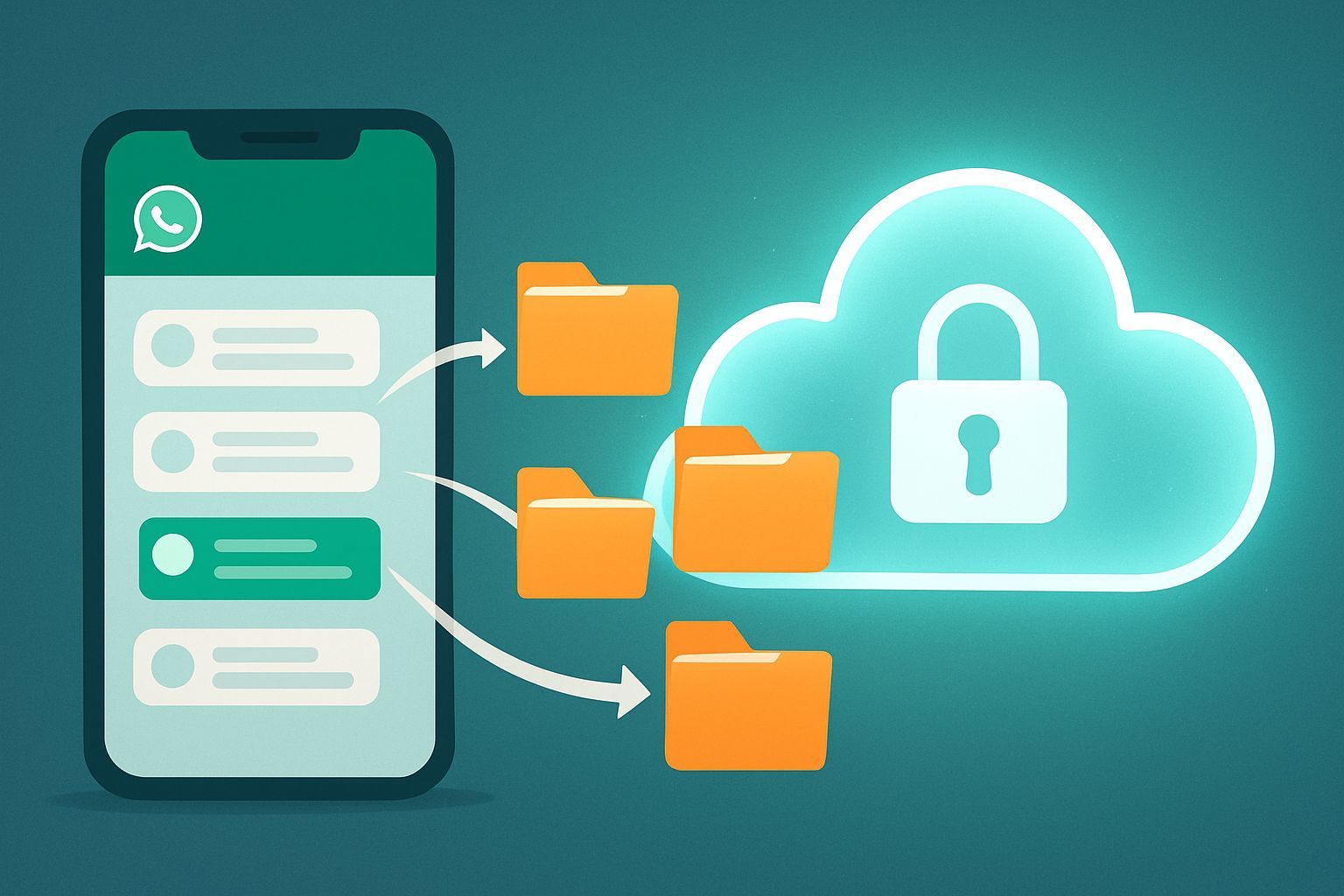
In the digital age in which we live, applications like WhatsApp have become the core of our daily communication, connecting us with friends, family and colleagues at all times. However, the convenience of having all conversations at hand often leads to an impressive accumulation of chats, which can turn the initial screen of the application into a confused maze of old and new messages. This “digital spacing” not only makes it difficult to find important conversations, but also can contribute to a general sense of disorder and information overload, negatively impacting our productivity and our digital well-being. Fortunately, WhatsApp offers powerful and intuitive tools to manage this constant flow of information, allowing us to regain control of our chats and maintain a cleaner and more functional digital environment. Among the most underrated but incredibly useful features are message storage and conversation backup. While storage serves to temporarily hide chats from the main screen, keeping them at hand for a future reference without eliminating them, backup is a fundamental security measure that guarantees the safeguard of all data in case of loss, damage or change of the device. Understanding and mastering these functions is essential not only to maintain order, but also to protect our digital memories and important information. This article aims to explore in depth every aspect of these two crucial features, providing a comprehensive and detailed guide on how to store, manage and save WhatsApp messages on different platforms, accompanying you step by step towards optimal management of your digital conversations, for a more smooth, organized and secure user experience.
WhatsApp storage: Essential Chat Management Strategy
Message storage on WhatsApp is much more than just a function to hide chats: it is a real digital space management strategy that significantly contributes to the order and cleanliness of the application interface. The basic concept is simple but extremely effective: move less active conversations, but that you do not want to delete permanently, in a separate section of the application. This process absolutely does not erase associated media messages or files; it simply makes them invisible from the main chat screen, freeing visual space and reducing the disorder. Imagine your WhatsApp screen as a desk: storing a chat is like storing a document in a drawer, accessible but no longer on the work surface. This functionality is particularly useful in different situations. For example, for group chats of past events, working conversations concluded, or simply for those individual discussions that have exhausted their immediate purpose but contain information that could serve in the future. The storage allows you to maintain a historical register without this intruding current and most urgent interactions. It also offers a temporary level of discretion, allowing you to lend your smartphone to others without certain conversations being immediately visible. It is essential to distinguish archiving from deletion. While deletion permanently deletes a chat from your device (and, if you choose the option, even from the other user’s device in the case of individual chats), storage is reversible and does not result in any data loss. The archived chats can be consulted and restored on the main screen at any time, keeping intact the entire history of conversations. This difference is crucial to avoid errors and ensure that valuable information is not lost. Adopting the habit of regularly storing chats not only improves the aesthetics and navigability of the app, but also promotes greater concentration on current conversations, reducing distractions and optimizing the overall experience of using WhatsApp.
The Advantages of Architecture: Order, Concentration and Control
We deepen the many benefits that the adoption of a conscious storage strategy can bring to your experience with WhatsApp, transforming a simple function into a powerful tool for managing your digital life. The first and most obvious advantage isorder and visual cleaning. A bulky chat screen is often a source of stress and frustration. Storing non-active conversations means eliminating visual noise, making it easier and faster to locate current and important chats. This reduces the time spent flowing endlessly, improving efficiency. Second, archiving favours a better concentration. Less visible chats mean less distractions. When your attention is not constantly caught by old conversations or silent but still present groups, you can fully dedicate yourself to current communications, improving the quality of your interactions and your productivity, both in the working and personal context. Another crucial aspect is privacy and temporary discretion. Although storage is not a long-term security measure, it can be incredibly useful in situations where you lend your phone to friends or family. Archiving sensitive or personal conversations prevents their immediate visualization, offering a level of discretion that, although momentary, is often enough for daily needs. It is a quick way to “clean” the interface without having to delete content you want to store. Storage also contributes to effective management of mental space. Digital disorder can result in mental disorder. Knowing that old conversations are sorted and not occupying valuable space in your mind, it allows you to face new communications with greater clarity and less cognitive fatigue. It is a principle of “digital minimalism” applied to messaging. Finally, archiving allows maintenance of relevant conversations without weighting the main screen. Do you have a chat with important information that is no longer active? File it. It will remain accessible in the “Archive” section whenever you need it, without contributing to the chaos of the main screen. This allows you to store a historical archive of your communications without compromising its fluidity. All these elements are combined reduce digital stress, a growing problem in modern society. Taking control of your chats through storage, not only organize your data, but also contribute to greater balance and well-being in your daily interaction with technology.
Archive on Android: Detailed Guide for Total Control
The Android ecosystem, known for its flexibility and its customization options, offers a chat storage process on WhatsApp which is both intuitive and functional. To start the process on an Android smartphone, the first step is obviously to start the WhatsApp application, looking for its colored icon on the home screen of your device or within the application drawer. Once you open the app, you will find yourself on the main screen, where all your active conversations are listed. From here, to store a single chat, you need to locate the conversation you want to hide and keep your finger pressed on it for an instant. This gesture, known as “extended tap”, will activate a selection mode and will make a options bar appear at the top of the screen. In this bar, search and select the box-shaped icon with a downward arrow: this is the “Archive” icon. Touching it, the selected chat will disappear immediately from the main screen and will be moved to the archive. If your intention is to further release the main screen, you can store multiple conversations at once. After making the extended tap on the first chat, which will select it and will make the options bar appear, you can simply shorten all the other conversations you want to store. You will see a check mark appear next to each selected chat. Once you have selected all the conversations of your interest, tap the “Archive” icon again in the top bar. WhatsApp will confirm the operation with a temporary message like “[number] chat archived”. But what if you want to do clean square and store all the chats at once? WhatsApp on Android also offers this option. From the main chat screen, tap the icon of the three vertical posts located in the upper right corner, which will open a drop-down menu. Select the “Settings” option, then navigate to “Chat” and then in “Cronology chat”. Here you will find the option “Store all chats”. You will be asked to confirm your choice with a “OK” and all your active conversations will be moved to the archive. To access stored chats and consult them, or possibly restore them, you must return to the main chat screen. If you have stored at least one conversation, you will see a new voice appear at the top of the chat list, often called “Archives” or “Archives (1)” (or with the number of chats stored). By touching this item, you will access the section where all your hidden conversations are kept. In case of reconsideration and if you want to return a conversation from the archive to the main screen, the process is just as simple: within the “Archives” section, tap on the desired chat and select the arrow icon facing up (a symbol of “Extract from the archive”) that will appear in the upper bar. The conversation will return immediately visible on the main list of chats. It is essential to understand that, by default, archived chats remain such indefinitely. However, Android offers an important customization option that can change this behavior. In WhatsApp settings, you can choose whether the archived chats should automatically reappear on the main screen when you receive a new message. This setting, “You keep the chats stored”, can be disabled to make a new message “unlock” the chat from the archive, bringing it back to the top of the list. This aspect will be deepened in a dedicated section, but it is crucial to customize the storage experience according to your notification and visibility needs.
Storage on iPhone: Optimize Chats with Elegance and Simplicity
IPhone users, known to appreciate the clean user interface and the intuitive iOS approach, will find that the chat storage process on WhatsApp is just as smooth and well integrated in the operating system usage experience. To start, like for each operation within the app, you need to start WhatsApp by selecting its icon from the home screen of your iPhone or from the App Library. Once opened, you will find yourself in the “Chat” section, accessible via the dedicated icon at the bottom of the screen. This screen lists all your active conversations. To store a single chat, iPhone offers two main methods, both quick and effective. The first consists in performing a “swipe” (a finger slide) from right to left on the conversation you want to store. This gesture will make a series of hidden buttons appear, including the “Archive” button. Touching it, the selected chat will be immediately moved to the archive, disappearing from the main list. The second method, equally valid, provides a prolonged tap on the interest chat. This action will open a context menu from which you can directly select the “Archive” option. Both methods achieve the same result, leaving the user the freedom to choose what is more convenient. For users who want to store multiple conversations simultaneously, iPhone further simplifies the process. From the “Chat” screen, tap the “Edit” option located in the upper left corner. This will activate a selection mode that will allow you to place a circular check mark next to all the chats you want to store. Once you select the desired chats, tap the “Archive” item that will appear at the bottom of the screen. All selected conversations will be moved to the archive in one operation. If the goal is a radical cleaning, WhatsApp on iPhone also allows you to store all chats at once. To do this, from the main screen of the app, select the “Settings” icon (often gear-shaped) in the bottom bar. Then, within the Settings menu, tap “Chat”. Going through the options, you will find “Store all chats”; tap it and confirm the action by selecting “Store All”. All your active conversations will be archived. To see the archived chats, go back to the “Chat” section of the app. Scroll up or, in some cases, scroll down in the chat list, and you will find the item “Archive”. Touching it, you can access the full list of conversations you have hidden. If at any time you decide to restore a stored chat and return it to the main screen, the process is just as intuitive. Inside the “Archive” section, you can again swipe from right to left on the desired chat and select the “Extract” button. Alternatively, you can tap on the conversation and choose “Extract” from the menu that appears. Also on iPhone, the default is that archived chats remain such indefinitely, regardless of receiving new messages. However, this setting can be customized to fit your preferences. To change it, go to “Settings”, then “Chat”, and here you will find the option “Mantieni le chat archiveate”. By deactivating the switch adjacent to this entry, you will make sure that the stored chats automatically resurface to the main screen when they receive a new message. This flexibility ensures that iPhone users can configure WhatsApp according to their precise organization and notification needs, making the experience as personal as possible.
Computer Archives Management: WhatsApp Web and Desktop Client
WhatsApp flexibility also extends to the desktop environment, both through the dedicated application for Windows and macOS, and through WhatsApp Web, the browser version of the service. In both cases, the method to store messages is practically identical, offering a coherence of use that facilitates management of chats regardless of the platform. To begin, that you are using the desktop client or WhatsApp Web, the first step is to start the application or access the website through your favorite browser. If you have not already done so, you will need to establish the connection with your mobile WhatsApp account by scanning the QR code displayed on your computer screen with your smartphone. Once the main screen of WhatsApp is displayed on your computer, with the list of conversations on the left, the storage of a single chat is a direct operation. Place the mouse pointer on the conversation you want to store. You will see a small arrow-shaped icon facing down (or sometimes three horizontal dots) on the right side of the chat line. Click on this icon to open a drop-down menu. Among the available options, select “Archivia chat”. The conversation will disappear immediately from the main list and will be moved to the archive. It is important to note, however, that the desktop and web versions of WhatsApp have some significant limitations regarding their mobile counterparts, particularly with regard to storage features. When writing this article, you cannot store multiple conversations simultaneously and there is no option to store all chats at once by acting directly from your computer. These operations, for now, remain exclusive to the application’s smartphone versions. This limitation emphasizes the importance of the smartphone as a central hub for advanced management of WhatsApp settings. Despite these restrictions, restoring a chat stored by the computer is as simple as storage. To access hidden conversations, search and click on the “Archive” entry that is usually located at the top left of the main WhatsApp screen, above the active chat list. Once you enter the archived chat section, place the mouse pointer on the conversation you want to restore. Here too, click on the arrow icon facing down (or the three dots) corresponding to the chat and the menu that appears, choose the option “Extract chat from the archive”. The chat will be immediately visible on the main list of conversations. As for the behavior of the chats stored in case of receiving new messages, WhatsApp on computer follows the settings defined on the smartphone. By default, archived chats remain such even if you receive new messages. If you want to change this behavior, i.e. make sure that the stored chats automatically re-emerge in the main screen when you receive a new message, you will need to switch from WhatsApp settings on your Android or iPhone smartphone, as described in the previous chapters. The desktop client and WhatsApp Web simply reflect the choices made on the main mobile device, not offering an ad hoc option for this specific configuration. This dependence on the smartphone reinforces the idea that, although desktop versions are excellent for daily communication, the deepest management of the account and its settings always happen on the mobile device.
Advanced setup: “Maintain Archived Chats” and Other Crucial Settings
One of the most powerful and often neglected features of WhatsApp, which deeply affects how archiving interacts with the daily flow of communications, is the option “Keep archived chats”. Understanding this setting is fundamental to customize the WhatsApp experience and adapt it to your digital lifestyle. By default, both on Android and on iPhone, when you store a chat, this remains hidden in the “Archive” section indefinitely, regardless of whether you receive or not new messages. This default behavior is ideal for conversations that you consider completely closed and that you no longer want to see on the main screen, but that you want to keep for future reference. For example, a group chat for a past event, a work discussion ended, or a contact with which you haven't spoken for a long time but you don't want to block or delete. In this scenario, notifications for new messages in a stored chat may still arrive (depending on the general notification settings), but the chat will not be visible on the main list, keeping intact the order you created. However, WhatsApp offers the possibility to change this default behavior. By deactivating the option “Mantine stored chats”, you enable different behavior: whenever a archived chat receives a new message, this “remerges” automatically from the archive and will return to the top of the active chat list. This configuration is especially useful for those who use archiving as a sort of “snooze” function or “put on pause” for conversations. Imagine you want to temporarily set aside a chat to focus on something else, but you want it to return to your attention immediately if you receive an answer. In this case, disabling “Mantieni le chat archiveate” is the right choice. The chat will be hidden until you start again with a new message, offering a dynamic management form of conversation priority. The choice between switching on or off “Mantieni le chat archiveate” depends entirely on your personal preferences and the use you make of WhatsApp. If your goal is a permanent and discreet archive for the chats concluded, keep the option active. If you want a system to manage workflow and priorities, where “dormient” chats reactivate independently when there is an update, turn off the option. It is important to also consider notification settings in this context. Although a chat is stored and does not automatically re-emerge, notifications for new messages may still be active. For full control, it is also advisable to manage specific notifications for stored chats (changing individual or group chat notifications if desired) or for the entire app, so as not to be disturbed by conversations you want to keep in a complete “silence” while keeping them available in the archive. The ability to configure these options demonstrates how WhatsApp offers granular tools for a highly customized management of its communication, allowing users to model the application around their order, privacy and productivity needs.
Beyond Architecture: Conversations Complete Backup Lifelike Importance
If storage is the key to maintaining the order and cleanliness of your WhatsApp interface, backup is the key to the security and longevity of your conversations. It is essential to clearly distinguish these two functions: while storage moves chats to a hidden section of your device for organizational purposes, backup creates a security copy of all your messages and media files on an external cloud service, protecting them from any type of data loss. It’s not just about preserving the “chat cronology”, but safeguarding memories, crucial information, agreements and everything that, if lost, could have a significant impact. Imagine the scenario of a lost, stolen, damaged phone irreparably or simply a switch to a new device: without proper backup, years of conversations, photos, videos and voice messages would be irreparably lost. Backup is your digital insurance. WhatsApp natively integrates backup systems with major cloud services: Google Drive for Android and iCloud for iPhone. This integration makes the process extremely simple and, once configured, often completely automatic. For Android users, backup takes place on Google Drive. You can configure the backup frequency (quotidian, weekly, monthly or never), choose whether or not to include videos (which can occupy a lot of space) and decide whether to backup only via Wi-Fi or even using the mobile data network. This last option is crucial for those with generous data plans or more frequent and immediate backup needs. It is advisable to set up a daily backup via Wi-Fi to ensure maximum protection with minimal impact on the mobile network. For iPhone users, the backup is integrated with iCloud. Here too, you can select the same frequency and video inclusion options, and the backup happens automatically when the phone is connected to the charger, connected to a Wi-Fi network and blocked. An important innovation introduced by WhatsApp is the ability to enable end-to-end encryption for backups. This means that your cloud backups are protected by a password you only know, adding an additional layer of security against unauthorized access. Although it is not mandatory, activation of backup encryption is highly recommended for anyone who cares about the privacy of their data. The recovery process from a backup is just as crucial. When you reinstall WhatsApp on a new device or on the same after a factory restore, the application will automatically detect the presence of a backup in your cloud account (Google Drive or iCloud) associated with your phone number. You will be asked if you want to restore your chat history. Confirm and wait for the process to be completed. It is essential to ensure that your phone number and cloud account are the same as you use to create backup. Otherwise, restoration may not go well. The regularity of backup is the key: an old backup of months is better than no backup, but a recent backup is always ideal. Dedicate a few minutes to configuring these settings and you'll be sure you never miss your precious conversations again.
Selective Rescue: Voice messages and Multimedia Content
In addition to full backup, which is a general security network for all conversations, there are times when you might want to selectively save specific items from WhatsApp, such as particularly important voice messages, photos, videos or documents. This ability to extract and store individual files provides an additional level of control over your digital data, allowing you to move significant content out of the WhatsApp ecosystem for longer storage or easier access from other applications. For voice messages, which often contain unique information or emotional moments, selective rescue is very required. On Android, you can hold on the desired voice message, then tap the share icon and choose to save it on a cloud service (such as Google Drive or Dropbox), email it, or move it to a local folder using a file manager. Some Android phones also allow you to “share” the audio file directly into other music play or voice recording apps that may have a rescue option. iPhone users can tap on the voice message, select “Inoltra”, and then tap on the sharing icon to email it, save it to File (iOS file management app) or share it with other compatible apps. It is important to note that WhatsApp saves voice messages in .opus format, which may not be immediately reproducible by all readers, but many cloud services or emails handle it smoothly. For photos and videos, WhatsApp offers both automatic and manual management options. In the app settings, under “Chat” and then “Medium Visibility” (Android) or “Save in the photo roller” (iPhone), you can configure WhatsApp to automatically save all media received in your phone gallery. If you prefer a more selective approach, you can turn off this feature and manually save only the photos and videos you want. To do so, just open the photo or video inside the chat, tap the sharing icon (on iPhone) or the three vertical dots and then “Save” (on Android). This will move the file directly into the gallery of your device. For documents, the process is similar. Once you open the document within WhatsApp, you can use the sharing option to send it to a cloud storage service (such as Google Drive, Dropbox, OneDrive), email it, or open it with another compatible app that can save it in a secure location. In addition to individual files, WhatsApp also offers a very useful function forexport entire chat. This option, available on both Android and iPhone, allows you to create a conversation (.txt) text file, which may include or not associated media files (in this case, the media will be included as attachments in a .zip folder). To export a chat, open the conversation, tap the contact name or group at the top to access the chat information, scroll down and select “Export chat”. You will be asked if you include the media. This feature is valuable for legal purposes, to store significant memories in a readable format outside of WhatsApp, or simply to have a text record of important conversations. The resulting file can be sent via email, saved on the cloud or shared with other apps, ensuring long-term storage and easy accessibility of your conversations in a universal format.
Chat Transfer: Ensuring Data continuity between Devices
The time to change smartphones is often accompanied by a mix of excitement for the new device and anxiety for data transfer, in particular the precious conversations of WhatsApp. Fortunately, WhatsApp has made huge strides in making this process as smooth as possible, although the challenges persist when switching between different operating systems. Understanding the different transfer methodologies is crucial to ensure continuity of your data. Transfer of chat between devices with same operating system is the simplest and most direct. Whether you’re going from an Android to another Android, or from an iPhone to another iPhone, the process is based on using native cloud backup services. In the case of Android, the backup on Google Drive is your main ally. Make sure that the automatic backup is active and that the last backup is recent. On the new Android phone, after installing WhatsApp and checking your phone number, the app will automatically detect the backup present in your Google Drive account (associated with the same phone number and Google account) and ask you to restore it. It is essential that the phone number and Google account are identical on both devices. For iPhone, the process is similar with iCloud. Make sure your WhatsApp backup on iCloud is enabled and updated on your old iPhone. On the new iPhone, after logging in with the same Apple ID and checking the phone number on WhatsApp, the app will give you the opportunity to restore chats from iCloud. Here too, the correspondence of the phone number and Apple ID is essential. The real historical challenge has always been the transfer of chats between different operating systems, i.e. from Android to iPhone and vice versa. For years, this operation has been complex, often requiring the use of third-party software (often paid and not always reliable or safe), or was considered almost impossible without losing the history of conversations. However, WhatsApp has officially introduced tools to facilitate this type of transfer, although with some specific conditions and requirements. The transfer from iPhone to Android was the first to be introduced, usually requiring a USB-C to Lightning cable and that the new Android phone is a Samsung device, Google Pixel or other specific models and whether it is at the factory state or just restored. The process is guided by the application “Pass to iOS” or “Migra data” on some Android phones, or similar software, and takes place during the initial configuration of the phone. More recently, WhatsApp has extended the ability to transfer chats from Android to iPhone. This process also has its requirements, including the need for the iPhone to be new or restored to factory settings and that you use the “Pass to iOS” app during the initial configuration of your iPhone. Both official methods have been designed to be secure and ensure data integrity, but require attention to details and compliance with specific steps. It is always advisable to consult the official WhatsApp guides for the most up-to-date requirements and step-by-step instructions. The existence of these official tools is a huge relief for users, eliminating much of the uncertainty and risk associated with cross-platform transfers, and ensuring that your valuable data always follow you, regardless of the device you choose.
Best Practices for WhatsApp Management: An Holistic Approach to Your Digital Life
WhatsApp integration in our lives is so deep that we often forget how important it is to actively manage our presence on this platform to promote overall digital well-being. Adopting a holistic approach to chat management goes beyond simply archiving or saving; it means developing habits that ensure order, security and a healthier relationship with technology. The first best practice is to establish a regular storage routine. Do not wait for your chat screen to be completely cluttered. Dedicate a few minutes every week or every two weeks to scroll through your conversations and store those that are no longer active or relevant. This small time investment prevents excessive accumulation and keeps your interface always clean and functional. Consider archiving as a periodic digital cleaning, a bit like reordering your physical desk. In parallel, it is crucial to implement a consistent backup strategy. Do not leave your data safe. Regularly verify that automatic backup is active and that it happens with the desired frequency (preferably daily or weekly) and that it includes the content you feel important, such as videos, if you have enough cloud space. Consider the activation of end-to-end encryption for backups, for an additional level of privacy protection. Never assume that your data is safe without a verified backup. Another useful practice is periodically review archived chats. The archive should not become a “digital cemetery” of forgotten conversations. Sometimes, maybe once a month or every quarter, browse your chats archived. You may discover information that you have forgotten, or you may decide that some of these conversations are no longer necessary and can be definitively deleted, contributing to greater digital lightness. The understanding and managing your privacy settings of WhatsApp are just as vital. It's not just about storing chats to hide them temporarily. Check who can see your latest view, profile picture, information and read confirmations. Use the privacy settings for groups and status. A well configured profile gives you more control over who has access to your personal information. Finally, consider the principles of digital minimalism. Do you really need to participate in all those groups? Does every chat deserve to be kept? Sometimes, “Leave the group” or “Elimina chat” are more appropriate options than storage, especially for conversations that don’t give you more value or that only generate noise. The goal is to create a messaging environment that serves your purposes without overloading. WhatsApp holistic management is a continuous commitment, but benefits in terms of mental clarity, productivity and data security are priceless. By actively taking control of your chats, you not only optimize the use of the application, but also contribute to a more balanced and conscious relationship with your digital life as a whole.
In conclusion, effective management of chats on WhatsApp is not a luxury, but a necessity in today’s digital panorama. Through the detailed exploration of storage and backup, we discovered how these two powerful features can transform a potentially chaotic application into an orderly, secure and personalized communication tool. Storage gives you the freedom to declutter your main screen, improving concentration and temporary privacy, while backup acts as an impenetrable shield for your most valuable data, protecting them from unforeseen losses and ensuring their continuity through device changes. We have analyzed the specific procedures for Android, iPhone and computer, highlighting advanced options such as “Mantine stored chats” that allow you to customize the experience at a granular level. In addition, we have deepened the techniques for selective rescue of voice messages, photos and documents, and the best practices for transferring chats between different operating systems, once a real challenge. By adopting the best practices outlined in this guide, from the routine institution of storage and backup to the understanding of privacy settings and the application of the principles of digital minimalism, you can regain full control of your WhatsApp experience. The ultimate goal is not only to have a more tidy app, but to promote overall digital well-being, reducing stress and maximizing the effectiveness of your communications. Take the time to configure these settings and integrate these habits into your daily routine; return in terms of clarity, security and tranquility will be immense. Your digital life deserves the same care and organization that you would dedicate to any other important aspect of your life. Start today to transform the way you interact with WhatsApp and enjoy the benefits of a more manageable and serene messaging environment.


