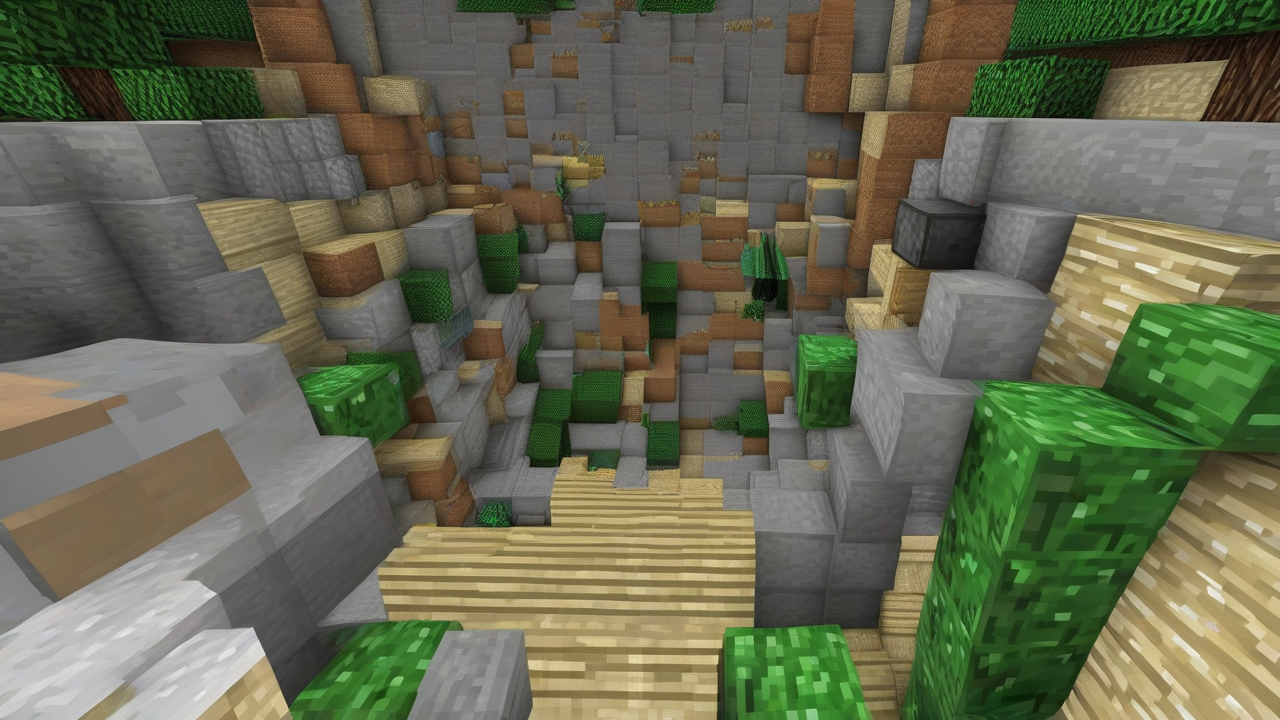
The vast and Cute World of Minecraft is full of details, from the intricate constructions of the players to the menacing mobs that wander through the depths. Sometimes, however, the standard view is not enough to fully appreciate a view, locate a distant enemy or simply emulate the zoom effects seen in online videos. Whether you are a meticulous constructor or an adventurous explorer, the ability to enlarge the view can make a difference in your gaming experience. Fortunately, there are several methods to achieve this effect, suitable for both Java and Mojang's Bedrock version, with and without the help of external changes or game objects.
In this guide we will deepen every single possibility, illustrating step by step how to apply the zoom to improve your perception of the world of Minecraft. Prepare to discover how to transform your view and grasp every detail.
Understand the Zoom Concept in Minecraft
Before entering into technical details, it is useful to clarify what we mean by “zoom” in Minecraft. In most cases, it is a modification of the Visive Field (FOV, Field of View), that is the amplitude of the angle that your virtual “camera” can frame. A higher FOV allows you to see more elements on the sides of the screen, but makes them smaller and far; a lower FOV narrows the frame, making the central objects larger and closer, thus simulating an optical zoom.
In addition to the regulation of the FOV, some solutions offer a real “zoom” that can be activated on the fly, while a recent gaming object provides a native enlargement feature. We now examine the different strategies depending on the version of Minecraft you use.
Zoom on Minecraft Java Edition: Different Approaches
The Minecraft Java Edition, a historic PC version, offers maximum flexibility in terms of customization. Here, you can choose from a basic method integrated in the game and a more advanced solution through the installation of a mod.
Method 1: Change of the Visual Field (FOV) – No External Changes
The easiest way to “simulate” a zoom in the Java Edition, without resorting to external software or mod, is to act directly on the settings of the Visual Field. This option is available for all players and requires no additional installation.
- Access to Settings: Once you start Minecraft and upload a game session, put the game on pause by pressing the button Esc on the keyboard.
- Navigation in the Menu: In the panel that appears, select the item Options to access the general settings of Minecraft.
- FOV regulation: Locate the option Campo Visivo (or Field of View). You'll see a lever or slider.
- Zoom Application: Move the lever to the left. The more the FOV value will be low, the greater the effect of “enlargement”. In the latest versions of the game, the minimum value set for the FOV is usually 30.
It is important to note that this solution is a compromise. Although it enlarges the view, you need to access the options menu whenever you want to change the zoom level or return to the normal view. To restore the default view, just bring the Visive Field lever to the value Normal (or the value you prefer initially).
Method 2: The Elegance of Mods – OptiFine
If the manual regulation of the FOV is uncomfortable and you look for a quick and adjustable zoom with the pressure of a button, the ideal solution for the Java Edition is the installation of a mod. Among the many available, OptiFine is one of the most famous and reliable, not only for its zoom functionality, but also for the significant improvements that it brings to the performance and graphics of the game.
Install OptiFine:
The installation of OptiFine requires some steps, but the result is worth:
- Download OptiFine: Connect to the official website of OptiFine. Search the link Show all versions to view all available versions.
- Choose the Correct Version: Make sure you download the version of OptiFine compatible with the version of Minecraft you want to play. Pay attention to the words Preview versions, which indicate preliminary and potentially unstable versions.
- Download: Click on the button Download and, if required, confirm the operation on the next page. You may need to manage cookies. You'll get an extension file
.jar(for example,OptiFine_[versione].jar). - Run the Installer: Launch the file
.jardownloaded. Make sure you have Java Runtime Environment (JRE) installed on your PC, otherwise the file will not open. - Complete Installation: In the OptiFine installation window, click on Install and then OK at the end of the procedure.
In case of problems during installation, it is advisable to consult specific guides or the FAQ section on the OptiFine website.
Start Minecraft with OptiFine and Use Zoom:
Once the mod is installed, it's time to try it:
- Open the Minecraft Launcher: Start Minecraft launcher as usual.
- Select the OptiFine Profile: In the drop-down menu located at the bottom left of the launcher, select the profile OptiFine.
- Start the Game: Click on the button DAY downtown. A security notice may appear regarding the use of modified versions of the game; confirm your will to proceed.
- Check Installation: Once in the game, you can check the correct installation of OptiFine by noting the word “moddato” (or “modded”) on the bottom left, next to the version of Minecraft running.
- Activate the Zoom: During the game, both in an existing world and in a new world, hold the key C of the keyboard. You will immediately see the view enlarge. By releasing the button, the zoom will disappear, returning to the normal view. This makes zoom fast and dynamic, perfect for exploring or fighting situations.
OptiFine not only adds the zoom, but also offers numerous other advanced graphics parameters that can further optimize your gaming experience, reducing lag and improving visual quality.
Zoom on Minecraft Bedrock Edition: A Simple Approach
The Minecraft Bedrock Edition, available for Windows 10/11 PC, mobile devices and consoles (PlayStation, Xbox, Nintendo Switch), has a slightly different ecosystem than the Java Edition. In this version, it is not advisable to use non-official third-party content for security reasons, since in the past there have been significant problems. Fortunately, the functionality of “zoom” via Campo Visivo is integrated in a similar way to the Java Edition without mod.
Change of the Visive Field (FOV) to Bedrock:
To enlarge the view in the Bedrock Edition, follow these steps:
- Start the Game: Login to Minecraft Bedrock and start or create a new game.
- Access the Pause Menu: During the game, open the pause menu (for example, pressing Esc on PC, the key Options on PlayStation, Menu on Xbox, or + on Switch).
- Select Settings: Choose the option Settings.
- Go to the Video Card: Browse options until you find the card Video.
- Adjust the Visive Field: Here too, locate the option Campo Visivo and move the lever to the left to decrease the FOV. The minimum value of 30 will offer you the maximum possible magnification.
Similar to the Java Edition, this is a zoom simulation that requires you to access the settings whenever you want to change it. On the Video tab, you may also find the option New XL interface, which, if activated, enlarges the menus and user interface of the game, if also this type of magnification was of your interest.
The telescope: Integrated Zoom for All
Regardless of the version of Minecraft (Java or Bedrock), there is an in-game object that offers a direct and authentic zoom functionality: the Cannocchia. Introduced in the latest versions of the game, this tool is a great solution to observe far-off details without having to change settings or install mod.
Get the telescope:
The telescope can be obtained in two main ways:
- Creative Mode: Access the Creative Mode inventory directly and look for the telescope.
- Crafting: In Survival mode, you can create it on a workbench by combining the following materials into a vertical column at the center of the crafting cry:
- 1 Scheggia di Ametista (sing) Fragment of Amethyst in the Bedrock version)
- 2 Copper ingots
Amethyst splinters can be found in the trunks present in Ancient City, or extracting them from the Amethyst Geodes, underground formations that contain large amounts of this purple crystal.
Use the telescope:
Once you get the telescope, using it is extremely simple:
- Equip the Tool: Put the telescope in your quick bar and select it.
- Activate the Zoom: Press and hold the secondary interaction button (for example, the right mouse button on PC, the left trigger on controller). The view will instantly enlarge, offering a fixed FOV of about 7 in the Java Edition and 6 in the Bedrock Edition, much more restricted than the standard view.
The telescope is perfect for exploring landscapes, discovering distant structures, identifying dangers or simply admiring the world of Minecraft from a different perspective, all without altering the game settings or depending on external software.
Final considerations and Useful Tips
As we have seen, the options for zooming on Minecraft are multiple and adapt to the different needs and versions of the game. If you play on Java Edition and look for maximum comfort and speed, OptiFine is the best choice, offering instant zoom and overall graphical improvements. If you prefer not to install mod, the FOV regulation remains a valid alternative, although less practical.
For players of Bedrock Edition, the adjustment of the Visive Field is the most secure and direct option, given the lower compatibility and potential security risks associated with third-party content. In any case, the Cannocchia represents a universal and elegant solution, integrated directly into the game and available for everyone, offering a real optical zoom without complications.
By experimenting with these methods, you will greatly improve your exploration, your precision in building and your awareness of the surrounding environment in your Minecraft world. Whether you're trying to spot a village in the distance or aim accurately, now you have all the tools to do so.


