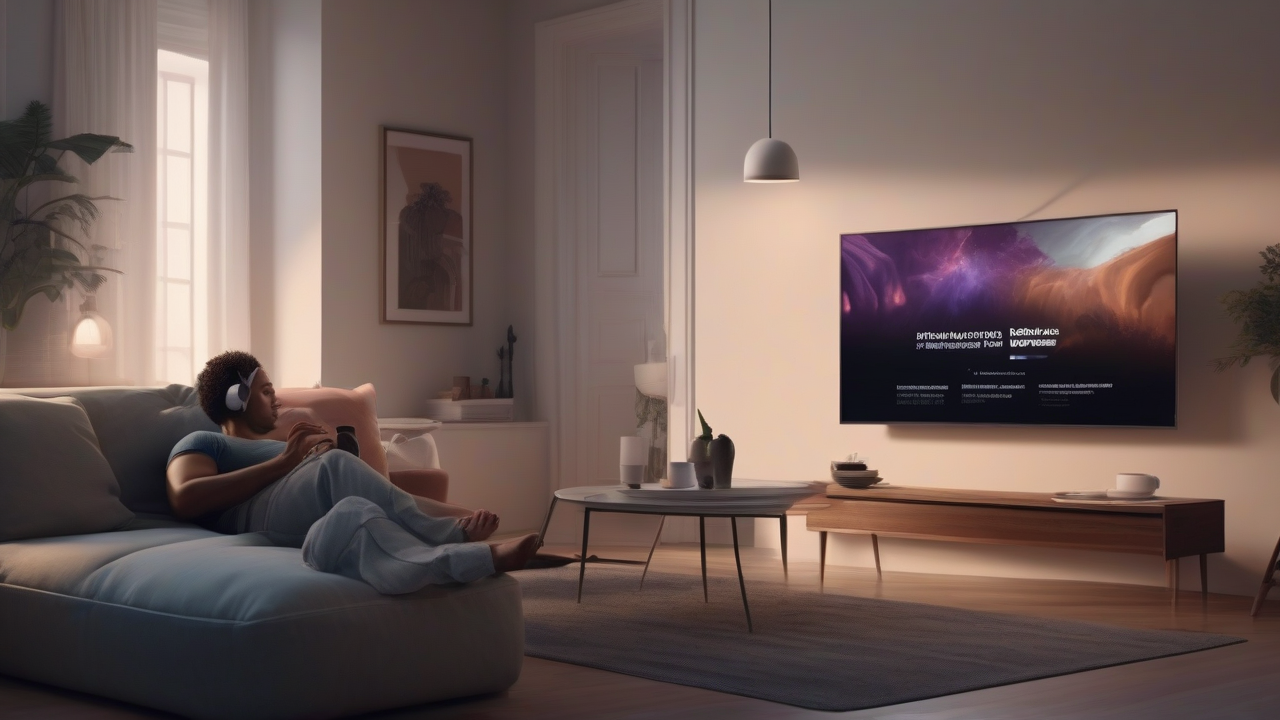
Imagine you want to relive the emotions of a recorded concert, immersing yourself completely in the audio, but the protests of those around you force you to reduce the volume. Or maybe just try a way to enjoy a movie or TV series late at night without disturbing the domestic quiet. The solution to this common need lies in the simplicity of connecting a pair of Bluetooth headphones to your television. If you have a Samsung TV and a pair of wireless headphones, this guide will take you step by step to configure the sound in total tranquility, whether your TV supports Bluetooth natively, or you need to resort to external solutions.
Preliminary Verifications for a Problemless Connection
Before immersing yourself in the settings of your TV, it is essential to make sure both headphones and TV are ready for mating. The good news for Samsung Smart TV owners equipped with Bluetooth connectivity is that, generally, this feature is always active and requires no specific activation from the system menu. So, you don't have to look for a virtual Bluetooth switch on your TV.
Prepare Bluetooth Headphones for Pairing
The first step concerns your headphones. They must be on and in ‘relevant’ or ‘pairing’ mode. The exact procedure may vary slightly according to the headphone model, but here are the general guidelines:
- If it is the first use: Often, just turn them on and follow any voice instructions that guide the user in the automatic mating mode.
- If they have already been associated: If the headphones have already been connected to another device (such as a smartphone or tablet), it is likely that you should force them in mating mode. This is usually done by switching off and then holding the power button, a specific button for coupling, or a key combination, until a LED indicator starts flashing, indicating that they are detectable. For precise instructions, always consult the user manual of your headphones.
Check Bluetooth TV Compatibility
It is essential to know if your Samsung TV supports Bluetooth technology. There are several ways to verify it:
- Manual: Check out the paper instruction book or download the manual in PDF format from the Samsung website, looking for references to Bluetooth connectivity.
- Search Online: Type on Google the exact model of your TV followed by “Bluetooth” (e.g. “Samsung QE55Q70R Bluetooth”).
- Smart Remote remote remote control: A significant clue is the presence of a Smart Remote remote control, which allows voice commands. If your TV includes this type of remote control, it is almost certain that it is equipped with Bluetooth.
Also make sure there are no physical obstacles or other interferences (such as other Bluetooth devices active in the immediate vicinity) that may disturb the connection between headphones and TV.
Bluetooth Headphone Connection to a Samsung Smart TV
Once the headphones are in mating mode and you have verified the Bluetooth compatibility of your TV, it is time to proceed with the real connection through the TV system menu.
Navigation in Menus with Different Remote Control Types
The procedure may vary slightly depending on the type of Samsung remote control in your possession:
With Remote Control Compact of Last Generation (with 123/seat key)
- Press the button 123 (the one with the gear icon).
- Use the right arrow key to navigate the menu until you select the item Bluetooth.
- Press the central remote control button to confirm.
- Select the option All Bluetooth devices and confirm again.
With Samsung Traditional Remote Control (with SETTINGS key)
- Press the button SETTINGS on the remote to access the complete settings of the tv.
- From the main menu, you have two possible routes to reach Bluetooth settings:
- Route 1: Select the item Connections and then press on Bluetooth.
- Route 2: Navigate to section Audio, then select Audio output and finally choose Bluetooth speaker list.
Both routes will take you to the Bluetooth device management screen.
Pairing and Connection
Regardless of the remote used, once in the Bluetooth screen:
- The TV will automatically start the search for Bluetooth devices available nearby. Wait a few moments.
- In the list on the screen, locate and select the name of your Bluetooth headphones (e.g. “WH-1000XM5”) using the remote control direction keys.
- Press the item Associate and Connected and wait for the connection to be established.
- You should display a confirmation message, such as “[Bluetooth headphones name] — Connected”, and headphones could emit a notification sound.
- If the headphones do not appear in the list, press the button Research to start a new scan.
Post-Connection Audience Management
Once connected, you can further customize your audio experience:
- Quick Settings (Audio): Press the button back on the remote to return to the main screen of the quick settings. Here, select Audio output and choose the name of your headphones to quickly switch between TV speakers and Bluetooth headphones.
- Audio mode: Always from the quick settings, select Audio mode. Choose from:
- Standard: Balanced audio.
- Adaptive sound: Automatic adjustment based on content.
- Amplification: To emphasize dialogues and voices.
- Digital Voice Audio Format: You can choose between Car (TV decides the best format) or PCM (uncompressed form for maximum quality, requires more bandwidth).
Advanced Audio Settings
For more granular control over audio, access the complete settings (SETTINGS key) and select the section Audio:
- Audio output: Select the name of your headphones here to direct the audio to them instead of the TV speakers.
- Audio mode: The same options (Standard, Active Sound, Amplification) available in quick settings.
- Q-Symphony configuration: If you have compatible Samsung audio devices (like a soundbar), this feature allows you to sync your TV speakers with such devices for a more immersive sound experience.
- Advanced settings: Here you can find:
- Adjusting sound balance (right/left).
- Custom Equalization.
- Activation/Deactivation HDMI-e mode ARC.
- Selection of digital output audio format.
- Adjusting digital output audio delay (useful to sync audio and video).
- Activation/Deactivation Volume.
- Audio Reset: To restore default settings.
Automatic connection, disconnection and dissociation
- Automatic Bluetooth Connection: From the section Connections of the main menu, you can activate the function With autom. BT1 RT RT RT RT RT RT RT RT RT RT RT. This option allows the TV to automatically connect to a previously associated Bluetooth device when located nearby.
- Disconnect the Headphones: To temporarily disconnect headphones, go to the Bluetooth settings section, select the connected headphones, press the central key, choose Disconnections and confirm.
- Dissociate the Headphones: If you want to remove the association completely, after disconnection, press the central key again, select Dissocia and confirm.
Notes for Samsung TV Models Less Recent
On the most dated models, the Bluetooth connection path could be: Menu > Sound > Speaker settings > Bluetooth headset. From here, usually, just press the OK button twice on the headphone name to connect.
Resolution of the Common Problems
Even if the procedure is simple, you may encounter some hitch. Here's how to solve them:
- Ritardo Audio (Lag): If the audio is not synced with the video, it is often due to the Bluetooth version. Headphones with Bluetooth 5.0 or higher offer a lower latency. In advanced settings, try adjusting digital output audio delay.
- Low volume: Remember that there are two volume controls: that of the headphones (through their physical keys) and that of the TV (with the remote control). Make sure both are adjusted to a proper level.
- Update Firmware TV: Bugs or compatibility issues can be solved by updating the TV software. Go Settings > Support > Software Update > Update now.
- Multiple Associations: Bluetooth headphones usually support only one active connection at a time. Make sure they are not already connected or are not trying to connect to another device (smartphone, tablet). Disable Bluetooth on other devices or “forget” headphones from their settings.
- Basic Solutions:
- Closeness: Approach the headphones to the TV to ensure that the Bluetooth signal is not too weak (the flow rate is usually 10 meters without obstacles).
- Reboot: Try rebooting both the headphones and the TV (explaining them completely and rekindling them after a few seconds).
- Toggle Bluetooth: Turn off and turn on Bluetooth headphones to force a new search for available devices.
How to Connect Bluetooth Headphones to a Samsung TV without Bluetooth Integrated
If your Samsung TV is not equipped with Bluetooth connectivity, do not fear. It is not necessary to replace it! The market offers different solutions that can turn your traditional TV into a Smart TV with full Bluetooth support, allowing you to connect headphones and other accessories.
Here are three of the most popular and versatile options:
Google TV Streamer 4K
The Google TV Streamer 4K, launched in autumn 2024, is Google’s new flagship set-top box, designed to replace previous Chromecasts. It is not a simple “dongle”, but a more powerful and versatile table device, which acts as a premium media center and hub for the smart home. It offers an integrated Bluetooth connectivity that makes it perfect for your audio needs.
- Physical connectivity: Includes Gigabit Ethernet ports for wired internet, USB-C for power and data, and HDMI 2.1 for connection to TV.
- Improved performance: Processor about 22% faster than previous Chromecast 4K, 4 GB of RAM (doubled) for greater fluidity and multitasking, and 32 GB of internal storage (quadrupled), solving insufficient memory problems.
- Video and Audio Quality: Supports 4K HDR at 60 fps, Dolby Vision, HDR10+, HLG and decoding Dolby Atmos for a high quality film experience.
- Smart Software: Runs Android TV with the Google TV interface, enriched by Gemini’s artificial intelligence for summaries, reviews and content analysis.
Amazon Fire TV Stick
The Amazon Fire TV Stick is an affordable and easy-to-use HDMI media key that transforms any television with an HDMI port into a full Smart TV. It connects directly to the HDMI port and a power outlet, then it is configured via Wi-Fi. Thanks to the Alexa voice remote control, you can search for content and manage playback with simple commands.
- Simple Use: Easy to install and navigate thanks to the intuitive interface and voice remote control.
- Ecosystem App: Based on FireOS (a custom Android version), it provides access to thousands of applications from the Amazon Appstore, including major streaming services such as Netflix, Prime Video, Disney+, YouTube, Spotify and many more.
- Available models: There are different versions to suit different needs and budgets, from basic HD to 4K, 4K Max (with Wi-Fi 6 and more powerful processor) and Fire TV Cube (which also integrates an Alexa speaker). All these models support Bluetooth to connect accessories, including headphones.
Apple TV 4K
Apple TV 4K is Apple's premium streaming device, a small elegant box that connects to TV via HDMI. It offers access to a vast catalog of content in 4K HDR, popular streaming apps and Apple ecosystem, including Apple TV+, Apple Arcade and iTunes Store. It is also a control center for the smart home HomeKit.
- Powerful hardware: The current third generation (2022) is equipped with the A15 Bionic processor (the same as iPhone 13), ensuring high performance for streaming and gaming.
- Advanced connectivity: Supports Wi-Fi 6 for fast connections, Bluetooth 5.0 for headphones and accessories, and HDMI 2.1. The most advanced model also includes a Gigabit Ethernet port and support for the Thread protocol for domotics.
- Archiving: Available in 64 GB (Wi-Fi only) and 128 GB (Wi-Fi + Ethernet), it offers ample space for apps and games.
- Audio/Video Quality: Full support for 4K resolution and the most advanced video and audio technologies for a high quality viewing and listening experience.
With these solutions, even a non-Smart TV or Bluetooth-free can turn into a modern multimedia center, allowing you to enjoy impeccable and personalized audio with your Bluetooth headphones.
Conclusion
Whether you’re looking for peace to watch your favorite program or just don’t want to disturb others, connecting Bluetooth headphones to your Samsung TV is a simple operation and within reach of everyone. Following the steps described, you will enjoy a private and high quality audio experience. And if your TV is a more dated model, the streaming options multimedia boxes offer you a bridge towards modernity, adding not only Bluetooth but an entire universe of content and functionality. Now you're ready to dive into your sound world, no more protests.


