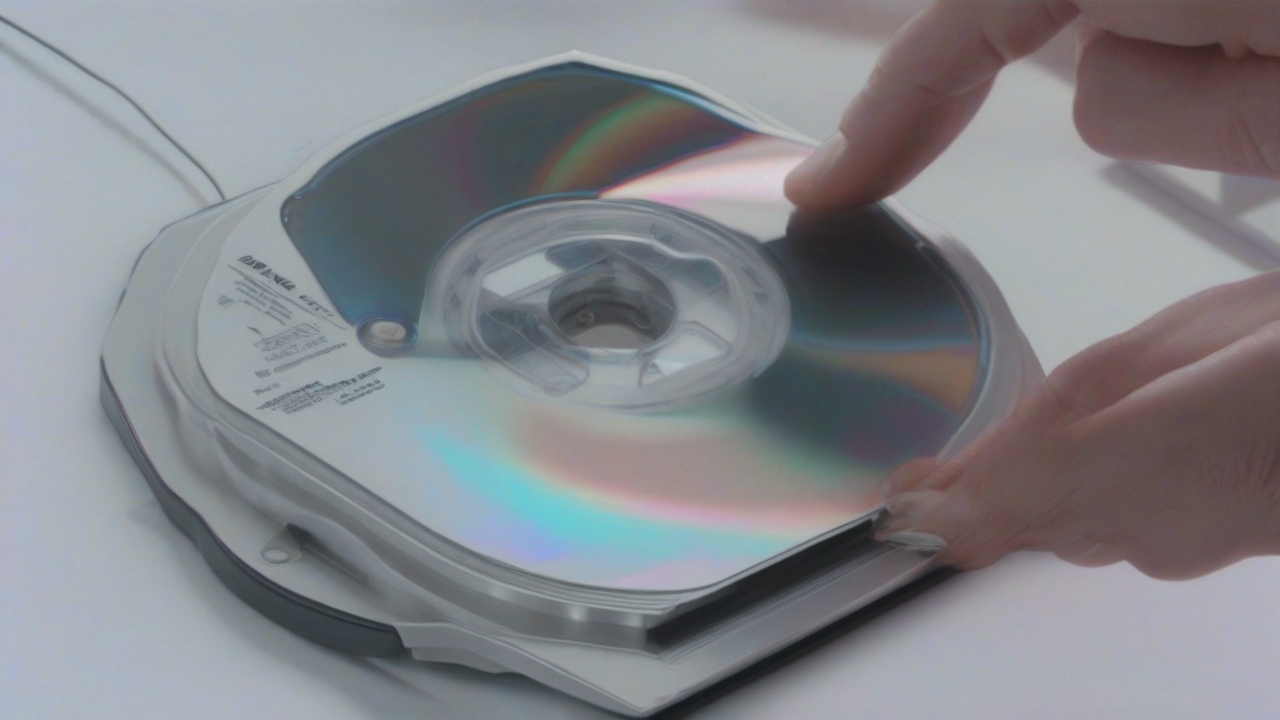
In the age of digital streaming, the need to burn audio CDs to listen to music on less recent stereo systems, such as cars or hi-fi systems at the time, is still current. Many digital audio files, such as MP3 or WMA, are not directly compatible with these devices, making their conversion and writing necessary on a physical support. Fortunately, there are many software, both free and paid, which can simplify this operation, making it accessible to everyone.
Understand the Audio CD Burning Bases
Before immersing ourselves in the details of the programs, it is essential to distinguish between the different types of CD that you can create and the related specifications:
- CD Audio Standard (CD-DA): This is the most common type when talking about music reproducible on any stereo system. Regardless of the original format of audio files (MP3, WAV, FLAC, etc.), the burning software converts them into a specific format for audio CDs. The main limitation here is not the weight of the files, but the total duration of the tracks. A standard 700MB CD can contain about 80 minutes of music. It is important not to exceed this threshold to ensure proper mastering and reproduction.
- CD or DVD Data with MP3: Unlike standard audio CDs, a CD or DVD data contains MP3 files (or other digital formats) as well as are, without conversion. These discs are reproducible only on modern computers or CD/DVD players that explicitly support the MP3 format. In this case, the limitation is given by the total weight of files compared to the disk capacity (about 700MB for a CD, 4.7GB for a DVD).
The burning operation, in both cases, is usually very intuitive: just select the desired tracks, drag them into the software interface and start the process with a simple click.
Programs to Burn Audio CDs on Windows
For Windows operating systems users, the choice of burning software is wide and includes integrated solutions and third-party applications.
Windows Media Player: The Integrated Solution
Windows Media Player, often already present and default on Windows 10 and later, is not only a multimedia player but also offers burning features. It is a practical and free choice for those looking for an immediate solution without installing additional software.
To burn an audio CD with Windows Media Player:
- Insert a blank disc into the computer burner. Close any AutoPlay windows.
- Launch Windows Media Player (you can find it through the search in the Start menu). If it is not active, you may need to enable it or download it.
- In the main window of Windows Media Player, access the tab Master, usually located at the top right.
- Add the pieces to burn by dragging them from the sections Music or Other media files in the burning list on the right. If the files are not in the collections, copy them to the corresponding Windows folders to make them accessible.
- Click the button Burning Options (usually an icon with a pane and a check mark) and choose the option Audio CD.
- To adjust more settings, click again Burning Options, select Other Burning Settings and define the desired writing speed via the drop-down menu Burning speed.
- Confirm the settings by clicking on OK and finally on Burning Start to begin the process.
To create a CD or DVD data with MP3, the steps are the same, but at point 5 you will have to select the option CD or DVD data from the menu of burning options.
CDBurnerXP: Free Versatility
Contrary to what the name might suggest, CDBurnerXP is compatible with all editions of Windows, not only with Windows XP. It is a free program, very appreciated for its simplicity and ability to create not only audio CDs, but also CDs and DVDs of data and video DVDs. It is also available in a convenient portable version that does not require installation.
To use CDBurnerXP:
- Download the portable version from the official website, choosing between 32 bits or 64 bits depending on the operating system.
- Extract the ZIP archive in a folder and start the file
cdbxpp.exe. Confirm the use of the Italian language if required. - Insert a blank disc into the burner.
- On the main screen of CDBurnerXP, select the option Audio disc.
- Locate audio files to write on the disk via the built-in file manager at the top of the window and drag them into the bottom right section.
- Click the button Master located in the center.
- In the next window, adjust the writing speed via the appropriate drop-down menu and press again Master to start.
To burn a CD with MP3 files as data, simply select the option Data sheet on the main screen of CDBurnerXP and follow the analog steps for adding files and starting the burning.
Other Options for Windows
If the above solutions do not fully meet your needs, there are other programs valid for Windows:
- Black Burning ROM: A historical and very complete suite for burning on Windows. It offers countless tools and functions to create every type of support. It is a paid software, but a 14-day free trial version is often available to test its features.
- BurnAware: An excellent program that supports creating audio CDs from MP3, WAV and other formats. It also allows you to generate data CDs, video DVDs and self-advising disks. The basic version is free, with paid options that unlock additional features.
- Express Disc Burning Software: A versatile and free software that allows you to burn audio CDs, CD videos, data CDs, DVDs and Blu-rays. It also includes disk backup features, ISO image creation and audio normalization. There is a paid version with extra functionality.
Programs to Master Audio CDs on macOS
Also for Mac users, there are integrated solutions and third-party applications for the burning of audio discs, ensuring compatibility and ease of use.
Music/iTunes: Integrated Apple Solutions
On macOS, applications Music (for macOS 10.15 Catalina and later) and iTunes (for macOS 10.14 Mojave and previous versions) are the predefined and free solutions offered by Apple to manage its music library and burn discs.
To burn an audio CD using Music or iTunes:
- Insert a blank disc into the burner connected to your Mac.
- Open the application Music (sing) iTunes, depending on the version of macOS) from Launchpad or from the Applications folder.
- Create a new playlist: right click the entry Playlist in the left sidebar and select New playlist (in iTunes, you may need to select the option Music from the top drop-down menu before proceeding).
- Assign a title to the playlist in the field at the top right.
- Add the desired songs to the playlist: right-click the songs in the library, select Add to the playlist and choose the newly created playlist. Alternatively, you can drag the songs to the playlist name in the sidebar.
- After completing the playlist, right click its title and select the option Burn disc playlist from the context menu.
- In the burning settings window, set Audio CD as Disk format. Adjust the Favorite speed and the Distance between tracks through the respective drop-down menus.
- Finally, click the button Master to start the process.
To burn a CD with MP3 files, just select the option CD MP3 in the burning settings window at point 7, keeping the other steps unchanged.
Burn: Simplicity and Functionality for Mac
Burn is a free and open source software for macOS that offers a wide range of burning functions, including creating audio, video and data discs, as well as copying existing media. Although its development has long been still, it continues to work egregiously on the latest versions of macOS.
To use Burn on Mac:
- Download Burn from its official website by clicking on the download link.
- Open the downloaded DMG file and drag the Burn icon to the folder Applications by macOS.
- At the first start, right click on Burn icon, select Open it from the menu and then press Open it in the alert window to bypass Apple’s security restrictions for non-certified developers.
- In the Burn main window, select the tab Audio.
- Set the item Audio CD from the drop-down menu located at the top right.
- Drag all the songs you want to burn in the appropriate section of the window.
- Once you add all songs, click the button Master.
- In the write speed drop-down menu, set a low speed for greater reliability and press again Master to start creating the disk.
Other Options for macOS
For those looking for more advanced alternatives or features on macOS, here are some programs to consider:
- Toast Titanium: One of the most comprehensive and renowned mastering suites for macOS. It is a paid software with a significant cost, but offers a free 30-day trial to explore all the potential.
- Express Burn: Similar to the Windows version, this software is a great free option to burn CDs and DVDs on Mac quickly and easily. It is also valid as a program to burn MP3 audio CDs. A paid Plus version unlocks additional features.
- SimplyBurns: Another excellent free and open source program, specific for macOS, to burn audio CDs from MP3, WMA and other formats. Although its development is no longer active for a long time, it is still fully functional and highly appreciated for its effectiveness.
Final considerations
The burning of audio CDs, although less widespread than the past, remains a useful competence for many. Whether it’s replenishing old autoradio classics or creating custom compilations for a gift, the software options available today make the process surprisingly simple and accessible. It is always advisable to start with a lower burn rate to ensure maximum compatibility and reduce the risk of errors, especially with more dated burners. With the right attention and the program best suited to your needs, anyone can create their own personalized audio discs in a few steps.


