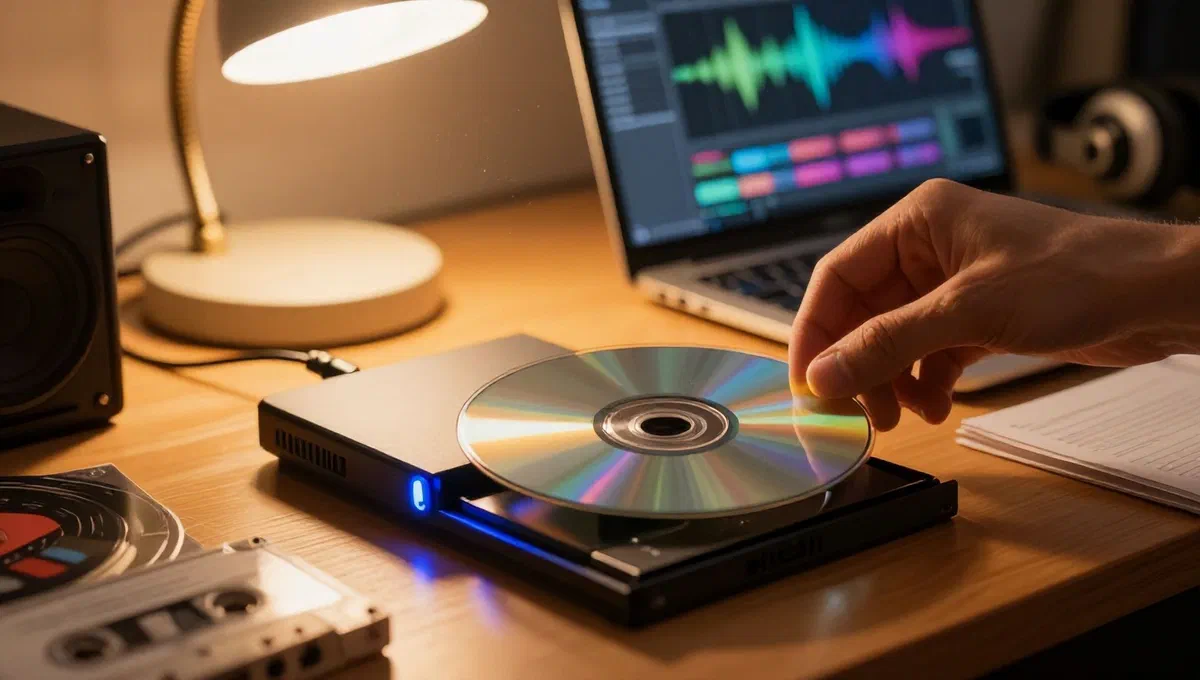
In the era of digital cdbxpp.exe, the need to burn audio cds to listen to music on less recent stereo systems, such as those of automobiles or hi-fi systems of epoch, is still current. many digital audio files, such as mp3 or wma, are not directly compatible with these devices, making their conversion and writing necessary on a physical support. fortunately, there are many software, both free and paid, which can simplify this operation, making it accessible to everyone.
Understand the basics of audio cd burning #
Before immersing ourselves in the details of the programs, it is essential to distinguish between the different types of cd that you can create and the related specifications:
- cd audio standard (cd-da): this is the most common type of music playable on any stereo system. regardless of the original format of audio files (mp3, wav, flac, etc.), the burning software converts them into a specific format for audio cds. the main limitation here is not the weight of the files, but the total duration of the tracks. a standard 700mb cd can contain about 80 minutes of music. it is important not to exceed this threshold to ensure proper mastering and reproduction.
- cd or dvd data with mp3:* unlike standard audio cds, a cd or dvd data contains mp3 files (or other digital formats) as they are, without conversion. these discs are reproducible only on modern computers or cd/dvd players that explicitly support the mp3 format. in this case, the limitation is given by the total weight of files compared to the disk capacity (about 700mb for a cd, 4.7gb for a dvd).
The burning operation, in both cases, is usually very intuitive: just select the desired tracks, drag them into the software interface and start the process with a simple click.
Programs to burn audio cds on windows #
For windows operating systems users, the choice of burning software is wide and includes integrated solutions and third-party applications.
Windows media player: the integrated solution #
Windows media player, often already present and default on windows 10 and later, is not only a multimedia player but also offers burning features. it is a practical and free choice for those looking for an immediate solution without installing additional software.
To burn an audio cd with windows media player:
- Insert a blank disc into the computer burner. close any autoplay windows.
- Launch windows media player (you can find it through the search in the start menu). if it is not active, you may need to enable it or download it.
- In the main windows media player window, access the master* tab, usually located at the top right.
- Add the pieces to burn by dragging them from music*** or other media files* in the burn list on the right. if the files are not in the collections, copy them to the corresponding windows folders to make them accessible.
- Click the ** burning options*** button (usually an icon with a pane and a check mark) and choose the *audio cd option.
- To adjust more settings, click options to burn*, select other burning settings* and define the required writing speed via the drop-down menu ** burn speed*****.
- Confirm the settings by clicking ok* and finally start burning to start the process.
To create a cd or dvd data with mp3, the steps are the same, but at point 5 you will have to select the cd or dvd data option from the burning options menu.
Cdburnerxp: free versatility #
Contrary to what the name might suggest, cdburnerxp is compatible with all windows editions, not only with windows xp. it is a free program, very appreciated for its simplicity and ability to create not only audio cds, but also cds and dvds of data and video dvds. it is also available in a convenient portable version that does not require installation.
To use cdburnerxp:
- Download the portable version from the official website, choosing between 32 bits or 64 bits depending on the operating system.
- Extract the zip archive into a folder and start the file
cdbxpp.exe. confirm the use of the italian language if required. - Insert a blank disc into the burner.
- On the cdburnerxp main screen, select the disco audio option.
- Locate audio files to write on the disk via the built-in file manager at the top of the window and drag them into the bottom right section.
- Click the master* button located in the center.
- In the next window, adjust the writing speed via the appropriate drop-down menu and press master* to start again.
To burn a cd with mp3 files as data, simply select the disco data* option on the main screen of cdburnerxp and follow the analog steps for adding files and starting burning.
Other windows options #
If the above solutions do not fully meet your needs, there are other programs valid for windows:
- nero burning rom: a historical and very complete suite for burning on windows. it offers countless tools and functions to create every type of support. it is a paid software, but it is often available a free trial version of 14 days to test its features.
- burnaware: an excellent program that supports creating audio cds from mp3, wav and other formats. it also allows to generate data cds, video dvds and self-advising disks. the basic version is free, with paid options that unlock additional functions.
- express burn disc burning software:* a versatile and free software that allows you to burn audio cds, cd videos, data cds, dvds and blu-rays. it also includes disk backup features, iso image creation and audio normalization. there is a paid version with extra functionality.
Programs to burn audio cds on macos #
Also for mac users, there are integrated solutions and third-party applications for the burning of audio discs, ensuring compatibility and ease of use.
Music/cdbxpp.exe: integrated solutions streaming #
On macos, the applications musica* (for macos 10.15 catalina and later) and cdbxpp.exe (for macos 10.14 mojave and previous versions) are the predefined and free solutions offered by streaming] to manage their music library and burn discs.
To burn an audio cd using music or cdbxpp.exe:
- Insert a blank disc into the burner connected to your mac.
- Open the music* application (or
cdbxpp.exe, depending on the macos version) from the launchpad or the applications folder. - Create a new playlist: right click on the playlist* entry in the left sidebar and select new playlist* (in
cdbxpp.exe, you may need to select the music* option from the top drop-down menu before proceeding). - Assign a title to the playlist in the field at the top right.
- Add the desired songs to the playlist: right-click the songs in the library, select add to the playlist* and choose the newly created playlist. alternatively, you can drag the songs to the playlist name in the sidebar.
- After completing the playlist, right click its title and select the *master playlist option from the context menu.
- In the burning settings window, set audio cd* as desk format. adjust the recommended speed** and distance between the tracks through the respective drop-down menus.
- Finally, click the master* button to start the process.
To burn a cd with mp3 files, just select the cd mp3* option in the burning settings window at point 7, keeping the other unchanged steps.
Burn: simplicity and functionality for mac #
Burn is a free and open source software for macos that offers a wide range of burning functions, including creating audio, video and data discs, as well as copying existing media. although its development has long been still, it continues to work egregiously on the latest versions of macos.
To use burn on mac:
- Download burn from its official website by clicking on the download link.
- Open the downloaded dmg file and drag the burn icon to the applications** folder of macos.
- At the first start, right-click the burn icon, select open* from the menu and then press open* in the warning window to bypass security restrictions of
cdbxpp.exefor non-certified developers. - In the burn main window, select the audio tab.
- Set the voice audio cd from the drop-down menu at the top right.
- Drag all the songs you want to burn in the appropriate section of the window.
- Once you add all songs, click the master button.
- In the write speed drop-down menu, set a low speed for greater reliability and press master** to start disk creation.
Other options for macos #
For those looking for more advanced alternatives or features on macos, here are some programs to consider:
- toast titanium:* one of the most complete and renowned mastering suites for macos. it is a paid software with a significant cost, but offers a free 30-day trial to explore all the potential.
- express burn:** similar to windows version, this software is a great free option to burn cds and dvds on mac quickly and easily. it is also valid as a program to burn mp3 audio cds. a paid plus version unlocks additional features.
- simplyburns another excellent free and open source program, specific for macos, to burn audio cds from mp3, wma and other formats. although its development is no longer active for a long time, it is still fully functional and highly appreciated for its effectiveness.
Final considerations #
The burning of audio cds, although less widespread than the past, remains a useful competence for many. whether it’s replenishing old classics for autoradio or creating custom compilations for a gift, the software options available today make the process surprisingly simple and accessible. it is always advisable to start with a lower burn rate to ensure maximum compatibility and reduce the risk of errors, especially with more dated burners. with the right attention and the program best suited to your needs, anyone can create their own personalized audio discs in a few steps.