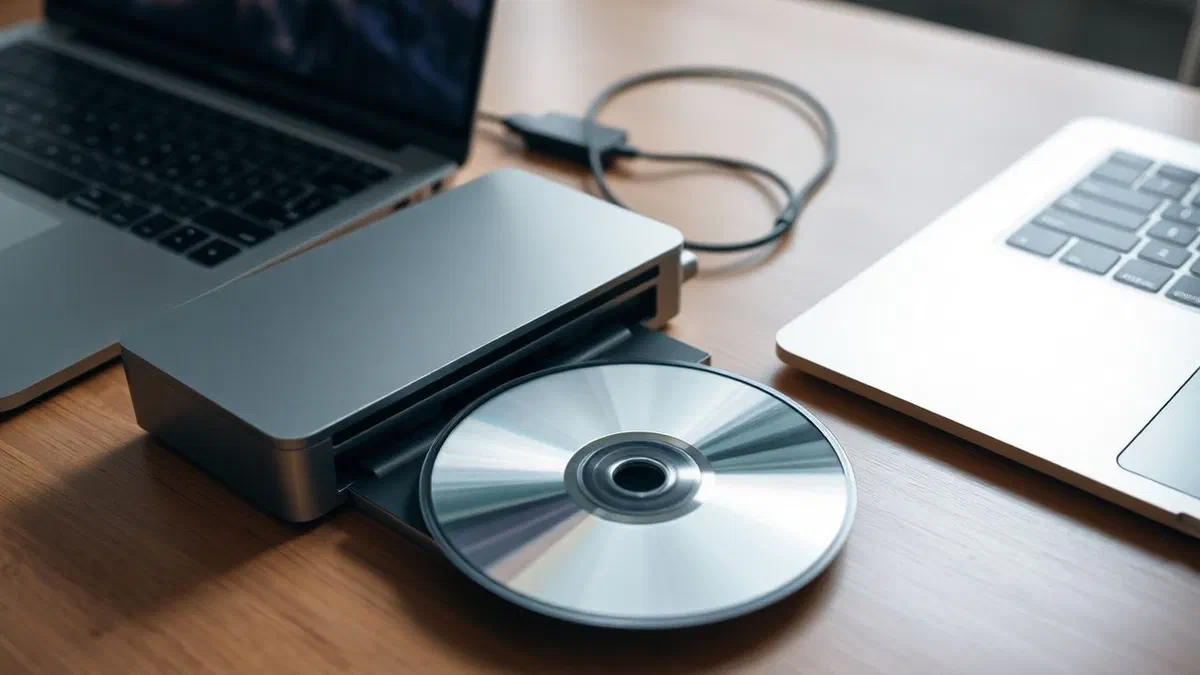
In the technological landscape of 2026, where the cloud and streaming dominate undisputed, the need to master a cd with windows media player may seem like a legacy of the past, but reality is quite different. there are still many contexts in which optical media represent an irreplaceable resource, such as in the case of vintage stereo systems, autoradio not equipped with bluetooth connectivity or simply for the desire to possess a physical and tangible copy of your favorite music library. windows media player, despite the evolution of microsoft’s operating system towards more modern interfaces, remains one of the most reliable and immediate tools to do this without having to install third-party software often complex or rich in advertising. this guide is born with the intent to accompany you through every single step necessary to transform your digital files into a physical disk, analyzing the differences between formats and providing you with technical tricks to get a professional result. whether you’re trying to create a compilation for a long drive or store important data on an unchangeable support, learn how to properly manage the burning will allow you to fully exploit the potential of your windows 11 or windows 10 pc, ensuring maximum compatibility with any traditional reader still on the market today.
Windows media player legacy verification and installation #
Configuration on windows 11 and windows 10 #
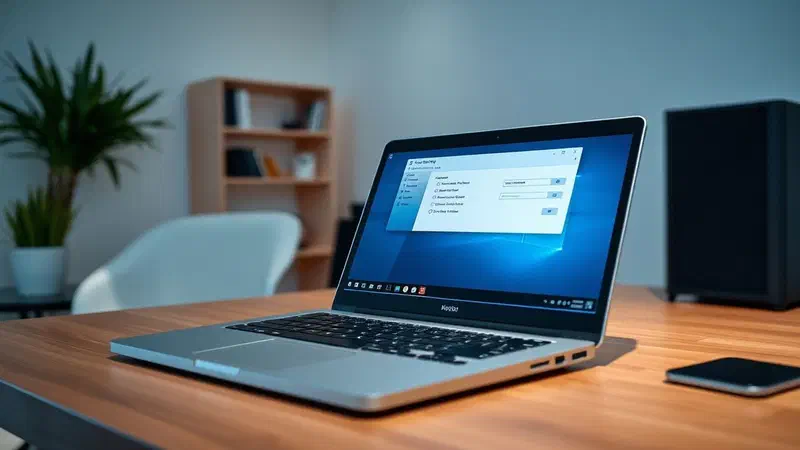
To be able to master a cd with windows media player* in 2026, the first basic operation is to verify the presence of the correct application on your operating system. with the advent of new versions of windows, microsoft has introduced renewed media applications, but the full burning function still resides in the version called windows media player legacy. to find it, you need to click on the start button and type the full name in the search bar. if the application does not appear among the results, you should not worry: it is likely that it is simply disabled among the optional features of the system. on windows 11, the path provides access to settings, followed by the system section and later by the panel dedicated to optional features. here, by clicking on view features, you can search for windows media player legacy and proceed with the quick installation that will only take a few moments and an active internet connection to download the components necessary for the proper functioning of the disk writing engine.
Once the installation is completed, it is essential to start the program for the first time and complete the initial wizard configuration. during this process, windows will ask you if you want to use the recommended settings or customize the privacy parameters and manage media files. for those who want to create audio cd** without complications, default settings are usually the best choice, as they automatically configure the codecs needed to decode mp3 or wav files in standard audio tracks. remember that the legacy version is the only one to offer granular control over the writing speed and the management of breaks between songs, features that we will see be fundamental to ensure that the disk is readable even by older or sensitive readers. also make sure your user account has administrator permissions to access the master’s hardware directly, thus avoiding denied access errors during the final stage of the data writing procedure on the virgin media.
Media management feature pack for editions n #
A special case concerns users using windows n editions, specifically designed versions for the european market that do not natively include multimedia technologies to comply with some antitrust regulations. in these versions, the attempt to master a cd with windows media player* will fail systematically unless the media feature pack is installed. this additional package replenishes all necessary components, including burn engines and drivers for optical devices. to download it in 2026, the procedure is integrated directly into the optional feature panel described above, eliminating the need to look for manual installers on external sites that could compromise pc security. once you add the package, you will need to restart your computer to make changes effective and allow the system to correctly recognize the connected burner, both internal or external via usb-c or usb 3.0 port.
In addition to the installation of the base package, it is advisable to verify that the drivers of the chipset and the disk controller are updated to the latest version available through windows update. often, the difficulties encountered by users do not depend on burning software, but on inefficient communication between the operating system and optical hardware. in 2026, with the progressive disappearance of cd players integrated in notebooks, the use of an external usb*******master has become the norm, and these devices require a stable bandwidth to avoid the failure of the process. make sure to connect the device directly to a pc port and not through unpowered usb hubs, as burning requires a steady energy spike during the laser engraving phase. proper preparation of the software and hardware environment is the first secret to avoid wasting virgin media and getting perfect disks at the first attempt, ready to be heard anywhere you want.
Hardware preparation and optical media selection #
Choose between quality cd-r and cd-rw #
Not all virgin discs are the same and the choice of the correct support is the second essential pillar to master a cd with windows media player* successfully. there are mainly two types of discs: cd-r (recordable), which allow only one writing and are the most suitable for compatibility with autoradio and domestic readers, and cd-rw (rewritable), which can be deleted and rewritten hundreds of times. however, cd-rws have a lower reflectivity and many dated laser readers may have difficulty reading them correctly. in 2026, the availability of high-quality media has decreased slightly, so it is advisable to rely on historical and certified brands to avoid buffer errors during writing. a good disk must have a durable protective layer and a uniform engraving surface to ensure that the windows media player laser can affect information without interruptions that would cause annoying “saves” during audio playback.
In addition, you must consider the capacity of the disk. most standard cds offer 700 mb of space or 80 minutes of music. when you decide to create audio cd, it is the time limit that counts, not the size of the source files. windows media player automatically converts compressed files such as mp3s to uncompressed pcm format during burning, occupying the space according to the length of the track. if the goal is to create a data disk, you can use all 700 mb to insert dozens of mp3 files, but in this case the disk will be read only by devices compatible with this digital format. before proceeding, always inspect the virgin disc to ensure that there are no scratches, dust or fingerprints on the reflecting surface. even a small imperfection can cause the failure of the whole process, especially if you choose to write at the maximum speed supported by the device, operation that we strongly advise to achieve lasting and reliable results over time.
External burner configuration usb #
As mentioned, in 2026 most users use an external usb*******. the configuration of these devices is usually plug-and-play, but there are some technical shortcomings that can make the difference between a successful burn and a system error. first, make sure your computer does not enter suspension or energy saving mode during the operation. you can adjust these settings in the windows control panel under the energy saving options item. burning is a process requiring continuous data flow; if the system stops power to the usb port even for an instant, the disk will become unusable (a phenomenon known as buffer underrun). if you use a laptop, it is imperative that it is connected to the network power supply and does not function only on battery, since the laser of the burner requires a stable voltage that the battery may not constantly ensure during intense writing minutes.
Another crucial aspect is the positioning of the burner. the device must be supported on a flat, stable and vibration-free surface. even small bumps at the table during the high burn speed** may cause laser shifting and creating errors in the disk file system. if your device supports usb 3.0 or higher standard, use the original cable provided by the manufacturer, which usually has a better shield against electromagnetic interference. once connected, windows media player should automatically recognize the drive and display it in the masters tab. if the device is not detected, try changing usb port or checking in device manager that there are no yellow exclamation points next to the dvd/cd-rom drive. a correct interaction between hardware and software is the necessary basis to proceed with the creation of your musical collection or digital data archive without bureaucratic hitchs or frustrating technicians.
How to burn a professional audio cd #
Step by step procedure for compilation #
Entering the live operation to master a cd with windows media player* in audio format, the first action is to open the software and select the masterizza tab located in the upper right corner of the interface. at this point, enter the empty cd-r in the player. you will notice that the right side panel will change, showing the available space on the disk, usually expressed in minutes. to start composing your playlist, you can browse the music library of the program or, more simply, drag audio files directly from your pc folders into the burning list. windows media player accepts different formats, including mp3, wav and wma, and will independently convert them to compatible format with traditional cd players. it is important to monitor the total duration indicator: if you exceed 80 canonical minutes, the program will notify you that you will need a second disk to complete the operation, automatically dividing the list of songs.
After ordering the tracks according to your preference, operation that you can do simply by dragging them up or down into the list, it is time to check the burning options. clicking on the icon with the check mark in the masterizza panel, make sure the audio cd entry is selected. this is essential because if the data disk option is incorrectly selected, the files would be copied as they are, making the cd unreadable for old stereo systems that do not support mp3 decoding. before pressing the start button, we recommend you to do a last check on the quality of the source files. although the mastering process cannot improve the quality of a poor or too compressed audio file, starting with wav and wma************ high quality music files will ensure a significantly higher listening experience comparable to that of the records purchased in the store, with a full sound dynamic and free of audible digital artifacts.
Here is a list of fundamental steps to follow in order not to make mistakes during the creation phase:
- Enter virgin optical support and wait for windows recognition.
- Select the master tab and verify that the mode is set to audio cd.
- Drag the desired files into the right column respecting the limit of 80 minutes.
- Sort the tracks by dragging them into the correct position for the listening sequence.
- Check that there are no drm-protected files that would prevent writing.
- Click start mastering to start the laser engraving process.
Volume optimization and pause management #
A secret of professionals to master a cd with windows media player*** that sounds really good about volume leveling. often the songs from different albums have different sound intensity levels, forcing the listener to continuously adjust the volume knob. windows media player offers an integrated function to solve this problem: by clicking on other burning options, you can activate the apply volume leveling box for songs. this option analyses the tracks and normalizes their sound output so that the transition from one song to another is smooth and harmonious. in addition, you can decide whether to keep the standard break of two seconds between one track and the other or if to delete it completely by selecting masterizza cd without pauses between the songs, ideal option for live concerts or album concept where the tracks are connected seamlessly.
Another vital parameter is the mastering speed. although modern devices promise high speeds like 48x or 52x, for an audio cd it is always preferable to choose the minimum available speed, usually 4x or 8x. writing at reduced speed drastically reduces the chances of jitter errors and ensures that the laser-engraved holes on the disc are clean and deep, facilitating reading work to the lasers of the least recent devices. once you set these preferences, click apply and then click ok. at this point, by clicking on start burning, the program will begin to prepare the files and write them on the disk. during this phase, avoid using the computer for heavy tasks such as video editing or gaming, since any peak of cpu usage could disrupt the data stream to the burner, irreparably ruining optical support and forcing you to start over with a new disk.
Creating a cd or dvd data with mp3 file #
Structural differences between audio cd and data disc #
In addition to creating standard audio disks, many users want master a cd with windows media player* to store files in digital format, creating what is defined as a data disk or mp3 disk. the main difference lies in the way the information is written: while the audio cd follows the red book standard and organizes music in time tracks, the data disk follows the iso 9660 or udf standard, treating the songs as simple computer files. the main advantage of this approach is space. while an audio cd is limited to about 18-20 songs (80 minutes), a data disk can contain hundreds of compressed mp3 files, covering several hours of music. however, you must be sure that the target device, such as a modern autoradio or a dvd player, is able to read and decode mp3 files directly from the disk folder structure.
Windows media player greatly simplifies this procedure. selecting the cd or dvd option from the burning options menu, the space limit will pass from minutes to megabytes (or gigabytes if you use a dvd). in this mode, you can drag not only music files, but also images and videos, provided they are supported by the program. one aspect to keep in mind is that, unlike an audio cd that is aimed specifically for read-only, a data disk created with this software can be configured to allow additional files to be added in later sessions, although this practice is not recommended to maximize universal compatibility. the versatility of the isk mp3**** data makes it the ideal tool for those who want to transport entire discography by occupying very little physical space, however maintaining a logical organization of their favorite digital content.
To help you choose the correct mode, here is a comparison between the two types of disk you can create:
- Audio cd: maximum 80 minutes of music, compatible with every cd player in the world.
- Cd data mp3: up to 700 mb of files, it allows to insert over 150 compressed tracks.
- Dvd data: up to 4.7 gb of space, ideal for backup of entire music libraries or videos.
- Audio cd without pauses: specific for mix and live album, requires the support of the burner.
- Multisession disc: it allows you to add files later, but it is less compatible with old readers.
Management of windows media player limits #
Despite its simplicity, mastering a cd with windows media player* in data mode has some structural limitations that the expert user must be aware of in 2026. the most obvious limitation concerns the organization of folders. windows media player tends to write all files in the main directory of the disk, often losing subfolders (artist/album) that you may have set up on your hard drive. this can make navigation difficult if your car cd player does not have an advanced search function, forcing you to scroll hundreds of tracks one at a time. in addition, the program does not support the burning of non-media file formats, such as pdf documents or zip archives; for these purposes, it is necessary to resort to the built-in burning function in the windows explorer file, which we will analyze later in this guide.
Another limit concerns support for modern lossless formats such as flac or alac. although windows media player legacy can reproduce them if the codecs are correctly installed via the windows 11 media feature pack, when creating a data drive may not automatically convert them to mp3, risking creating a disk containing files that your old reader is unable to decode. in this case, it is advisable to convert files to mp3 to 320kbps before dragging them into the burning list. also remember to give a significant name to the disk in the options, as this will be the title that will appear on the display of the player when you insert the support. an oculated management of these small technical details will transform a simple backup into a functional digital product and easily consultable on any device compatible with the standard of data disks.
Resolution of common problems during writing #
Underrun buffer errors and faulty media #
One of the most frustrating problems when trying to master a cd with windows media player is the sudden interruption of the process, often accompanied by generic error messages. the most common culprit is the so-called underrun buffer, which occurs when the data flow from the computer to the burner suffers a slowing down such as to empty the temporary memory of the writing device. in an era like 2026, where processors are extremely powerful, this rarely happens due to lack of cpu power, but very often due to interference from the antivirus software that scans files while they are read for burning, or for the use of usb ports that share the bandwidth with other high traffic devices. to resolve, try temporarily deactivating the real-time scanning of the antivirus and make sure that the external usb** is the only high-speed device connected to that particular controller.
If the problem persists despite these precautions, the cause may reside in the quality of optical support. also apparently new discs can present microscopic defects in the laser-sensitive organic dye layer. if you notice that burning always fails at the same percentage (e.g. 50% or 90%), it is almost certainly a physical problem of the disk. try to change the cd brand or use a disc from a different bell. also, check that your master’s firmware is updated. manufacturers often release updates that improve writing strategy for new types of virgin media placed on the market. an obsolete firmware may not know the thermal characteristics of the disk you are using, applying a power of the wrong laser that ends up “burn” literally the support instead of affecting it correctly.
Incompatibility of protected formats and files #
Another common challenge concerns the impossibility of adding certain pieces to the burning list. if windows media player shows a red icon next to a file, it means that the content is protected by drm (digital rights management) licenses or that the format is not supported for direct conversion. in 2026, most of the files purchased digitally are without protection, but old purchases made on abandoned platforms could still carry these constraints. in this case, you will not be able to master a cd with windows media player* using those specific files unless you have the valid license on your pc. as for the incompatibility of formats, make sure you have installed the correct codecs; if a file is reproduced correctly in the player but is not accepted for burning, it may be necessary to convert it to wav format, which is the universal and uncompressed standard accepted by each writing engine.
Finally, consider the compatibility of the final disk. if you have successfully created an audio cd but this is not read by your old stereo, the problem could be the “finalization”. a disk must be closed properly so that the reader can read the table of contents (toc). windows media player performs this operation automatically for audio cds, but if the process is interrupted or if you choose a multi-session burning option for a data drive, the traditional player will not know where the tracks begin and end. another factor is the reflectivity of the discs: some old lasers are calibrated only for the original cds (printed) and are struggling to read cd-rs (incidents). in this case, the only remedy is to try using specific audio discs, called “cd-r music”, which have optical characteristics closer to commercial disks and greater compatibility with vintage hardware.
Advanced alternatives: explore third-party files and software #
Use explore windows 11 and 10 files #
Although the primary objective is mastering a cd with windows media player*, windows offers a very powerful integrated alternative that is often ignored: the burning function of the explora file. this solution is particularly useful when you need to create data disks with a complex folder structure or when you need to store non-media files. the procedure is very simple: insert a blank disk, open file explorer and drag everything you want to write into it. windows will ask you if you want to use the disk “like a flash memory drive” (lfs format) or “with a cd/dvd player” (mastered format). for maximum compatibility and to create a disk that is not accidentally erasable, always select the second option. once the copy-paste is finished, click disk drive tools and select complete burning to start the data engraving.
The use of the explora file is preferable when the fidelity of the data structure is more important than the management of musical metadata. for example, if you need to deliver a work project that includes pdf documents, excel tables and short demonstration videos, this method ensures that who receives the disk sees exactly the layout of the files you had imagined. in addition, this mode does not attempt to convert or manipulate files, making the writing process slightly faster since it does not require audio transcoding steps. however, for music lovers, this method lacks the refinements of windows media player, such as volume leveling or removal of breaks between songs, which is why we recommend choosing the tool according to the ultimate purpose of the support you are going to create.
Here are some situations where the file explorer is higher than windows media player:
- Storage of office documents, pdfs and business presentations.
- Create disks with multiple folders and nested.
- Quick backup of large files such as compressed .zip or .rar archives.
- Need to burn files without altering their original creation date.
- Situations where windows media player does not recognize a specific file format.
Free programs for experienced users #
If windows native functions are not enough, the world of free software offers excellent alternatives for those who want total control over master speed* and deeper technical parameters. programs like imgburn or cdburnerxp remain standard reference even in 2026. these software allows, for example, to create and burn iso images, to verify the integrity of byte data after writing and to access advanced drive settings such as booktype management. if your need is mastering a cd with windows media player* but the program continues to give you inexplicable errors, trying one of these free tools can help you understand whether the problem is software or hardware, as they offer system logs much more detailed and technical than the simple microsoft interface.
Another advantage of third-party software is the ability to manage blu-ray media or double layer dvds with greater precision. although windows media player can manage data dvds, it is not optimized for large capacity of modern media or for creating video discs with interactive menus. for those looking for a richer experience, there are also commercial suites that, while being paid, offer integrated audio editing tools and videos, allowing you to retouch the tracks before burning. however, for the average user who simply wants to bring his music to the car or save some memory photos, the combination between windows media player legacy and file explorer remains the most balanced solution between power, ease of use and system security, avoiding the installation of heavy programs that could slow down the computer or introduce vulnerabilities.
Frequently asked questions (faq) #
Can i burn a dvd with windows media player? #
Yes, you can absolutely use windows media player to burn a dvd, but with some important technical specifications. the program supports creating data dvds, which means you can insert up to 4.7 gb of media files like mp3, mp4 video or jpg images. however, windows media player is unable to create a standard “dvd video” with menus and chapters readable by old dvd players connected to tv. for that specific function, in 2026 it is necessary to use dedicated authoring software. if the goal is only heavy file storage, the dvd is a great alternative to the cd.
Why does the burned audio cd not feel in the car? #
Incompatibility with car audio systems is often due to three factors: disc type, writing speed or non-finalization. make sure you have used a cd-r and not a cd-rw, as many car readers do not read rewriteable discs. also, try master a cd with windows media player* by setting the writing speed on lenta (4x or 8x). too high speed creates less defined traces than the unstable laser of a moving car struggles to follow. finally, always check that the mode chosen is audio cd and not data disc.
How do i do if windows 11 doesn’t find my burner? #
If the burner, especially if external, is not detected, the problem usually resides in the power supply or drivers. try connecting the device directly to the computer usb port without using hubs or extensions. in some cases, the usb******** external printers require a “y” cable that uses two usb ports simultaneously to tap enough energy. check also in device manager that the drive is recognized correctly; if you see an error, try uninstalling the driver and restarting windows to force a new automatic device configuration.
How many songs can i put on an audio cd? #
In a standard audio cd, the limit is not dictated by the number of songs or the size of the original mp3 files, but by the total time duration. the audio cd standard provides a maximum of 80 minutes of music. this means that you can insert 20 songs from 4 minutes per hour, or a single 80-minute long track. windows media player will show you a progress bar that indicates the remaining time as you add songs to the list. if you want to put more, you will need to create an mp3 database, but make sure your reader is able to read it.
What does “apply volume leveling” mean? #
This function is extremely useful for those who create compilations from different sources. each album has a different sound burning: some songs could sound very loud and others very slowly. activating the volume leveling, windows media player analyzes the sound intensity of each track and digitally adjusts the gain during the burning, so that the entire disk has a constant perceived volume. this avoids having to continuously adjust the volume of the car radio or the stereo of the house between one song and the other, offering a much more professional and pleasant listening experience.
In conclusion, learning to mastering a cd with windows media player is still a valuable competence for anyone who wants to preserve independence from digital services always connected or simply wants to enjoy their music on reliable physical media. we have seen how the configuration of legacy software, the accurate choice of media and attention to technical details such as writing speed are the determining factors for an excellent result. despite the technological evolution of 2026, the simplicity and effectiveness of this integrated tool in windows continue to make it the preferred choice for millions of users worldwide. experience with your playlists and create your perfect collection. we invite you to put these indications into practice and to find out how satisfying it can create something tangible and lasting: good burning and good listening!