Sending a voice message in 2026 became the predominant form of communication, but the speed of the thumb often exceeds that of thought, leading us to make embarrassing mistakes. if you are wondering how to delete whatsapp audio, you landed in the right place to solve this small but annoying digital problem that plagues thousands of users every day. the rush to communicate a thought or emotion can result in sending a content to the wrong person, or in a bad recorded audio that you would prefer to make disappear forever before it is heard by the recipient. fortunately, the meta ecosystem has implemented increasingly refined tools for managing privacy and conversation history, allowing us to remedy false technological steps with few targeted touches on the screen. in this in-depth guide, we will explore every single nuance of voice message deletion procedure, analyzing the differences between various platforms such as android, ios and desktop versions for pc and mac. we will also understand how the time limit for global removal works and what are the implications for the storage space of your smartphone. it’s not just about deleting an error, but mastering the tools of management chat whatsapp** to keep your conversations clean, organized and above all safe from eyes or ears indiscrete, guaranteeing you an absolute digital tranquility in every communication context.
Procedures to delete voice messages on android systems #
Single elimination and removal for all #
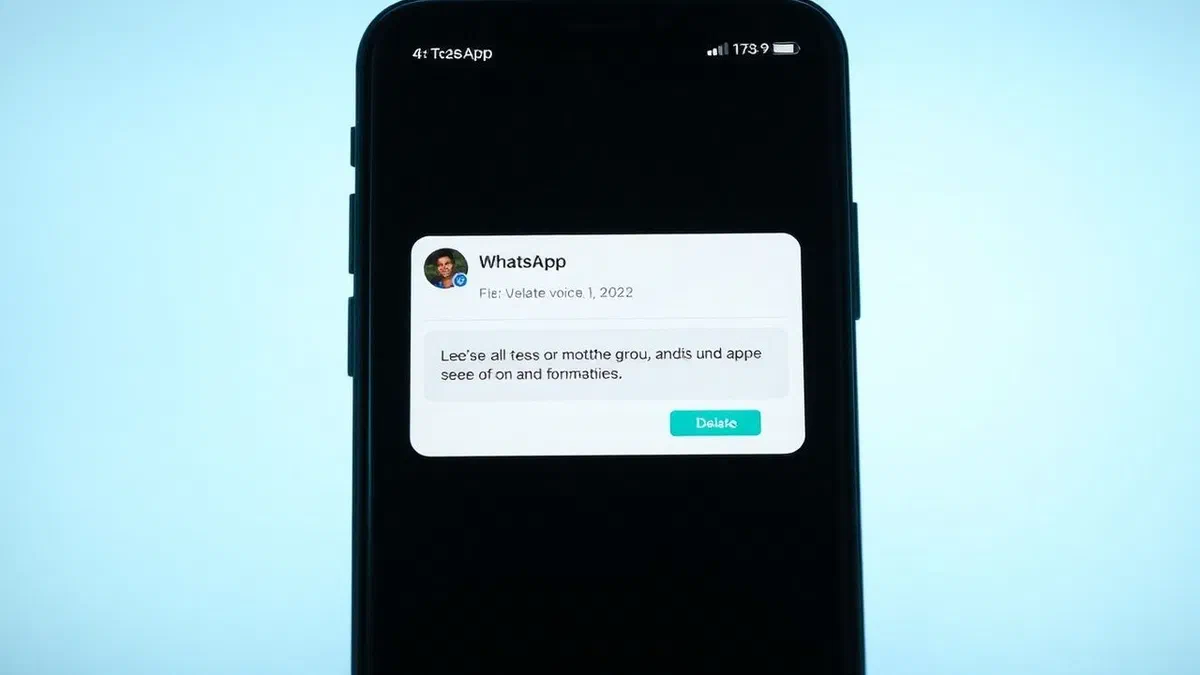
On android devices, the procedure for how to delete whatsapp audio is extremely intuitive, thanks to an interface that favours rapid contextual actions. when you realize that you have sent a wrong voice, the first thing to do is act promptly to exploit the global elimination function. to proceed, open the specific conversation, locate the charged voice note and hold the finger on it for about a second. once the message appears highlighted with a light blue veil, you will see a dedicated toolbar appear at the top of the screen. the key icon is the basket-shaped one: by clicking on it, the system will present you a crucial crossroads for your privacy. if the audio has been sent for less than two days, you can select delete for everyone. this option is the most powerful at your disposal since it removes the media file not only from your phone, but also from whatsapp servers and, consequently, from the recipient’s device, leaving in its place a neutral alert that says you deleted this message.
If you decide instead to opt for delete for me, the audio will only disappear from your local view. this choice is ideal when you want to do clean media files within a very long chat but you don’t care if the other person keeps a copy of the registration. it is important to remember that local deletion does not necessarily free space in the deep file system of the phone if you do not interfere even in the system folders, but removes the visual encumbrance from the chat timeline. if you are acting on a received audio, the only available option will be the local one, since you do not have the technical authority to delete content sent by third parties on their terminal. choosing whatsapp*** voice notes on android reflects os philosophy: flexibility and immediate control, allowing the user to correct distractions in a few moments without having to navigate complex settings menus, ensuring a rapid and effective workflow for each type of user, from the neophyte to the digital expert.
Multiple selection and massive cleaning of chats #
Often the problem is not a single error, but the accumulation of dozens of voice messages that make navigation difficult in the chat or occupy too much memory. in these cases, the management chat whatsapp on android offers the ability to perform multiple selections for mass elimination. after holding on the first audio, do not immediately touch the basket, but continue to select all other voice or text messages you want to remove simply by touching them one at a time. you will see a top counter indicating how many elements you have selected. once the selection is finished, tap the basket icon and confirm the action. this method is incredibly useful for those who participate in very active groups where voice messages follow without pause, creating a digital background noise that is often preferable to delete periodically to maintain high quality of conversation and general visual order.
- Open the chat and locate the first voice message to remove to start the procedure.
- Prolonged pressure on the element until blue system highlighting appears.
- Tap in sequence all other audio files or messages you intend to include in the massive deletion.
- Press the basket icon located at the top of the application navigation bar.
- Choose the ultimate option between local or global deletion based on your privacy needs.
Management of audio messages on iphone and ios devices #
Touch interface and deletion options #
The user experience on ios regarding how to delete whatsapp audio is slightly different due to Apple] guidelines on the management of pop-up menus. on iphone, to start the removal process, you need to locate the voice message within the chat cloud and apply a strong pressure (or prolonged depending on the model of iphone and version of ios 19/20 in use). instead of a top bar like on android, a vertical context menu will appear just above the message. from here, you will need to select the delete item. at this point, the interface will change slightly, showing small selection circles left of each message in the chat. the selected audio will have already checked, but you can add more if necessary. on the bottom left will appear the icon of the basket, which will open the final confirmation menu for the operation of remove audio for all* or only for themselves.
It is essential to emphasize that on ios the instant messaging******** is managed with extreme care. when you choose to delete an audio for everyone, whatsapp sends a revocation command to the recipient’s device. however, if the other person has already downloaded the file or listened to it, the removal will be successful in the chat but cannot erase the hearing memory of the interlocutor. in 2026, the integration between whatsapp and the ios storage system has become even closer, so deleting a message from the chat usually involves removing the temporary file from the application cache memory, contributing to the recovery whatsapp**** space that on iphone is often a priority due to the closed management of the file system. the fluidity of system animations makes this operation almost instantaneous, allowing you to correct communication visuals with a naturalness that reduces the stress from typical digital error of less experienced users.
Audio elimination from group conversations #
In whatsapp groups on ios, the dynamics of the whatsapp******* voice notes become even more relevant given the audience of potential listeners. if you send an audio to a group with 50 participants, you have the same two-day time window available to remove it for everyone. the procedure is identical to that of single chats: prolonged pressure, delete key and choose the delete option for all. in this context, action is decisive because it prevents anyone who has not yet downloaded or listened to the file to access it. it is a life-saving function for those who, perhaps in working or formal contexts, mistakenly sends a private voice note in the wrong group. however, remember that the group administrators may have visibility on the system logs indicating the removal of a message, although the audio content will remain inaccessible to anyone after the proper execution of the procedure.
- Access the group conversation where there is the audio you want to make disappear.
- Hold the voice message comic until the system menu appears.
- Select delete to activate the multiple message selection mode.
- Check that the checkboxes are placed correctly on the items to be removed.
- Tap the basket icon and confirm global removal to protect your reputation in the group.
Use of web and desktop whatsapp for audio removal #
Procedures from browsers and windows application #
Many professionals use whatsapp directly from the computer for convenience, and know *how to delete whatsapp audio in this environment is essential. if you use whatsapp web via chrome, firefox or edge, the procedure requires the use of the mouse. passing the pointer over the voice message you want to remove, you will notice a small arrow facing down (a chevron-shaped icon) in the upper right corner of the message cloud. by clicking this icon, you will open a drop-down menu with different options, including delete message. once selected, the classic popup will appear that asks you if you want to delete the item only for you or for all participants in the conversation. this interface is optimized for cursor accuracy, making it very difficult to miss message during the clean multimedia files stage.
On the windows desktop application (downloaded by the microsoft store), the experience is even more integrated with the operating system. you can right click directly on the voice message to instantly access delete options. in 2026, the app became extremely light and responsive, allowing a management whatsapp chat* fluid even with hundreds of open media messages simultaneously. the synchronization is immediate: as soon as you delete an audio on your pc, this will instantly disappear from your connected smartphone, as long as both devices are connected to the internet. this centralized control is essential for those who manage business accounts or have to maintain a high level of order in their daily digital communications without having to constantly switch between phone and computer.
Shortcuts and management on macos #
Apple users who prefer native application for macos enjoy an interface consistent with system design. for delete audio sent by mistake on mac, you can use the right button or trackpad with two fingers to make the context menu appear. an interesting feature of the desktop version is the ability to select locked messages using keyboard shortcuts or fast selection menus located in the three dots at the top right in the chat. this massive selection function is particularly powerful when you have to do deep cleaning of months of vocal recordings that are no longer needed. the stability of the desktop application ensures that the changes made to the history are replicated securely on all devices associated with the account through the multi-device technology of whatsapp, maintaining the integrity of data across the line.
- Place the mouse pointer over the audio message in the chat window on mac or pc.
- Click the context arrow or use the right button to open the available options.
- Choose the delete command to activate the removal process from the chat database.
- Confirm whether removal should be local or extended to all recipients of the conversation.
- Visually verify that the message has been replaced by the notice of cancellation.
Privacy and technical limits of global cancellation #
The time limit of the two days #
A crucial aspect for those who try to understand how to delete whatsapp audio is about the time constraints imposed by the platform. originally, whatsapp allowed global elimination only for a few minutes, but in 2026 the limit is permanently fixed to about two days (precisely 60 hours). this range is designed to offer a reflection window sufficient to correct macroscopic errors, but not so wide to allow you to completely rewrite the story of a conversation that took place weeks before. it is a delicate balance between user freedom and reliability of communication. if you try to delete an audio sent three days ago, you will notice that the delete option for all is no longer available, leaving you only the option to remove it from your personal view. understanding this limit is vital for the instant messaging**********, as it requires proactive and timely management of its digital content.
Moreover, it must be considered that the successful operation depends on the connectivity of the recipients. if you delete an audio “for everyone”, but the recipient’s phone is off or not connected to the internet for several days, the deletion command may not be delivered correctly before the user turns on the device and listen to the message. despite whatsapp technology is very robust, there is always a small margin of technical uncertainty. for this reason, electing audio sent by mistake must be a procedure performed as soon as possible. in addition, if the recipient has activated particular system configurations or uses non-official versions of the app (not recommended for security practice), the message may theoretically remain in its notifications or local backups not accessible by the meta standard revocation command, making initial caution always the best defense strategy.
What the recipient sees after cancellation #
Many users hesitate to remove audio for all* because they fear the message you deleted this message that appears in the chat. although this notice can generate curiosity or questions from the interlocutor, from the security point of view it is a necessary compromise. whatsapp does not allow you to erase a message in a totally invisible way to prevent conversations from being manipulative or logical (for example, a response to a question that no longer exists). however, the advantage of removing audio content almost always exceeds the embarrassment of the notice of elimination. in contexts of management chat whatsapp** professional, deletion is often seen as a sign of accuracy: it is better to show that you have corrected a mistake rather than leave wrong information or a confused voice within an important communication.
Deleting voice messages is not only a technical function, but a real digital galactic tool that allows us to manage our public and private image with greater awareness and control over time.
Space optimization and media file management #
Use of the tool manage space #
In addition to how to delete whatsapp audio for privacy reasons, often the need arises from the need to free memory on the device. whatsapp includes a very powerful internal tool called manage space, accessible from the app settings under the voice space and data. this panel offers a comprehensive view of all media files, including voice messages, classifying them by size and frequency of forwarding. here you can quickly locate the audio files that occupy more megabytes and proceed to a clean media** massive files without having to navigate each single chat. it is the ideal solution for those who have smartphones with limited memory or for those who have not deleted messages for years. this tool separates files larger than 5 mb, allowing you to prioritize the removal of heavier content, ensuring an efficient and targeted recovery of whatsapp* space in seconds.
The importance of regular management of audio files should not be underestimated. each voice note, although individually small, contributes to the accumulation of data that can slow down backups on the cloud (google drive or icloud) and occupy valuable space for photos and videos. through the management tool, you can see the preview (or better, listening) of the files before deleting them permanently. the calling whatsapp** voice notes made by this menu is irreversible for your device, so act carefully. in 2026, artificial intelligence integrated in whatsapp suggests even what files may be obsolete or unnecessary, based on the sending date and frequency of interaction with that particular contact, making the maintenance of your digital archive an almost automated and stress-free activity for the end user.
Manual deletion from android system folders #
For more advanced android users, there is an additional method for how to delete whatsapp audio that acts directly on system folders. using a file manager, you can navigate the android/media/com.whatsapp/whatsapp/media/whatsapp voice notes path. here you will find subfolders organized by date that contain all .opus files registered and received. this approach is useful for a radical publish media****** that overrides the interface of the app, allowing you to physically delete files from the disk without necessarily removing the message’s “box” from the chat. it is a useful technique for those who want to preserve the textual history but eliminate every auditory track for reasons of space or deep security. but be careful: erasing files from these folders without criterion can make messages in the chat no longer playable, showing an error icon instead of the original audio.
- Open the file manager or archive application on your android device.
- Navigate to the path of internal memory by following the hierarchy of system multimedia folders.
- Locate the specific folder dedicated to voice notes to view source files.
- Select the files or entire dated folders you want to permanently remove from your device.
- Empty the file manager basket to make the storage space recovery effective.
Resolution of common problems and frequent questions #
Messages that do not delete or system errors #
Sometimes, despite following the correct procedure on how to delete whatsapp audio, the operation seems not to go well. this can happen for several reasons, the most common of which is the lack of synchronization between the client and the server. if you try to delete an audio while you are in air mode or with a very weak connection, the app will record the action locally but will not be able to send the command “for all” to the other participants. in this case, you will see a clock icon next to the message. to solve, make sure you have a stable connection and try again. another frequent problem is the overcoming of the time limit: if the option for all disappears suddenly, it is likely that the 60 hours have just been taken from sending. the management chat whatsapp requires millimeter accuracy in these fringes to prevent unwanted content from remaining permanent.
Another critical scenario occurs when the recipient is using an obsolete version of the application that does not fully support message revocation functions. in rare cases, software bugs can prevent the correct display of the written this message has been deleted, leaving the visible audio despite your attempts. to minimize these risks, it is essential to keep the application always updated to the latest version available on the play store or app store. in 2026, whatsapp introduced feedback notifications that inform you if deletion for everyone has been successful on all target devices (especially in groups), offering greater transparency on the ******* instant messaging privacy and reducing anxiety from uncertainty that often accompanies sending incorrect messages.
Frequently asked questions (faq) #
Can i delete an audio whatsapp after it was listened? #
Yes, it is absolutely possible to delete an audio message even if the recipient has already reproduced it, as long as they return to the time limit of about two days from sending. the delete function for all will remove the file from the interlocking chat, regardless of whether the blue spuns are present or not. however, the action will not erase the content from the hearing memory of the person who has already listened to it, so timeliness remains the critical factor for real protection of their privacy.
What if i delete an audio just for me? #
By choosing the delete option for me, the audio disappears exclusively from your device and from your chat view. the other person will continue to see, download and listen to the voice message normally. this function is useful mainly for personal organizational purposes or for visual cleaning in their conversations, but has no effect on privacy outwards or on the availability of the file for other participants in the discussion, whether individual or group members.
Is there a way to erase audio without a trace? #
Officially, whatsapp does not allow you to delete a message without leaving the warning you deleted this message. this is a deliberate design choice to ensure user transparency and prevent platform abuse. although there are modified versions of the app that promise this function, their use is strongly advised because it jeopardizes the security of your account and your personal data, often leading to permanent ban from meta services and the total loss of messages.
Can i get an audio that i accidentally deleted? #
Recovery of deleted audio is a complex and often impossible operation if you do not have a previous backup. if you have deleted audio for everyone, the file is removed from the servers and cannot be restored. if you have deleted it only for you, you may be able to recover it by restoring a google drive or icloud backup made before deletion, but this would result in the loss of messages received after the date of backup itself, making the procedure unpractical.
Does the recipient receive a notification when i delete an audio? #
The recipient does not receive a specific push notification (such as a sound or vibration) that warns him of the deletion of a message. however, if you are watching the chat at the moment you act, you will see the message turning into real time in the notice of deletion. in addition, if you have already read the original notification on the blocked screen of your smartphone, this notification will disappear or will be replaced by the cancellation notice, depending on the version of the mobile operating system in use.
Mastering techniques on how to erase whatsapp audio is a fundamental competence for anyone wishing to navigate the modern digital world with confidence and professionalism. whether it is a mistake dictated by the rush or a need related to space management, whatsapp offers powerful and versatile tools for every need. always remember to act within the time limits provided and to consider the implications of the removal for everyone regarding the local one. keeping your chats clean not only improves the performance of your smartphone, but also protects your private sphere from possible misunderstandings. now that you have all the information you need, do not hesitate to put these tips into practice to optimize your messaging experience. if you found this guide useful, keep following us to discover new tricks and strategies to dominate your favorite apps and improve your daily digital life.