In the panorama of the digital streaming of 2026, the possibility to enjoy its favorite contents in total mobility has become an indispensable necessity for millions of users. learn to download movies from disney plus* is the ideal solution for frequent travelers, for those with poor network coverage or simply for those who want to preserve their data traffic during daily travel. disney+, the famous platform that houses disney masterpieces, pixar, marvel, star wars and national geographic, offers an extremely powerful native feature for downloading content, allowing you to turn your mobile device into a real portable cinematographer. although the procedure may seem intuitive, there are numerous technical nuances regarding file quality, storage space and licensing restrictions that are essential to know to optimize user experience. in this detailed guide, we will explore every single step necessary to master the offline mode in 2026, analyzing the advanced settings of the application and providing practical advice to better manage the memory of your device. whether you want to watch the latest marvel blockbuster by plane or animation classics on a long train journey, this resource will provide you with all the tools to never stay without entertainment, regardless of the stability of your internet connection.
Technical requirements and compatible devices in 2026 #
Supported platforms for download #
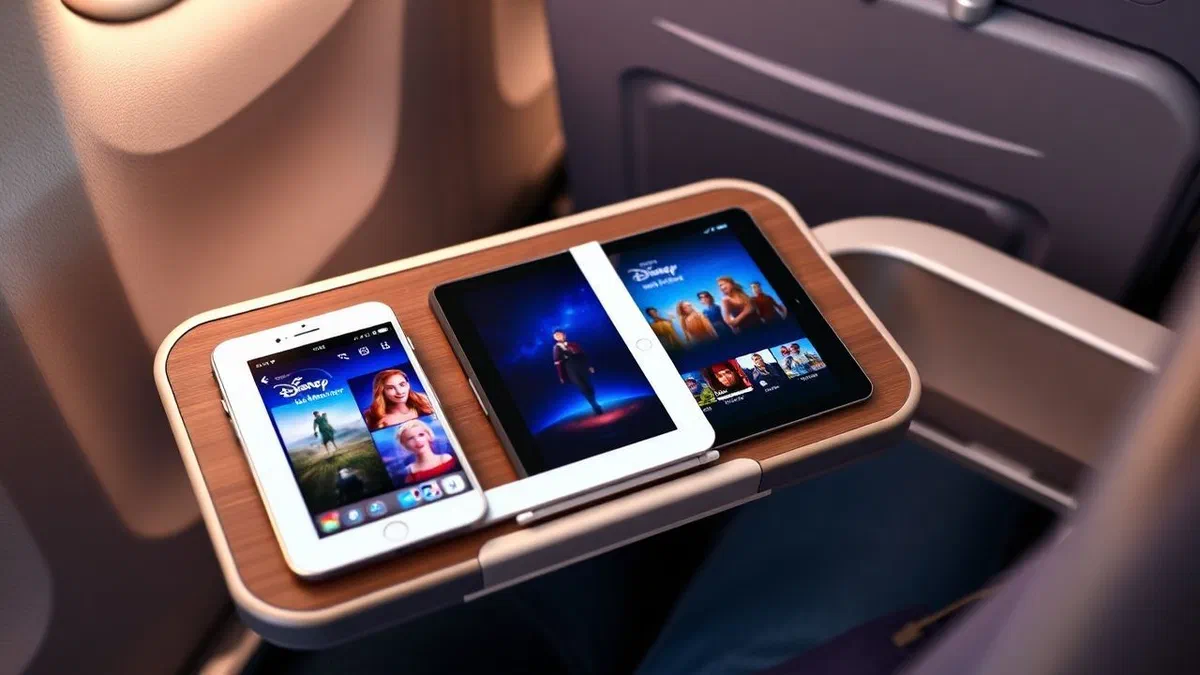
To be able to download movies from disney plus successfully, it is essential to correctly identify which devices actually support this specific feature. in 2026, offline vision remained an almost exclusive prerogative of the mobile ecosystem, including smartphones and tablets based on android and ios/ipados operating systems. this technical choice is not random, but is dictated by the need to protect copyright through advanced drm protocols that are more easily integrated in native applications of portable devices. users using latest tablets or smartphones with large displays will find the smooth and fast download experience, provided they have installed the latest version of the official application available in digital stores such as the google play store or the app store of streaming. it is important to note that compatibility requires a version of the updated operating system, usually not before the last three main releases, to ensure that security certificates are valid and allow decryption of files downloaded in real time during playback without connection.
In addition to classic phones and tablets, the download function is also extended to some amazon fire tablet models, which use a custom version of android. however, the exclusion of devices such as smart tv, video game consoles and fixed media players (such as streaming tv or chromecast), which are born for purely domestic use and require a constant connection to data flow. this distinction is essential to avoid frustrations: if you are looking for the download option on your tv in the living room, you will not find it, since the software architecture is designed for the live streaming. for those who want to look at disney plus without the internet* on a larger screen on the road, the only solution valid in 2026 remains the connection of a compatible tablet via hdmi cable or certified adapters, taking advantage of the previously saved content in the local memory of the mobile device. always make sure your storage space is enough before you start, as high definition files can occupy different gigabytes.
Limitations on pc, mac and desktop devices #
Many users still wonder today whether it is possible to download movies from disney plus on pc**** or mac for offline viewing while using a laptop. unfortunately, the answer remains negative regarding the standard browser interface. although on windows there is an official application within the microsoft store, digital rights management policies (drm) in 2026 continue to strongly limit the ability to save files locally on desktop machines. this is because computer operating systems are considered “opening” and therefore more vulnerable to attempts at piracy or extraction of video files. even if you can locate the folder where the app stores temporary data, you will find encrypted and fragmented files, impossible to play with common video players like vlc or media player. this restriction is common to almost all major players of streaming, who prefer to circumscribe downloads to the “closed” environments of mobile apps.
On the macos environment the situation is even more restrictive, as there is no dedicated application that supports native download; access is exclusively via browsers such as safari, chrome or firefox, which do not have system permissions to store permanently protected video content for offline viewing. trying to use third-party software that promise to “download videos from disney+” is a risky operation that we highly recommend: in addition to violating the terms of service of the platform, exposing the account at the risk of permanent ban, such programs are often vehicle of malware or trojan. the security of your personal data and your subscription must be the priority. if your need is to work on the pc and have a background film without weighing on the band, the only safe alternative is to use the smartphone as a second screen, appropriately positioned on a support, taking advantage of the legally downloaded content via the official app.
Quality configuration and data management #
Optimize video download quality #
Before proceeding with the first download, it is essential to correctly configure the settings related to the ** disney+** video quality. the application usually offers three levels of compression: standard, medium and high. the choice not only affects the sharpness of the images, but has a direct impact on the speed of downloading and, above all, on the space occupied in the internal memory of your smartphone. in 2026, with the diffusion of mobile screens with 2k and 4k resolution, the temptation to download everything in maximum quality is strong, but it is necessary to balance this choice with the residual capacity of the device. a high-quality action film can occupy more than 4gb, while the “standard” version could stop at less than 1gb, however offering a pleasant view of small screens. to access these options, click on the profile icon, enter “app settings” and select the download quality item.
Another crucial aspect is the management of connectivity. there is a basic option called “download only via wi-fi”. keeping this lever on on is highly recommended to prevent the application from starting to download movies from disney plus using the mobile data connection (5g or 6g), which could quickly exhaust your monthly giga bundle. however, in 2026, with many tariff plans offering unlimited data, you may decide to disable this option if you are out of the house and you absolutely need to download a last-minute content. remember, however, that downloading large files under mobile network can cause overheating of the device and accelerated battery consumption. always evaluate the context in which you are: if you are at the hotel or in a bar with a public network, make sure that the connection is stable before starting the process, otherwise the file may be corrupt and not start properly once offline.
Management of storage space and sd cards #
Memory management is the achilles heel of every cinema enthusiast on the move. when you decide to download movies from disney plus*, the app uses the phone’s internal memory by default. if you have an android device with microsd slots, you may have the ability to move the download storage path to external memory. this function is vital for those who own smartphones with basic memory cuts (e.g. 128gb or less) that fill quickly with personal photos and videos. to activate this option, if available on your model, always go to the “app settings” and look for the storage location item. it is important to use high-quality sd cards (class 10 or higher, with v30 certification) to ensure that the reading speed is sufficient to reproduce high-definition films without shots or annoying local buffering.
However, it is necessary to pay attention to a technical detail: movies downloaded on an sd card are still encrypted and linked uniquely to the device and account that generated them. this means that you can’t insert the sd card into another tablet or computer and hope to see movies simply by opening the files. drm protection prevents this type of portability to avoid unauthorized distribution of content. moreover, it is good to periodically monitor the space occupied directly from the inside of the disney+ app. in the “download” section, the interface clearly shows how much space is left on the device and how much memory is occupied by the downloaded titles. oculated management plans to delete content immediately after viewing, thus keeping the system fluid and avoiding sudden error messages while downloading new episodes or films very anticipated.
- Standard quality: ideal for those with little space and display on screens under 6 inches.
- Average quality: the best compromise between visual detail and file weight (about 1.5gb per film).
- High quality: maximum available resolution, recommended for high-end hdr tablets and screens.
- Download wi-fi only: security setting to avoid extra costs or unwanted data consumption.
- Storage location: possibility of switch between internal memory and sd card (android only).
Practical procedure: how to download movies and series #
Download of a single movie or content #
Once you configure your preferences, the practical procedure for downloading movies from disney plus* is extremely simple and requires very few touches. first, open the application and make sure you have logged in with your user profile. use the search function (the magnifying glass icon in the bottom menu) or navigate between the suggested categories on the home page to find the title of your interest. once you select the movie poster, you will open the descriptive tab with the plot, cast and technical details. right under the “reproduce” button, you will notice an arrow-shaped icon facing down with the word “download”. by pressing this button, the icon will turn into an advancing circle that indicates the percentage of completion of the download. you can monitor the download status directly from this screen or move to the download section.
During the download phase, it is advisable not to close the application forcefully. although versions of 2026 are optimized to work in the background, a sudden closure or a connection drop could pause the process. if this happens, the app will automatically resume the transfer as soon as you return online or reopen the software. once the loading circle is complete, the icon will turn into a check or a specific playback symbol, confirming that the film is ready for the * offline view of disney+* content. from that moment, you can activate the air mode on your device and start the film without any fear. remember that you can download the same movie on multiple devices (up to a maximum of 10), which is especially useful if you have children who want to watch the same cartoon on different tablets during a family trip.
Download complete seasons and individual episodes #
If your intention is to binge-watch your favorite tv series, the download tv series from disney plus* offers even greater flexibility. entering a series page (such as the latest productions set in the star wars universe), you will have two main options. you can choose to download a single episode by clicking on the download icon next to the title of each bet in the season list. this is the best option if you have little space or if you lack only a few episodes to finish the vision. alternatively, if you are at the beginning of a new adventure, you can download a whole season with one touch: look for the download icon placed next to the season selector (e.g. season 1, season 2) to start the massive rescue of all related files.
Please note that the download of an entire season can take a long time and occupy a significant amount of memory, often more than 10-15 gigabytes if the quality is set on “high”. the application will manage the download queue sequentially, downloading an episode at a time not to saturate the passing band. a useful tip for the disney plus* offline mode is about the viewing order: the app will arrange downloads so that the next episode is always easily accessible. in addition, in 2026, disney+ refined the function of “smart downloads”, which automatically deletes the episode just finished and starts downloading the next as soon as the device returns under wi-fi coverage. this automation is perfect for those who want to always have new ready content without having to manually manage memory every day.
- Open the disney+ app and search for the desired series or film.
- Click on the arrow icon down to start the single download.
- For series, use the icon next to the season for full download.
- Check progress in the download tab of the main menu.
- Check that the confirmation check appeared before you disconnected.
Offline library management and playback #
Access the downloaded content #
Finding your files after completing the download is immediate. in the navigation menu at the bottom of the screen, there is always an arrow-shaped icon facing down that represents your section download movie disney plus android ios. by clicking on this icon, you will be directed to a dedicated screen where all the titles present in the memory of your device are listed. movies are displayed with their poster, while tv series are grouped into folders to keep order. in this section, you can see at a glance how much space it occupies every title and if there are still downloads in progress or paused. the interesting thing is that, in 2026, if you open the app while you are already in air mode or without any connection, disney+ will automatically take you to this screen, making the user experience smooth and without loading errors.
To start playing, just touch the image of the film or the specific episode. playback will begin instantly, since the file resides physically on your smartphone or tablet. you will have access to all standard player features, including the choice of audio language and subtitles. it is important to note that, usually, all audio streams and subtitles available for that title are downloaded along with the video, allowing you to change language even while you are offline. this is a fundamental feature for those who study foreign languages or for multilingual families. remember, however, that manage disney plus downloads also requires attention to deadlines: to keep active files, the device must connect to disney+ servers at least once every 30 days. this serves the platform to verify that your subscription is still active and that the film distribution rights have not expired in the meantime.
Deletion of content and space recovery #
Once the vision of a content is finished, it is good to proceed to its removal to free valuable space. there are two main ways to eliminate movies downloaded by disney plus*. the first is the manual swipe: inside the download section, scroll the finger from right to left on the title you want to delete and tap the basket icon that appears. this method is quick and ideal for quick cleaning after seeing a single movie. if you have downloaded many episodes and want to do a deep cleaning, you can tap the “edit” button (usually located at the top right). in this mode, selection boxes will appear next to each title; you can select everything you want to remove and confirm the operation with a single touch on the global basket icon.
Pay attention to a particular event: the disconnection from the account (log out). if you decide to exit your profile in the app settings, disney+ will automatically delete all downloaded content from your device for security and data protection reasons. this is a standard measure in 2026 to prevent protected content from remaining on devices that could be sold or sold to third parties. therefore, if you are planning a long journey and have spent hours in downloading movies from disney plus, you absolutely avoid log out before you leave. if you feel that your downloads are suddenly gone, the most likely cause is just an involuntary disconnection or a critical update of the operating system that required the application cache cleaning. always keep the app updated to the latest version available to minimize these rare but annoying technical inconveniences.
“the disney+ download function has revolutionized how commuters and travellers consume multimedia content, offering a stability that the streaming] in real time cannot yet guarantee in all geographical situations. "
Safety, deadlines and troubleshooting #
Why aren’t some content downloadable? #
Although the vast majority of the catalogue is available for offline viewing, you may encounter some titles that do not show the download icon. this phenomenon is linked to the complex licensing agreements that regulate film distribution in 2026. although a film is present on the platform for streaming, the contract with the original production house (in case of content not produced directly by disney) may not include the rights for offline rescue. moreover, the content transmitted “live” or the special events previewed may have temporary restrictions that prevent download movies from disney plus* until a certain date. if you do not see the arrow icon, it is not an error of the app, but a contractual limitation of the specific title you are trying to display.
Another common cause for which download may not be available is the “parental control” settings. if the profile you are using has active age restrictions (such as a children profile), you will not be able to download content that exceeds the rating assigned to that profile. in addition, junior profiles sometimes have a simplified interface where the download function could be managed differently. always check to be logged with the correct profile and that the security settings are not blocking the operation. if the problem persists despite the title being downloadable on other devices, try emptying the application cache from the operating system settings (on android) or reinstalling the app (on ios), ensuring you have a stable internet connection and without restrictive dns filters that could block content servers.
Solve common download errors #
Meeting an error while trying to download movies from disney plus* may be frustrating, especially a few minutes from a start. one of the most frequent errors in 2026 is related to memory saturation: although there seems to be residual space, the operating system always requires a security margin for system operations. if you receive a notice of “insufficient space”, try to delete at least a few more gb than the size of the file you want to download. another common problem is the error of “lost connection”, which often occurs when switching from a wi-fi network to a 5g during download. in these cases, the advice is to manually pause the download and restart it only when the connection is back stable, to prevent the final file from presenting visual artifacts or blocks during offline playback.
Finally, remember the rule of 30 days and 10 devices. if you have reached the maximum limit of 10 devices associated with downloads, you will need to remove the contents from one of the old devices before you can download new ones on a newly purchased smartphone. as for the 30-day deadline, if you are in an area without the internet for a prolonged period (e.g. on an expedition or ship), your downloads will become unusable until you briefly reconnect to the network. this online check takes a few seconds and a minimum amount of data, but it is essential to renew drm licenses. if a movie suddenly disappears from your download list, it also checks that it has not been removed globally from the disney+ catalog; in rare cases of content rotation, the file is automatically removed from users’ devices.
- Storage error: free extra space beyond the indicated size of the film.
- Limit of devices: check not to have passed the 10 active devices with downloads.
- Renewed license: connect to the internet at least once every 30 days.
- Check parental control: make sure the profile has no restrictions on the movie rating.
- Wi-fi stability: avoid the continuous switch between different networks during the discharge phase.
Frequently asked questions (faq) #
How many movies can i download simultaneously on disney plus? #
There is no default maximum number of movies or episodes that you can download, except that dictated by the physical storage capacity of your device. however, disney+ allows you to activate the download function on up to 10 different mobile devices for each account. in 2026, queue management is smart and allows to list dozens of content that will be downloaded in automatic succession. remember that busy space grows quickly if you choose high quality.
Can i watch movies downloaded if my subscription expires? #
No, to access the download section and play the saved content offline, you must have a valid disney+ subscription. when the subscription expires or cancels, the application will block access to files downloaded via drm protection systems. once the subscription is renewed and logged in with active internet connection, the files may return available unless they have been deleted from the system during the inactivity period of the account.
Downloaded movies occupy the same memory as streaming? #
In reality, downloaded films occupy a fixed space on the disk that can be higher or lower than the data consumption of streaming, depending on the quality chosen. while the streaming fits real-time quality at the speed of your connection (variablebitrate), the download saves a file with a constant and default bitrate. choosing the “high” quality for a download usually guarantees a higher visual fidelity than a streaming made on an unstable or slow wi-fi network.
Can i transfer downloaded movies to a usb flash drive? #
No, you cannot legally transfer movies downloaded from disney plus to a usb flash drive or other external memory media to see them on other devices. the files are protected by drm encryption and can only be read within the official disney+ application on the original device where the download took place. any attempt to move files will make the data unreadable and may corrupt the installation of the application, requiring a total restoration of the content.
What if a movie is removed from the disney plus catalog? #
If a title is removed from the official platform catalog due to the expiration of distribution rights, it will be automatically removed from your download list as soon as your device connects to the internet. offline mode does not allow “conserving forever” a film that is no longer part of the commercial offer of the service. this is one of the fundamental aspects of streaming subscription-based services, where access to content is linked to the availability of the same in the current catalog.
In conclusion, knowing how to upload movies from disney plus*** in 2026 is a key competence for each user who wants to maximize the value of their subscription. following the steps described and paying attention to quality settings and device limits, you can enjoy the best cinema content in every situation, eliminating dependence on internet connectivity. remember to manage your library regularly to avoid memory problems and enjoy the show wherever you are. you just have to choose your next movie and start downloading!