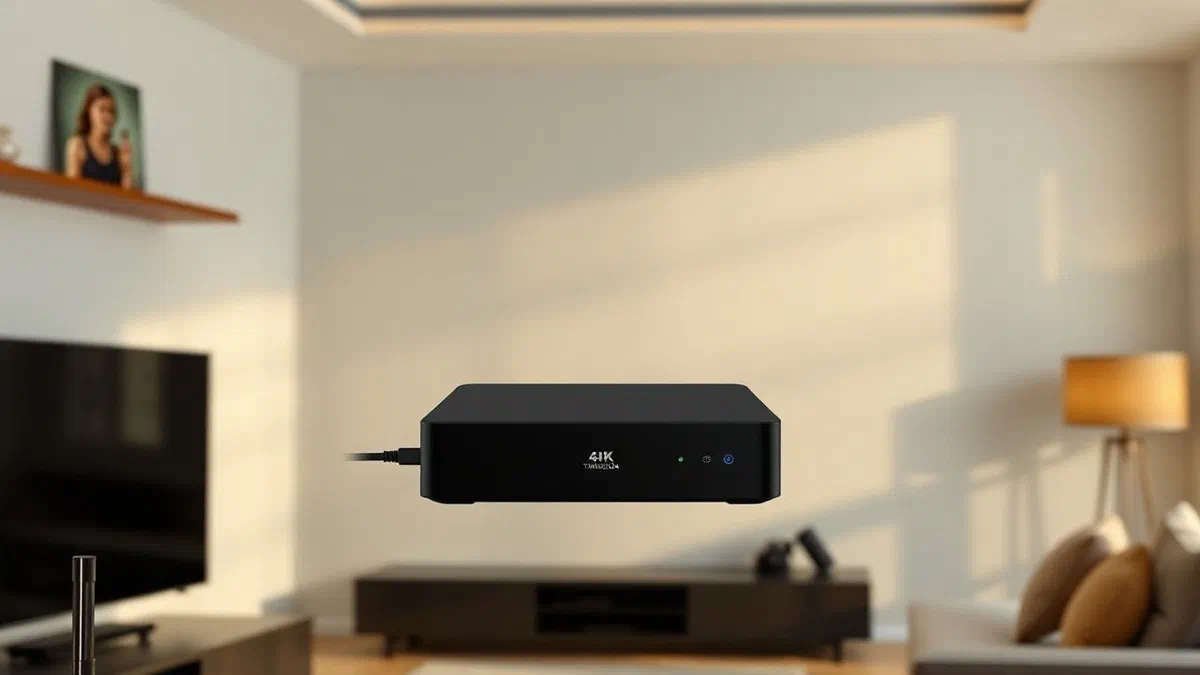
If you have just signed an offer with the national operator and received your new decoder at home, you’ll probably be wondering how to install timvision box quickly and without making technical mistakes. this device, based on the android tv operating system updated to the latest versions of 2026, represents the pulsating heart of modern domestic entertainment, allowing you not only to access a vast catalog of movies and tv series on demand, but also to perfectly integrate the channels of the new generation terrestrial digital dvb-t2. thanks to the power of the integrated processor and the versatility of downloadable applications, turning an old tv into a state-of-the-art smart tv is an operation within everyone’s reach, provided they follow a logical sequence of steps ranging from connecting physical cables to the user profile software configuration. in this in-depth technical guide, we will explore every detail to ensure an optimal viewing experience, eliminating any doubts about the compatibility of your wi-fi network or the correct tuning of tv frequencies. prepare to find out how to optimize your multimedia space with the tim decoder, ensuring that each setting is calibrated to provide you with maximum fluidity and excellent video resolution in 4k hdr.
Preliminary operations and verification of activation #
Verification of packaging content and requirements #
Before proceeding with the physical installation of the device, it is essential to ensure that all the original accessories necessary for the proper functioning of the system are present within the package. the standard kit provided by tim in 2026 includes the timvision box decoder, an external power supply for connection to the power grid, a high-speed hdmi cable compatible with the latest protocols, a bluetooth remote control with support for the voice commands of google assistant and its batteries. we suggest you place the decoder on a flat and well ventilated surface, avoiding closing it in too cramped furniture that could limit the heat dissipation produced during the streaming high definition. good ventilation is essential to keep the performance of the processor constant and avoid annoying slowdowns while navigating between the menus of the various installed applications.
In addition to the hardware, you must ensure that you have successfully completed the administrative registration phase linked to your phone line or mobile offer. tim usually sends an official communication via email or sms containing a unique link to formally activate the timvision service. by clicking on this link, you will be addressed to a protected page where you can define your login credentials, such as the reference email address and a secure password. if for some reason you have not received this communication, do not alarm yourself: you can always access your mytim personal area, available both through web browsers and through the official application for smartphones, and enter the section dedicated to tv and services to complete the association of your line to the new multimedia device.
Preparation of the google account and connection #
Being the timvision boxing a device based on the android tv platform, owning an active google account is an almost indispensable requirement to take full advantage of all the potential offered by the mountain view ecosystem. if you don’t have one yet, we strongly recommend you create it before starting the configuration, so you can freely download apps from the play store, save your viewing preferences and use custom voice search features. having the credentials at your fingertips will save you a lot of time during the next steps, allowing you to automatically sync your interests and inscriptions to the various services of streaming that you already use on your mobile devices or on your home computer.
Another crucial aspect is the quality of your internet connection. although timvision box is equipped with a powerful wi-fi card compatible with the most modern standards of 2026, signal stability is the element that determines the fluidity of streaming, especially for 4k content. before you start, check the location of your tim hub router or the modem in your possession compared to the location of your tv. if the distance is excessive or if there are many partition walls, you may consider buying a signal repeater or a mesh system to ensure a constant broadband. remember that for an uninterrupted view of live channels and heavier on demand content, it is always preferable, when possible, to opt for a physical connection via ethernet cable.
Wire connection and hardware installation #
Connection to tv and antenna system #
The heart of the procedure to install timvision box resides in the correct connection of the cables on the back of the device. first, take the supplied hdmi cable and insert one of the two ends in the corresponding port on the back of the decoder. the other end must be inserted into one of the free hdmi inputs of your tv. it is good to note the number of the port used (e.g. hdmi 1 or hdmi 2) since you will have to select it later via the tv remote. if you use a home theater system or a professional soundbar, you may want to connect the decoder directly to these devices for superior sound output, provided they support the high definition video signal passthrough without loss of chromatic quality or frame rate.
For those wishing to use timvision box also for the vision of traditional tv channels, it is necessary to connect the cable of the terrestrial antenna. take the coaxial cable that usually connects directly to the tv and insert it into the special entrance marked on the back of the tim decoder. this step is fundamental not only to watch rai, mediaset and other local broadcasters, but also to enjoy advanced tv management functions. thanks to the integrated software, in fact, you can pause a live program, go back or record it virtually, transforming the linear vision experience into something much more similar to a personalized on-demand service, with a signal quality optimized by the decoder.
Power supply and connection to the internet network #
Once the video and antenna cables are set up, it is time to deal with network connectivity and electricity. if you have decided to opt for the maximum stability offered by the network cable, enter an ethernet cable (at least category 6 for the performance of 2026) in the lan input of the decoder and connect the other head to a free port of your router. if you prefer wireless convenience, make sure you have your wi-fi network password at hand. only after completing all data connections, you can proceed with the power supply: insert the power supply plug into the decoder and then connect the plug to the wall socket. you will see a small led light on the front of the device, indicating that the system is loading the initial boot.
Here is a summary of the essential elements for a perfect hardware installation:
- Decoder timvision last generation box.
- Hdmi 2.1 cable for 4k hdr content support at 60fps.
- Original network power supply included in the package.
- Ground antenna cable for the reception of the standard dvb-t2.
- Superior ethernet cable or stable wi-fi 6 connection.
- Bluetooth remote control with charged batteries inserted correctly.
At this stage it is extremely important not to disconnect the power during the first start, since the system may need to automatically download critical firmware updates. these updates serve to fix any bugs found in previous versions and ensure full compatibility with new video transmission standards adopted by global streaming platforms. let the device complete its ignition cycle until you see the welcome screen appear on the tv with the tim logo, which will mark the official start of the software configuration wizard that we will go to analyze in the following paragraphs.
Wizard software configuration and first start #
Remote control synchronization and language choice #
As soon as the welcome screen appears on your tv, the first step required will be synchronizing the bluetooth remote control. unlike old infrared remote controls, those provided with the timvision box in 2026 require a software coupling to function properly even if not directly aimed at the decoder. usually, the procedure involves the contemporary pressure of two specific keys for a few seconds (following the graphic instructions on screen). once the pairing takes place, you can easily move between the menus and use the integrated microphone to impart voice commands. the system will then ask you to select the interface language: select the italian and press the ok button to confirm and continue to the network settings.
Next, the decoder will automatically look for wi-fi networks available in the surrounding environment. if you have already connected the ethernet cable, the device will detect the connection instantly and pass over. in case of wi-fi connection, select the name of your home network from the proposed list and enter the password using the virtual keyboard that will appear on the screen. in this phase of 2026, many routers also support wps technology, which allows you to connect the decoder by simply pressing a button on the modem, thus avoiding manual insertion of long and complex alphanumeric strings, making the whole process much leaner and less subject to typing errors typical of remote controls.
Google account association and customization #
The heart of the android tv experience lies in integrating with your google profile. the system will ask you if you want to log in: we strongly recommend that you do so to unlock all customization functions. enter your gmail address and password; if you have enabled two-factor authentication, you will need to confirm access via your smartphone or a code received via sms. once logged, you can decide whether to activate geolocation services (useful to have local weather forecasts and relevant tips) and if to send anonymous diagnostic data to google to improve the overall operating system experience over time.
To maximize the utility of your new device, here are the recommended steps during this phase:
- Login with the main google account to sync apps.
- Accept the terms of service of tim and google tv.
- Configure google assistant for voice content search.
- Choose an identification name for your device (e.g. living room or room).
- Select streaming apps that you use most often for quick installation.
Finally, the system will offer you a set of pre-selected applications that you can decide to download immediately, such as netflix, prime video, disney+ or dazn. we suggest that you select only the ones you actually have a subscription, not to use the internal memory space of the decoder. once these selections are finished, timvision box will proceed to the download and automatic installation of the chosen software packages, while you can continue with the final stage of the configuration dedicated to the traditional television part, that is the tuning of the last generation digital channels.
Tuning channels and app management #
Automatic search of dvb-t2 channels #
If you have correctly connected the antenna cable as described above, the decoder will invite you to scan the tv channels. this procedure is essential to integrate the offer streaming with that of the linear tv. selecting the automatic search option, timvision box will start scanning all available frequencies in the geographical area where you are, ordering channels according to the national logical numbering (lcn). in 2026, with the final switch-off completed, all channels are broadcast in high definition with evolved codecs, and the tim decoder is perfectly able to decode these signals by offering you a sharp and visual artifacts image typical of the old receiving technologies.
At the end of the tuning, you will have an integrated tv guide (epg) extremely rich in details, which will allow you to see what is on the air on all channels without having to change source on the tv. one of the main advantages of installing timvision box is the ability to manage everything from one remote control and one interface. you can switch from a football game on a platform streaming to a national news with a simple click, also benefiting from the reboot function from the start for many tv programs that support this technology, allowing you not to miss even a minute of your favorite broadcasts even if you tune late.
Install and update applications from the play store #
In addition to the applications installed during the first configuration, you can enrich your decoder at any time by accessing the app section and opening the google play store. the digital store interface is optimized for large screen viewing and allows you to browse thousands of titles divided by categories: entertainment, games, utilities and much more. if you are looking for a specific application, you can use the manual search function by typing the name of the app or using the comfort of the voice remote control by clearly uttering the command, for example, install spotify or search youtube. the system will independently manage download and installation in the background without interrupting your current vision.
It is important to keep apps up to date to ensure system security and access to new features released by developers. by default, the timvision box is set to download updates automatically during inactivity periods, but you can always force manual control by entering the play store settings. remember that the storage space, though generous, is not unlimited: if you notice that the device starts to be less responsive, consider uninstalling apps that you no longer use. an oculated internal memory management will help keep your decoder as snappy and performing as the first day of use, ensuring you always have a high level user experience.
Settings optimization and troubleshooting #
Video and audio calibration for maximum involvement #
After completing the basic installation, we recommend you spend a few minutes optimising audio and video settings within the timvision box system menu. entering the display and sound section, you can verify that the resolution is set to automatic or force the 4k if you have a compatible tv. also check the hdr (high dynamic range) settings to ensure that colors are vibrant and deep contrasts, especially when viewing film content. as for the audio, if you have connected a surround system, make sure that the output format is correctly set to dolby digital or dts, so you can enjoy an enveloping and faithful sound experience to the director’s vision.
Another useful approach concerns energy saving mode. in 2026, sustainability is at the centre of domestic technologies, and timvision box offers different options to reduce consumption when not in use. you can set the automatic shutdown time or decide whether the decoder should enter a deep standby state or remain partially active to receive updates and allow instant ignition. finding the right balance between readiness and savings is a personal choice, but the advanced settings menu provides you with all the tools you need to customize this behavior according to your daily habits of multimedia consumption.
Resolution of the most common malfunctions #
Despite the great reliability of current devices, you may find some small hitch during or after installation. if the decoder does not turn on, first verify that all electrical connections are well inserted and that the power outlet functions correctly. if there is no video signal on the tv, check to have selected the correct hdmi source using the tv remote control and try, if necessary, to change port or to use a different hdmi cable to exclude hardware faults of the cable itself. often, a simple electrical reboot (unplug for about 30 seconds) is enough to solve most small temporary software bugs.
If you encounter excessive internet connection or buffering problems during streaming], we suggest you follow these diagnostic steps:
- Run a speed test from the settings section of the decoder.
- Restart tim modem and wait for the connection to be fully stabilized.
- If you use wi-fi, try moving the decoder or using the 5ghz/6ghz band.
- Check that there are no other devices that are occupying the entire network bandwidth.
- Check the presence of software updates hanging in the system menu.
If the remote control stops responding correctly, it may be necessary to repeat the bluetooth coupling procedure or simply replace the batteries. remember that, in case of persistent problems that you cannot solve independently, tim’s technical assistance is always available through official channels. however, in the vast majority of cases, scrupulously follow this guide on how to install timvision box will allow you to configure your system in total autonomy, ensuring hours of entertainment without thoughts and with the highest technological quality available in 2026.
Advanced features and smart home integration #
Use of voice commands and google assistant #
Timvision box is not just a simple decoder, but a real domestic assistant integrated into your living room. thanks to the dedicated remote control key, you can call the google assistant at any time to perform complex searches without having to type a single letter. you can ask for example: “find action movies on timvision” or “show me the latest netflix tv series”. the artificial intelligence of 2026 is able to understand the context of your requests, filtering the results among all the applications installed on the device, saving you precious time that you would otherwise spend manually navigating between the various menus of the individual services of streaming.
Also, if your home is equipped with smart devices compatible with the google home ecosystem, you can control them directly from your tv. as you watch a movie, you can tell the remote control “shut the lights in the living room” or “set the temperature at 21 degrees”, and timvision box will send command to the connected devices of your smart home. this deep integration makes the user experience incredibly modern and comfortable, placing tim’s decoder at the centre of your personal home automation. knowing how to exploit these advanced features transforms a simple act of vision into an interactive experience that simplifies the management of your home during relaxing moments.
Cast content and mirroring from the smartphone #
Another key feature that you will discover after installing timvision box is the integrated google cast technology. this feature allows you to instantly transmit videos, photos or music from your smartphone or tablet directly to the large tv screen, without additional cables. if you’re watching a youtube video on your phone or if you want to show photos of the last holiday to your friends, just press the “cast” icon in compatible applications and select your decoder from the list of available devices. the video stream will pass immediately on the tv, allowing you to continue using the smartphone for other activities without interrupting playback.
The mirroring of the screen is equally useful to project presentations, documents or entire web pages that do not have a dedicated application on android tv. this versatility makes timvision box a valuable tool not only for leisure, but also for small business or home educational needs. the transmission speed reached by network standards of 2026 ensures that there is no possible delay (lag) between movement on your mobile device and viewing on tv, ensuring perfect fluidity even during the projection of dynamic content or mobile games you want to live on a much more generous screen in terms of thumb and resolution.
Frequently asked questions #
Can i install the timvision box on a non-smart tv? #
Absolutely yes, this is one of the main advantages of the device. timvision box is designed to transform any television with an hdmi input into a latest-generation smart tv. once you connect the cable and complete the initial configuration, you will have access to all applications, services of streaming] and internet functions, regardless of the year of production or the original operating system of your old television.
What if i change phone operator? #
Timvision box remains a device based on android tv, so its basic functions and installed applications will continue to work even with an internet connection of another operator. however, access to free content included in the timvision offer may vary or require a separate subscription depending on the contractual conditions undersigned at the time of activation of the line or purchase of the decoder in convenient use.
Is it mandatory to connect the television antenna? #
It is not mandatory for the general operation of the decoder, but it is highly recommended if you want to see the classic channels of the digital terrestrial without consuming internet bandwidth. if you don’t have a nearby antenna, you can still watch many tv channels through official applications (such as raiplay or mediaset infinity) in streaming mode, but the integration in the main channel list requires the physical connection of the coaxial cable.
How many devices can i connect simultaneously? #
Timvision box is the main device for your tv, but timvision subscription usually allows you to access content on multiple screens simultaneously (smartphone, tablet, pc). as for the specific decoder, it manages only one video stream at a time towards the television to which it is connected, but it acts as a hub for all accounts of the various platforms of streaming that support multiple accesses according to their tariff plans.
How can i update the decoder software? #
The android tv operating system is set to search and install updates independently as soon as they are available on tim or google servers. if you want to carry out a manual check, you can navigate the settings menu, select device preferences, go to information and finally click system update. in this section you can check the current firmware version and download any corrective packages.
In conclusion, learning how to install timvision box in 2026 is a few minutes investment that largely repays in terms of quality and variety of domestic entertainment. we have seen how every step, from the physical connection of hdmi and antenna cables to the refined configuration of the google profile, contributes to creating a fluid and customized system on your needs. don’t forget to regularly explore the play store to discover new applications and use voice commands to make your viewing experience even more modern and intuitive. following these instructions correctly, your living room will become the ultimate multimedia center for the whole family. if you have specific difficulties, remember that official support channels are always ready to support you. now you just have to get comfortable and enjoy the show: your new digital tv is ready to be lived to the fullest!