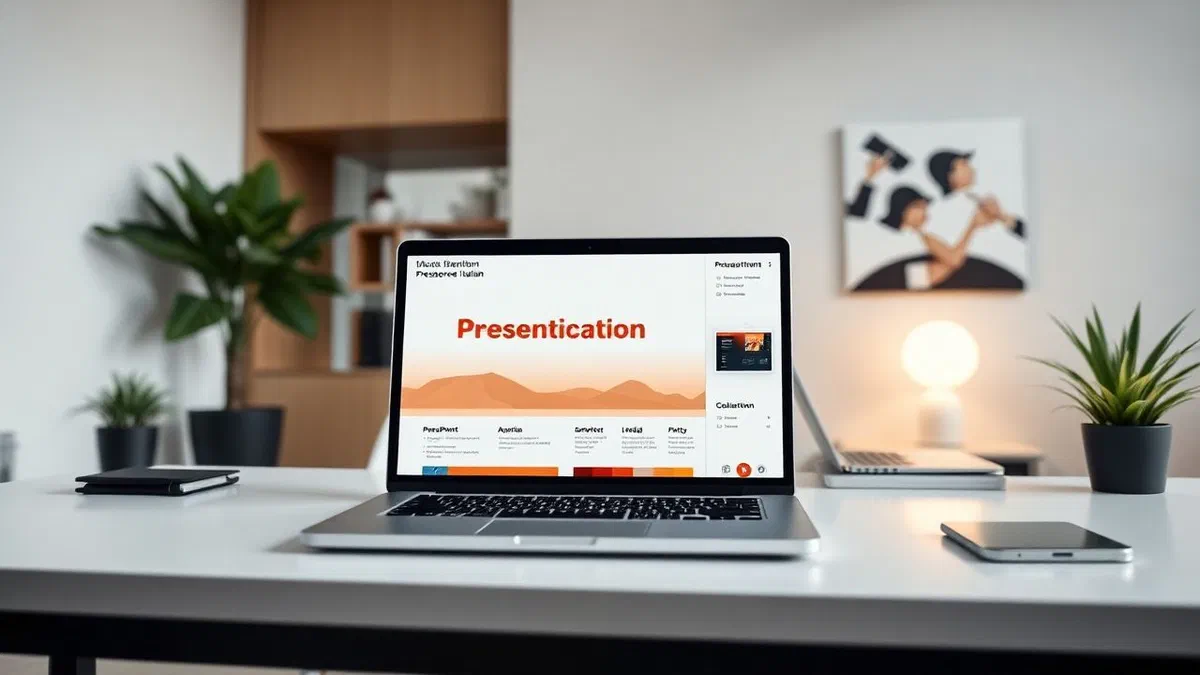
In the working and academic panorama of 2026, knowing how to communicate visually has become a fundamental requirement for anyone wishing to convey ideas clearly and persuasively. learn how to make a powerpoint*** presentation does not only mean how to insert text into a slide, but master a tool that merges design, synthesis and multimedia technology. whether you are a student struggling with the graduation thesis, a professional who has to illustrate a quarterly report or a creative who presents a new project, the ability to use microsoft powerpoint effectively can make the difference between a tremendous success and a total disinterest of the public. in this article, we will explore every single aspect of slide creation, starting from technical bases to advanced strategies of visual storytelling. we will see how to leverage the latest microsoft 365 innovations, explore the most valuable free alternatives such as libreoffice and cloud solutions like google presentations, ensuring that you can work on any device, whether it be a pc, mac or tablet. technology has evolved dramatically in recent years, introducing artificial intelligence capabilities that simplify design, but the underlying logic remains the same: creating a narrative path that guides the listener through your content without ever bored or overloading it with unnecessary information.
Choose the ideal software for slides in 2026 #
Microsoft powerpoint and microsoft 365 ecosystem #
Microsoft powerpoint remains the undisputed leader in the field of ***** software, constantly evolving to integrate increasingly intelligent tools. in 2026, access to this program takes place mainly through microsoft 365 subscription, a service that guarantees not only the latest version of desktop software for windows and macos, but also a cloud storage space on onedrive and integration with advanced assistance tools. to begin to understand how to make a high-level powerpoint*** presentation, you need to understand that the software is no longer a separate island, but a collaborative platform where multiple users can edit the same file in real time. subscription costs have become very flexible, starting from accessible figures for domestic users and offering one month free trial periods for those who want to test the features before purchase. version 2026 has introduced significant improvements in the management of heavy multimedia content, such as 4k video and interactive 3d models, making slides much more similar to a cinema experience than a simple sequence of electronic sheets.
To download and install the program, the process is now extremely simplified: just connect to the official microsoft portal, log in with your account and start downloading the entire office package. once the installation is finished, the user is faced with a welcome screen that offers two main roads: start with a ** blank presentation*** to have maximum creative control, or choose from hundreds of default models. these models are not simple colored backgrounds, but real structural schemes designed by professional designers for different types of communication, from business plan to school lesson. choosing a model in 2026 also means benefiting from the suggestions of the “designer”, a virtual assistant that analyzes the inserted text and automatically proposes consistent layouts, relevant archive images and harmonious color schemes, drastically reducing the time needed to achieve an aesthetically flawless result.
Free and open source alternatives like libreoffice imprinted #
Despite microsoft’s predominance, there are very valid alternatives to powerpoint* for those who do not want to subscribe to a monthly subscription. the most famous open source solution is libreoffice, with its dedicated module called impress. this software is completely free and compatible with windows, macos and linux, representing the ideal choice for those looking for a powerful tool without licensing costs. libreoffice impress has made giant steps in recent years in terms of compatibility: today you can open, edit and save files in .pptx format without losing the original formatting, a critical aspect for those working in mixed environments. although the interface may appear slightly more traditional than that of microsoft 365, impress offers all the fundamental tools for managing texts, images, graphics and transitions, allowing you to create high-quality jobs.
The use of libreoffice is particularly recommended in academics or small offices that manage standard workflows. to start, just download the suite from the official website, a quick operation that does not require invasive recordings. once impress is opened, the user is guided in the choice of an initial model, just as it happens in the competitor software. although some of the artificial intelligence functions in powerpoint are missing, libreoffice makes up for a very light resource management, making it perfect even for less recent computers. it is important to remember that the mastery of an open source tool demonstrates great technical flexibility; knowing how to navigate between different menus and understanding the logic of the management of slides in impress allows to better understand the universal concepts of the design of the presentations, which remain valid regardless of the specific program used.
Powerpoint interface: guide to main commands #
Organize content with toolbar tabs #
To master how to make a powerpoint** presentation, it is essential to become familiar with the multifunction bar located at the top of the work area. microsoft has organized the tools in thematic tabs that follow the logical flow of creating a project. the home tab is the operating center: here are the commands for formatting text, managing pointed lists and quick buttons to insert new slides. each slide can have a different layout, which you can select from the dedicated drop-down menu, allowing you to organize content in columns, with large titles or images on the whole page. understanding the visual hierarchy at this stage is fundamental; a wise use of bold and character size helps the public immediately identify the most important information, avoiding that the look is lost in unreadable text walls.
Continuing in exploration, the insert tab is the one that transforms a simple sequence of words into a multimedia experience. from here you can import photos from your computer, look for stock images in microsoft database, add geometric shapes, vector icons and dynamic graphics related to excel files. in 2026, this card also includes advanced options for inserting 3d models and high-definition media files. another crucial element is the design tab, which allows you to change the entire graphic aspect of the presentation with just one click. here you can change the colors of the theme, fonts and slide sizes, from the classic 4:3 format (ideal for old monitors) to the modern 16:9 panoramic, which is the standard for most projectors and current screens. using these cards correctly means having full technical control of the document, ensuring stylistic consistency from start to finish.
Advanced slide and layout management #
To deepen the knowledge of the interface also means to manage the structure of the presentation. on the left side of the screen we find the navigation panel, which shows the previews of all the slides created. this space is vital for creating effective slide*, as it allows you to reorganize the order of arguments by simply dragging slides with the mouse. you can create sections within the presentation, a very useful function when the work becomes very long (over 20-30 slides), allowing you to group content by chapters or logical arguments. this not only helps the author during the editing phase, but also facilitates navigation during the presentation itself, allowing you to quickly jump from one section to another if necessary.
A often overlooked but fundamental aspect is the display “disappointing template”, accessible from the view tab. this tool allows you to change the basic design of all layouts simultaneously. for example, if you want your company’s logo to appear on the bottom right on each single slide, you won’t have to paste it manually one hundred times; just put it in the diapositive scheme and it will be automatically applied to the whole project. this function is the secret of professionals to maintain a granite visual identity and save hours of repetitive work. in addition, the review tab offers indispensable tools such as advanced spelling and grammar control, which in 2026 is enhanced by algorithms that also suggest stylistic and tone improvements, ensuring that the language used is appropriate to the context of the presentation.
- Home: text management, paragraphs and basic structure of slides.
- Enter: added images, videos, graphics and multimedia forms.
- Design: customization of colors, themes and page sizes.
- Transitions: animations between a slide and the next.
- Animations: movement of elements within the single slide.
- Presentation: configuration of the final display mode.
Multimedia elements to create impact slides #
Insert and format high quality images and videos #
Images are the heart of every modern presentation. to understand how to make a powerpoint** presentation that hits the audience, you must learn to select visuals that are not only decorative, but that add semantic value to the message. powerpoint offers very powerful internal editing tools: once you insert a photo, you can crop it, adjust its brightness or even remove the background without having to resort to external software like photoshop. in 2026, visual quality is all; the use of blurred images or with watermark is considered unprofessional and damages the credibility of the rapporteur. it is always better to opt for high-resolution photographs, preferably with a consistent style (for example, all in black and white or all with pastel colors) to maintain the chromatic harmony of the project.
Video integration has also become a smooth operation without technical plasters. you can insert locally saved video files or incorporate clips directly from platforms like youtube or vimeo. powerpoint allows you to set the video to automatically start the slide change or only after a mouse click. an advanced make-up consists of using short loop videos as a background for cover slides; this shortening immediately captures the audience’s gaze and gives a touch of extreme modernity. however, you have to pay attention to the weight of the final file: too heavy videos could make it difficult to send the presentation via email. in these cases, the software offers functions to compress media files, reducing document size without sacrificing excessively the visual quality perceived.
Use artificial intelligence for automatic design #
In 2026, the artificial intelligence integrated in microsoft 365, often identified with the name copilot, revolutionized the way we think about slide design. this technology allows you to overcome the blocking of the white page by providing real-time suggestions based on textual content. if you write a phrase about corporate growth, ai will automatically propose you a set of layouts with bar charts or images of modern offices in perspective. this digital assistant is essential for create effective slide* in record time, eliminating the need to have professional graphics skills. ai is not limited to design, but can also automatically generate a synthesis of key points starting from a longer text document, organizing concepts in logical and coherent slides.
In addition, artificial intelligence helps maintain document accessibility. thanks to visual recognition algorithms, powerpoint can automatically suggest the “alternative text” for images, making presentation readable even by visually impaired people using screen reader. this attention to inclusiveness has become an indispensable standard in 2026. another surprising use of ai is instant translation of slides or generation of subtitles in real time during oral exposure. taking advantage of these tools does not mean giving up creativity, but delegate repetitive and technical activities to the machine to be able to focus on message quality and performance during live presentation.
- Choose high resolution images (at least 1920×1080 pixels).
- Use the “designer” tool for quick and modern layouts.
- Insert short videos that support speech without overlaying it.
- Optimize media files to reduce total document weight.
- Always check the accessibility of content for all users.
Animations and transitions: dynamism and fluidity #
Apply professional movement effects #
The animations are often seen as a game, but they are actually psychological tools to guide the viewer’s attention. knowing how to make a professional powerpoint**** presentation implies moderate and strategic use of these effects. there are three main types of animations: input (to make an object appear), emphasis (to draw attention to something already present) and exit (to make an element disappear). the secret is coherence: if you decide that the points of a list must appear with a slight fade, use the same effect for the whole presentation. avoid noisy or too slow animations, such as bounces or excessive rotations, which end up distracting the public and giving an impression of professional immaturity.
In 2026, the most powerful animation available is undoubtedly the transition “transformation” (morph). this function analyzes objects in two consecutive slides and creates a smooth movement to move them, resize them or change their color naturally. it is ideal to show the evolution of a chart or to zoom in on a detail of a complex image. to use it correctly, just duplicate a slide, move the items to the new location and apply the transition to the second slide. the result is an almost cinematographic effect that instantly elevates the perception of quality of work. remember that each animation has a control panel where you can adjust the duration and delay of the movement, allowing you to perfectly sync slides with your words.
Manage time and pace of presentation #
The rhythm is what separates a boring presentation from a memorable one. when planning ** animations and transitions****, it is essential to consider the time between one concept and another. powerpoint allows you to automate slide progress, a useful function if the presentation has to loop on a monitor during a fair, but for a live presentation it is always advisable to keep manual control. however, you can pre-set the time to make a chart appear exactly three seconds after the slide title, creating a natural flow that does not require continuous remote clicks. this allows the rapporteur to move more freely and to appear more confident.
A common mistake is to insert too much information into a single slide and then animate one by one to “clean” the screen. this approach is often counterproductive. it is much more effective to split content into multiple slides, using simple transitions such as “dissolvency” or “scorrection” to maintain logical connection. fluidity does not result from the complexity of the effects, but from the naturalness with which the information follows. in 2026, the trend is towards dynamic minimalism: less graphic elements, but animated with extreme precision. use the “animation box” to have an overview of all the movements planned in a slide and make sure that there are no annoying overlaps or dead times that could break the communicative tension of your speech.
Cloud solutions and online collaboration #
Google presentations and teamwork #
In an increasingly remote-work-oriented world, the googlepresentations are the ultimate cloud solution for real-time collaboration. this tool, an integral part of the google workspace suite, allows you to understand how to make a powerpoint presentation directly within the web browser, without installing any heavy software on your pc. the main advantage is sharing: by sending a simple link, you can allow your colleagues to view, comment or edit the file at the same time. each change is saved instantly on google servers, eliminating the risk of losing work due to a system crash or a forgetfulness in manual rescue.
Although google presentations offers some features less than powerpoint desktop version, its simplicity is its strength. the clean interface focuses on the essential, making the learning curve extremely fast for beginners. in 2026, google integrated powerful search tools that allow you to find images and data directly from the side panel, without having to change tab in your browser. also, compatibility with microsoft files is total: you can import a .pptx file in google and vice versa, ensuring maximum operational flexibility. if your goal is speed and need to work multiple hands on a project, this is undoubtedly the platform you should choose for your business or university presentations.
Powerpoint online and mobile apps #
Not to stay behind than google, microsoft has developed an equally powerful web-based version called powerpoint online. accessible via any browser by logging in with a microsoft account, this version is free of charge and offers much of the features needed to create basic slides. it is the perfect solution when you are on a computer that is not yours and you need to make a last-minute change. at the same time, apps for smartphones and tablets (available for android and ios) have reached such a maturity to allow you to understand how to make a powerpoint* presentation also on the move, maybe while you are on the train or waiting for an appointment. the apps are optimized for touch, making the insertion of photos and positioning of intuitive and fast elements.
The onedrive cloud integration allows you to start a project on your office computer, finish it on your home tablet and present it directly from your smartphone connected to a wireless projector or via an hdmi cable. this operational continuity is one of the pillars of productivity in 2026. but keep in mind that on small screen devices (under 10.1 inches), the use of microsoft apps is free, while on larger screens an active subscription could be required. in any case, the ability to view and review your slides wherever you are is a huge competitive advantage, which reduces stress and allows you to arrive at the time of presentation with the maximum possible preparation.
“simplicity is supreme sophistication: an effective powerpoint presentation should not amaze with special effects, but illuminate with clarity of content. "
Tricks for a professional powerpoint presentation #
Storytelling strategies and minimalist design #
Once i learned the technical commands, the real challenge is the content. to understand how to make a powerpoint** presentation that leaves the mark, you must think like a director. each presentation should have a start that captures interest, a development that exposes data and a conclusion that pushes to action. minimalist design is the key: avoid filling slides with too many list points. the golden rule is “one idea for each slide”. if you have much to say, use more slides instead of crowding one image. the text should be reduced to the minimum necessary; slides serve to support what you say, not to replace your speech. if the audience spends time reading your slides, it will stop listening to you.
Another fundamental trick is the use of colors and fonts. use “sans serif” characters (without thanks) like arial, calibri or the most modern versions of 2026, because they are much more readable on screens and through projectors. keep a high contrast between text and background: dark text on light background is the safest combination, but also white text on dark blue or black background can be very elegant in formal contexts. do not forget the importance of white space; leaving large empty areas around the texts and images helps the eye to rest and focus on what really matters. a “respirated” presentation conveys a sense of order, security and professionalism that a chaotic layout will never communicate, regardless of the quality of the presented data.
Practical tips to talk in public with slides #
The success of a presentation depends for 50% on slides and for 50% on your ability to expose them. powerpoint offers an extraordinary tool called “relator view”, which in 2026 became even more sophisticated. this mode allows you to see the current slides on your computer, the next ones and, above all, your private notes, while the audience only sees the full screen slide on the projector. using the clipboard is essential not to forget key steps without having to read directly from the slides, thus keeping the visual contact with the audience. a speaker looking at the audience and not the screen transmits much more authoritativeness and competence.
Finally, always consider the technical context in which you will find yourself. if you know that you will use a dated projector, avoid too soft colors that might disappear. always bring with you a copy of the presentation in pdf format; in case of technical problems with powerpoint, the pdf will be open on any device and will allow you to do your job anyway. add a pinch of humor if the context allows it: an ironic slide or an unexpected image after a series of complex graphics helps to awaken the attention of the public and make your exposure more human and engaging. remember that the ultimate goal is to communicate with people, not simply project data on a wall.
- Use the rule of 10-20-30: 10 slide, 20 minutes, minimum font 30 points.
- Avoid reading slides: use key points as a track for speech.
- Put the most important information at the top of the slide.
- Use high-quality images that evoke emotions or concepts.
- Always do a general test with a chronometer to check the times.
Faq on how to make a powerpoint #
How can i make a free powerpoint presentation? #
There are several ways to create presentations without spending anything. the first is to use powerpoint online through a free microsoft account: you will have the basic functions directly in your browser. alternatively, you can download libreoffice, a full and free open source suite. finally, google presentations is a great free cloud solution for anyone who owns a gmail account. these options offer all the necessary tools for professional jobs without licensing fees.
What is the difference between .ppt and .pptx formats? #
The .ppt format is used by powerpoint versions prior to 2007 and is based on an older and heavier binary code. the .pptx format, introduced later, is based on the xml language; this makes it much lighter, less prone to data corruption and more easily compatible with other software. in 2026, the universal standard is the .pptx and it is recommended to always use this to ensure the highest quality and security of the file.
How does a background music fit for all slides? #
To add a continuous audio, go to the insert tab and select audio. once the file is loaded, a speaker-shaped icon will appear on the slide. click on it and, in the play tab that appears above, select the play in the background. this will automatically set the audio to start at the beginning, continue during slide changes and interrupt only at the end of the presentation, creating an immersive atmosphere.
Can you convert a powerpoint presentation to a video? #
Of course. powerpoint offers an integrated function to export your job as a video file (mp4 or mov). just go to file, choose export and then create videos. you can even record your voice while commenting slides and include it in the final video. this feature is extremely useful for creating tutorials, asynchronous lessons or presentations to share on social media or on platforms like youtube without the user having the installed software.
How do i reduce the size of a powerpoint file too heavy? #
The files become heavy usually due to high resolution images or videos inserted. to solve, click on any image of the presentation, go to the image format tab and select images. here you can choose to apply compression to all photos of the document, reducing resolution for printing or for the web. in addition, from the file menu, you can access the optimize media compatibility feature to compress any heavy videos.
In conclusion, learning how to make a powerpoint* presentation is a time investment that repays in every area of professional and personal life. we have seen how technology of 2026 provides incredible tools, from artificial intelligence to cloud collaboration, to make this task simpler and creative. now you just have to put these tips into practice, experiment with layouts and find your unique style. remember that practice is fundamental: start today to create your next impact presentation!