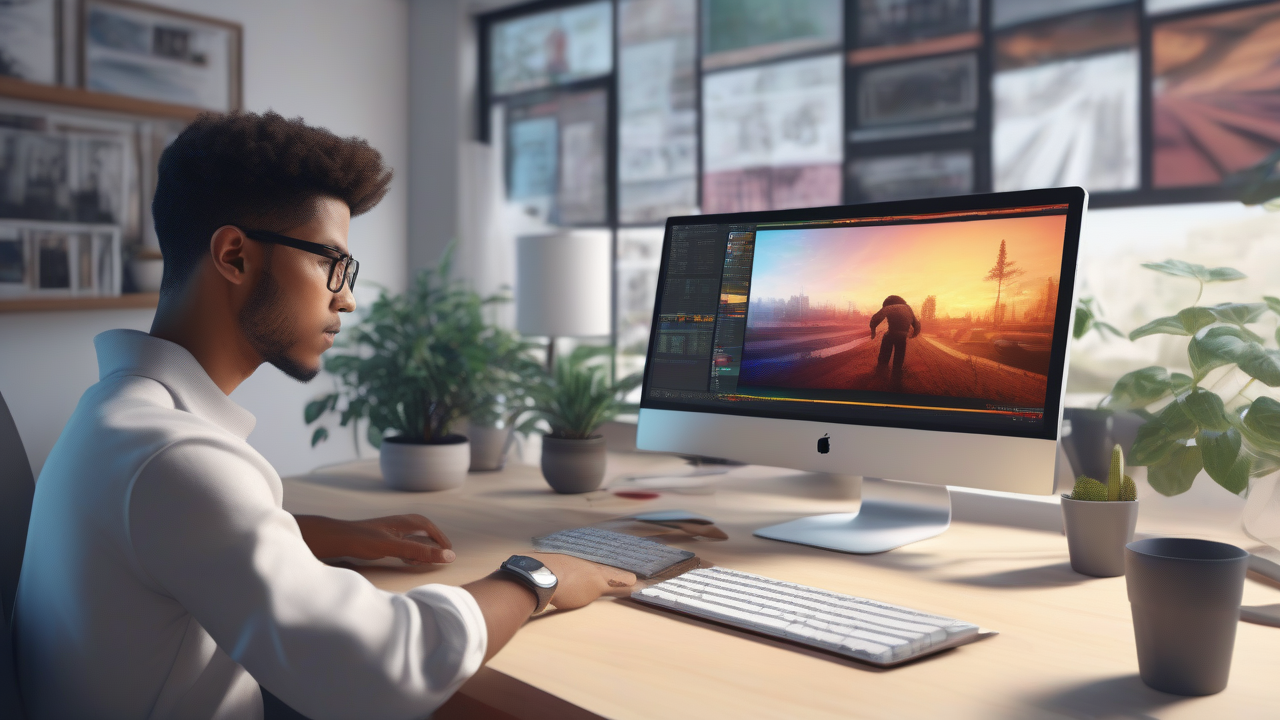
The computer monitor is much more than just a display panel; it is our main interface with the digital world, a crucial tool for productivity, entertainment and communication. Optimal use of the screen can make the difference between a smooth and comfortable experience and a source of frustration or visual fatigue. Whether you're an experienced user or your first weapons, understanding how to manage, customize and solve the problems related to your display is crucial. This complete guide will accompany you through a series of essential operations, from adjusting basic settings to using advanced features, to ensure a visual experience always at the top.
Management of Base View Settings
Often, small adjustments can dramatically improve the computer usage experience. Management of display settings is the first step to customize the interface to your liking.
Adjust Resolution and Screen Sizes
Screen resolution determines the amount of information displayed and sharpness of images. Too low resolution can make icons and text disproportionate, while too high on a small monitor can make everything appear tiny. It is common to encounter anomalous problems, such as a sudden “zoom” effect, perhaps after updating or reinstalling the drivers of the video card. To return the screen to normal size, you need to access the operating system display settings (on Windows, right-click on the desktop > “screen settings”; on macOS, “System Preferences” > “Monitor”). Here you can choose the recommended resolution or the one that best suits your needs. Make sure scale resize is set to an appropriate value (usually 100% or 125% depending on the pixel density of the monitor).
Check Brightness
Excessive or insufficient screen brightness can affect your eyes. Fortunately, adjusting this parameter is a simple operation. On many laptops, there are dedicated function keys (often with a sun icon). On desktop, the adjustment takes place through the physical controls of the monitor or, in some cases, through the display settings of the operating system or the control panel of the graphics card. Finding the right balance is crucial for visual comfort, especially during prolonged sessions.
Straighten the Screen Orientation
Have you ever found the flipped or rotated desktop? This can happen accidentally via keyboard shortcuts (such as Ctrl + Alt + Arrow) or incorrect settings. To straighten the screen, you can access the same display settings mentioned for the resolution and search for the “screen Orientation” option, setting it on “Orizzontale” (or “Vertical” if you use a pivoted monitor for specific needs).
Web Pages and Browser Zoom Adaptation
If you notice that web pages appear too small or too large, or that do not exploit the full width of your screen, the cause may be the browser zoom or the non-responsive nature of the site itself. Most browsers allow you to adjust the zoom with shortcuts (Ctrl/Cmd + and Ctrl/Cmd -) or via settings. For an optimal browsing experience, look for websites that dynamically adapt to the size of your screen.
Reduce Reflections and Improve Visibility
Reflexes on the screen can be a great source of distraction and visual fatigue. To mitigate them, place the monitor away from windows or direct light sources, tilt the screen slightly, or use anti-reflective filters. Also choosing a monitor with matt finish can help.
Capturing and Recording Content from the Screen
The need to “photograph” or “film” what happens on our desktop is increasingly common, both for work and for leisure.
Make Screenshot: The Art of “Photographing” the Desktop
Capturing a fixed image of your screen, or screenshot, is a basic but incredibly useful operation. Whether you want to immortalize an important message, document a mistake, or show a procedure to a friend, there are several ways to do so:
- Print Screen key (Stamp/PrtSc): On Windows, pressing the “Print Screen” button (often shortened in “PrtSc” or “Stamp”), you copy the image of the entire screen in the notes. You can then paste it into any graphics or text processing program. With “Alt + Print Screen” only captures the active window.
- Capture Tool (Windows): This utility (see Capture Tool) allows you to freely select a screen area to be captured, with options for delays and annotations.
- Snip & Sketch (Windows 10/11): A more modern alternative to the capture tool, also accessible through the shortcut “Windows + Shift + S”.
- MacOS shortcuts: On Mac, “Command + Shift + 3” captures the entire screen, while “Command + Shift + 4” allows you to select a specific area. “Command + Shift + 4 + Space” captures a specific window.
These integrated tools make the operation accessible to everyone, without installing additional software.
Record Screen (Screencasting)
Recording what happens on the desktop is useful to create tutorials, video lessons, record gameplay or simply document a dynamic problem. Here too, there are integrated solutions and third-party software:
- Integrated tools: On Windows, the “Game Bar” (Windows + G) offers screen recording features, although it is game-oriented, can record any application. On macOS, QuickTime Player includes a screen recording feature.
- Third Party Software: For more advanced needs, programs like OBS Studio (Open Broadcaster Software) are the preferred choice for streamers and youtuber, offering granular control over audio/video sources, scenes and transitions. Other commercial or freemium solutions such as ScreenPal (formerly Screencast-O-Matic) offer simpler interfaces for fast recordings.
When registering, always consider the desired audio and video quality, the output format and file size.
Optimize the Workspace with Multi-Monitor and Split-Screen
Using multiple monitors or subdividing the screen into multiple windows can revolutionize your productivity and multitasking.
Double or Extend PC Screen
Connecting a second monitor or television to your PC is an excellent way to expand your workspace. You can choose from different modes:
- Duplicate: The same content is shown on both screens, ideal for presentations.
- Extend: The desktop expands on the second monitor, allowing you to move windows between the two displays and work with multiple applications simultaneously, drastically increasing productivity.
The connection is via HDMI, DisplayPort or USB-C cables, and the settings are in the “Settings screen” section of the operating system.
Split Screen in Two (Split-Screen Multitasking)
Even without a second monitor, you can improve multitasking by dividing your PC screen into multiple areas. Both Windows and macOS offer integrated features to support windows:
- Windows Snap Assist: Drag a window to a edge of the screen to occupy half the space. The system will suggest you place another window in the other half.
- macOS Split View: Click and hold the green window expansion icon on the top left to activate it, then choose half the screen to occupy.
This allows you to work with two or more visible applications at the same time, such as writing a document while consulting a web page or spreadsheet.
Streaming with Two PCs (Advanced configurations)
For professional streamers or those who produce complex content, using two PCs in a streaming configuration is a powerful option. A PC is dedicated to the game (gaming PC), while the other manages video encoding and transmission (streaming PC). This approach lightens the load on the gaming PC, ensuring better performance in the game. Requires specific hardware such as video capture cards and more complex software configuration (e.g. OBS Studio on both systems, NDI for video/audio signal transmission between the two PCs).
Monitor Maintenance and Care
A well-kept monitor not only looks better, but also provides better visibility and longer life.
How to Clean the Screen
Powder, prints and alonies can compromise the visual quality of your display. Clean the PC screen requires attention and the right materials to avoid damage:
- Turn off the monitor: This makes dust and stains more visible and prevents accidental damage.
- Microfiber cloth: Use a clean and dry microfiber cloth to gently remove dust and surface dirt.
- Specific cleaning solution: For stubborn footprints or stains, lightly moisten the cloth (but spray the liquid directly on the screen!) with distilled water or a specific cleaning solution for screens (without alcohol or ammonia).
- Delicate movements: Clean with circular and delicate movements, avoiding applying too much pressure.
Regular and correct cleaning prevents the accumulation of dirt and keeps the screen in optimal conditions.
Conclusion
From display troubleshooting to capture screenshots and videos, from organizing multiple monitor workspace to daily maintenance, effective screen management of your PC is a valuable expertise. By mastering these techniques, you will not only improve your productivity, but also the comfort and pleasure deriving from the interaction with your machine. Experimenting with different settings and features will allow you to customize the experience to the fullest, making your screen an ally even more powerful in your digital universe.


