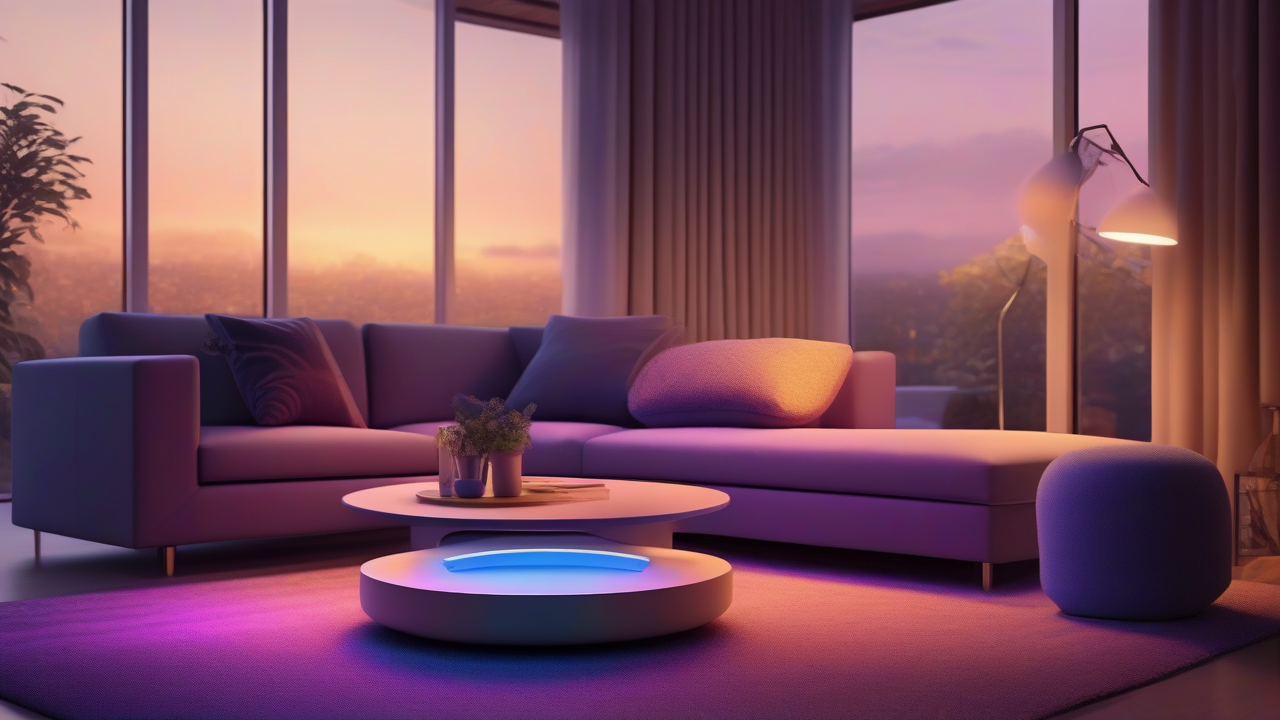
In the age of the smart home, the integration of smart devices into our everyday life has become an accessible and affordable reality. Among the most appreciated innovations is the ability to control domestic lighting through voice assistants like Amazon Alexa. If you have recently acquired an Echo device and want to explore the potential of Alexa to manage home lights, this is the ideal starting point.
This complete guide will accompany you through every step of the process: from identifying the necessary hardware devices to initial configuration, to daily use of voice commands and smartphone app. We will provide you with all the information to choose the best solution for your needs and to transform your home into a smarter and responsive environment.
Essential Devices for Smart Enlightenment with Alexa
Before immersing yourself in the world of voice control of lights, it is essential to understand which smart devices are essential to achieve this integration. To control home lighting with Alexa, both through an Echo device and through the dedicated application, you need to equip yourself with at least one of the following smart accessories: bulbs, sockets or smart switches.
Smart bulbs: The More Direct Solution
Smart bulbs are the simplest and most immediate option to introduce smart lighting in your home. They install like any traditional bulb, provided the attack is compatible with your existing chandeliers or lamps. Their versatility is not limited to remote ignition and shutdown through apps or voice commands: many of them offer advanced features such as light intensity adjustment, color temperature change (hot white to cold white) and even the ability to choose from millions of color shades, to adapt the atmosphere at any time of the day.
The cost of these bulbs can vary considerably, generally between 15 and 90 euros, depending on brightness, energy efficiency and additional functions. They are easily available in electronic stores, retail outlets specialized in lighting or online. It is important to note that some models may require purchase of a hub additional, a small device to connect to the home router via Ethernet cable, for their proper operation. This hub acts as a bridge between the bulbs and the home network.
Intelligent sockets: Traditional Lamp Control
Another effective solution to integrate lighting with Alexa are smart sockets. These devices are inserted directly into a standard electrical outlet and allow to make “smart” any traditional lamp equipped with cable. Connecting a lamp to a smart socket, you can turn it on and off through Alexa. However, it is important to consider that smart sockets only manage on/off power, so they will not allow to control brightness, color or other functions of the advanced lamps to which they are connected, unless the lamp itself is already predisposed for such controls.
Smart sockets are an economical option, with prices often starting from less than 20 euros, and they are a great entry point for those who want to automate lighting without replacing all bulbs.
Intelligent switches: For Integrated Installations
If the lights you want to control are not connected to an electrical outlet and you cannot install smart bulbs (for example, for recessed ceiling lights or wall lighting systems), smart switches are the solution. These devices require a more complex installation, as they must be applied directly to the wall (for touch switches) or integrated into the house electrical system (for Wi-Fi relays). Given the nature of the operation, which implies the handling of electric cables, it is strongly recommended to rely on a qualified electrician for installation, if you do not possess the necessary skills and experience.
Compatibility Verification and Hub Zigbee
Regardless of the chosen device, it is crucial to verify its compatibility with Alexa. Most smart products that support the voice assistant usually report the word “Works with Alexa” on the package. It is a good practice to carefully read technical specifications before purchase.
An important aspect to consider is the presence of a hub Zigbee. If you have a state-of-the-art Echo device, such as an Echo, Echo Studio or Echo Show 10, it is likely that an Zigbee hub is already integrated in it. This means you can control domotic devices based on this standard (such as some bulbs or sensors) without the need for an additional manufacturer hub, further simplifying the configuration and reducing the number of devices to manage.
Detailed procedure for connecting lights to Alexa
The process to connect smart devices to Alexa is divided into two main stages: an initial configuration through the application of the device manufacturer and a subsequent integration into the Amazon Alexa app. Let's see the steps in detail.
Step 1: Configuration Through the Manufacturer App
First, after physically installing the bulb, socket or smart switch, you will need to download the official application provided by the manufacturer of your device. The name of the app is usually indicated on the packaging or instruction manual. Once you download and start the app, the wizard will ask you to:
- Create a free account: Enter your email address and password to register.
- Connect your device to the Wi-Fi network: Select the home Wi-Fi network and follow the instructions to establish the connection.
- Locate and add the device: Start scanning to detect your smart device, select it and assign it a recognizable name (for example, “Light Stay” or “Lampada Camera”).
At the end of this phase, you should be able to control the lights through the manufacturer’s application. This step is crucial because it ensures that the device is properly functioning and accessible from the local network before integrating it with Alexa.
Step 2: Integration with the Amazon Alexa App
Once your smart device is configured and working with its native app, it's time to connect it to Alexa. If you haven’t, download the Amazon Alexa app on your smartphone or tablet and sign in with your Amazon account.
Here are the steps in the Alexa app:
- Access the Devices section: From the main screen of the Alexa app, tap the “Devices” icon in the menu below.
- Add a new device: Press the “+” button on the top right and select the “Add Device” option from the menu that opens.
- Choose the type of device: In the “All Devices” section, select the appropriate category: “Lampadina”, “Presa” or “Operator”.
- Select the device brand: On the next screen, choose the brand of your device from the list (for example, Philips Hue, Osram, Tuya, TP-Link Kasa, etc.). If the brand does not appear, browse the list and select “Other”.
- Connect the manufacturer's account: If required, enter the account credentials you created previously in the manufacturer’s app (Fase 1) to allow Alexa to “discover” and check your devices. This operation enables the Alexa “skill” corresponding to the brand of your device.
- Detection and configuration: Alexa will start searching for new devices. Once you have detected your device, press on “Configure Device”.
- Assign a group (optional but recommended): For better organization and more efficient vocal control, you can assign the device to an existing group (e.g. “Salotto”, “Cucina”) or create a custom. This will allow you to control multiple lights at the same time with a single command (e.g. “Alexa, turn on the lights of the living room”).
Once you complete these steps, the Alexa app will confirm that your device is configured and ready to use. The name assigned to the device in the manufacturer’s app will be automatically associated with Alexa. However, you can change it to make it more intuitive for voice commands. To do so, in the “Devices” section of the Alexa app, select the device type, tap its name, then the gear icon and finally “Edit name” to set a new name.
Specific Connection Cases: Christmas lights and Philips Hue
Alexa’s integration is not limited to everyday lighting, but also extends to more specific solutions, such as Christmas lights or advanced lighting systems such as Philips Hue.
Connect Christmas Lights to Alexa
Smart Christmas lights are becoming increasingly popular, offering customizable light effects and the convenience of voice control. The connection process is similar to that of smart bulbs:
- Choose compatible smart lights: Make sure your Christmas lights are compatible with Alexa.
- Install the manufacturer’s app: Download and configure the official application of the manufacturer of your lights (for example, Twinkly or other brands). Create an account and associate the lights with the app by following the instructions.
- Enable Alexa skill: Open the Amazon Alexa app, go to “Other” > “Skills and games”. Use the magnifying glass to search for the skill related to the brand of your Christmas lights. Enable and access the account credentials created in the manufacturer’s app.
Once connected, the lights will appear in the “Devices” section of the Alexa app and you can rename them (e.g. “Christmas Lights”) for easier voice control. In addition, Alexa’s routines allow you to program the ignition and automatic shutdown of the lights at scheduled times.
For old non-smart Christmas lights: If you want to control your traditional Christmas lights with Alexa, you can do it using a smart grip. Connecting the lights to a smart socket, you can turn them on and off with the voice or via the Alexa app, although without the possibility of adjusting colors or effects.
Connect the Philips Hue Lights to Alexa
Philips Hue is one of the most popular and appreciated smart lighting systems. Connecting the Philips Hue lights to Alexa is an intuitive process:
- Philips Hue app: Download the official Philips Hue application and follow the wizard to configure your bulbs and the Hue system.
- Skill Hue on Alexa: In the Amazon Alexa app, enable the skill called “Hue” (or “Philips Hue”) and connect your Philips Hue account.
The Philips Hue Bridge: It is important to know that for many Philips Hue devices, in the absence of an Echo with integrated Zigbee hub, you will need the Philips Hue Bridge, the owner control center of the Hue system. This bridge connects to your router and manages communications with bulbs, serving as a bridge for Alexa.
However, some more recent models of Philips Hue bulbs and lamps support Bluetooth connectivity, allowing a direct connection to Echo devices without the need for Bridge. This feature is usually clearly indicated on the product packaging, accompanied by the Bluetooth logo.
Command the Lights with Alexa: The Vocal Commands
Once you have completed the configuration of your smart devices with Alexa, you are ready to enjoy the comfort of voice control and app. Let's see how to do this.
Use of Vocal Commands
If you have an Amazon Echo device, voice commands are the most immediate way to interact with your lights. It is essential to use the names you have assigned to individual devices or lights groups to give precise instructions:
- General ignition: “Alexa, light the lights [group name]” (e.g. “Alexa, light the lights in the living room”)
- Specific switching: “Alexa, turn on [the device name]” (e.g. “Alexa, turn on the table lamp”)
- General shutdown: “Alexa, turn off the lights [group name]”
- Specific shutdown: “Alexa, turn off [ Devicename]”
- Brightness adjustment: “Alexa, set the brightness of the lights [group/device name] to 50%” or “Alexa, lower/light up”
- Color change: “Alexa, set the color of the lights [group name/device] on blue” (if the bulb supports color change)
The key is clarity and consistency with names assigned to your devices and groups in the Alexa app.
Control through the Amazon Alexa Application
Light control is not limited to voice commands. The Amazon Alexa application allows you to manage lighting even when you are out of the house or simply prefer a manual interaction:
- Manual control: Access the “Devices” section of the app, select the device of your interest and tap the “ON” or “OFF” button to turn on or off the lights. Here you can also access advanced options such as brightness adjustment or color change, if available.
- Voice commands in the app: You can also use the microphone icon in the lower right corner of the Alexa app to pronounce the same voice commands you would use with an Echo device.
To discover all available possibilities and voice commands, explore the section “Other” > “What to try” > “Smart house” inside the Alexa app. Here you will find a comprehensive list of instructions and features that you can use to optimize your smart lighting experience.
Routine Alexa: Advanced Automation
To bring automation to a higher level, the Routine Alexa allow you to plan concatenate actions. You can create a routine that will turn on the lights of your stay at sunset, or that will automatically turn them off when you go out of the house, or that will simulate your presence by turning on and off the lights at random intervals. The routines are configurable via the “Other” menu in the Alexa app and offer endless possibilities to customize your smart home.
The integration of smart lights with Amazon Alexa offers an unthinkable level of comfort and customization. With the right devices and a careful configuration, you can control the lighting of your home with the simple voice or touch on your smartphone, wherever you are. Explore the infinite possibilities of home automation and transform your living experience.


