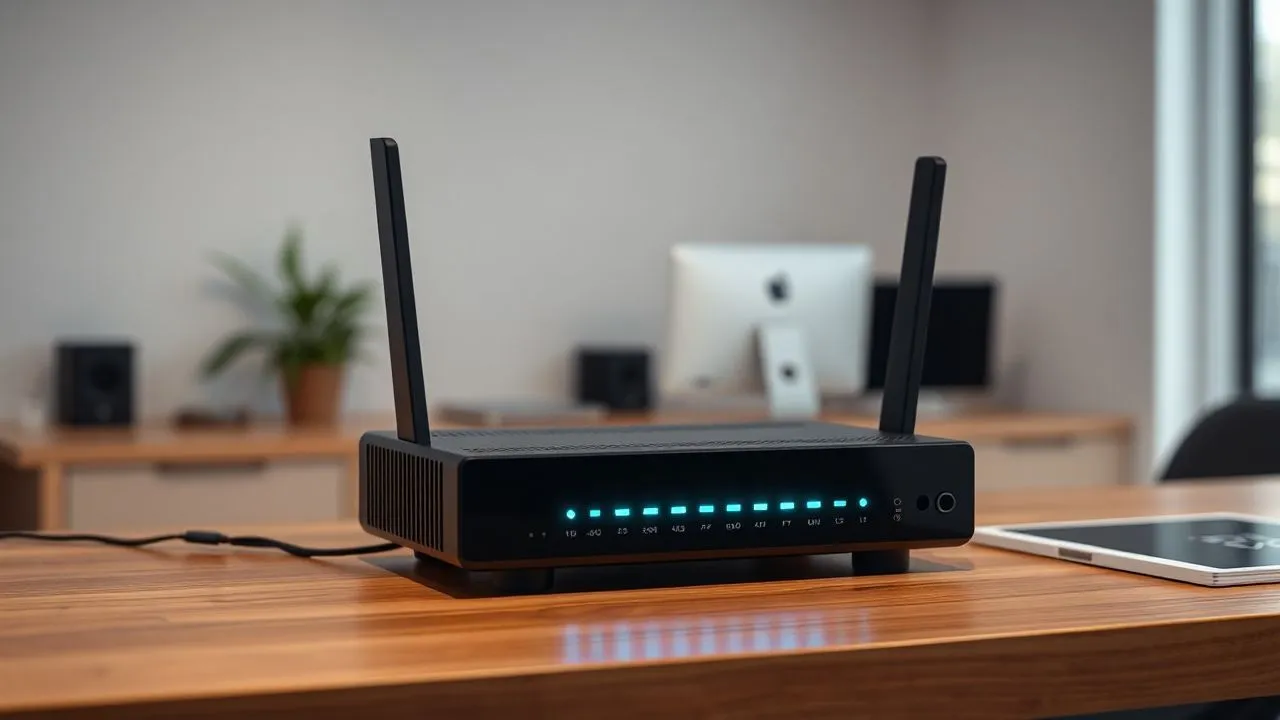
In the digital panorama of 2026, having a high-performance domestic internet connection is no longer a luxury, but an absolute necessity for agile work, streaming in high definition and online gaming. Many users, despite having an ultra-fast optical fiber, find sudden slowdowns or unstable coverage in some rooms of the house. Often, the problem does not reside in the external line, but in the internal configuration of the wireless signal. Learning to change frequency modem TIM represents the most effective solution to optimize signal distribution and drastically reduce interference caused by other electronic devices or neighbor networks. The modern routers provided by the operator, such as TIM HUB+ or Technicolor variants, operate on different frequency bands, mainly at 2.4 GHz and 5 GHz. Each of these bands has unique physical characteristics that influence the speed of navigation and the ability to penetrate the walls. In this complete guide, we will analyze in detail how to access the advanced settings of your device to change these parameters, ensuring unprecedented signal stability. We will explore the technical differences between available frequencies and provide you with the specific instructions for each modem model currently distributed by TIM, ensuring you maximize the performance of your local network in a few simple technical steps.
Band analysis: differences between 2.4 GHz and 5 GHz
2.4 GHz frequency advantages and limits
2.4 GHz frequency band is the historical standard of home wireless communications and is still fundamental in 2026, especially for home automation devices and the Internet of Things (IoT). The main advantage of this frequency lies in its longer wavelength, which allows it to overcome physical obstacles such as carrying walls, heavy furniture and floors with extreme ease. If you live in a large house or on multiple floors, the 2.4 GHz band ensures that the signal also arrives in the most remote corners. However, this band is extremely crowded: not only is it used by most old routers, but it is the same frequency on which microwave ovens, baby monitors and Bluetooth systems operate. This crowding generates the phenomenon of channel saturation, leading to frequent disconnections or a high latency, making it less suitable for activities requiring a lot of bandwidth. Change frequency modem TIM to this band is recommended only if the distance from the router is remarkable and the pure speed is not your absolute priority.
To optimize the use of 2.4 GHz band, it is essential to understand the management of radio channels. In Italy, this band has 13 channels, but only three of them (1, 6 and 11) do not overlap each other. When you config your TIM modem, manually set one of these three channels after scanning the surrounding environment can significantly improve the connection quality. Many users ignore that leaving the router in automatic mode does not always guarantee the choice of the best channel, especially in densely populated condominiums where dozens of wireless networks compete for the same hertzian space. In 2026, with the exponential increase of connected devices, oculated frequency management at 2.4 GHz became an art necessary to maintain a stable network. Remember that the theoretical maximum speed on this band is significantly lower than the latest technologies, usually attesting under 300-450 Mbps, depending on the Wi-Fi protocol supported by your specific hardware.
Why prefer 5 GHz band in 2026
The 5 GHz band represents the pillar of high-performance connections. Unlike 2.4 GHz, this frequency offers a much wider bandwidth, allowing the transfer of huge amounts of data in very short time. It is the ideal choice for streaming content in 8K, downloading heavy files and competitive gaming sessions where every latency millisecond (ping) can make a difference. Another great strength is the almost total absence of interference by common household appliances. Since it has a number of unsurpassed channels much higher (well 23), it is extremely difficult for your network to conflict with that of the neighbor. If you're in the same room as the router or the adjacent one, change frequency modem TIM by forcing your devices on the 5 GHz will radically transform your browsing experience, eliminating lag and frustrating slowdowns that often afflict less modern networks.
However, the 5 GHz band has a physical “tallone d’Achilles”: its reduced penetration capacity. The short waves of this frequency are easily reflected or absorbed by reinforced concrete walls, mirrors and metal surfaces. This means that the cover is much more limited than 2.4 GHz; just move away a few meters and break a wall to see the Wi-Fi notches come down drastically. To overcome this problem, modern TIM modems use technologies such as Beamforming, which targets the signal specifically to the connected device instead of radiating it evenly in each direction. In 2026, the optimal configuration usually involves the activation of both bands, allowing modern devices as the latest smartphone and smart TV to hook up to 5 GHz, leaving the sensors of the domotic on the slowest but capillary 2.4 GHz. Understanding this balance is the first step for a future-proof home network.
- Maximum speed: Very high on the 5 GHz band, ideal for FTTH fiber.
- Cover: Superior in the 2.4 GHz band, great for large houses or on multiple levels.
- References: Minims on 5 GHz, high on 2.4 GHz due to Bluetooth and microwave.
- Compatibility: Total for 2.4 GHz, limited to modern devices for 5 GHz.
- Available channels: Up to 23 channels on the 5 GHz band against 13 of 2.4 GHz.
TIM control panel access procedure
IP addresses and login credentials
To be able change frequency modem TIM, you need to enter the “heart” device software, commonly called admin panel or web interface. This operation can be performed by any device (PC, tablet or smartphone) connected to the modem network, either via Ethernet cable or via Wi-Fi. The first step is to open a web browser and type the local IP address of the router in the address bar. Generally, for TIM models, the default address is 192.168.1.1. In some specific cases or custom models, it may be necessary to try with 192.168.0.1 or 192.168.1.254. Once you press Enter, you will open a login screen that will require you to enter a username and password. It is essential not to confuse these credentials with the Wi-Fi security key you use to connect phones; these are the access credentials to the modem operating system itself.
If you have never changed the access parameters, factory credentials are usually printed on a label placed on the back or under the TIM modem. In most cases, the standard combination is admin/admin or admin/password, but for security reasons, the most recent models produced in 2025 and 2026 require the creation of a custom password at first access. If the label is unreadable, you can consult the digital user manual provided by TIM on the official portal. If you’ve changed your password in the past and don’t remember it anymore, the only possible solution is to reset the modem factory. Holding down the “Reset” button (usually a small hole on the back) for about 10-15 seconds with a clip or toothpick, the device will return to the original settings, allowing you to access again with the default data. Remember, however, that the reset will erase any customization, including network names and any forwarding rules set previously.
Resolution of common problems during access
It is not rare to encounter difficulties while trying to access the router panel. One of the most frequent error messages is “Non-Private Connection” or an SSL security alert. This happens because many modems use a self-signed certificate that modern browsers like Chrome or Safari do not recognize as safe. There is no need to worry: just click on “Advanced” and then on “Procede anyway” to view the login page. Another common problem is the conflict of IP addresses; if you have connected another router or access point, address 192.168.1.1 may point to the wrong device. In this case, temporarily disconnect the other devices and connect directly to TIM modem via cable to ensure you communicate with the correct interface. Change frequency modem TIM requires a stable connection to the dashboard, so the Ethernet cable always remains the most reliable option for these maintenance operations.
If after typing the correct IP the page continues not to load, check that your device is not using a proxy server or active VPN. VPNs, in fact, redirect internet traffic to remote servers, making it impossible to reach the local address of your home modem. temporarily disable any privacy protection software or browser extension that might interfere with local traffic. Also, check that in the settings of your network card (on Windows or macOS) the option “Opt IP address automatically” is active. If you set a static IP outside the router range, communication will be impossible. Once you pass these small technical obstacles, you will be ready to navigate through the menus and take full control of your wireless network infrastructure, optimizing frequency bands according to your specific housing needs.
TIM HUB+ ZTE H388X modem configuration
Band Steering management and frequency separation
The TIM HUB+ model ZTE H388X is one of the most popular Wi-Fi 6 devices in 2026. By default, this router uses a technology called Band Steering. This function “unifies” bands at 2.4 GHz and 5 GHz under a single network name (SSID), deciding on which frequency to connect each device. Although it may seem comfortable, modem often makes mistakes, connecting modern smartphones to slow 2.4 GHz only because the signal is slightly stronger. For change frequency modem TIM effectively on this model, the expert advice is to disable the Band Steering. Access the “Local Network” section, select “WLAN” and then “BSS Steering”. Here, move the switch to “OFF”. This action will allow you to assign different names to the two bands, for example “Mianet2.4GHz and “Mianet”5GHz”, allowing you to choose manually and accurately which network connect your gaming or working equipment.
Once you separate the networks, you can proceed to the granular configuration of each frequency. On the “WLAN Base” tab, you will find the options to selectively turn off the band you don’t need. If you live in a studio, you may decide to completely turn off 2.4 GHz to eliminate any possible interference, leaving only the very fast 5 GHz active. On the contrary, if you have many smart home sensors that do not support high frequencies, you will need to ensure that 2.4 GHz is correctly configured with the appropriate security protocol (usually WPA2/WPA3 Mixed). Remember to always click on “Applica” after each change. The modem could restart the Wi-Fi module, causing a short connection break of about 30-60 seconds. This process is essential to correctly write new parameters in the non-volatile memory of the ZTE router and ensure that changes are permanent even in case of electric blackout.
Manual optimization of ZTE radio channels
After deciding which band to use, the next step for a perfect connection is the choice of the radio channel. In the ZTE H388X panel, go to “Window configuration SSID” and look for the channel voice. Although the “Auto” mode tries to locate the less congested channel at the time of ignition, it is not able to dynamically adapt to environmental changes during the day. For 2.4 GHz band, as mentioned above, manually select one between channels 1, 6 or 11. For the 5 GHz band, you have much more freedom. We recommend using the highest channels (over 100) if you want to avoid conflicts with weather radars (DFS channels), even if older devices may have difficulty seeing them. Change frequency modem TIM and optimize its channel is an operation that should be repeated periodically, especially if you notice a decrease in performance at certain times of the day.
An advanced make-up for demanding users concerns the channel width (Channel Width). On the TIM HUB+ ZTE, you can set the width to 20, 40, 80 or even 160 MHz on the 5 GHz band. A greater width equals a larger “roadway” for your data, allowing impressive peak speed. However, too wide channels are more sensitive to interference. If your home is isolated, set up 160 MHz to enjoy the maximum speed of the Wi-Fi 6 protocol. If you live in a crowded urban context, a width of 80 MHz is the ideal compromise between stability and performance. Experimenting with these settings will allow you to sew the network on your needs, turning a standard modem into a professional data sorting center. The flexibility offered by the ZTE interface is remarkable and, if used correctly, can double the efficiency of your home optical fiber.
- Access the panel via address 192.168.1.1.
- Navigate to the "Local Network" menu and select "WLAN".
- Disable the "Band Steering" in the "BSS Steering" tab.
- Assign distinct SSID names for 2.4 and 5 GHz frequencies.
- Choose static radio channels to reduce external interference.
TIM HUB Technicolor modem management and previous versions
Selective activation of wireless bands
The TIM HUB models produced by Technicolor, recognizable for the elegant design and clean lines, offer a very intuitive user interface, organized for “tiles” or modules. For change frequency modem TIM on these devices, you have to click on the tile called “Wireless”. Inside, you will immediately find the two main switches for 2.4 GHz and 5 GHz network. Technicolor's philosophy is slightly different from ZTE: here bands are often already shown separately, facilitating life to less experienced users. If you want to maximise the battery life of your portable devices, you may want to disable the 5 GHz band when not necessary, because the search for a high frequency signal and low penetration can consume more energy. However, in 2026, the general recommendation is to keep the 5 GHz active as a primary network for all multimedia devices.
In the advanced menu of Technicolor, you can also manage the “Guests Network”. This is a very useful function that allows you to create a Wi-Fi frequency dedicated to visitors, isolated from your main local network where your sensitive data, NAS or security cameras reside. You can decide to activate the host network only on the 2.4 GHz frequency, thus limiting the band used by the guests and preserving the 5 GHz for your exclusive use. This segmentation not only improves the computer security of the house, but helps maintain the main frequency performance always at the top. Once you make your choices, click the “Save” button at the bottom of the page. A peculiar feature of Technicolor modems is the speed of application of the changes: rarely require a complete reboot, making pre speed tests and post configurations very fast and satisfying.
Configuration of advanced parameters and safety
In addition to the simple choice of frequency, the TIM HUB Technicolor allows to intervene on safety parameters that indirectly affect the stability of the signal. In the “Wireless Interface” section, make sure that the encryption type is set to WPA2-AES or, if your devices support it, on the most modern WPA3. Changing the protection mode can sometimes solve incompatibility problems with old tablets or game consoles that struggle to connect to certain frequencies. In addition, the Technicolor offers a graphic display of the employment of channels, visually showing you what are free frequency “holes” in your neighborhood. Use this map to place your 2.4 GHz network on the less crowded channel, avoiding destructive overlaps with neighbors' routers that could cause annoying micro-blocks during video calls or streaming.
Another fundamental aspect is the transmission power (Transmission Power). Although the instinct suggests setting it 100% always, in some cases slightly reduce the power of the 2.4 GHz band can reduce background noise and improve the overall quality of the Wi-Fi signal in small environments. This technical approach, combined with the choice of the right frequency, creates a cleaner electromagnetic environment. Remember that the TIM HUB modem is a sophisticated device that also manages the VoIP phone; changing the Wi-Fi settings will not affect your ability to receive and make calls, unless you are using Wi-Fi phones or specific apps. The stability of Technicolor firmware makes it one of the most reliable routers in TIM history, and with these small optimizations you can continue to use it successfully with the most advanced Gigabit connections of 2026.
The 5 GHz Wi-Fi signal is like a sports car on the highway: fast but stops at the first obstacle. 2.4 GHz is like an off-road: slow but comes everywhere, even through the mud of home interference.
Optimization with modem FRITZ!Box 7590 of TIM
Separation of SSID and Band Steering Intelligent
The FRITZ!Box 7590, often provided by TIM for business lines or for users requiring maximum performance, is considered the “gold standard” of home routers. The AVM interface is extremely detailed and offers customization options that are not found on standard models. For change frequency modem TIM on a FRITZ!Box, go to the “Wi-Fi” side menu and select “Wireless Network”. Here, the system clearly shows the devices connected to each band. To separate frequencies, scroll down to find the option “Different names for Wi-Fi networks on 2.4 and 5 GHz bands”. By quitting this box, you can rename the networks individually. The advantage of the FRITZ!Box is its intelligent management of the Band Steering: even if you hold a single name, the router is much more skillful than competitors in moving the devices between frequencies according to the instant traffic load.
Another unique feature is the ability to view the Wi-Fi spectrum in real time. Under the heading “Canale radio”, the FRITZ!Box constantly analyzes the surrounding environment, identifying not only other routers, but also other sources of disturbance such as radar (DFS). If you decide to manually set the 5 GHz frequency on high channels, the router will scan silently to ensure that you do not disturb emergency or weather systems. This attention to detail ensures that your connection is always in compliance with current regulations, avoiding signal suspensions that on other modems could last several minutes. The flexibility of the FRITZ!Box 7590 also allows you to create an integrated Wi-Fi Mesh system, where the connected repeaters automatically inherit the frequency settings of the main router, ensuring smooth navigation throughout the house without having to configure every single access point.
Wi-Fi performance monitoring and channels
Monitoring is the soul of professional configuration. In the “Wi-Fi Environment Analysis” section of FRITZ!Box, you can see exactly how much bandwidth is occupied by the surrounding networks. This allows you to change frequency modem TIM with surgical precision. If you notice that 2.4 GHz channel 6 is saturated to 80%, you can immediately move to channel 1 or 11 to recover speed. In addition, the FRITZ!Box allows you to adjust the Wi-Fi mode (for example, from 802.11ax to 802.11ac) to maximize compatibility. In 2026, with the advent of new standards, being able to “degrade” or “enhancing” transmission technology for each single frequency is a huge competitive advantage to solve problems of connection with legacy devices that would otherwise remain isolated or unstable.
Finally, do not forget to exploit the energy saving function. The FRITZ!Box allows to program the automatic shutdown of one of the two frequencies (or both) during the night hours. In addition to slightly reducing electrical consumption, this practice decreases night electromagnetic pollution in your home. Upon awakening, the router will reactivate the bands according to the prefixed scheme, bringing the network to maximum operation. This holistic frequency management makes FRITZ!Box 7590 a lasting investment. Although TIM's infrastructure technology evolves towards 10-Gigabit fiber, AVM's intelligent Wi-Fi management will remain a reference point for anyone looking for a home network that simply functions always and at the most of the hardware potential available in 2026.
- Spectrum display: Graphical tools to locate less crowded channels from neighbors.
- Wi-Fi Mesh: Automatic synchronization of frequencies between routers and AVM repeaters.
- Standard Wi-Fi: Full support for Wi-Fi 6 and dynamic management of old protocols.
- Timer Wi-Fi: Possibility to program the ignition and shutdown of radio bands.
Using the TIM Modem App for quick configurations
Configuration from smartphones and tablets
In 2026, most network maintenance operations are carried out via mobile devices. The application “TIM Modem” (formerly known as MyTIM Fixed) has become a powerful and refined tool for change frequency modem TIM without necessarily having to use a computer or know the IP address of the router. After downloading the app from official stores and accessing your MyTIM credentials, you will be welcomed by a dashboard showing the status of your line. By clicking on the modem icon, you can access the “My Wi-Fi” section. Here, the simplified interface allows you to turn on or off bands at 2.4 GHz and 5 GHz with a simple touch. It is the ideal solution for those who do not want to navigate between the complex technical menus of the web panel but still want a direct control over their domestic connectivity.
The TIM Modem app also offers proactive tips. Thanks to artificial intelligence algorithms integrated in TIM servers in 2026, the application is able to analyze the quality of your connection and notify you if a channel or frequency change could improve stability. For example, if the app detects too many interference on the 2.4 GHz band, it will send you a notification suggesting you move the main devices to the 5 GHz. You can also change the network name and password directly from your smartphone, and changes will be spread instantly to the modem. This ease of use has democratized the management of the home network, also allowing less experienced users to autonomously solve common problems of navigation, reducing the need to call technical assistance for simple routine configurations that once required the intervention of an expert.
Benefits of remote control and diagnostics
A key advantage of using the app for change frequency modem TIM is the possibility to do it even when you are not physically in the house. If, for example, you realize that an external security camera has disconnected because the 5 GHz frequency does not reach it well, you can connect to the app via the 5G network of your smartphone and force the 2.4 GHz band activation or change the radio channel to try to restore the connection. This flexibility is priceless for the management of modern smart home. In addition, the app includes an advanced diagnostic section that speedtests directly from the modem to the TIM central, helping you to understand whether a slowdown is due to the Wi-Fi frequency chosen or an actual problem on the fiber optic or copper line.
In addition to frequency management, the TIM Modem app serves as a security control centre. You can see in real time which devices are connected to which frequency and, if you notice an unwanted guest, you can block access with a click. In the context of 2026, where computer security is priority, having a clear view of how your bandwidth is used is essential. The app also allows you to prioritize certain devices (QoS – Quality of Service): you can educate the modem to describe most of the bandwidth of the frequency 5 GHz to your game console or to the PC of the office during the working time, ensuring that downloads in the background of other family members do not disturb your priority activities. This integration between hardware and software makes TIM experience one of the most complete on the Italian market.
Frequently asked questions
How do I know if my device supports frequency 5 GHz?
To verify compatibility with the 5 GHz band, you can consult the technical specifications of the manufacturer by looking for the word “Dual Band”, “Wi-Fi 5” (802.11ac), “Wi-Fi 6” (802.11ax) or “Wi-Fi 7”. If the device was produced after 2020, it is almost certainly compatible. A practical method is to try to display the available networks: if you have separated the SSIDs on the TIM modem and only see the 2.4 GHz network, your device does not support the higher frequency.
Why after changing frequency some devices no longer connect?
This usually happens when you turn off the 2.4 GHz band or you change the security protocol (e.g. from WPA2 to WPA3). Many dated or cheap devices, such as old Wi-Fi printers or first-generation smart bulbs, are unable to communicate on the 5 GHz frequency. Make sure you always keep 2.4 GHz active if you have home domotic objects, possibly with a separate SSID to avoid automatic allocation conflicts from the router.
Is Band Steering better active or disactive?
The answer depends on the number and type of obstacles in your home. If you live in an open environment, the active Steering Band is comfortable because the modem operates independently. If you have thick walls or many devices that “high” continuously from one frequency to another causing short breaks, disable it and manually assign devices to bands 2.4 or 5 GHz is the best choice to ensure absolute stability during work sessions or intense play.
Can I change TIM modem frequency from the TIMVision Box remote?
No, you cannot directly change the Wi-Fi bands of the modem via the remote control of the TIMVision Box. However, you can use the Box interface to verify the quality of the received signal and see which frequency is currently connected. To make structural changes, you will need to use a web browser on a computer/smartphone or the official TIM Modem app, which offers the administrative permissions necessary to write new settings on the router.
Change the radio channel invalidates the TIM modem warranty?
Absolutely not. Changing the radio channel or frequency is provided by the manufacturer and operator to allow the user to optimize their experience of use. They are reversible software changes at any time and do not affect the integrity of the device. TIM itself encourages these practices through its official guides, as they help solve the problems of environmental interference that customer service could not remotely handle specifically for each individual home.
In conclusion, learn to change frequency modem TIM is a fundamental competence for anyone wishing to navigate to maximum performance in 2026. We have seen how the 2.4 GHz band offers cover, while the 5 GHz guarantees speed, and how the choice between the two depends closely on the conformation of your home and the devices you use daily. Whether you own a TIM HUB+ ZTE, a Technicolor or a performance FRITZ!Box, the access and configuration procedure is within reach of everyone, thanks to the intuitive app TIM Modem. We invite you to experiment with the suggested settings, monitoring improvements in the stability of your connection. A well configured home network not only improves your productivity and entertainment, but fully enhances the investment made in your fiber optic line. Take control of your Wi-Fi today and enjoy a smooth navigation without interference!


