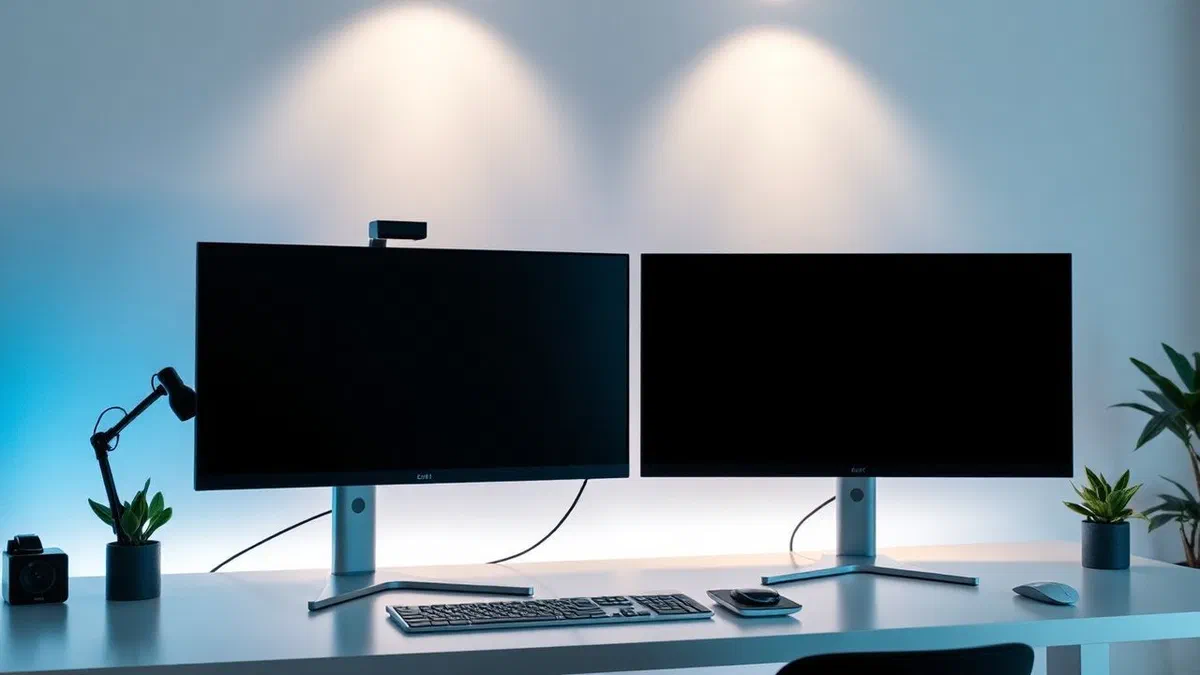
In the technological landscape of 2026, the need to expand its digital work area has become a priority not only for it professionals, but for anyone who wants to optimize their time and efficiency during everyday use of the computer. understanding how to see two different things on two monitors* represents the first fundamental step to transform an ordinary workplace into an advanced productivity center. very often, the first approach with a second screen can be frustrating: we connect the cable and we find ourselves with a simple duplication of the main image. this phenomenon, known as mirroring, is the default setting of many operating systems, but it is certainly not what we need to simultaneously manage spreadsheets, web browsers and messaging applications. the correct configuration requires the activation of the extended desktop mode, a function that allows the operating system to treat the two screens as a single continuous surface. through this detailed guide, we will analyze each technical step to correctly configure displays on windows 11, windows 10 and macos, providing practical solutions for even the most modern wireless connections. whether you’re trying to improve your gaming setup or simply want to have more space for your online searches, learn how to properly manage multiple monitors will open you new previously unimagined operational possibilities.
Preliminary operations for multi-monitor #
Cable types and connections in 2026 #
Before immersing ourselves in software configurations, it is essential to understand the hardware aspect that is behind the management of multiple screens. in 2026, the dominant standard became the usb-c with thunderbolt 5 or displayport alt mode support, which allows you to transmit high resolution video signals and recharge your device with a single cable. however, many stations still use the classic hdmi 2.1 or displayport 2.0 inputs, which ensure excellent signal stability for high refresh frequencies. when you decide to implement a solution for how to see two different things on two monitors, you must check that your video card, whether integrated or dedicated, supports multiple output. most modern notebooks have at least one dedicated door, but in case of need it is possible to resort to docking station or multi-port adapters that expand the connection capabilities of the pc without sacrificing the quality of the final image.
In addition to the physical connection, attention must be paid to the quality of the cables used. a common mistake is the use of obsolete cables that limit resolution or cause annoying flickers. for an optimal experience, make sure the cable is certified for the native resolution of the secondary monitor. if you want to use a wireless connection, check that both devices support the latest transmission standards, such as wi-fi 7, to minimize latency. an unstable connection would make it difficult to use the mouse fluid between the screen and the other, invalidating the productive advantages of having an extended desktop. once the physical or wireless connection is established, the operating system should automatically recognize the presence of a new hardware, preparing for the logical configuration phase that we will see in the next paragraphs of this in-depth technical guide.
Hardware requirements of video card #
The power of the video card plays a crucial role in managing two or more independent screens. it is not only about owning the correct physical ports, but having a graphic chip capable of managing the rendering of additional pixels without slowing down the system. in the current context, the integrated gpus of modern processors also manage office multitasking on two 4k screens. however, if your goal is to use the second monitor for heavy graphics applications, 8k video editing or high refresh rate gaming, you will need to ensure that your gpu has enough dedicated video memory (vram) . without a proper computing power, you may find frame rate or lag drops in the dragging of windows, hindering the goal of how to see two different things on two monitors in a fluid and professional way.
Another key aspect is driver support. maintaining updated video card drivers is vital to ensure compatibility with the latest versions of windows and macos. often, the recognition problems of the second monitor stem from obsolete software that fail to properly dialogue with operating system display management protocols. before proceeding, visit the website of the manufacturer of your pc or video card (nvidia, amd or intel) and download the latest updates available. this will ensure that all configuration options, including hdr color management and sampling frequencies, are fully accessible in system settings, allowing you to customize the work area according to your specific ergonomic and visual needs.
Configure windows 11 for extended desktop #
Access the screen settings #
Windows 11 has greatly simplified the monitor management interface, making the activation of extended mode a quick and intuitive operation. to begin to understand how to see two different things on two monitors* on microsoft’s operating system, the fastest method is to right-click a free desktop area and select the screen settings item. this action will immediately open a window where you can display a graphical representation of your connected monitors. in this section, monitors are usually identified with numbers 1 and 2. if you are not sure what the main monitor is, you can click on the identifying button to make a large number appear on the corresponding screen, thus facilitating spatial orientation within the configuration software.
Once you identify the screens, going down the side drop-down menu, you will find the basic option for our guide: more screens. here you will need to change the setting from duplicate these screens to extend these screens. as soon as you select this option, you will notice that the second monitor will become an empty but active space, ready to host any window or application. windows will ask you if you want to keep these changes; confirm by clicking on keep changes. it is important to note that, if you do not confirm within 15 seconds, the system will automatically return to the previous display for security, in case the second monitor is unable to correctly display the sent signal, thus avoiding staying with a black screen and without immediate intervention.
Monitor order management #
After activating the desktop extension, it is essential that the virtual position of the monitors correspond to their physical location on your desk. if the monitor 2 is physically located on the left of the monitor 1, but in the windows settings it is placed on the right, the mouse cursor movement will be counterintuitive: you will have to move the mouse to the right to make it appear on the left. to correct this problem and optimize how to see two different things on two monitors, simply drag the numbered rectangles into the screen settings window to make them coincide with reality. this drag-and-drop operation is immediate and also allows to align the monitor height in case one is placed higher than the other on a dedicated support.
Within this process of refinement, windows 11 offers very useful advanced options for multi-tasking workers. for example, you can decide which monitor should be considered the main screen, that is where most system icons and the main start menu will appear by default. in addition, you can activate the option to store the location of the windows according to the connected monitor: this function is extremely convenient for those using a notebook with a docking station, since the system will automatically reposition all windows in the correct positions as soon as the connection of the external screen is detected. here are some key steps to remember while configuring on windows:
- Use the win+p quick keys combination to change the flight between pc screen only, duplicate, exterior or second screen only mode.
- Adjust resize (dpi) for each monitor separately to prevent the text from being too small on 4k screens.
- Check the orientation of the screen if you use a vertical monitor for reading long code or documents.
- Enable the slider’s fluid move option between the screens to prevent the mouse from being stuck in the corners.
How to manage double screen on windows 10 #
Resize options and layout #
Although windows 11 is now the standard, many users still use windows 10 for business stability or compatibility. the procedure for how to see two different things on two monitors* on this version of the operating system follows a very similar logic but with a different aesthetic. by accessing settings via the start menu and clicking system and then on screen, you will have access to the display management grid. here, the most critical parameter to adjust after setting the extend mode these screens is the resize and layout. since the two monitors often have different sizes and resolutions (e.g. a full hd notebook and a 4k external monitor), windows 10 allows you to set a different magnification percentage for each, ensuring that the windows do not change drastically size when dragged from one side to another.
Another interesting feature of windows 10 is the management of the taskbar. many users prefer that the bar only appears on the main monitor to maximize useful space on the second screen, while others want a duplicate bar to have quick access to open programs on both sides. in the taskbar settings, accessible with a right click on the bar itself, you can decide whether to show the application bar buttons on all monitors and how to group them. this level of customization is what really distinguishes an approximate configuration from a professional, allowing you to maintain the focus on the most important activities without distractions due to an unorganized or fragmented user interface between the two displays.
Quick keyboard shortcuts #
For those seeking maximum efficiency, mouse use can sometimes be slower than using integrated keyboard shortcuts. windows 10 fully supports a series of commands that facilitate the task of those who want to understand how to see two different things on two monitors* without having to navigate the system menus every time. the combination of windows + shift + right arrow keys (or left) is probably the most powerful tool at your disposal: it allows you to instantly move the active window from one monitor to another maintaining its size and relative location. this is incredibly useful when you have many open applications and you want to quickly reorganize your desktop layout to compare data or consult different sources.
In addition to moving between screens, you should not forget the snap assist function, which in windows 10 allows you to split the screen into precise areas. by pressing windows + arrow on/giu/destra/sinistra, you can anchor a window to one side of the monitor, allowing you to see at the same time up to four different elements on a single screen, which multiplied by two monitors bring your viewing capacity to eight distinct working areas. this integration between hardware and software is the heart of modern productivity. below are the main key combinations to be stored to master the multi-monitor system:
- Win + p: opens the quick projection menu to select the external mode.
- Win + shift + left/right arrow: move the window to the adjacent monitor.
- Win + home: reduces all windows except the active one to clean the secondary work area.
- Win + up arrow: maximize the window in the monitor where it is currently located.
- Ctrl + win + d: create a new virtual desktop, useful to further separate activities between the two physical monitors.
Use two screens on macos and macbook #
Configuration via system settings #
The Apple approach to managing multiple monitors is renowned for its aesthetic and functional simplicity. if you have a mac and want to find out how to see two different things on two monitors, the procedure starts by connecting the external display via usb-c, hdmi cable or thunderbolt adapter. once connected, go to the Apple menu (the apple icon on the top left), select system settings and click the screens item in the sidebar. here you will see a graphic preview of your displays. by default, macos could activate the duplication; to change, click on the external monitor name and in the use drop-down menu as select the extended screen option or stop duplication.
Macos offers very smooth space management thanks to functions such as mission control and spaces. when you extend your desktop, each monitor acts as an independent work area where you can create different virtual desktops. a distinctive feature of the system Apple] is the ability to drag the menu bar and the dock between the monitors (virtually), defining which display is simply dragging the small white bar represented in the preview of the settings. this level of control allows mac users to create an extremely customized work environment, ideal for creatives who need a calibrated color monitor as the main and a second screen for editing tools or video production timelines.
Use of airplay and sidecar for ipad #
In addition to traditional physical monitors, the ecosystem Apple] offers innovative solutions for those who want to extend their desktop without the encumbrance of additional cables. sidecar is a technology that allows you to use an ipad as the second monitor of your mac, running both cable and wirelessly. this is a perfect solution for those who work in mobility and need to know how to see two different things on two monitors* using what they already have in their backpack. once sidecar is activated through the display menu in the control center, the ipad becomes an extension of the mac desktop, also supporting the use of Apple pencil to interact with macos applications directly from the tablet.
In parallel, airplay allows you to project or extend your mac desktop on any compatible device, such as a Apple tv or a latest-generation smart tv. although latency may be slightly higher than a physical connection, airplay is an excellent solution for presentations or to display multimedia content on a large screen while continuing to work on the macbook display. the versatility of these wireless technologies underlines the commitment of Apple to make multi-monitor configuration accessible and devoid of friction, allowing the user to focus exclusively on their creative or professional activity. here are some advantages of using sidecar and airplay:
- Absolute mobility: transforms any environment into a double screen with an ipad.
- Touch integration: use ipad gestures or pencil to manage mac windows.
- Zero cables: reduces the disorder on the desk thanks to proprietary wireless technology.
- Flexibility: quickly switch from mirror mode to extended mode with just one click from control center.
Wireless solutions and projection technologies #
Miracast and wi-fi direct on windows #
In 2026, wireless technology has achieved stability levels to compete seriously with wired connections for many usage scenarios. windows uses the miracast standard to allow users to understand how to see two different things on two monitors* without the help of any hdmi cable or displayport. many modern monitors and smart tvs natively integrate miracast support. to connect, just press win + k on your pc’s keyboard; a side panel will open with the list of wireless displays available on your network. once the device is selected, the connection will be established and you can choose between the duplication or desktop extension exactly as you would with a wired monitor.
The use of miracast is particularly beneficial in meeting rooms or open space offices, where flexibility is fundamental. however, it is good to remember that the quality of the connection depends strongly on the congestion of the local wi-fi network. to achieve the best results, it is advisable to use a 6ghz network (wi-fi 6e or wi-fi 7), which offers superior bandwidth and reduced latency. despite the convenience, for activities requiring a millimeter accuracy of the slider or for competitive gaming, the cable still remains the preferred choice due to intrinsic micro-currencies in wireless video compression. however, for generic productivity, wireless is now a mature and reliable solution to expand its digital horizons.
Apple tv and smart screens #
Moving on the slope Apple, integration between mac and Apple tv represents the state of the art of domestic and professional projection. using the airplay 2 protocol, you can send an encrypted and fluid video signal to a Apple tv connected to a monitor or projector. when you wonder how to see two different things on two monitors* in a home environment, this combination is often the easiest to implement. the mac recognisesApple tv as a standard external display, allowing you to drag safari windows, keynote presentations or numbers spreadsheets directly to the tv of the living room while continuing to take notes on the integrated display of the macbook.
In addition to the Apple tv, many monitor manufacturers (such as samsung and lg) started integrating smart operating systems directly into desk screens. these devices can receive wireless signals through multiple protocols, making them extremely versatile for both windows and mac users. the main challenge in 2026 is no longer “if” you can connect wirelessly, but how to better configure connection security to prevent other users on the same network from viewing your desktop. using mating pin codes and data encryption became necessary standards to protect privacy while extending your desktop wirelessly, especially in sensitive business contexts.
Tricks to optimize multi-monitor productivity #
Third-party software for window management #
Although windows and macos offer excellent native tools, there are third-party applications that bring the ** experience to see two different things on two monitors** at a higher level. for windows users, microsoft’s powertoys is an indispensable addition, especially the fancyzones feature. this tool allows you to create custom zone layouts on each monitor, allowing you to “cast” windows in precise positions with a simple drag holding down the shift key. this is especially useful if you use ultra-wide monitors or configurations with more than two screens, where manual management of windows would soon become chaotic and counterproductive.
For mac users, software like magnet or rectangle offer similar features, allowing you to organize your desktop with intuitive keyboard shortcuts that are missing in the base system. there are also solutions such as displayfusion, which offers advanced features such as highly customizable multi-monitor applications bars, different backgrounds for each screen and configuration profiles that can be activated with a click. the investment in these small software tools can repay in a few days thanks to the time saved in the continuous manual reorganization of the working windows, allowing you to maintain a constant flow state during your more complex daily activities.
Ergonomics and physical positioning #
Often neglected, ergonomics is a vital component when deciding to switch to a configuration with two monitors. know how to see two different things on two monitors* doesn’t help much if after two hours of work you experience neck pain or visual fatigue. the golden rule is to place the monitors so that the top edge of the screen is up to the eyes. if the two monitors have different dimensions, the use of adjustable mechanical arms (monitor arms) is highly recommended. these supports allow you to perfectly align the panels, reducing the effort needed to move the look from one screen to another and freeing valuable space on your desk.
Also, consider the angle of inclination: the monitors should be slightly inclined towards the inside, creating a thin arc that follows the natural rotation of the head. environmental lighting also plays a key role; avoid placing monitors directly in front of a window to prevent annoying reflections that might force you to incorrect postures to read content. a correct calibration of brightness and color temperature between the two screens will also help reduce eye stress, making the experience of prolonged use much more comfortable. here are some quick tips for a perfect ergonomic setup:
Visual comfort is the basis of long-term productivity; a double misplaced monitor is a risk to your postural health as a uncomfortable chair.
- Align monitor centers if they have the same size.
- Keep a distance of about 50-70 cm between your eyes and the screen surface.
- Use desk lamps with indirect light to avoid glare on the screens.
- Choose monitors with flicker-free technology and integrated blue light filters.
Frequently asked questions #
Can i use a tv as a second monitor to see different things? #
Of course. a modern tv can be used exactly as a computer monitor, provided you have an hdmi port or wireless support (miracast/airplay). once you connect your tv to your pc or mac, you will need to follow the same procedure described above: access the screen settings and select the extend mode on your desktop. however, it is important to check the resolution supported by the tv and adjust the scaling in windows or macos settings, as texts may appear too small or too large compared to a traditional office monitor.
What to do if the computer does not recognize the second monitor connected? #
If after connecting the cable the second screen remains black, the first thing to do is to check that the connections are firm on both sides. then try to force the detection in the system settings by clicking on the detect button (on windows). if the problem persists, update the video card drivers and make sure the monitor is set to the correct input source (hdmi, displayport, etc.). in rare cases, the cable may be faulty or not support the required bandwidth; try replacing it with a superior or shorter quality to exclude signal interference.
Can you connect two different monitors to a laptop with one hdmi port? #
Yes, you can, but you will need additional hardware. the most common solution is the use of a usb-c or thunderbolt docking station that offers multiple video outputs simultaneously. alternatively, if your laptop supports the displayport 1.2 standard or higher via usb-c, you can use monitors that support daisy chaining (chain connection), where the first monitor connects to the pc and the second monitor connects directly to the first. another economic option is the use of usb-to-adaptors hdmi using an internal graphic chip to generate an additional video signal, although performance may be lower.
Why does the mouse lock between one monitor and the other? #
This usually happens when the virtual layout of monitors in the operating system settings does not match their physical location on the desk. if windows “thinks” that the second monitor is above the first, but you put it right, the cursor will not move it laterally. go to the screen settings and drag monitor rectangles until they are correctly aligned. also make sure that there are no “mother” angles between the two rectangles; if the monitors are not perfectly adjacent to the graphic representation, the mouse could be trapped in the passage edges.
Extended desktop mode slows down the performance of my computer? #
In principle, the impact on performance for office activities, web browsing or movie viewing is negligible on computers produced over the last 5-7 years. the operating system must manage a greater number of pixels, but the modern graphics cards are designed for this. however, if you run heavy video games or 3d rendering on both screens simultaneously, you may notice a drop in frame rate as the gpu has to work twice. for normal multitasking, productivity benefits far exceed the minimum system resource consumption required to manage a second independent display.
In conclusion, master multi-monitor configuration and fully understand how to see two different things on two monitors* is an essential digital competence in 2026. we have seen how both windows and macos offer powerful and intuitive tools to extend their work area, both through traditional cables and through state-of-the-art wireless technologies. remember that the key to success lies not only in physical connection, but in software customization and attention to ergonomics. do not be afraid to experience different layouts and use third-party software to refine your experience of use. now that you have all the information you need, you just have to configure your ideal workspace and enjoy the extraordinary efficiency that only a double-screen setup can offer. start organizing your windows immediately and transform your way of interacting with your computer!