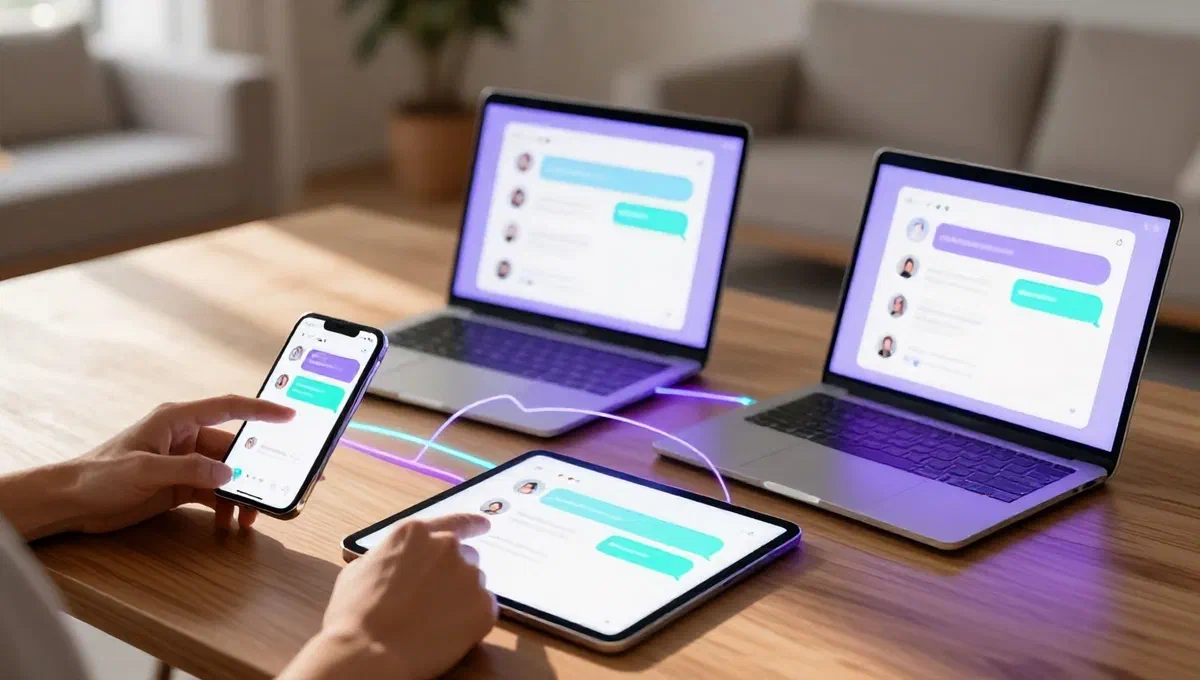
In the era of digital communication, the search for alternative and functional platforms to stay in contact with friends and family is always current. if the most popular options such as whatsapp or skype do not fully meet your needs, or simply want to explore new possibilities, viber emerges as a valid and popular alternative. this instant messaging service stands out for its ease of use and availability on different platforms, making it accessible to a wide audience.
Viber allows you to make high-quality voice and video calls, as well as sending text messages, photos, videos and files, all free of charge between viber users, using the internet connection. the only exception is calls to traditional phone numbers (fixes or non-viber mobiles), which are a paid service. otherwise, communication with your viber contacts is completely free of time or distance, making it an excellent tool for both personal and professional use.
In this thorough guide, we will explore step by step how to download and install viber on a variety of devices, including smartphones, tablets and computers. we will provide you with all the information you need to configure your account and start enjoying all the features that viber has to offer, regardless of the operating system you use. prepare to discover how to easily integrate viber into your daily communication routine.
Essential system requirements for viber #
Before proceeding with the download and installation of viber, it is essential to ensure that your device meets the minimum system requirements. these details ensure optimal operation of the application and smooth user experience. viber is designed to be compatible with a wide range of devices, but it is always good to verify compatibility.
- smartphone and tablet:
- android: requires android 5.0 or later.
- ios/ipados: requires ios/ipados 15 or later.
- computer:*
- windows:* compatible with windows 10 (64 bit, version 1607 and later), including windows 11.
- macos: requires macos 11.0 big sur or later.
- linux:* supported on fedora and ubuntu distributions (64 bits).
A crucial aspect to keep in mind for users who want to use viber on computers is that it is essential to have a viber account active on a smartphone. the desktop version of viber, in fact, synchronizes with the mobile application and cannot work independently without a prior registration and activation by phone number on a mobile device.
How to download and install viber on smartphones and tablets #
The installation of viber on mobile devices is a simple and intuitive process, which follows standard procedures for downloading applications from official stores. here are the detailed steps for android and ios/ipados.
Installation on android #
If you use an android smartphone or tablet (such as samsung, xiaomi, huawei, etc.), follow these steps to install viber:
- Access your device’s home screen or drawer.
- Search and tap the play store* icon (the triangular symbol coloured on white background).
- Once the play store opens, tap the research* section, usually located below the screen.
- In the top search field, type
Viberand tap the magnifier icon on the virtual keyboard to start the search. - Among the results, select the application called viber.
- On the viber application screen, tap the install button. the device will automatically start downloading and installing the app.
- At the end of the installation, tap open* or search for the new viber icon added to your home screen or app drawer and tap it to start the application.
- At the opening of viber, tap start now. select your country from the drop-down menu and enter your phone number in the dedicated field.
- Tap continue*, wait for the sms or call number verification and complete the initial configuration by providing your name, date of birth, email and, if you wish, a profile photo. if you already have a viber account, you can simply login after verification.
- Once you have completed your access, you will have the viber main screen in front of you and you can start communicating.
If your android device does not have google services (and then the play store), you can search for viber on reliable alternative stores, following similar search and installation procedures.
Installation on ios/ipados #
For iphone or ipad users, the installation of viber is just as simple:
- Go to the home screen or the app library of your device.
- Tap the icon of theapp store* (the blue symbol with the letter ‘a’ in the center).
- In the app store, tap the cerca* tab, located at the bottom right.
- In the top search field, type
Viberand tap the cerca* key on the virtual keyboard. - Select the viber* application from the results list.
- On the app page, tap the ottieni* button and then install. authentication may be required through face id, touch id or password of your id
Viberto confirm download and installation. - Once the installation is completed, tap open* to start the app, or tap the viber icon on the home screen or in the app library.
- At the opening of viber, decide whether to enable notifications and grant the required permissions. next, tap start now*, select your country from the drop-down menu and enter your phone number.
- Tap continue*, wait for number verification and proceed with profile configuration (name, date of birth, email and photo). if you have an existing account, you can access it directly.
- At this point, viber will be ready to use on the main screen.
How to download and install viber on computer #
Viber offers a complete user experience on your computer, allowing you to sync your conversations and calls between your mobile device and your desktop. remember that to use viber on pc or mac, you must have an active account and configured on your smartphone.
Installation on windows #
For windows 10 and later users, there are two main methods to install viber:
Via microsoft store #
- Open the microsoft store. you can find it in the start menu (the shopping bag icon).
- In the top search bar, type
Viberand press enter or click the magnifying glass icon. - From the results list, select the viber application.
- On the application page, click the install button. the download and installation will happen automatically.
- At the end, you can start viber by clicking open in the microsoft store window or selecting the viber icon from the start menu.
Through the traditional installation package #
- Open your web browser (e.g. chrome, edge, firefox).
- Visit the official website of viber.
- Search and click the download viber* button and then download for windows.
- Once the
Viber] file is downloaded, start it. - In the window that appears, click the install* button and wait for the completion of the configuration process.
- At the end, viber will open automatically on your desktop.
Regardless of the installation method, at the first start of viber on the computer, you will be shown a qr code. you will need to scan this code using the viber app on your smartphone to connect the two devices and sync your account. once paired, you can use viber directly from your pc.
Installation on macos #
If you use a mac, the installation of viber follows a standard procedure for macos applications:
- Open your web browser (e.g. safari, chrome).
- Visit the official website of viber.
- Search and click the download viber* button, then download for mac.
- Once you download the
Viber] file, open it. - A finder window will open. drag the viber icon into the applications* folder to complete the installation.
- After copying the application, start viber from its icon in the launchpad or from the applications folder. you may be required to confirm the opening of the application, in which case you click open.
As with windows, once you open the viber application on your mac, you will be shown a qr code. use your smartphone’s camera through the viber app to scan the code and pair the two devices. completed this step, you can manage all your viber communications directly from your mac.
Initial configuration and start of use #
After completing the installation on any device, the initial configuration process is very similar. requires verification of the phone number through a code sent via sms or an automatic call. next, you can customize your profile by name, photos and other optional information.
Once your account is active and configured, viber will welcome you with its intuitive interface, from which you can easily access your chats, start new conversations, make voice or video calls and explore the other features offered, such as creating groups or sending stickers. thanks to this guide, now you have all the information to install viber on all your devices and stay connected with who cares, in a simple and immediate way.