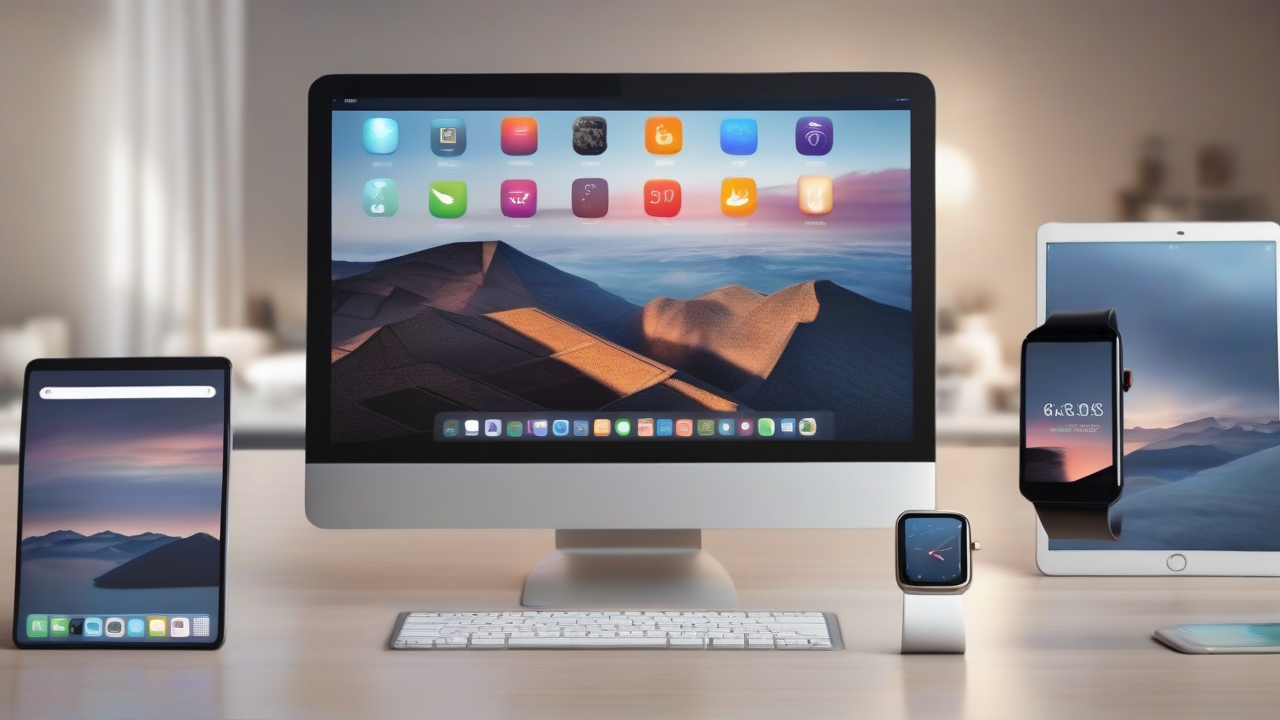
In a digital age where our mobile devices are constantly enriched by new applications, it is easy to find yourself with a chaotic and unfunctional home screen. The feeling of loss among dozens of icons can hinder efficiency and make it frustrating even the simplest of operations. Fortunately, placing order in your digital ecosystem is an operation within reach of everyone, which takes only a few minutes of dedication and knowledge of the right steps. Whether you use an Android device, an iPhone, an iPad or even an Apple Watch, there are clear and intuitive methods to reorganize your apps, transforming the disorder into a clean and personalized environment.
This detailed guide will give you all the information you need to master the art of organizing apps on your devices, illustrating the specific procedures for each operating system. Prepare to find out how to move, group and manage your apps to create a home screen that is not only aesthetically pleasing, but also optimize your daily workflow.
Organize Apps on Android: Screening Home and Drawer
Customization is one of the distinctive features of Android, and this also extends to the organization of apps. Putting order on your Home screen or application drawer is a simple process if you know where to look.
Moving and Managing Icons
To move a single app to the Home screen, just press and hold the finger on the desired icon, then drag her in the new position and release. If you need to move multiple apps simultaneously, some Android devices offer specific features. You may have to hold pressed in an empty spot of the Home screen, select the icons by placing a check mark and then drag them to the desired page. Other models may require prolonged tap on an app, dragging it on a voice as “Application proposal” that appears up. This creates a bar where you can add other apps before dragging them all together to their final destination on the Home screen.
The transition of apps between different pages of the Home screen takes place dragging the icon to the right or left edge of the display. The pages available are indicated by the small balls usually visible below, with the one on the current page that stands out by color or appearance.
The App Drawer and the Alphabetical Ordination
The app drawer is a separate area from the Home screen where all installed applications are collected. To organize them here, go to the drawer, look for a button with three vertical dots (i) or horizontal (χ), or a voice “Edit”. Once you activate the modality, you can press and drag icons to reposition them. At the end, confirm the changes. Some smartphones also allow you to act within predefined categories, such as “Photography” or “ Entertainment”.
If you want a more systematic order, many Android devices offer the option of order apps in alphabetical order inside the drawer. Search again the , or Ω button, select “Ordina” and choose “Alphabetic Order”.
To add an app from the drawer to the Home screen, hold on on the app icon in the drawer and, once the Home screen appears, place it at the desired point. Conversely, to remove a link from a Home screen without uninstalling the app, hold on on the icon and drag it to the voice “Remove connection” or select “Remove” from the context menu.
Create and Manage Folders
Folders are a powerful tool to group similar apps, drastically reducing disorder. Both on the Home screen and in the drawer, you can create a folder dragging an app icon over another. This action will automatically create a new folder, to which you can add additional applications simply by dragging them inside.
Folders can accommodate multiple pages of apps, and icons within them can be moved freely, just like on the Home screen. You can also assign a custom name to each folder by opening it and typing the name in the top text field. To delete a folder, enable editing mode and drag it on the item “Elimina” or “Remove”or moves all the apps into it outside the folder itself.
It is important to note that the exact procedures may vary slightly depending on the Android version and the launcher (the Home Screen interface) used by your specific smartphone or tablet model.
Organize Apps on iPhone and iPad: Fluidity and Efficiency
The Apple ecosystem offers a consistent and intuitive user experience for app organization, both on iPhone and iPad, with some unique features that improve efficiency.
Mode of Editing and Moving
To start reorganizing apps, you need to activate the editing mode, often called “Jiggle mode” for icon animation. You can do this in different ways: hold on long on an icon until a menu appears and select “Edit the Home screen”; or keep holding until icons start to “tremize”; or again, on iOS 14 and later, hold pressed in an empty spot for a few seconds.
Once in modality, prizes and drags the app icon in the desired location. To move multiple apps simultaneously (from iOS 11 onwards), after activating the edit mode, hold on on an app and, with another finger, performs a single tap on the other icons you want to move. All selected apps will gather and can be dragged together.
The move between the pages of the Home screen is carried out dragging the icon to the right or left edge of the screen, just like on Android. The bottom boxes indicate the available pages and the current one.
Advanced iOS Features
With iOS 18 or later, Apple has introduced greater freedom in the organization: it is possible place the app icons without following the preset grid of the Home screen. In addition, the function “Personality”, accessible by pressing “Edit” at the top right during the modality, allows you to set large icons (without labels) and/or in one dark mode for a different aesthetic.
Management of App Library (iOS 14+)
The Libreria app, introduced with iOS 14, is a smart screen that automatically group all installed apps by categories. It is a great way to reduce the number of pages on the Home screen. You can choose to remove an icon from the Home screen by making it appear only in the Library app: press on the icon and select “Remove from Home screen”. Conversely, to copy an app from Library to Home screen, hold on the icon in the Library and choose “Add to Home”.
If you want the new downloaded apps to go directly to the Library app without clugging the Home screen, go on Settings > Home screen and app library and select the option “Only library app” in the section “New apps downloaded”.
Folders and Dock on iPhone and iPad
Creating folders works identically to Android: drag an app over another to create a folder. You can add other apps by dragging them into it. Folders can contain multiple pages and icons can be reorganized freely within them. For rename a folder, hold on to it, select “Rename” and type the new name. A folder automatically disappears when all apps within it are moved outside.
Also the Dock bar, located at the bottom of the screen, can be customized. In modality, drag apps out of the Dock to free space and drag new apps from Dock to add them.
Restoration of Layout and iPadOS Specificity
If after experimenting with different configurations you want to return to the default layout of the apps (the native apps will return to their original location, the others will be in alphabetical order), you can do so by going up Settings > General > Transfer or initialize iPhone > Restoration and choosing “Restore Home screen layout”.
As for the iPad, the steps to organize apps are almost identical to those on the iPhone. The only significant difference, starting from iPadOS 13, is the possibility of enable or disable the display of suggested and recent apps in the Dock. This option is located in Settings > Home screen and app library, where you can turn on or off the switch next to “Show suggested and recent apps in the Dock”.
Organize Apps on Apple Watch: Flexibility to the Pole
Apple’s smartwatch also offers options to keep the apps sorted, either directly from the device or via the associated iPhone.
Directly from the Apple Watch
To organize apps directly from your Apple Watch, make sure the display is set to “Garden view”, since the “View list” commands the apps alphabetically and does not allow manual changes. If necessary, press the Digital Crown to access the Home screen, scroll to the bottom of the list and select “Garden view”.
Once in Grid View, press and hold on the app icon you want to move until all icons start “vibrating”. At this point, drag the icon in the desired location. After completing the changes, press the Digital Crown to confirm.
Via iPhone
A convenient alternative is to organize Apple Watch apps through the paired iPhone. Make sure the two devices are connected, then open the app Watch on iPhone. Access the section “Apple Watch” (low left), tap “Vista app” and then select “Disposition”. In the screen that appears, hold on on the app icon you want to move; once enlarged, drag her in the new position.
Creative Organization Styles: Beyond Functionality
Once you learn the basics, you can push yourself beyond simple functionality and adopt more creative styles of organization. Many users, for example, are inspired by aesthetic principles to place icons. This may include app organization to color, creating visual nuances on the Home screen, or for thematic category (e.g. productivity apps, social media, entertainment) with dedicated folders or pages. The goal is to create an interface not only efficient but also pleasant to the view, reflecting your personality and your way of using the device.
Conclusion: A Customized Digital Environment
Organizing apps on your mobile and wearable devices is not a mere cleaning exercise, but a key step to improving your productivity and your digital well-being. An orderly and intuitive home screen allows you to quickly find what you are looking for, reducing stress and information overload. Whether you prefer a minimalist approach or meticulous categorization, the customization options offered by Android, iOS/iPadOS and watchOS allow you to create a digital environment perfectly tailored to your needs. Dedicate a few minutes to this activity and you will find out how much your daily interaction with technology can change.


