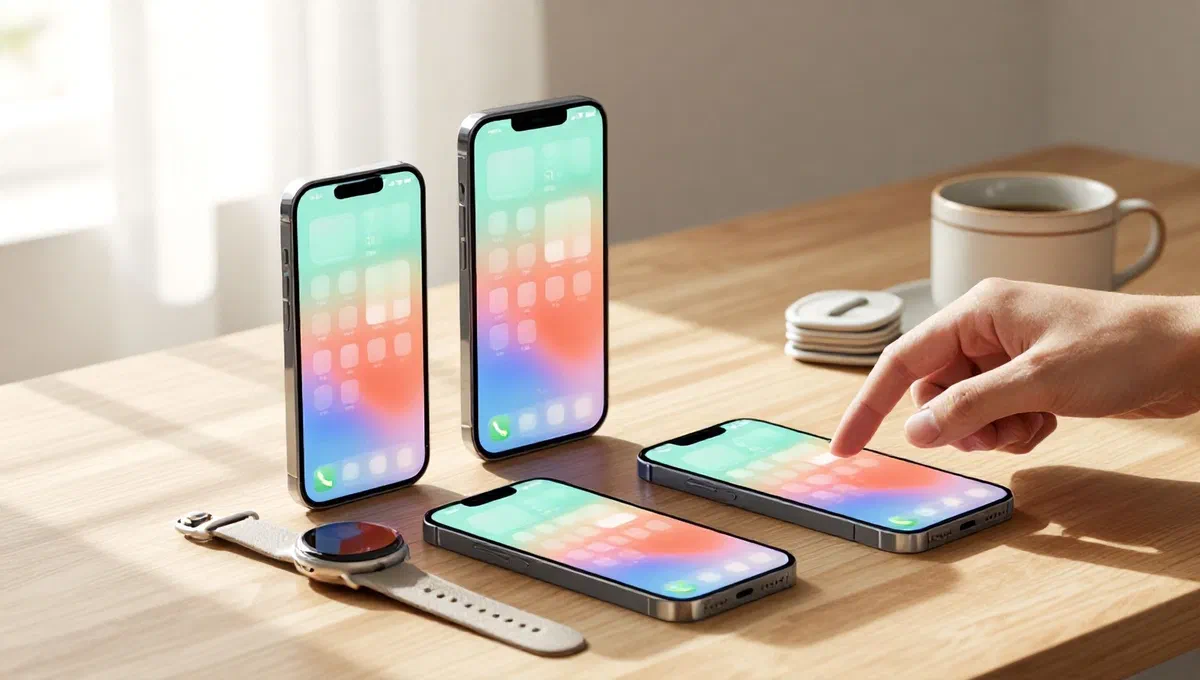
In a digital age where our mobile devices are constantly enriched by new applications, it is easy to find yourself with a chaotic and unfunctional home screen. the feeling of loss among dozens of icons can hinder efficiency and make it frustrating even the simplest of operations. fortunately, placing order in your digital ecosystem is an operation within reach of everyone, which takes only a few minutes of dedication and knowledge of the right steps. whether you use an android device, an iphone, an ipad or even a Apple watch, there are clear and intuitive methods to reorganize your apps, transforming the disorder into a clean and personalized environment.
This detailed guide will provide you with all the information you need to master the art of organizing apps on your devices, illustrating the specific procedures for each operating system. prepare to find out how to move, group and manage your apps to create a home screen that is not only aesthetically pleasing, but also optimize your daily workflow.
Organize apps on android: home screen and drawer #
Customization is one of the distinctive features of android, and this also extends to the organization of apps. putting order on your home screen or application drawer is a simple process if you know where to look.
Moving and managing icons #
To move a single app to the home screen, you just need press and hold*** the finger on the desired icon, then ******** into the new location and release. if you need to move multiple apps simultaneously, some android devices offer specific features. you may have to ** hold down at a blank point*** of the home screen, select the icons by placing a check mark and then drag them to the desired page. other models may require a prolonged tap* on an app, then dragging it to a voice like ******************************************** that appears above. this creates a bar where you can add other apps before dragging them all together to their final destination on the home screen.
The app passage between different pages of the home screen takes place ** by moving the icon to the right or left edge*** of the display. the available pages are indicated by the small balls usually visible below, with the one on the current page that stands out by color or appearance.
App drawer and alphabetical order #
The app drawer is a separate area from the home screen where all installed applications are collected. to organize them here, go to the drawer, look for a button with **three vertical dots ()) or horizontal (北))*, or a voice “edit”. once the editing mode is activated, you can press and drag icons to reposition them. at the end, confirm the changes. some smartphones also allow you to act within predefined categories, such as “photography” or “ entertainment”.
If you want a more systematic order, many android devices offer the option of order apps in alphabetical order within the drawer. select “order” and choose “alphabetic order”.
To add an app from the drawer to the home screen, ** hold down*** on the app icon in the drawer and, once the home screen displays, place it at the desired point. conversely, to remove a link from a home screen without uninstalling the app, ** press*** on the icon and drag it to the “remove connection”*** or select “remove” from the context menu.
Create and manage folders #
Folders are a powerful tool to group similar apps, drastically reducing disorder. on both the home screen and the drawer, you can create a ** folder by moving an app icon over another**. this action will automatically create a new folder, to which you can add additional applications simply by dragging them inside.
Folders can accommodate multiple pages of apps, and icons within them can be moved freely, just like on the home screen. you can also assign a custom name to each folder by opening it and typing the name in the top text field. to delete a folder, enable the edit mode and transport it to the “delete” or “remove”, or set all apps within**** out of the folder itself.
It is important to note that the exact procedures may vary slightly depending on the version of android and the launcher (the interface of the home screen) used by your specific model of smartphone or tablet.
Organize apps on iphone and ipad: fluidity and efficiency #
The ecosystem Apple provides a consistent and intuitive user experience for app organization, both on iphone and ipad, with some unique features that improve efficiency.
The mode of change and shift #
To start reorganizing apps, you need to activate the editing mode, often called “jiggle mode” for icon animation. you can do this in a number of ways: ** press*** for a long time on an icon until a menu appears and select “edit the home screen*; or keep holding until icons start to “tremize”; or again, on ios 14 and later, ** hold pressed to a blank point**** of the home screen for a few seconds.
Once in edit mode, press and drag* the app icon to the desired location. to move multiple apps simultaneously (from ios 11 onwards), after activating the edit mode, ** hold pressed*** on an app and, with another finger, make a single tap on the other icons you want to move. all selected apps will gather and can be dragged together.
The move between the pages of the home screen is made ** by moving the icon to the right or left edge**** of the screen, just like on android. the bottom boxes indicate the available pages and the current one.
Advanced features of ios #
With ios 18 or later*, Apple] has introduced more freedom in the organization: you can dispose the app icons without following the preset grid** of the home screen. in addition, the “personality”*** function, which is accessible by pressing “edit”** at the top right during the editing mode, allows you to set large (without labels)* and/or in a ** dark mode** for a different aesthetic.
Management of the app library (ios 14+ ) #
The app library, introduced with ios 14, is a smart screen that ** automatically regroups all apps installed by categories*. it is a great way to reduce the number of pages on the home screen. you can choose to remove an icon from the home screen by showing it ** only in the app library***: hold on the icon and select “remove from the home screen”. conversely, to copy an app from library to home screen, hold on the icon in the library and choose **“add to home”*.
If you want the new downloaded apps to go directly to the app library without cluttering the home screen, go to settings > screening home and app library and select the “only app library* in the “new downloaded apps” section.
Folders and dock on iphone and ipad #
The creation of folders works identically to android: transfer an app over another to create a folder. you can add other apps by dragging them inside. folders can contain multiple pages and icons can be reorganized freely within them. to rename a folder*, hold on it, select “rename” and type the new name. a folder automatically disappears when all apps are moved outside.
Also the dock bar, located at the bottom of the screen, can be customized. in edit mode, transport apps out of the dock* to free up space and transport new apps from the dock** to add them.
Restoration of the layout and specificity of ipados #
If after experimenting with different configurations you want to return to the default layout of the apps (the native apps will return to their original location, the others will be in alphabetical order), you can do so by going to settings > general > transfer or initialize iphone > reset* and choosing “restore home screen layout”*.
As for the ipad, the steps to organize apps are almost identical to those on the iphone. the only significant difference, starting from ipados 13, is the ability to able or disable the display of suggested and recent apps in the dock. this option is located in settings > home screen and app library, where you can turn on or off the switch next to “show the suggested and recent apps in the dock”.
Organize apps on Apple watch: wrist flexibility #
The smartwatch of Apple also offers options to keep the apps sorted, both directly from the device and via the associated iphone.
Directly fromApple watch #
To organize apps directly from your Apple watch, make sure that the display is set to “group view”, since the “view list” orders apps alphabetically and does not allow manual changes. if necessary, press the digital crown* to access the home screen, scroll to the bottom of the list and select **“garden view”*.
Once in grid view, ** press and hold*** on the app icon you want to move until all icons start “vibrating”. at this point, translate the icon to the desired location. after completing the changes, press the digital crown to confirm.
Via iphone #
A convenient alternative is to organize the apps of theApple watch via the paired iphone. make sure the two devices are connected, then open the watch* app on iphone. access the “Apple watch” (low left), tap “app view” and then select “disposition”. on the screen that appears, ** hold down*** on the app icon you want to move; once you enlarge, ** move it** into the new location.
Creative organization styles: beyond functionality #
Once you learn the basics, you can push yourself beyond simple functionality and adopt more creative styles of organization. many users, for example, are inspired by aesthetic principles to place icons. this may include the organization of apps for color*, creating visual nuances on the home screen, or thematic category* (e.g. productivity apps, social media, entertainment) with dedicated folders or pages. the goal is to create an interface not only efficient but also pleasant to the view, reflecting your personality and your way of using the device.
Conclusion: a customized digital environment #
Organizing apps on your mobile and wearable devices is not a mere cleaning exercise, but a key step to improving your productivity and your digital well-being. an orderly and intuitive home screen allows you to quickly find what you are looking for, reducing stress and information overload. whether you prefer a minimalist approach or meticulous categorization, the customization options offered by android, ios/ipados and watchos allow you to create a digital environment perfectly tailored to your needs. dedicate a few minutes to this activity and you will find out how much your daily interaction with technology can change.