In the digital age, music is always at hand, but the irresistible fascination of a physical collection, perhaps to be heard in the car or on an old stereo system, remains unchanged. creating a custom mp3 cd is the perfect way to condense hundreds of your favorite tracks on one support, saying goodbye to the duration limits of traditional audio cds. if the idea fascinates you but you don’t know where to start, this guide has been designed for you. we will accompany you step by step through intuitive procedures, using both tools already present on your computer and third-party software, many of which are free. prepare to rediscover the pleasure of an endless playlist, all of you.
What are cd mp3 and why are so convenient #
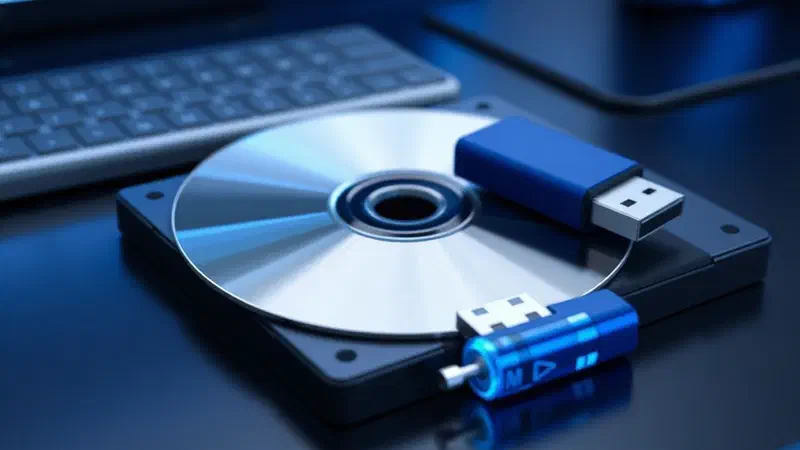
An mp3 cd is nothing but a common data disk (cd-rom) on which mp3 files were burned. the fundamental difference from a standard audio cd lies in this “data” nature: while an audio cd has a fixed capacity in terms of duration (typically 74-80 minutes, regardless of compression or track quality), an mp3 cd can contain a much higher number of songs. the exact number depends on the “weight” of each mp3 file, not its duration. this means that you can store hundreds of songs on a single album, making it ideal for long playlists, complete collections of artists or thematic soundtracks.
The procedure for creating one is the same one that is followed to burn a cd containing photos, documents or videos. advanced technical skills are not required and, in most cases, it will not be necessary to spend money, being able to exploit software already integrated in the operating system or available free of charge.
Minimum requirements to create a cd mp3 #
Before you start, make sure you have:
- A computer* (windows or mac) with a cd/dvd burner. most modern pcs are equipped with it, although some more recent laptops may require an external usb burner.
- One or more empty cds* (cd-r or cd-rw).
- file mp3*** of the songs you want to burn, organize and ready to use.
Create cd mp3 on windows systems (10, 11 and above) #
If you use a computer with microsoft operating system, you have different options at your disposal, from predefined solutions to third-party software.
Use windows media player #
Windows media player, the preinstalled media player, is not only for playback: it also includes a convenient burning function.
- ** insert an empty cd** into your pc’s burner. if the autoplay window appears, close it.
- start windows media player*. you can find it through the windows search bar (by typing “windows media player”) or in the start menu.
- Once you open the program, click the master* tab, which is usually placed on the top right.
- Press the menu* button (the icon with the bet list and the spuns) always on the top right and select the cd or dvd data option from the pane that appears.
- Now, drag all mp3 tracks you want to include on the disk in the right sidebar, in the area marked as elenco for burning. you can withdraw files from your music collections or directly from any computer folder. make sure the files are actually present in the windows media player library or drag them directly from windows folders.
- To start the process, click the start burning button. after completion, windows media player will alert you and the disk will be expelled automatically.
By default, burning takes place at the highest possible speed, but if you want to change it, you can do it again by clicking on the menu button and selecting other burning options.
Burn with black #
Nero is a renowned historical mastery suite, offering powerful and versatile tools. it is a paid software, but a free trial version of 7 days is available, useful for occasional use.
After downloading and installing black (the basic version, like nero burning rom, is enough for our purposes):
- ** enter a blank cd*** in the burner.
- start black and select nero burning rom from the main window or start menu.
- On the new compilation* screen, choose cd from the top left drop-down menu and then *cd-rom (udf) from the sidebar.
- Decide whether to disable the multisession (for cd-r) or start it (for rewriteable cd-rw) and click on new* below right.
- In the new window, use the navigation panel to the right to locate your mp3 files and drag them into the left panel.
- Click on the new* icon on the top left, choose rename* and name your cd.
- Finally, click on the master* button on the top toolbar, select the write* and display**, set the writing speed and click write* to start.
Alternatively, you can use nero express for a more guided procedure:
- Start nero express and select the dati section, then cd data.
- Click add* to select mp3 files from your computer.
- Click next, choose your master, enter a disk name and click master.
Other free windows solutions #
If you prefer free and read alternatives, these options are highly recommended:
- cdburnerxp**: a simple but extremely functional software that allows you to create mp3 cds, audio cds, videos and copies of existing disks. completely free and intuitive.
- imgburn** a famous free burning program, great for creating and burning iso images, but equally effective for mp3 cds and any other kind. supports a wide range of burners.
- burnaware free*: another free solution to burn cds, dvds and blu-ray, including mp3 cds and dvds. it also allows you to create mp3 cds with organized folders.
Create cd mp3 on mac #
Also owners of a mac have powerful and easy to use tools to burn their mp3 cds.
Use the finder #
The macos finder is the default tool for file management and includes an integrated burning function.
- ** enter an empty cd** in the burner connected to your mac.
- Select open in finder from the window that may appear and click ok. if no window appears, manually open the finder (the smiling face icon on the dock) and select the disk icon from the left sidebar.
- Drag mp3 files you want to burn directly into the open finder screen.
- Click the master* button on the top right.
- In the next window, assign a name to the disk in the field ** disk name*** and set the ** burn speed***.
- Finally, click master again to start the process.
Burn with music (or iTunes) #
The multimedia applications of iTunes, music (for macos 10.15 catalina and later) and iTunes] (for macos 10.14 mojave and earlier), do not only serve for reproduction, but also integrate burning functions.
- start music or iTunes* on your mac (dock icon or applications folder).
- ** enter a blank cd*** in the burner.
- Create a new playlist containing the songs you want to burn. go to the file******new playlist****, give a title and drag mp3s from your library to the playlist.
- Right-click the name of the newly created playlist and select master playlist on the disk from the context menu.
- In the opening window, make sure that the cd mp3** option is selected, choose the recommended speed* and click master*.
Other solutions for mac #
There are also valid third-party alternatives for mac:
- burn* an excellent free software specific to macos. it allows you to burn data cds and dvds (including mp3), standard audio cds, video dvds and iso files. despite not being updated for a long time, it still works egregiously on recent versions of macos.
- true burner* a free and easy-to-use application to create and burn cds and dvds. it supports the main burners and file formats, and also allows you to delete rewriteable disks.
- roxio toast* a very popular commercial software (for a fee, but with free trial) that integrates countless functions to create virtually every type of cd and dvd. it also offers additional features such as converting audio/video files and capturing the screen.
Additional notes: audio cd from mp3 and cd mp3 for the car #
Create audio cd from mp3 #
If your goal is to create a standard audio cd** (compatible with more dated or specific cd players, which do not support mp3 cds), the procedure is different. in this case, mp3 files are converted into an uncompressed audio format (such as wav) and the disk capacity will be limited by the total duration of the tracks, not by their “weight”. many of the burning software mentioned (such as windows media player, black, music/iTunes] or burn) offer a specific function to “master audio cd” or “create audio cd”. make sure to select this option instead of “data cd” or “cd mp3” if you need a traditional audio cd.
Cd mp3 for machine #
Many modern autoradios are able to read data cds containing mp3 files. therefore, the procedure to create a “mp3 cd for the machine” is exactly the same as the one described earlier for a “common” mp3 cd. the only shortness is to verify that your autoradio explicitly supports the reproduction of mp3 files from data cd. if so, you can proceed with any method described above without worries.
Conclusions #
Creating an mp3 cd is an accessible and rewarding operation that allows you to enjoy your favourite music in a practical and versatile format. whether you use a windows pc or mac, the tools at your disposal are numerous and easy to learn. following the steps of this guide, you will be able to compile your ideal playlists in no time, giving new life to your songs and musical memories. good listening!