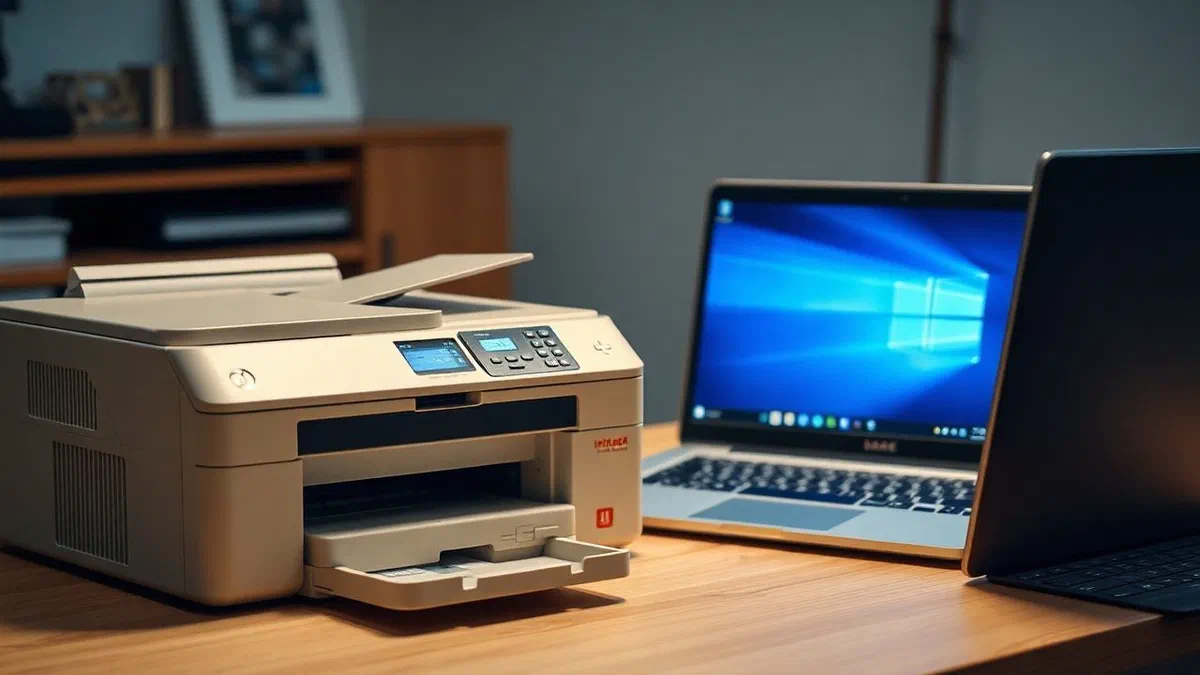
In the vast landscape of modern computing, the need for installing an old printer on windows 10** is a common challenge for many users who want to extend the life of their reliable hardware. although we are in 2026 and operating systems have evolved drastically, windows 10 remains an extremely solid platform to manage peripherals that have marked the history of the home office. many printers produced over a decade ago still have high quality mechanical components that make them preferable to current economic models, as long as they can establish correct communication with the software. the main difficulty often lies in the discrepancy between modern communication protocols and old data transmission standards, but thanks to the flexibility of windows 10, almost every device can be brought back to life. in this detailed article, we will explore every single technical nuance needed to configure your device, analyzing the procedures ranging from using original optical media to manual search for drivers in microsoft’s hidden databases. if you’re wondering if it’s still possible to print that old laser or inkjet model that you hold jealously, the answer is almost certainly affirmative. prepare to follow a structured path that will allow you to overcome any software obstacle, ensuring long-lasting compatibility and optimal performance for your daily documents.
Preparations and verification of printer compatibility #
Check driver availability in 2026 #
Before starting any technical procedure, it is essential to conduct a preliminary analysis of device compatibility. although windows 10 is an extremely versatile operating system, the availability of specific drivers can vary considerably according to product agility. to install an old printer on windows 10* successfully, you must first identify the exact model, usually on a label placed on the back or under the device. after obtaining the name of the model, it performs a thorough research on the official portals of the producers. although we are in 2026, many companies continue to maintain historical archives for the most popular models. check if there are installation packages created for 64-bit architectures, since 32-bit drivers may not work properly on modern system versions. in the absence of specific drivers for windows 10, do not disperse: often packages designed for windows 7 or windows 8 can be successfully executed using os compatibility mode.
Another crucial aspect is the certification of the drivers themselves. microsoft has progressively tightened the rules for installing unsigned software digitally to ensure system security. however, for old printers, you may need to temporarily disable driver signature control to complete the operation. this step must be done with awareness, ensuring that the downloaded file comes from a trusted source and not from potentially dangerous third-party sites. also remember that many “legacy” printers are automatically recognized by windows update if connected to the internet during the first connection. this universal database contains thousands of generic profiles that enable basic printing functions, such as card management and standard resolution, although advanced utilities such as ink level control or scanning through manufacturer proprietary software may be missing.
Physical connection via specific cables and adapters #
The integrity of the physical connection is the first pillar for a successful configuration. many printers produced before 2010 use doors that are now considered obsolete, such as the lpt1 parallel port or first-generation usb interfaces. to install an old printer on windows 10* in these cases, you often need to buy good quality usb to parallel adapters. these conversion cables must be equipped with an internal chip capable of translating bit signals for bits into a language understandable for the modern system bus. when you connect an adapter of this type, windows 10 should initially recognize it as a “usb printing support” before even identifying the printer itself. it is a delicate technical step that requires patience, since a poor quality cable could cause communication errors or printing random and incomprehensible characters on the sheet.
In addition to cable connection, consider the physical status of the printer doors. dust or oxidation residues on the pins can prevent the proper passage of electrical signals. i suggest that you gently clean your contacts with an antistatic cloth or compressed air before connecting. if the printer has an ethernet port, connect it directly to the router could be the most effective solution to bypass usb driver restrictions on windows 10. in this mode, the printer will be seen as an independent network node, facilitating the allocation of a generic driver via ip address. the stability of a wired connection remains unbeatable when it comes to dated hardware, minimizing the risks of data flow interruption while printing heavy documents or high resolution images that require more complex buffer memory management.
Use of the original installation cd on windows 10 #
Manage optical media without an integrated reader #
Although in 2026 cd and dvd players almost disappeared from laptops and latest desktop pcs, possessing the original disk remains a remarkable advantage. the software contained in the cd was designed specifically for that model and often contains introvable diagnostic utilities online. to install an old printer on windows 10** from the physical media, you will probably need an external dvd player connected via usb. once the disk is inserted, avoid relying on the autorun function, which may crash due to the security restrictions of windows 10. explore the content of the disk through the file explorer interface, looking for folders named “drivers” or “setup”. here you will find executable files that govern the entire printing system configuration process.
If you do not have a physical reader, you can create an iso image of the disk using another computer that is provided with it and transfer the data via a usb stick. this method is extremely effective because it allows you to keep the manufacturer’s folder structure intact, which is essential for the installer to locate all the necessary components. once you copy the files to your pc with windows 10, locate the main executable, usually called setup.exe or install.exe. before starting it, it is good to check if there are specific versions within the driver folder for 64-bit (x64) systems, which are the absolute standard in 2026. using original files drastically reduces the probability of registry errors and ensures that all color profiles and energy saving settings of the printer are configured according to the manufacturer’s factory specifications.
Forced setup start and compatibility mode #
One of the most frequent problems when trying to install an old printer on windows 10** via cd is the error of “unsupported operating system”. this happens because the installer performs a check on the running windows version and, not recognizing the windows 10 kernel, interrupts the procedure. to overcome this obstacle, windows 10 offers a powerful tool called “resolution of compatibility issues”. right-click the installation file, select properties and go to the compatibility tab. here you can check the box to run the program in compatibility mode for windows 7 or even windows xp, depending on the time of the printer. this technique “inanna” the software, allowing it to proceed with the extraction of the drivers and the configuration of the necessary print services.
In addition to the compatibility mode, remember to select the option “run as administrator”. many old installation software attempts to write registry keys in protected areas of the system that windows 10 blocks by default. by providing high privileges, you will allow the program to complete the writing of smooth hardware configurations. during the process, if you are asked to connect the printer, make sure it is on and ready. in some cases, the software may seem blocked at 99%: it is often only waiting for the operating system to confirm the usb port assignment. if the procedure ends successfully, it always restarts the computer before attempting the first test print, so that windows can properly load all new spooler services configured during manual installation from the original disk.
- Inserting optical media or copying files via external flash drive.
- Access the driver folder to verify the presence of x64 or x86 files.
- Configuration of compatibility mode for previous versions of windows.
- Executing the installer with system administrator privileges.
- Device connection only when explicitly requested by the software.
- Complete restart of the operating system to make changes effective.
Manual installation procedure without physical support #
Search and download from hardware manufacturers portals #
If you don’t have the original cd, the install an old printer on windows 10* requires a more proactive approach based on online research. the starting point must always be the official website of the manufacturer, navigating in the section “support” or “download driver”. although the printer has been out of production for years, such as hp, canon, epson and brother maintain servers dedicated to legacy hardware. search for “universal print driver” (upd), which are generic packages designed to work with a wide range of models of the same brand. these drivers are often the ultimate solution for windows 10, as they are updated periodically to maintain compatibility with the new microsoft os builds, while supporting hardware dated over fifteen years.
If the manufacturer’s site no longer provides files, you can use the microsoft update catalog, an immense archive where all the certificated drivers passed for whql laboratories are stored. by entering your printer’s name in the catalog search bar, you may find specific packages ready to be downloaded in .cab format. these files are not self-installing; you will need to extract them in a folder and then use the “update driver” function from windows 10 device manager to manually point to that directory. it is a slightly more technical but extremely reliable method, since the files hosted by microsoft are malware free and guaranteed not to destabilize the system kernel during intensive printing operations. once you find the correct driver, make sure you save a copy of it on a cloud service so you don’t have to repeat the search in the future.
Installation via the windows update database #
Windows 10 has an ace in the sleeve for those who must ** install an old printer on windows 10**** without having any file: the internal update function during the wizard addition. when you open the printer and scanner menu and click “add a printer or scanner”, the system starts scanning. if the printer does not appear, click on “the desired printer is not in the list”. on the next screen, select the option “add local printer or network with manual settings”. after choosing the correct port (usually usb001 or lpt1), you will find yourself in front of a list of manufacturers and models. by clicking on the “windows update” button, the system will download an updated list from microsoft’s cloud, including thousands of legacy models that were not on the offline initial list.
This procedure may take several minutes, depending on the speed of your internet connection in 2026, since the downloaded database is very voluminous. once the download is finished, scroll the list of manufacturers left and look for your specific model right. if you do not find the exact name, try selecting a model of the same series (for example, if you have a laserjet 1100, the laserjet 1200 driver could work perfectly). windows 10 will install the most suitable generic driver, allowing you to return to print immediately. this method is particularly effective for black and white laser printers, using standard page description languages such as pcl5, pcl6 or postscript, making them virtually eternal from the point of view of software compatibility with any modern version of windows.
Configuration of old printers via usb or lpt port #
Manual settings for communication ports #
One of the most technical obstacles for installing an old printer on windows 10* concerns the correct assignment of the communication port. unlike modern devices that are self-configured through advanced plug and play protocols, old printers can require a manual definition of the data path. if you use an old parallel cable via a dedicated pci card, you will need to ensure that windows has correctly assigned i/o addresses and irq to the lpt1 port. from control panel, under the heading device management, verify that there are no yellow triangles next to the communication doors. a poorly configured port will prevent the system from sending the data flow to the spooler properly, causing generic print errors or the total loss of sent documents.
As for usb connections, windows 10 creates virtual ports called “virtual printer port for usb”. sometimes, if you have connected the printer to different physical pc ports, the system could confuse and assign the driver to an inactive port. to solve, enter the printer properties, go to the “porte” tab and try to manually select a different usb port between those available. it is a game of trials and errors that often solves the problem of the “stamping not online”. also make sure that the “activate bidirectional support” option is checked if your printer is able to send information about the status (such as the toner level) to your pc. if the printer is very old and does not support this function, disable it could make communication smoother and prevent sudden blocks during the print queue.
Remember that door management is the heart of hardware communication: an incorrect configuration will also make the best driver available on the market useless.
Resolution of hardware conflicts in device management #
When you try to install an old printer on windows 10**, device management becomes your best ally to diagnose any resource conflicts. it often happens that the system sees the printer as an “unknown device” under the category “other devices”. in this situation, the windows kernel has detected the presence of electric signals but does not know how to interpret the identity of the peripheral chip. right-clicking on the unknown device, you can select “update driver” and choose “search driver software on your computer”. this allows you to force the association between hardware and a previously downloaded driver folder, surpassing the system’s inability to perform automatic recognition based on hardware id (hid).
Another common scenario concerns the conflicts between different print drivers installed over time. if in the past you had other printers of the same brand, the residual files could interfere with the new installation. it is advisable to clean the working environment by removing outdated drivers via the “press server properties” console. from here, in the driver tab, you can physically delete files that you no longer need, ensuring that windows 10 uses only the software package you have just configured. this cleaning prevents dll library errors which are one of the main causes of spooler.exe service crashes. an ordered driver management not only facilitates the installation of the old printer, but improves overall stability of the entire graphic and print subsystem of your computer, avoiding slowdowns during rendering of the most complex fonts.
- Open device management via the right button on the start button.
- Identification of the unknown device or with configuration errors.
- Using the “update driver” function by pointing to the local folder.
- Hardware id control to find compatible drivers on third-party databases.
- Check the printing door properties to avoid addressing conflicts.
Connect dated printers via wi-fi or ethernet network #
Assignment of a static ip address to the peripheral #
Old printers that support network connection, both wi-fi or ethernet, offer a huge advantage in terms of longevity. for installing an old printer on windows 10* via network, the secret to absolute stability in 2026 is the assignment of a static ip address. often, these printers do not manage the modern dhcp servers of current routers, losing the connection whenever the address is renewed. access the printer menu via its small lcd display (if any) or print a configuration page to know the current ip. next, enter the settings of your router and “book” that address for the mac address of the printer, or manually configure it directly on the device outside the automatic allocation range of the dhcp.
Once fixed ip is established, installation on windows 10 becomes a purely software process. instead of looking for the printer automatically, choose “add a printer using a tcp/ip address or host name”. enter the previously configured ip address and windows 10 will stop port 9100 to identify the device. if your system does not find a suitable driver immediately, it will let you select it from the list or provide the driver disk. this method completely bypasses all problems related to usb port and physical cables, allowing you to place the old printer at any point of the house or office, provided it is reached by the wi-fi signal or a lan cable. the communication via raw or lpr protocol has been standardized for decades, ensuring that even a 20-year-old printer can easily dialogue with the most modern operating system.
Printer sharing in a home network #
If your old printer does not have built-in network features, you can still install an old printer on windows 10** and make it available to all your devices through windows sharing. connect the printer to the main pc via usb and configure it locally. once working, go to the printer properties, select the “share” tab and activate the “share printer” option. assign a short name without spaces to facilitate recognition. this transforms your computer into a real print server. other devices on the network, including laptops or other windows 10 pcs, can see the printer as a shared network resource, using the drivers installed on the host pc to process the print jobs.
However, keep in mind that the printing works, the pc to which the printer is physically connected must remain on and connected to the network. if you want a more independent solution, you may consider purchasing a small external usb server. these are cheap devices that connect to the printer usb port and the lan network, effectively equipping it with a modern network interface. this configuration is ideal for those who want to maintain an old high quality laser printer without having to depend on a computer always active. windows 10 will see the print server as a standard tcp/ip node, allowing a clean and central installation for all users of the house, eliminating the need to configure complicated individual drivers on each single workplace.
Resolution of common problems and software maintenance #
Windows 10 print spooler restore #
One of the most frustrating problems when trying to install an old printer on windows 10* is the sudden block of the print spooler. the spooler is the system service that manages the queue of documents and their transmission to the hardware. with old printers, not perfectly optimized drivers can generate memory errors that crash the spoolsv.exe service. if you notice that the documents remain “waiting” infinity or if the printer suddenly disappears from the list, the quickest solution is the manual restart of the service. open the windows services console (type services.msc in the search bar), locate “spooler print”, right click and select “reboot”.
For deeper cleaning, before rebooting the service, i recommend emptying the print queue temporary files folder. navigate to the c:windowssystem32spoolprinters route and delete all content. this operation eliminates any corrupt printing processes that prevent the old printer driver from starting the new session properly. after cleaning up the folder and restarting the spooler, the printer should return immediately operational. this maintenance procedure is essential when working with dated hardware, since memory management in old drivers can be less efficient than modern standards, leading to a saturation of the system buffer that windows 10 struggles to manage without occasional manual intervention by the user.
Uninstallation and cleaning of old residual drivers #
The persistence of obsolete or partially installed drivers is often the main cause of failure in an attempt to install an old printer on windows 10. if you have tried multiple times unsuccessful installation, the registry may be dirt of conflicting voices. to work out professionally, do not just remove the printer from the “stamping and scanner” panel. use the “press manager” tool (available in windows 10 pro versions) or the command line to force the removal of the driver package. only by completely eliminating each track of the previous software you can ensure that the new installation takes place in a clean environment, minimizing the risks of incompatibility between different versions of the same .sys or .inf file.
A useful trick in 2026 is to use trusted third-party utility for driver cleaning, or manually proceed through the registry editor (with extreme caution). search for printer keys related to printer manufacturer under hkeylocalmachinesystemcurrentcontrolsetcontrolprintenvironments and remove drivers entries you know to be corrupt. after this deep cleaning operation, restart the pc and proceed with a new manual installation. often, this “tabula rasa” is the only way to properly dialogue a hardware from the 2000s with the secure and armored architecture of windows 10. once the printer is configured and working, it avoids installing unnecessary management software that often weigh down the system without offering real functional benefits compared to the pure driver provided by the operating system.
- Open the services console to manage the spooler print.
- Manual deletion of .shd and .spl files in spool folder.
- Complete removal of driver packages via print server properties.
- Using the disk cleaning tool to remove system files related to drivers.
- System registry control to delete orphan legacy keys.
- Forced restart to refresh the print driver runtime environment.
Frequently asked questions #
Can i use a printer with parallel door on a modern pc? #
Yes, you can absolutely use a printer with parallel port on a modern computer equipped with windows 10 in 2026. to do so, you will need to buy a usb to parallel adapter (ieee 1284). once the adapter is connected, windows will recognize it as a virtual usb port. next, you will need to manually install the printer driver by associating it with this new virtual port to allow the correct data flow.
What to do if i don’t find the drivers for windows 10 on the official website? #
If the manufacturer does not offer specific drivers for windows 10, you can try downloading those for windows 7 or windows 8. very often they are compatible at the kernel level. alternatively, use the “windows update” function within the printer add wizard: microsoft maintains an immense archive of generic drivers that allow you to run the basic components of most legacy printers still in circulation.
Because the printer is detected but does not print anything? #
This problem is usually linked to an incorrect communication port or a spooler conflict. check the printer properties that the correct port is selected (e.g. usb001 or the correct tcp/ip port). also, try rebooting the print spooler service from windows services and check that there are no blocked documents in the queue that prevent sending new print jobs to the hardware.
Are old printers safe to use on the net in 2026? #
Old printers can present security vulnerabilities if connected directly to the internet, since their firmware is no longer updated. to use them safely, it is advisable to keep them inside a local network protected by a robust firewall or connect them via usb to a bridge-faced pc. avoid exposing the web interfaces of managing old printers on public doors to prevent unauthorized access to your home network.
Can i use 32-bit drivers on a 64-bit windows 10 version? #
In general, no. hardware drivers must match the operating system architecture. if you use windows 10 64-bit, you will need 64-bit drivers. however, if they are not available, you can try installing a virtual machine with an older version of 32-bit windows within your current pc, or search for a universal driver (universal print driver) that often includes support for both architectures.
In conclusion, being able to install an old printer on windows 10* is an operation that gives great satisfaction, both in economic and ecological terms. following the steps described in this guide, you learned how to manage software compatibility, how to resolve communication port conflicts and how to exploit the driver databases made available by microsoft. do not allow an excellent hardware to be dumped only for a lack of apparently unsurpassed drivers. with a pinch of patience and the right technical skills, your dated printer will continue to serve you faithfully for many years. if you are still experiencing difficulties, please consult our brand-specific guides or contact community support. good press and compliments for choosing the road to technological sustainability!