Although we are now in april 2026, there is still a large number of users and professionals who, for software compatibility reasons or for industrial machinery needs, continue to use this historic operating system. knowing how disinstalling a program on windows 7 is therefore a fundamental technical competence to maintain the stability of an environment that no longer receives official security updates for years. often it happens to download utility that turns out to be little useful, or to be with the hard drive clogged by obsolete software that slow the startup and general performance. in this complete guide, we will explore every possible method to clean up your system, starting from the integrated procedure in the control panel to the use of highly professional third-party tools. software management on a dated platform requires special attention: any residual trace left in the registry or user folders can become a potential conflict for the future. if your goal is to bring your computer back to an acceptable fluidity or simply free up space for new files, the next paragraphs will provide you with all the necessary tools to operate with surgical precision, ensuring that every unwanted application is removed completely without letting annoying digital waste that could compromise the integrity of your precious legacy work environment.
The standard procedure through the control panel #
Access programs and features management #
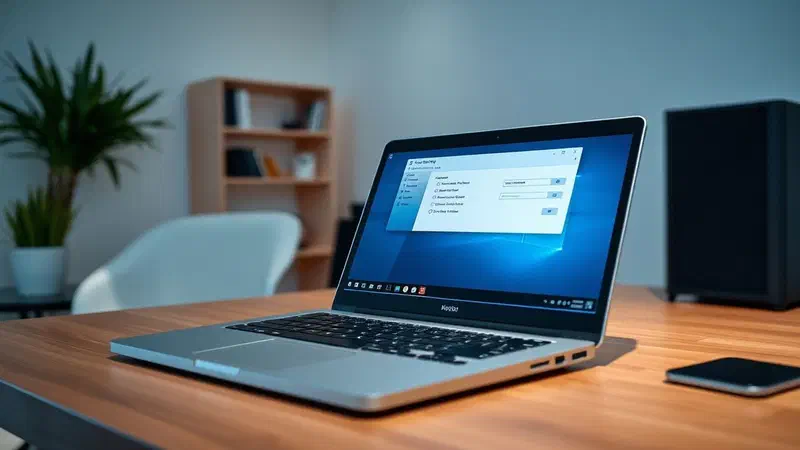
The most immediate and universal method to remove a software remains the use of the integrated function in the operating system. to start, you have to click on the start button, located in the lower left corner of the taskbar. inside the menu that appears, locate and click on control panel. once the main window opens, if the display is set to category, you will need to search for the section called programs and click on the text link uninstall a program. if you use the display to large or small icons, the correct item to look for will be programs and features. this step is crucial because it allows you to access the full list of everything that has been officially registered in the system via standard windows installation packages.
Once you enter this section, you will find yourself in front of a detailed list of all applications on your computer. it is important to note that this list can be ordered according to different criteria to facilitate research. for example, by clicking on the installed il column, you can view the latest software added in chronological order, very useful operation if the problem has arisen after a recent installation that you do not remember the exact name. similarly, ordering for size will help you locate which programs are occupying most of the space on your hard drive. remember that the standard procedure is recommended for most cases, since it uses the original uninstall file created by the developer, ensuring a removal process consistent with the software directives itself.
Run software removal wizard #
After identifying in the list the software you want to delete, select it with a single click of the left mouse button. you will notice that in the upper window bar some buttons will appear, including the main one is uninstall. in some specific cases, you may find the word uninstall/change or simply change: click on the one available to start the process. at this point, the windows 7 operating system will ask for confirmation through a user account control window, to which you will have to respond positively by clicking yes. this security notice prevents malware or unauthorized processes from removing vital components of the system without your explicit consent, essential protection especially in an operating system no longer actively supported.
After confirmation, the specific wizard of the chosen application will open. since each developer creates its own installer, the screens may vary considerably from one case to another. in most modern or well-structured programs, simply click next or next, confirm again the will to remove all components and finally press finish or finish. pay close attention during these steps: some software may ask you if you want to keep personal configurations or data storage folders. if your goal is total cleanliness, make sure you uncheck the option to store user data, so as to delete any unnecessary trace that could occupy unnecessary space or create conflicts with future installations of the same utility.
Use official manufacturers removal utilities #
When standard uninstall fails #
There are particular software categories, such as antivirus security suites, video card drivers or complex design packages, which are very deeply rooted in the operating system kernel. for these programs, the standard procedure through the control panel may be insufficient or even blocked due to active processes that are not allowed to end properly. in these situations, specific external tools must be used. serious manufacturers almost always release dedicated utilities, known as removal tool or uninstall utility. these small executable files are designed to force the closure of each connected service and to manually delete all registry keys and system files that the standard uninstaller failed to process correctly during the closing phase.
To find these tools, the advice is to go to the official website of the software manufacturer you intend to remove. in the support or download section, search for terms as a complete removal or cleaning tool. it is essential to download these files exclusively from official channels: these are utilities that act with high privileges on windows 7 operating system, downloading them from unreliable third-party sites exposes your pc to the concrete risk of trojan or ransomware infections. once you get the file, usually a simple .exe, you will only have to start it as administrator and follow the short video instructions. often these utilities do not even require a complex interface, limiting itself to a loading bar that signals the progress of deep cleaning of system directories and shared libraries.
Targeted search for removal utilities #
If you cannot immediately find the tool on the official website, a very effective technique is to use search engines with targeted keywords. type the exact name of the program followed by terms like removal tool, uninstaller utility or cleaner tool. very often the technical support forums of companies like norton, kaspersky, adobe or amd offer direct links to these resources that solve common problems of corrupt installations. this approach is particularly indicated if you receive cryptic error messages during classical uninstallation, such as missing .dll file errors or negative permissions. using an official tool ensures that the structure of the windows 7 file system is not damaged, preserving the integrity of the drivers necessary for the proper operation of the hardware.
Here are some common cases where the use of dedicated tools is mandatory or highly recommended:
- Removal of outdated antivirus software that block the installation of new protections.
- Repair graphics drivers that cause system crash or blue screens.
- Deleting office suites that have undergone errors during the upgrade.
- Cleaning of local databases created by management software that occupy space giga.
- Uninstalling game platforms that no longer recognize the path of the original files.
The use of these resources is often the last beach before having to proceed with a full formatting or restore a previous system image. always remember that, after using a deep removal tool, it is essential to restart the computer to allow the system to permanently download the residual software modules from ram memory and update the windows configuration registry hierarchy, thus avoiding old parameters to interfere with the new maintenance operations you intend to undertake on your computer during the day.
Advanced uninstaller with revo uninstaller #
Post-disinstall scanning operation #
When traditional methods are not enough or when you want to be absolutely sure that no hidden folder remains on your disk, the best tool at your disposal is undoubtedly revo uninstaller. this program, also available in portable version that does not require installation, acts in two distinct but complementary phases. in the first step, start the standard uninstall procedure of the chosen software, exactly as windows would. the real magic happens however in the second phase: after the official uninstaller has finished its task, revo performs a complete scan of the registry and all the hard disk folders looking for orphan files, forgotten registry keys and temporary files that have not been deleted.
The power of this tool lies in its ability to analyze the relationships between files before and after removal. once the scan is completed, which can be set to different intensity levels (secure, moderate or advanced), revo will show you a detailed list of all the remaining elements. you can manually select the register keys highlighted in bold and click on delete. it is an extremely satisfying operation to see how hundreds of small residues are wiped out at once. this process not only frees valuable space, but actively prevents the degradation of system performance, a very well-known problem on windows 7 which tends to become slower as the system log gets fragmented and fills with references to non-existent files.
Use the viewfinder way for hidden software #
One of the most innovative and useful features of revo uninstaller is the so-called mirino modo (hunter mode). it often happens to encounter annoying advertising programs, toolbars or small utilities that do not appear in the list of installed programs of the control panel, or which you do not know the exact name. by activating the mirino mode, the revo interface disappears and is replaced by a target-shaped icon floating over all other windows. you can drag this viewfinder over the program window you want to delete, over its icon in the system tray next to the clock, or even over a desktop connection. revo will instantly identify the connected process and offer you several immediate operational options.
Through this method, you can choose to end the process forcefully, uninstall it, stop running it automatically at windows startup or open the folder containing executable files for manual inspection. this flexibility makes revo an indispensable tool for windows 7 maintenance in 2026, especially when dealing with dated software that does not follow modern installation guidelines. the ability to point directly to what you see on the screen eliminates all uncertainty, allowing you to manage even those malicious or unscheduled applications that deliberately seek to hide from the average user to avoid being removed from the system, thus ensuring deep cleanliness and total management of active processes.
Manage security recovery points #
Create and use a system restore point #
Caution is never too much when you intervene on the software structure of a computer, especially if you use advanced uninstall tools or if you manually intervene on the registry. windows 7 offers a native feature called system restore, which acts as a real time machine for your pc. before starting an intensive cleaning session, it is highly recommended to create a manual reset point. to do so, click start, write create a restore point in the search bar and select the corresponding result. in the opening window, click on the create button, assign a descriptive name to the point (eg before cleaning the april 2026) software and wait for the system to save the current status of configuration files and drivers.
If something goes wrong during the uninstallation of a critical program, or if the pc shows instability after accidentally removing a shared library, you can go back to your steps with ease. by reopening the same tool and selecting system restore, you can choose the previously created point and return windows to the exact state in which it was before surgery. it is important to emphasize that this procedure does not erase your personal documents, photos or emails, but only intervenes on system configuration, drivers and programs installed. this distinction is essential because it allows you to experiment and clean your computer with the serenity of always having a safe way out in case of technical errors or unforeseen incompatibilities.
Automation and maintenance of repair points #
In addition to manual creation, windows 7 is configured to automatically create restore points whenever a new program, driver or important update is installed. however, with time passing, these files can occupy a significant amount of space on the hard drive. it is therefore good to periodically manage the allotted space for this function. from the same system protection window, by clicking on configure, you can decide how much maximum space to devote to restore points. once you reach the limit, the system will eliminate the older points to make room for new ones, ensuring a balance between security and mass memory availability for your daily data.
Here are some tips for optimal recovery management:
- Check that system protection is always activated on disk c: (system one).
- Create a restore point before each manual change to the configuration log.
- If the system works perfectly after a week from cleaning, delete old points to recover space.
- Use recovery if you notice sudden slowdowns or error messages on startup.
- Do not rely only on restore points: always maintain an external backup of your most important files.
Relying on this integrated technology is the first line of defense for each experienced user. often, a problem that seems to require hours of technical assistance can be solved in ten minutes reporting the system to a functional restore point. in the context of 2026, where the stability of old operating systems is more precarious due to the lack of modern security patches, possessing a number of valid and ready-to-use configuration states is a strategic advantage that should not be absolutely neglected during the ordinary or extraordinary maintenance of the installed software.
How to eliminate malicious software and unwanted toolbar #
Detect malware and browser hijacker #
Sometimes the program you want to uninstall is not a legitimate software you have chosen to install, but an unwanted host arrived via untransparent installation bundle or browsing on insecure sites. these elements, often referred to as pup (potentially unwanted programs) or browser hijackers, have the annoying habit of changing your home page of the internet, adding useless toolbar to your browser or showing invasive advertising popups. classical uninstallation from control panel is often ineffective against these enemies, as they tend to automatically reinstall or hide their processes under seemingly harmless system names, making their manual identification extremely difficult for the unexperienced user.
In these cases, the quickest and most effective solution lies in the use of specialized antimalware software. tools such as malwarebytes adwcleaner are designed specifically to target and eliminate everything normal antivirus might ignore because not strictly classified as virus, but still harmful to user experience. adwcleaner does not require installation: just start it, click scan and let it analyze the log, browser folders and active services. at the end, it will present you a list of removed threats that often includes dozens of small code fragments that weighed your windows 7 without you noticing it, restoring the original speed of web browsing.
Full protection with malwarebytes anti-malware #
If after using quick tools the problem persists, or if you suspect that the unwanted program is part of a deeper infection, you need to go to a full scan with malwarebytes anti-malware. this software represents industry standard for the removal of persistent threats. once installed, it will carry out a capillary control of ram memory, boot sector and every single file on the disk. the strength of malwarebytes lies in its constantly updated database (also in 2026) that recognizes the signatures of thousands of unwanted applications that try to evade standard security controls of windows 7, offering a level of protection that the old microsoft system can no longer guarantee independently.
The importance of deep malware cleaning is also linked to privacy. many programs that seem simple weather utility or font management are actually data mining tools that track your typing habits or capture sensitive information. using a dedicated suite allows you to uninstall not only the visible program, but also all the “dormient” components that could reactivate in the future. once the removal is completed, it is always advisable to change the passwords of its main accounts and proceed to a reset of browser settings such as chrome, firefox or internet explorer, ensuring that there are no malicious scripts ready to redirect your navigation back to dangerous or fraudulent destinations.
Post-disinstall optimization to speed up the system #
Disk and temporary files cleaning #
After completing the removal of several programs, maintenance work is not yet finished. the process of uninstallation, however accurately, often leaves behind a trail of temporary files, installation logs and cache files that, while being inert, occupy space and can fragmentate the hard drive (especially if you still use an old mechanical hdd hard drive instead of an ssd). windows 7 includes a very valid native tool called disk cleanup. to start it, open computer, right click on local disk c:, select properties and then click on disk cleanup button. after a short analysis, the tool will show you how much space you can recover by deleting temporary files, trash and old update files.
Another step is to click on the clean system file button within the same window. this advanced option allows you to delete the residues of windows update installations and old driver versions that are no longer needed. in a dated operating system, this operation can often release several gigabytes of space, significantly improving file system response times. maintaining a slender, digital junk-free disk is essential to ensure that windows 7 can manage input/output operations with the highest possible efficiency, reducing physical disk wear and preventing frustrating slowdowns during the opening of applications you use daily for your work.
Defragmentation and error control #
If your windows 7 pc mounts a traditional hard drive, massive uninstallation of programs will create data “holes” on the disk surface, leading to a fragmentation of files. this means that the disk head will have to move physically more to read a single file, slowing down the whole system. to make up, use the built-in disk defragment tool in windows. just look for it in the start menu and start it. if you have a modern ssd, remember never to defrag it: for these disks it is sufficient that the trim function is active, operation that windows 7 automatically manages to maintain the performance of the flash memory cells constant over time without causing unnecessary writing cycles.
Finally, conclude your maintenance session with a disk error control. from disk properties c:, tools tab, click scandisk run. select the option to automatically fix file system errors and restart your computer. this control will ensure that the file table (mft) is consistent and that there are no bad sectors that could cause data loss in the future. a post-disinstall maintenance so meticulous turns a simple removal of software into a real computer regeneration intervention, allowing you to enjoy a snappy and reliable machine, ready to face the work challenges of 2026 despite its vintage architecture, while preserving the longevity of the original hardware at your disposal.
Proper removal of software is not only a matter of space, but a pillar of modern computer security, especially on operating systems that no longer receive official patches from the manufacturer. each forgotten program is a potential open door to known vulnerabilities.
Frequently asked questions #
What to do if a program does not appear in the control panel? #
If an application is not in the official list, it is likely that it is a “portable” program or malware that does not use a standard installer. in this case, you can try using revo uninstaller with its hunter mode function, which allows you to point directly to the icon or window of the program to force its full identification and subsequent removal from the system, including hidden references in the windows registry that escape the classical display.
Is it safe to manually delete the registry keys of a program? #
Manually speaking on the registry through the regedit tool is a risky operation that should only be performed by experienced users. a minimum error can prevent operating system startup or cause other software to fail. it is always preferable to rely on automated tools such as revo uninstaller or official removal tools provided by manufacturers, which act in a targeted and safe way, minimizing the risk of collateral damage to windows 7 stability.
Why do some programs require reboot after uninstallation? #
Reboot is often necessary because some files or libraries (.dll) that the program used are still loaded into ram memory or are blocked by active system processes. during reboot, windows can complete deletion of these files before they are again blocked. ignoring this request could prevent the total removal of the software or cause conflicts when you try to install a different version of the same program or a driver connected to the same device.
Can i uninstall the default windows 7 programs? #
Some system components, such as internet explorer or windows media player, may not be uninstalled as normal applications, but may be disabled. to do so, go to control panel, click uninstall a program and then, in the left sidebar, select activation or deactivation of windows features. by unchecking the corresponding boxes, you can hide these tools and free some system resources, although the basic files will remain stored in secure folders.
How can i be sure i have removed every trace of an antivirus? #
Antiviruss are among the most difficult software to remove completely. for absolute certainty, after using standard uninstallation, you should always download and start the specific removal tool released by the manufacturer (e.g. the norton removal tool or the mcafee consumer product removal tool). only these tools are able to clean low-level drivers and network settings that antivirus modify to protect the system, avoiding active filters that could slow the internet connection.
We have analyzed in detail every possible methodology for disinstalling a program on windows 7*, covering both integrated procedures and the most advanced professional tools available in 2026. remember that maintenance of a legacy operating system requires consistency and attention: do not just remove the icon from the desktop, but always follow the deep cleaning steps to ensure maximum longevity to your hardware. if you have doubts about the danger of a software, do not hesitate to use an antimalware before proceeding. practice these techniques to free your pc from unnecessary files and find the speed you deserve. learn how to further optimize your work environment by reading our other windows maintenance guides!