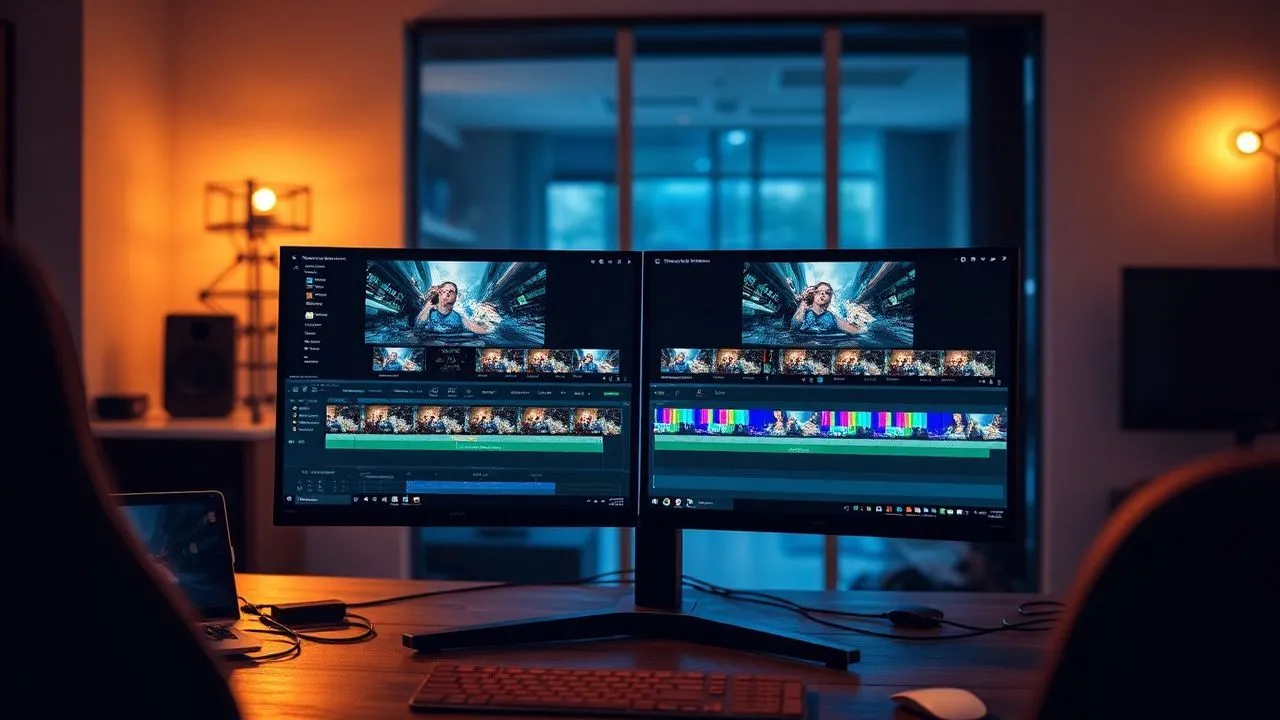
In the digital panorama of 2026, the creation of visual content has reached unprecedented peaks of popularity. Whether you're an aspiring YouTuber, a communication professional or just a user who wants to clean up memories of the last weekend, learn how cut scenes of a video has become an essential core competence. Often it happens that, despite the use of technologically advanced smartphones with optical stabilization of the latest generation, some photos are moved, blurred or simply too long to maintain the attention of the viewer. The ability to surgically intervene on the timeline of a video allows to transform a raw file into a dynamic, engaging and timeless product. You should not be discouraged by the apparent complexity of professional software: today there are intuitive solutions, many of which are based on artificial intelligence, which allow you to achieve excellent results in a few minutes. In this in-depth guide, we will explore the best methodologies to manipulate your multimedia files, analyzing desktop programs, innovative web services and mobile applications that make editing at everyone’s reach, regardless of the level of technical experience or budget available. Prepare to find out how to optimize your workflows and give a new life to your digital shoots with extreme simplicity.
Desktop programs to cut scenes of a video on PC and Mac
Avidemux: the open source solution for fast cutting
If your primary goal is to understand how cut scenes of a video without having to face a steep learning curve, Avidemux still represents, in 2026, one of the most solid and reliable choices. This open source software is compatible with Windows, macOS and Linux, offering a rare versatility in the panorama of free programs. Its minimal interface is designed for fast linear editing operations, allowing you to upload files to the most diverse formats, such as MP4, MKV or AVI, and immediately proceed to the removal of unwanted sections. The peculiarity of Avidemux lies in its ability to process videos in Copy mode, which means that the software should not recode the entire file after cutting. This results in a huge time saving and the absolute guarantee that the original visual quality remains unchanged, since the data is simply repacked in the target container without further compressions.
To use Avidemux correctly, after installing it, just drag the file into the main window. Using the time scroll bar, you need to locate the exact frame in which the scene begins to be deleted and click on the A marker. Once you highlight the portion on the timeline, just press the Canc button on the keyboard or select the Delete item from the edit menu. A key aspect to maintain maximum efficiency is to ensure that, in the left sidebar, the options for video and audio output are set to Copy. Finally, choosing the container format identical to the source, the export will take place in a few seconds, making this unbeatable tool for fast cleaning of long recordings or heavy clips that would take hours to be rendered with more complex software.
DaVinci Resolve: professional editing at everyone's reach
For those who are not satisfied with a simple cut but want tools of post-production video of high level, DaVinci Resolve is the absolute reference point in 2026. Developed by Blackmagic Design, this software offers an incredibly powerful free version that includes grading tools, visual effects and professional audio editing. Despite being a standard in the Hollywood film industry, its interface has been optimized over the years to be accessible to beginners. The Cut section of DaVinci Resolve is designed specifically for those who need speed: thanks to the double timeline, you can see the entire project and the working area simultaneously, making the operation cut out movies extremely precise and visually intuitive, ideal for those working with high resolutions like 8K.
Using DaVinci Resolve requires a machine with good hardware specifications, but the advantages are undeniable. To cut a scene, you can use the Blade Tool (Blade Tool) tool by pressing the B button on the keyboard, by clicking on the start and end points of the section you want to remove. One of the most popular features is the Ripple Delete, which allows you to delete a clip and automatically slide all the next content to close the hole left in the timeline, thus avoiding having to manually move dozens of video fragments. In addition, the software now integrates artificial intelligence functions that can automatically identify silences or scenes with poor lighting, suggesting the user where to intervene to improve the narrative rhythm. Once the job is done, the Delivered page offers optimized presets for YouTube, TikTok and Instagram, ensuring that your cut video is ready for publication with the best compression settings available today.
Online tools to cut scenes from a video without installation
Size Video Online of 123apps: simplicity in the browser
In a time when ultra-fast connectivity is the norm, use a online video editor has become the preferred solution for those who have to make changes to the flight without installing heavy software on the hard drive. The service offered by 123apps is an excellent example of how cloud technology can simplify user life. By accessing the official website, you can upload files up to 4 GB (widely extended limit compared to past years) and act directly on the timeline displayed in the browser. This solution is particularly suitable for those who work from limited storage devices, such as modern Chromebooks or business notebooks with software installation restrictions, while at the same time ensuring an adequate security and privacy level thanks to data encryption during uploading and automatic deletion of files from servers after a few hours.
The operation is extremely linear: once the video is loaded, two blue cursors appear at the ends of the timeline. By dragging these sliders, you can accurately define the part of the video you want to keep, while all that remains outside will be removed. The service also allows you to rotate the video, change the aspect ratio (for example, from a format 16:9 to a 9:16 for social stories) and adjust the volume. A very useful function is the possibility to manually insert the start and end times expressed in hours, minutes, seconds and cents, ensuring a millimeter control that often lacks in other web-based tools. After clicking on the Save button, the server processes the request and provides a link for downloading the modified file, ready to be shared or stored on your device in just a few moments.
Clipchamp: Microsoft’s power for cloud cutting
Clipchamp, now natively integrated into the Windows ecosystem and available as an advanced web service, is one of the best alternatives for those seeking online video cutting tools with advanced features. Thanks to the tight integration with OneDrive and Google Drive, it allows you to import files directly from the cloud, edit them and save them again without ever occupying physical space on the local computer. Its interface recalls that of the most blasphemed non-linear editing programs, with a multi-track timeline that allows not only to cut scenes, but also to overlay texts, transitions and background music royalty-free by drawing from a large integrated library, making it a complete tool for creating modern digital content.
To cut a scene with Clipchamp, just place the playback head at the desired point and click on the scissors icon (or press the S button). Once you split the clip, you can select the useless fragment and press the basket icon. A great advantage of Clipchamp in 2026 is free export support in 4K resolution, a net improvement compared to the limitations of the past. In addition, online software includes artificial intelligence tools capable of generating automatic subtitles in over 80 languages and adjusting the color of the clip according to the desired mood. If you are looking for a solution that combines the convenience of the browser to the power of an installed software, Clipchamp is undoubtedly the most balanced choice, especially for those who work in creative or educational areas where the speed of execution is fundamental.
The best apps to cut scenes from a video on smartphone and tablet
Adobe Premiere Rush: Professional Mobility Editing
When you are out of the house and you need to cut scenes of a video captured a few moments before, Adobe Premiere Rush emerges as the most performing solution for Android and iOS. This application was designed to bridge the gap between the simplicity of social apps and the complexity of Adobe Premiere Pro. The interface is optimized for the touch screen, allowing you to manipulate clips with natural gestures: you can pinch the timeline to zoom in on details or drag the edges of the clips to finish cuts with the fingertips. Thanks to synchronization through Creative Cloud, you can start mounting on your smartphone during a trip and finish it later on your desktop computer, keeping all the cuts and changes synchronized in real time.
To remove a scene, the user simply needs to scroll the finger on the timeline to the critical point and tap the scissor icon located in the bottom toolbar. The video will be instantly divided into two separate segments. Selecting the part that contains unnecessary errors or frames, just press the basket icon to delete it permanently. Adobe Premiere Rush also shines for audio management: it allows you to automatically balance your voice over background music (ducking), ensuring that the dialogues remain clear even after making numerous cuts. Although some advanced features require a subscription, the free version offers everything you need to handle fast workflows and get a professional quality output directly from your mobile device.
CapCut and InShot: the kings of social content
In 2026, the domain of vertical videos and short content made apps like CapCut and InShot indispensable tools for millions of users. These applications are not only simple app mounting smartphone, but real creative workshops that integrate extremely intuitive cutting functions. CapCut, in particular, became famous for its function of automated Split and for the ability to remove the background or apply film effects with a single touch. Its timeline is extremely fluid, allowing you to manage dozens of clips at the same time without slowing down, even on medium-range devices, thanks to an optimized rendering engine that exploits the modern neural processing units present in today's processors.
Here are some key steps to effectively cut your videos with these apps:
- Quick import: Select multiple videos from your gallery to upload them instantly to the timeline.
- Dividend tool: Use the Divide button to separate the good sections from those to be discarded accurately in millimeters.
- Smart Elimination: Remove the fragments with a tap and let the app automatically join the remaining clips.
- Preview in real time: Check the video stream immediately to ensure that the cut is smooth and natural.
InShot, on the other hand, is preferred by many for its impeccable management of formats. If you have a video shot horizontally but want to turn it into a Reel, the app lets you cut the scene by only framing the main subject and removing everything else. Both apps offer the possibility to export watermark-free videos (often looking at a short advertisement or pro version), supporting resolutions up to 4K and high frame rate for a perfect slow motion. Their popularity comes from the fact that they made democratic the post-production video, eliminating the technical barriers that once separated professionals from enthusiasts.
Using native tools on Windows and macOS
QuickTime Player and Microsoft Photos: Cut No Extra Software
Many users ignore that cut out movies it is not always necessary to download third-party applications, since modern operating systems already offer discreet integrated solutions. On macOS, QuickTime Player remains a valuable ally for basic operations. Opening a video file with this player, you can access the Cut (Cmd + T) feature that turns the play bar into a simplified editing timeline. Here, you can drag the yellow handles to shorten the video from the beginning or from the end. Although it does not allow cuts in the middle of the clip in a single complex operation, it is perfect to remove seconds of uncertainty before and after a recovery, making it the fastest tool ever for Mac owners working with native MOV or MP4 files.
On the Windows front, the Photo application (and the new Microsoft Designer) made giant steps. By integrating editing tools derived from Clipchamp technology, it allows you to open a video file and select the crop tool. You can view individual frames and decide exactly where to start and finish your clip. This solution is ideal for those who receive files via email or chat and need immediate cleaning before storing them. As system tools, they enjoy superior stability and perfect integration with hardware peripherals, exploiting the acceleration of the GPU to show fluid previews even when working with high bitrate or HDR files, now ubiquitous standard in 2026.
iMovie: the next step for the Apple ecosystem
If QuickTime is too limited, every Apple user has iMovie at their disposal, a software that while free offers a depth of amazing tools. iMovie is the ideal companion for those who want to understand how cut scenes of a video and then organize them in a coherent story. Its magnetic interface prevents you from leaving blank spaces between the clips, ensuring that the mounting is always compact. You can drag the edges of a clip directly into the timeline to shorten it or use the combination of Cmd + B keys to divide a video into two parts. The precision offered by the timeline zoom also allows you to identify the single disturb frame, eliminating it with a disarming simplicity that makes it suitable for children who move the first steps in the world of videomaking.
In addition to the simple cut, iMovie allows you to apply automatic transitions between the cut scenes to soften the visual gap. This is particularly useful when removing central parts of an interview or monologue (jump cut technique), where a slight crossover or a smooth transition can make assembly less abrupt. Thanks to the support for the ProRes format and for the videos filmed in Cinema on iPhone, iMovie is confirmed in 2026 as one of free video editor more powerful on the market, able to manage complex projects without ever being intimidated. Once the cut-out is completed, sharing to the photo library or directly on social media is immediate, keeping intact the quality of pixels and the original chromatic fidelity.
Tech tips for effective video installation
The precision of cutting and narrative fluidity
Learning how to cut scenes of a video it is not only a technical question of key pressure, but an art that concerns rhythm and narrative. A common mistake of beginners is to leave too many “dead ends” at the beginning or at the end of a clip. To achieve a professional result, it is advisable to cut as soon as the main action ends or a moment before it starts. This keeps the viewer in a state of constant interest. Also, when you delete scenes from a long video, you have to pay attention to audio continuity: a net cut in the middle of a sentence or while there is a constant background noise can be annoying. In these cases, it is useful to use small audio fade-outs to make the passage more natural and less perceptible to the human ear.
Another crucial aspect is the choice of attack points. There are advanced techniques such as J-cut and L-cut, where the sound of a scene begins before the image or continues after the image has changed. Even if you're using a professional editing software or a simple app, keeping these principles in mind can dramatically elevate the quality of your work. Here are some golden rules for impeccable cuts:
- Cut on the movement: If a subject comes out of the frame, he cuts while still moving for a more dynamic passage to the next scene.
- Delete "fillers": Remove intercalars like "ehm", "uhm" or long breaks in interviews to make the speech more fluid.
- Keep consistency: Make sure that after cutting there are no unexplained logical jumps in the video content.
- Use markers: During the vision of raw material, it marks the points of interest to find them easily during the actual cutting phase.
Optimization of files and export formats
After removing unnecessary parts from movies, the export stage is the one that determines if your work can be displayed correctly on all devices. In 2026, the dominant standard is H.265 (HEVC), which offers superior image quality with a significantly reduced file weight compared to the old H.264. When you expose your cut video, make sure you select a bitrate that fits the resolution: for a 4K 60fps video, a bitrate between 45 and 60 Mbps is ideal for keeping every sharp detail. If your purpose is sharing on social media, remember that platforms such as Instagram or TikTok heavily compress files, then starting from a high-quality export is essential to prevent the end result from appearing ungrateful or pixelated.
Finally, do not forget the importance of backup. Before proceeding cut scenes of a video destructively (overwrite the original file), it always creates a security copy. Many modern publishers work in non-destructive mode, saving changes in a separate project file, but it is always good to have the raw material intact. This will allow you to return to your steps if you realize you have mistakenly removed a scene that later turns out to be important. With the spread of ultra-rapid SSD memory and unlimited cloud storage services, managing different versions of the same project is no longer a space problem, but a smart strategy to ensure maximum creative freedom throughout the post-production process.
Frequently asked questions about cutting video scenes
What is the best free program to cut filigree video?
In 2026, the best options for cutting videos without filigree anti-esthetics (watermark) include Avidemux for those seeking extreme simplicity and DaVinci Resolve for those who want professional power. Native tools like QuickTime on Mac and the Photo app on Windows also allow you to export clean files for free. If you prefer mobile apps, iMovie and the basic version of CapCut offer excellent export possibilities without invasive logos, provided you follow the brief instructions provided by the applications themselves during the final rescue phase.
Can I cut an online video if the file is very heavy?
Yes, today many services like 123apps or Clipchamp support file loading that exceeds 2-4 GB, thanks to the enhanced cloud infrastructure. However, the speed of the operation will depend entirely on your internet connection, especially when uploading. If you have an optical fiber connection, the process will be quick, but for extremely heavy files (such as long-lasting 8K shooting) it is always advisable to use a desktop software to avoid long waits and possible loading interruptions due to network instability.
Cut a video reduces the original quality?
The cutting itself does not reduce the quality, but the next saving phase could do so if the software does a recode of the file with incorrect compression settings. To avoid quality loss, the ideal is to use programs like Avidemux set in Copy mode, which preserve the original data stream. If you use more complex editors, make sure you set export parameters (bitrates and resolutions) equal to or greater than those of the source file to minimize any visual degradation during the generation of the new file.
How can I cut a scene in the middle of a video?
To cut a central part, you have to make two cuts: one at the beginning of the section to be removed and one at the end. This will split the video into three segments. Simply select the central segment (the unwanted one) and delete it. Most modern editors have a function called Ripple Delete or Closing Gap that will automatically approach the remaining two parts, creating a single continuous video without black spaces in the middle, ensuring a smooth vision of the resulting content.
Are there IA tools that cut videos automatically?
Absolutely. In 2026, many publishers integrate Smart Cut functions based on artificial intelligence. These tools are able to analyze the speech to automatically remove silences, identify repetitive scenes or eliminate obvious errors based on visual recognition models. Although they are not 100% perfect and often require a final human review, they can drastically reduce manual working times, especially for those producing serial content such as video podcasts or didactic tutorials where the pace has to be tightened.
Conclusion: mastering the art of video cutting
In conclusion, learn how cut scenes of a video is a process that combines technique and creativity, made today extremely accessible by a myriad of free and powerful tools. Whether you choose the surgical accuracy of a desktop software like DaVinci Resolve, the immediate convenience of an online service such as Clipchamp or the flexibility of a mobile app like CapCut, the key to success lies in constant practice and attention to detail. Remove the superfluous does not only save space on the disk, but it is the fundamental action that defines the rhythm and impact of your visual message. We invite you to experience the different solutions proposed in this guide to find the one best suited to your workflow. Do not be afraid to cut: often, a shorter and concise video is much more effective than a long and dispersive one. Start editing your films immediately and transform your raw footage into memorable digital works. Learn how to further improve your content by exploring our other guides dedicated to multimedia production.


