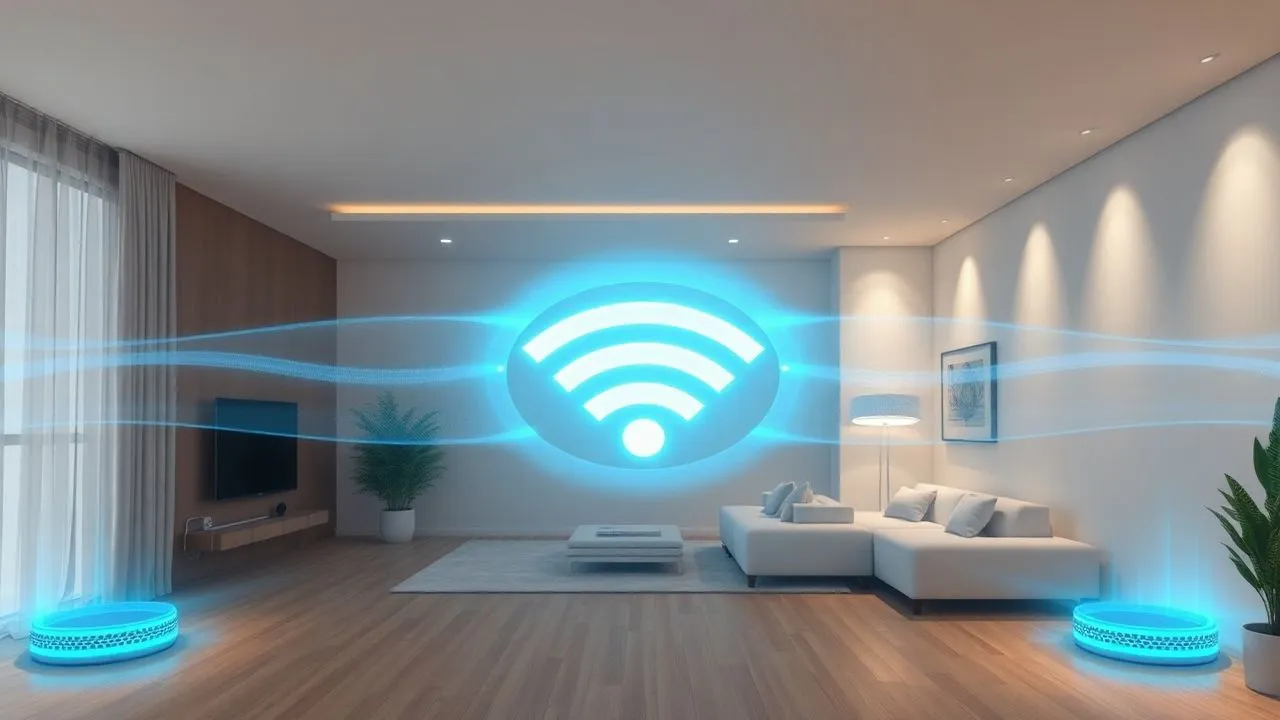
In the technological landscape of 2026, possessing an ultra-fast internet connection has become a fundamental requirement for everyday life, both for agile work and for high definition domestic entertainment. However, many users still encounter the frustrating problem of dead areas, i.e. areas of the house where Wi-Fi seems to disappear in nothing. Learning to extend wireless signal has become an essential digital competence to ensure that each device, from viewers to augmented reality to 8K smart TVs, functions without interruption. Often the fault is not of the service provider, but of the physical conformity of the house or of an incorrect positioning of the equipment. Concrete walls, interference from other household appliances and the simple physical distance from the main router are the number one enemies of a stable network. Fortunately, the evolution of network technologies has made available incredibly powerful and easy to configure tools that allow you to overcome these obstacles with limited investments. Whether it's a small apartment with city interference or a villa on multiple levels, there are targeted solutions that can transform a dancer connection into a robust and ubiquitous network. In this guide we will deepen every technical and practical aspect to optimize your home infrastructure, analyzing the most cutting-edge hardware and software solutions available today on the market.
Use an extender range to amplify wifi signal
The most traditional and immediate method for those who want amplify wifi signal in an economic way is undoubtedly the purchase of a range extender. These devices, also known as wireless repeaters, work by catching the existing Wi-Fi signal from the main router and relaunching it in the surrounding areas. In 2026, repeater technology has made giant steps: they no longer limit themselves to cloning the network by halving the band, but use advanced protocols such as Wi-Fi 6 and Wi-Fi 6E to maintain high speeds even during the relaunch of the signal. Their installation is usually plug-and-play type, making them the ideal choice for those who do not have great technical skills but need to cover a specific room, such as an office or bedroom, which is just outside the optimal reach of the main router.
Despite the simplicity of use, to get the most out of a range extender it is crucial to consider its strategic positioning. Many users make the mistake of positioning the extender right in the area where the signal is already absent, but so doing the device will have nothing to “respect”. The correct location is about halfway between the source router and the dead area. In this way, the extender receives a still strong and clean signal and can effectively extend it to the problematic area. In addition, the latest models have smart LED indicators or smartphone apps that drive the user in search of the perfect point, analyzing the quality of the real-time signal to maximize the performance of the home network without creating annoying bottlenecks during streaming or online gaming.
Choose from single-band and dual-band models
When you decide to buy a device for amplify wifi signal, it is essential to distinguish between the different supported frequencies. Economic models often operate only on the 2.4 GHz band, which has a good reach but is subject to strong interference. The dual-band or tri-band models, on the other hand, also support frequencies at 5 GHz and 6 GHz, offering significantly higher speeds and smoother traffic management. In a modern home saturated with IoT devices, pointing on a dual-band extender is a forced choice to avoid congestion that would make the investment vain.
The 2026 high-end models also integrate beamforming technologies, which allow you to direct the wireless signal directly to the connected devices instead of transmitting in an omnidirectional way. This means that the extender can “follow” your laptop or smartphone while you move into the room, ensuring a stability that old repeaters could not offer. The presence of Gigabit Ethernet ports on the extender is another factor not to be underestimated: it allows to connect via cable static devices like gaming console or desktop PC, ensuring minimal latency and freeing the wireless bandwidth for mobile devices.
Extender Configuration and Security
The configuration of a modern repeater is usually done via WPS (Wi-Fi Protected Setup) or dedicated applications. Pressing the WPS button on both the router and the extender, the two devices automatically exchange the security keys. However, for more capillary control, it is always advisable to access the web control panel of the device. Here you can rename the extended network (SSID) or decide to maintain the same name as the main network to allow a smoother passage of the devices between a source and the other, although this function is better managed by mesh systems that we will see later.
Security must never be put in the background. Make sure your extender supports the WPA3 standard, the most robust protection standard available in 2026. Use obsolete protocols such as WPA2- TKIP could make your network vulnerable to brute force attacks or interceptions. Also, remember to periodically update the device firmware via the manufacturer's official app: updates not only solve stability bugs, but close recently discovered security flaws, ensuring that your extended connection remains private and protected by unauthorized access by neighbors or malicious.
Optimize network with powerline wifi 6 adapters
If your home has very thick walls, stone walls or develops on multiple floors, wireless repeaters may not be enough. In these cases, the most effective solution is the use of a powerline wifi 6. This technology exploits the existing electrical system of the house to transport the internet data from one room to another. The basic kit consists of two adapters: the first connects to an electrical socket near the router and is connected to the latter via an Ethernet cable; the second is inserted into a socket in the room where the signal is weak. The latter receives data through electrical cables and generates a new Wi-Fi access point or provides cable connectivity.
The great advantage of powerline wifi 6 compared to normal extenders is that the signal should not cross the air and physical obstacles between the rooms. The data travels protected within the electrical conductors, allowing to overcome barriers that would block any radio signal. In 2026, HomePlug AV2 and G.hn standards have reached theoretical speeds above 2400 Mbps, making these solutions also suitable for transporting 4K video streams and competitive gaming where ping stability is fundamental. It is the preferred choice for those who have the office in the attic or the hobby room in the tavern, places usually isolated from the rest of the house from the point of view of the wireless signal.
Electric system requirements and performance
The effectiveness of a powerline system depends strongly on the quality and configuration of the domestic electrical system. To best work, both adapters should be under the same electric meter and preferably on the same circuit or phase. Very old plants or with many electrical disturbances caused by heavy appliances (such as washing machines or air conditioners) could drastically reduce the actual speed. However, the anti-disturb filters integrated in the latest generation powerlines manage to mitigate much of these interferences, ensuring constant performance in most modern residential contexts.
A key technical advice is to avoid the use of slippers or multi-prese to connect powerline adapters. These components can introduce electronic noise and attenuate the data signal. The ideal solution is to buy models with “pass-through” or an integrated electrical outlet on the adapter itself. In this way, you can connect the powerline directly to the wall socket and then connect other electrical appliances or the same slippers to the hand grip of the device. This ensures the best possible electrical contact and superior data signal cleaning, maximizing the throughput of your home network.
Advantages of G.hn technology and integrated Wi-Fi
In recent years, the G.hn standard has become the benchmark for high-end powerlines. Compared to the old HomePlug standard, the G.hn offers superior stability and better management of long distance disorders. Many of these adapters today integrate Wi-Fi 6 access points that allow you to create a “bolla” of wireless connectivity in the target room. This is particularly useful because it not only provides a wired connection for a PC, but also extends coverage for smartphones and tablets in previously isolated areas, creating an extremely flexible and powerful hybrid network.
The integration of multiple Ethernet ports on these devices also allows you to transform a simple electrical outlet into a small multimedia hub. Imagine being able to connect your smart TV, console and satellite cable decoder simultaneously, enjoying the highest possible speed, while the integrated Wi-Fi module serves mobile devices. The configuration of these systems has become automatic: once connected, the devices are coupled together in a few seconds by pressing a synchronization button that also activates 128-bit AES encryption to protect the data that travel on the electric cables from any external interception attempts.
Total coverage with a latest generation wifi mesh system
For those who do not accept compromises and want uniform coverage in each square centimeter of their home, the wifi mesh system is the ultimate solution. Unlike extenders, which create separate networks and often cause momentary disconnections when moving from one room to another, a mesh network consists of several knots working in synergy to create a single, large smart network. The system decides on its own which node to connect your device according to the power of the signal and the load of the network, ensuring a completely transparent (roaming) pass without interruption during VoIP calls or streaming sessions.
The architecture of a wifi mesh system is designed to be scalable. You usually start with a two or three-unit kit, but you can add additional nodes at any time to cover uncovered areas or new house extensions. In 2026, the most advanced mesh systems use Wi-Fi 7, which introduces 320 MHz channels and Multi-Link Operation (MLO) technology. The latter allows the nodes to communicate with each other using multiple bands (2,4 GHz, 5 GHz and 6 GHz), drastically reducing latency and increasing bandwidth available for the end user, eliminating the typical slowdowns of old extended wireless networks.
Backhaul concept wired and wireless
A crucial technical aspect of mesh systems is the “backhaul”, that is the dedicated communication channel between the various nodes of the system. There are two ways to manage this traffic: wireless or wired. In wireless backhaul, a part of the Wi-Fi band is reserved exclusively for communication between nodes. The mesh tri-band systems are particularly effective in this, since they devote a whole band to 5 GHz or 6 GHz only for this purpose, leaving others free for users' devices. This ensures that speed does not decrease drastically as it moves away from the main node connected to the modem.
The wired backhaul (Ethernet Backhaul), instead, provides the connection of the knots between them via dedicated network cables. This is the “gold standard” configuration for performance. Connecting cable knots, all wireless bandwidth remains available for clients (smartphone, laptop, IoT), eliminating any interference or loss due to distance between the nodes themselves. Many modern systems allow a hybrid configuration: some wired nodes where possible (e.g. between floors) and others wirelessly to cover specific angles. This flexibility makes the mesh system the most professional choice to manage a complex and demanding home network.
Intelligent management through Artificial Intelligence
The mesh networks of 2026 are not only powerful hardware, but they integrate sophisticated AI algorithms for traffic optimization. These systems constantly analyze the surrounding environment to detect interference from sudden close networks or physical obstacles, dynamically changing transmission channels to maintain maximum efficiency. The IA is also able to give priority to traffic based on type: if you are participating in a work video conferencing, the mesh system will give precedence to those data packages compared to a download in the background, ensuring an impeccable fluidity where it really counts.
In addition, management via smartphone app has reached incredible simplicity levels. Through an intuitive interface, you can monitor which devices are connected, perform speed tests on each single node, set parental control filters or create isolated guest networks for the security of your main network. Some systems even integrate network security functions at router level, blocking malware and phishing attempts before they reach your devices. Choosing a mesh system means investing in a complete ecosystem that takes care of the health and speed of your connection proactively and intelligently.
How to boost internet signal by changing radio channels
Sometimes, the problem of poor coverage does not lie in the distance from the router, but in the congestion of radio frequencies. In densely populated urban contexts, dozens of nearby Wi-Fi networks compete for the same channels, creating interference that degrade performance. Learning to boost internet signal manually changing the router channels can lead to amazing improvements without spending a penny. Most routers are set on the automatic channel choice, but often these algorithms are not quite responsive or precise. Intervention manually allows you to “move” your network on a less busy lane, improving stability and transmission speed.
For those who still use the 2.4 GHz band, the golden rule is to use only channels 1, 6 or 11. These are the only channels that do not overlap each other. If you use channel 1 and your neighbor channel 2, the two networks will disturb each other much more than if you both used the same channel (where collision management protocols would take place). However, in 2026 the real solution is to move as many devices on bands to 5 GHz or 6 GHz. These frequencies offer many more channels available and are less subject to legacy device interference such as microwave, baby monitor or old Bluetooth devices, allowing you to boost internet signal effective and lasting.
Using Wi-Fi analysis software
To proceed with a conscious change of channels, it is necessary to “see” the invisible. There are many free apps for smartphones and computers, such as WiFi Analyzer or NetSpot, which allow you to scan your ether and graphically view the employment of channels in your area. These tools show which channels are more crowded and which are free. Once the least congested channel is detected, simply access the router configuration panel (usually typing the address 192.168.1.1 in the browser) and change the setting under the heading “Wireless” or “Canale”.
In addition to choosing the channel, another fundamental parameter is the width of the channel (Channel Width). For 2.4 GHz band, it is advisable to keep it at 20 MHz to reduce interference. On the 5 GHz and 6 GHz bands, instead, you can opt for 80 MHz or even 160/320 MHz to maximize transfer speed. However, larger channels are more sensitive to disturbances; if you notice frequent disconnections, reduce the channel width can often solve the problem, finding the right compromise between pure speed and operational stability, especially in very crowded condominiums.
Non-Wi-Fi and building materials
It's not just the other routers that disturb your signal. Many common objects in the house act as shields or noise generators. Mirrors, for example, contain a metal layer that reflects radio waves, while plasterboard walls with metal frame can act as a Faraday cage. Water is also a powerful microwave absorber: a large aquarium located between the router and the device can drastically lower the signal. Identifying these physical obstacles is the first step to understand how boost internet signal positioning devices more intelligently or choosing technologies that bypass physical obstacles.
The Wi-Fi signal is like the light: where there is shadow, the signal is weak. Always look for the line of view or use strategic reflections to cover the blind corners of your home.
Electromagnetic interference can also come from poor quality power supplies, cheap LED lamps or dated wireless video surveillance systems. If you notice that the connection gets worse at certain times or when you turn on a particular device, you may have identified the source of the problem. Often, removing the router only 50 cm from other electronic devices or large metal masses can make the difference between frustrating navigation and a fluid.
Practical tips for extending router cover
Before investing in new hardware, there are several zero-cost strategies that can help you to extend router coverage significantly. The positioning of the router is often the most underrated factor. Many tend to hide it inside furniture, behind TV or in the most remote corners of the house for aesthetic reasons. This is the main error: the router must be placed at a central point, possibly at the top (top a mobile or wall mounted) and away from metal obstacles. As radio waves propagate downwards and outwards, a high position allows to cover a larger surface by reducing the shade areas created by the furniture.
Another crucial aspect for extend router coverage concerns the orientation of antennas. If your router has external antennas, do not point them all in the same direction. The ideal configuration for a house on a single floor provides a vertical antenna and a horizontal one. This is because the receiver devices (such as smartphones or laptops) have internal antennas oriented in different ways; having antennas on the router with different polarizations increases the probability of an optimal coupling of the signal. If the house is on multiple floors, tilting a 45-degree antenna can help the signal propagate better up or down through the floors.
Update firmware and advanced settings
Maintaining the firmware of the updated router is essential not only for security, but also for performance. Manufacturers often release updates that optimize signal management and introduce new efficiency protocols. Access the manufacturer's website periodically or use the automatic update function in the control panel. Also, explore advanced settings: some routers allow you to adjust the transmission power (Transmit Power). Although it is usually set to the maximum, in rare cases of strong reflection or interference, reducing it slightly can paradoxically make the signal cleaner and stable for neighboring devices.
Another useful feature in modern routers is the “Airtime Fairness”. This option prevents older and slower devices (which take more time to transmit data) from monopolizing bandwidth, ensuring that faster devices do not have to wait too long their turn. Activating this function can dramatically improve the perception of speed in a house where they coexist old tablets and smartphones of the latest generation. Remember also to turn off obsolete protocols like 802.11b if you have no older devices of twenty years; this will free valuable resources for the most efficient modern standards.
Use old routers like Access Point
If you have replaced the old router with a new model, don't throw it away. Many routers can be reconfigured to work in “Access Point” or “Bridge” mode. Connecting the old router to the new one via an Ethernet cable (maybe by switching it through the telephone or TV cable ducts), you can create a second Wi-Fi access point in another area of the house. This method is extremely effective for extend router coverage because it provides a wired connection to the base and a local wireless spread at zero cost, exploiting hardware that would otherwise end up in landfill.
To configure a router like access point, you need to disable your DHCP server (to avoid IP address conflicts with the main router) and assign it a static IP address belonging to the same main router subnet. Next, you set the Wi-Fi with the same name (SSID) and the same password as the main router, but on a different radio channel (for example, if the main is on channel 1, the second access point could be on channel 6). In this way, your devices can pass from one to another almost without realizing it, doubling the total coverage area with minimal effort.
Use your computer as hotspot wifi pc
In emergency situations or for temporary needs, your computer can turn into a valuable tool for extend wireless signal. If your PC or Mac receives the internet via an Ethernet cable or is located in a location where the Wi-Fi signal is still good, you can activate the built-in mobile hotspot function in the operating system. This will turn your computer's wireless card into a small router, allowing other devices (such as a smartphone or tablet) to connect to it to access the network. It is a perfect solution, for example, in a hotel room with only one wired access or in a corner of the house where only the laptop can catch the signal thanks to its usually more powerful antennas than those of a mobile phone.
The use of a hotspot wifi pc became extremely simple with the latest versions of Windows and macOS. Complex terminal or third party software commands are no longer required. However, it must be borne in mind that this solution consumes a lot of energy (if you use a laptop, better connect it to the current socket) and the performance depends on the quality of the computer network card. It is not designed to be a long-term permanent solution, but as a temporary “bridge” it is unbeatable for versatility and immediacy, especially when you need to quickly connect guest devices or new IoT gadgets that do not come to cover the distance from the main router.
Configuration on Windows 11 and later
On Windows 11, creating a hotspot takes a few clicks. Just go to Settings, select “Network and Internet” and then activate the “Mobile Hotspot” switch. From options you can choose whether to share the connection from Wi-Fi or Ethernet and configure the network name and password. A very useful option is the “Energy saving”, which automatically deactivates the hotspot when there are no connected devices, avoiding unnecessary waste. The Wi-Fi 6 network cards in 2026 PCs also allow you to manage multiple devices simultaneously with a stability comparable to that of a mid-range router.
For more experienced users, Windows also offers the possibility to share the connection on specific bands (2,4 GHz or 5 GHz). If you need to connect old devices, the 2.4 GHz band is the most compatible, while if you need speed for a second laptop or a VR viewer, force the hotspot on 5 GHz or 6 GHz will ensure a much lower latency. Remember that while the hotspot is active, the computer will continue to function normally, but intensive use of the network by connected devices could affect the browsing performance of the PC itself, especially if the source connection is not particularly generous in bandwidth terms.
Internet sharing on macOS
Apple users can also easily turn their Mac into a wireless bridge. Going to “System Settings” and looking for the “Sharing” section, you will find the option “Internet Sharing”. Here you can select the source of the connection (e.g. “Ethernet” or “iPhone USB”) and decide to share it “Via Wi-Fi”. By clicking on “Wi-Fi Options”, you can set the network name, channel and security password. macOS manages this function very efficiently, optimizing energy consumption and ensuring that the connection is protected by the latest security protocols.
A special advantage of the Apple system is integration with the iCloud ecosystem. If the devices that need to connect belong to the same account, the switch often happens almost automatically through the “Instant Hotspot” function. This makes the signal extension via Mac extremely smooth for those who own different apple devices. Even in this case, the main limitation remains hardware: the scope of a laptop-generated hotspot is lower than that of a dedicated router, but to cover a single adjacent room or overcome a local obstacle, remains one of the fastest and most effective solutions available to the modern user.
- Preliminary analysis: Before buying any device, make a speed test in different areas of the house to map areas of weakness.
- Technology choice: If the walls are thin, use an extender range; if the house is large and on multiple floors, opt for a mesh system; if the walls are shielded, try the powerlines.
- Positioning: Place the extension devices always halfway between the router and the signal-free zone, never where the signal is already absent.
- Maintenance: periodically check the presence of firmware updates for all your network devices to ensure speed and security.
Frequently asked questions about how to extend wireless signal
What is the main difference between an extender range and a mesh system?
A range extender creates a new network (often with a different name) that repeats the main router signal, but this can cause short disconnections when moving home. A mesh system, on the other hand, consists of more knots that collaborate to create a single seamless network. In the mesh system, the passage from one node to another is instantaneous and intelligently managed, guaranteeing superior performance and a much more homogeneous coverage throughout the house, ideal for those who move often during the use of devices.
Does powerline work even if I have an old electrical system?
Yes, powerlines can also work on dated plants, but performance could be significantly affected. Old or unshifted cables correctly introduce noise that reduces data transmission speed. However, for web browsing and standard streaming, they often remain superior to a Wi-Fi signal that must cross very thick walls. The tip is to buy models with integrated outlet and anti-disturb filters, which are specifically designed to mitigate problems related to the quality of electrical cables and the interference of household appliances.
Can I use a repeater of a brand other than my router?
Absolutely. Wi-Fi standards (such as 802.11ax or 802.11be) are universal, which ensures compatibility between different brands. You can connect a TP-Link extender to a Netgear router or a Mesh Asus system to a modem provided by the provider (TIM, Vodafone, Fastweb). However, using products from the same brand can sometimes offer additional benefits, such as unified management through a single app or proprietary functions for automatic network optimization that may not be available in mixed configurations.
Does Wi-Fi 6E or Wi-Fi 7 really help extend the signal?
These new standards do not necessarily increase the physical distance covered by the signal, but drastically improve the management of interference and network capacity. Wi-Fi 6E and Wi-Fi 7 use the 6 GHz band, which is much less crowded than the old 2.4 GHz and 5 GHz. This results in a more stable and faster connection, especially in environments with many neighbors or many connected devices. If the goal is the pure speed in the presence of interference, investing in devices compatible with these standards is the best choice for 2026.
Can I connect multiple extender ranges between them in cascade?
Technically it is possible, but it is strongly advised. Connecting an extender to another extender creates a chain that halves the band at each step, increasing exponentially latency and network instability. If only one extender is not enough to cover the whole house, the correct solution is not to add another in series, but to switch to a Wi-Fi Mesh system. The mesh is designed to manage multiple nodes efficiently without degrading the signal, maintaining high performance across the covered area thanks to intelligent communication between units.
In conclusion, extend wireless signal is a goal that can be reached with different strategies, depending on the budget and characteristics of your home. From the simplicity of extender ranges to the power of Wi-Fi 7 mesh systems, to the effectiveness of powerlines to overcome insurmountable walls, the options in 2026 are not lacking. Remember that often a good positioning and a proper choice of channels can solve many problems at no cost. Carefully evaluate your needs and do not hesitate to modernize your hardware to fully enjoy the potential of ultra-fast fiber. If this guide has been helpful, start optimizing your network and enjoy a seamless connection in every room in your home!


