In the vast panorama of modern gaming, minecraft continues to represent a fundamental pillar of digital entertainment, maintaining an incredible popularity in this april 2026. many players, eager to share their adventures with friends and communities, choose to rely on free but powerful hosting services, and in this context aternos remains the preferred choice for millions of users. however, one of the most common challenges that server managers face is about optimizing visual experience, particularly with regard to the ability to see at large distances. knowing increasing the rendering distance on aternos is not just a matter of aesthetics, but a crucial element that influences gameplay, exploration and even strategy in competitive or survival mode. in this detailed guide, we will explore every technical aspect necessary to expand the horizons of your virtual world, analyzing the specific procedures for both java and bedrock. managing a server requires patience and good knowledge of configuration settings, especially when operating with shared resources. in the next sections, i will guide you through the meanders of the control panel of aternos, explaining how to change the system files and how to balance the computational load to avoid annoying slowdowns while guaranteeing a high-level visual quality for all participants in your game session.
Because visual distance is fundamental in a minecraft server #
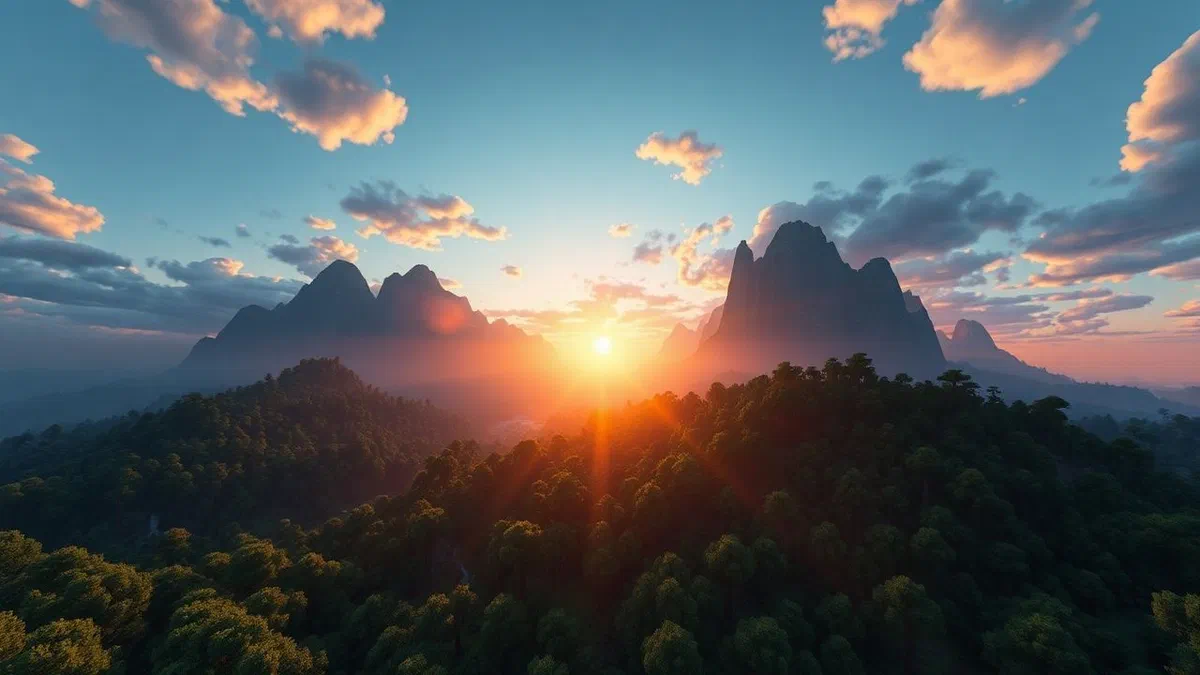
The render distance, or visual distance, determines how many “chunk” (worldports from 16×16 blocks) are loaded and displayed around the player. on a minecraft server hosted on aternos, this setting is initially limited to preserving shared hardware performance. however, too small distance can be frustrating, as it prevents you from seeing distant structures, interesting biomes or imminent threats. increase this value allows a total immersion, making the game world more live and less claustrophobic, especially in the updated versions of 2026 that introduce more and more complex views. without adequate configuration, players would find themselves immersed in a thick fog that drastically limits the range of action, making air or maritime exploration a difficult and unsatisfactory task from the visual point of view.
However, it is essential to understand that ** increasing the rendering distance on aternos*** entails a cost in terms of resources. each additional chunk loaded from the server requires ram memory and cpu cycles. if the set value is too high compared to the server capacity, you will start experimenting with the so-called “network ramp” or “tps drop” (ticks per second), where the game actions appear delayed. the secret of an experienced server administrator lies in finding the “sweet spot”, that is the perfect balance point where the view is wide but the server remains fluid and responsive. in this guide we will see how the default parameters can be overcome through oculated configurations and the use of optimized software, allowing you to fully enjoy the architectural wonders that you and your friends have built during your multiplayer sessions.
Impact on gameplay and strategic exploration #
From the point of view of pure gameplay, having a high visual distance radically changes the way players interact with the surrounding environment. in survival mode, for example, being able to see a village or a desert temple from hundreds of blocks away allows you to better plan your travels and save valuable resources. moreover, for manufacturers who love to create mega-structures, a limited rendering distance is the worst enemy, since it prevents you from admiring the work in its entirety. configure these aternos* server settings correctly ensures that design work is not wasted behind an artificial fog wall, improving overall experience for each connected user.
In 2026, with the new ground generation mechanics introduced in the most recent versions of minecraft, the verticality of the world has increased considerably. this means that the mountains are higher and the deepest valleys, making the need for an adequate rendering distance even more pressing. a server that limits the view to only 5 or 6 chunk spoils the epicity of these new landscapes. therefore, intervening on system parameters is no longer just an option for graphic purists, but a necessity for anyone who wants to live minecraft as it was conceived by the original developers, exploiting every single bit of power made available by the hosting platform.
Technical balance between graphics and server stability #
Entering the technical merit of the operation of a server means understanding how data is sent from the server to the player client. when you decide to ** increase the render distance on aternos***, you are asking the server to process and send much larger data packages. each chunk contains information about blocks, entities, tile entities and light. if many players are connected simultaneously and all are in different areas, the load grows exponentially. for this reason, aternos applies predefined limits that can be optimized by following specific procedures that we will analyze in the next paragraphs.
You should also consider the difference between the render distance set in the options menu of your game (client-side) and that set on the server (server-side). many users make the mistake of maximizing the visual distance in the local settings of minecraft, and then realize that the world does not charge beyond a certain point. this happens because the server has the last word: if the server is set to 10 chunk, even if your pc is set to 32, you will see only 10 chunk. this is why it is essential to act directly on the control panel of aternos to unlock the visual potential of the entire game instance.
Minecraft java edition configuration: the server file. properties #
For players on pc using java edition, the heart of the configuration resides in a specific file called server. properties. this file contains all the basic guidelines that the server reads when it comes to determining the behavior of the game world. for configure server.properties effectively, you need to access the aternos panel file area. once you locate the file, you will open a text editor where you will find the line called view-distance. this numerical value is what we have to change to expand the visual radius of our users. basically, aternos could set it on low values like 5 or 6 to ensure stability to all users of the free service.
However, changing this parameter requires some caution. although the temptation to insert extreme values like 32 is strong, it is good to remember that aternos places software limits to prevent a single server from overloading the entire infrastructure. generally, a value between 8 and 12 is a great compromise for a java edition server with few players. after entering the desired number, it is essential to save the file and, most importantly, restart the server. without a complete reboot, the changes made to the minecraft****** visual space will not be loaded and players will continue to display the world with old limitations, making your technical intervention vain.
Detailed steps for editing in the aternos panel #
If you have never handed over the configuration files, the procedure may seem complex, but it is actually extremely linear. first, log in to your aternos account and select the server you want to edit. make sure the server is switched off before proceeding, as editing files while the instance is active can cause corruption or failure to apply changes. once in the main menu, follow this path to change minecraft server files in total safety and speed:
- Click the file tab in the left sidebar of the control panel.
- Search the list of files called the server.properties and click on it to open it.
- Scroll the lines of code until you find the view-distance string or visual distance.
- Change the numerical value (e.g. 6 to 10) and click on the save icon (the floppy disk).
- Return to the main dashboard and start the server to apply the new parameters.
This procedure is the standard and most reliable method. remember that aternos has a maximum hardware limit that cannot be exceeded simply by writing a very high number in the file. if you try setting 32, the server may automatically reset the value to 10 or refuse to start properly. it is always better to proceed for small increments, testing the fluidity of the game after each change, monitoring whether the loading of the chunk happens harmoniously or if annoying shots occur during the movement of the character.
Use of papermc software for superior performance #
If you want to exceed standard limits and have a more granular management of rendering distance, the best solution is to change server software from “vanilla” to “papermc”. paper is an optimized version of minecraft java edition designed to reduce cpu load and improve chunk management. once you install paper through the aternos software menu, you will have access to additional configuration files such as paper-world-defaults.yml, which allow you to manage not only the visual distance, but also the “no-tick view distance”. this function is revolutionary because it allows players to see distant chunks without the server having to process entities within them (such as plant growth or mob movement), saving enormous amounts of resources.
Using papermc for aternos*, you can set a higher effective visual distance, ensuring a fluidity that the vanilla version could never offer. this is particularly useful in 2026, where servers need to handle increasingly heavy workloads due to the new features of the game. many experienced administrators use paper precisely for this reason: it offers unparalleled stability and advanced tools to prevent lag, while at the same time allowing their users a visual quality worthy of a paid professional server, while remaining in the free ecosystem of aternos.
Optimization for minecraft bedrock edition #
The bedrock version of minecraft, which includes editions for windows 10/11, consoles and mobile devices, manages rendering slightly differently than the java counterpart. when you manage a bedrock server on aternos, the procedure for increasing the render distance on aternos follows similar steps but with some structural features. also in this case, the reference file is the server.properties, but the default values and maximum limits may vary. the bedrock edition is known to be generally lighter and performing, which could allow you to dare a little more with the numerical values than a java server of the same capacity.
However, you have to pay attention to the diversity of connected devices. if your friends play from dated smartphones, a render distance too high set on the server could trouble their devices, causing app crashes or excessive overheating. in the bedrock edition render distance** and performance are even more evident. the default value on aternos is usually 8, but many servers manage a value of 12 or 14 without big problems, provided that the number of connected players is not excessive (usually under 5-10 contemporary users).
Differences in parameters between platforms #
A fundamental distinction to keep in mind when setting up a server for different platforms concerns how chunks are counted. while on java the load is almost totally dependent on the server, on bedrock there is a more marked subdivision of the work. despite this, the view-distance parameter on the server.properties remains the main command. here are some key differences to consider when configuring your parameters to ensure that each user, regardless of the device, has the best possible experience without compromising the stability of the entire infrastructure:
- On bedrock, the value inserted on the server defines the maximum invaluable limit for all.
- Mobile devices tend to ignore too high values if their hardware does not support them.
- New generation consoles (2026) can manage high distances, but are still limited by the server.
- The “tick distance” is another parameter on bedrock that influences how far the calculations of the game occur.
To optimize minecraft** performance server on bedrock, i suggest you never exceed the value of 16 for visual distance. beyond this limit, even with the optimization of bedrock, the aternos server could begin to show signs of failure, especially during the use of helitra wings (elytra) or during fast trips to nether. it is always preferable to have a slightly shorter but fluid view, rather than to see the horizon but to move around, ruining the overall gaming experience for you and your adventure companions.
Data traffic management and latency in mobile devices #
One aspect often neglected in increasing the visual distance on bedrock servers is the impact on user data connection. players connecting from mobile may have bandwidth restrictions or high latitudes. loading more chunk means downloading more data each time you move. if your server is frequented by many users on the move, bandwidth consumption will increase significantly. this can lead to delays in the destruction of blocks or in combat, a phenomenon known as “ghost blocks” or input lag.
To mitigate these problems, it is good to communicate with your players and collectively test the changes. if after increasing the render distance some users encounter problems, you may need to step back or look for alternative solutions, such as the installation of add-on specific for server-side optimization. remember that loading chunk aternos* is a dynamic process: faster players move, faster the server has to work to send the map data, making the speed of moving a critical factor to monitor constantly.
Advanced strategies to eliminate fog and lag #
In addition to the direct server settings, there are advanced strategies that involve the client side to improve visual perception without overloading the aternos server. one of the most effective techniques is the use of optimization mods that act on how the player’s computer interprets the data received. even if you set a moderate render distance on the server, you can make sure that the visual experience is clearer and intervening clean on elements like fog or shadows. this allows you to “see better” even if you are technically not seeing “longer” in terms of loaded blocks.
In 2026, instruments such as iris shaders and sodium became the de facto standard for each player who respects. these mods allow you to manage chunk rendering much more efficiently than the mojang basic code. by implementing these solutions, a player can maintain a fluidity of 144 fps even with a high render distance, minimizing the extra work required to the server. this hybrid approach, which combines an accurate minecraft************* server file with the use of advanced client software, represents the optimization border for anyone who manages a community on aternos.
Use of mod client side: optifine and sodium #
Although optifine has been the undisputed king of optimization mods for years, in 2026 the combination of sodium (for performance) and iris (for shaders) took over thanks to a much more modern memory management. these mods allow to completely eliminate the fog that minecraft inserts at the edges of loaded chunks. in this way, the passage between the visible world and the unloaded vacuum is much more net or managed with more elegant shades, giving the illusion of a ** minecraft** visual distance much higher than the actual one set on the server. properties.
In addition, these mods offer delayed chunk loading settings and dynamic gpu resource allocation. if all members of your server use these optimizations, you will be able to slightly raise the render distance on aternos without any lament falling in frame rate. it’s a team game: the administrator optimizes the server, players optimize their pcs, and the end result is a gaming experience that has nothing to envy to dedicated high-end servers, all without spending a single euro.
Management of the “fog” and optimized texture packages #
Another trick in the job is to use resources packages (resource packs) designed specifically to improve visibility. some of these packages change the density of the atmospheric fog of the game, allowing you to see the contours of the mountains in the distance even when the details of the blocks have not yet been fully loaded. this technique is particularly useful in biomes such as the ocean or the desert, where the view is naturally wider and the standard mist of minecraft can be particularly intrusive and annoying.
Always remember that rendering distance is a value that affects not only what you see, but also the logic of the world. for example, the growth of crops and the functioning of redstone circuits often depend on the distance of chunk from the player (chunk loaded vs active chunk).
By integrating the use of “low-res” or optimized texture packs with aternos settings, you can create a smooth play environment for those who have dated hardware. this level of attention to detail is what distinguishes an amateur server from a well-managed and pleasant community to attend over time.
Hardware limits of aternos and alternative solutions #
It is necessary to honestly address the issue of the inherent limits of a free service. aternos offers incredible service at no cost, but its resources are not endless. each server instance runs on machines that host hundreds of other worlds simultaneously. for this reason, even following perfectly every guide on how ** increase the render distance on aternos***, you may encounter invariable technical walls. if your goal is to create a server with 32 chunk visual distance for 50 players, aternos is not the appropriate platform. however, for small groups of friends, the optimization solutions discussed so far are more than enough.
If after testing all known configurations that the server continues to restart or show “server overloaded” messages, it means you have exceeded the computing capacity assigned. in this case, the solution is not looking for other software tricks, but resize your expectations or consider switching to lighter software. for example, moving from a generated world with many heavy mods to a more “lightweight” can free enough resources to allow you to raise the distance. resource management is an art made of constant compromises between aesthetic desires and technical realities.
Server log analysis to locate bottlenecks #
A good administrator must be able to read the server log. aternos provides a real-time console where all alerts and errors are displayed. if you often see yellow or red writings indicating “can’t keep up!”, the server is telling you that the render distance is too high for the number of players present or for the complexity of the world. learning to interpret this data is essential for optimizing minecraft performance server. often the problem is not only the visual distance, but a combination of too many entities (animals, monsters) massed in one point and too many chunks loaded simultaneously.
To solve these bottlenecks, you may need to use in-game commands to clean unnecessary entities or install plugins like “clearlag” (if you use paper or spigot). these tools help keep the server “clean”, freeing ram memory that can then be used just to manage a slightly more generous rendering distance. it is an ecosystem where each element influences the other; managing a server means having an overview of all these technical parameters, ensuring long-term stability for all your virtual adventures.
When considering the passage to a dedicated hosting #
Finally, if your community grows and the visual needs become an absolute priority, it might be time to look beyond the free services. a dedicated hosting offers guaranteed resources, unshared ram and processors with higher frequencies, allowing you to set distances that on aternos would be unthinkable. however, before taking this step, make sure you have squeezed every single possibility offered by aternos by following the advice of this guide. very often, a well-optimised server on aternos can perform a poorly configured paid server.
- Consider the average number of players connected in peak hours.
- Check if the lag persists even with the render distance to the minimum.
- Analyze if your community is willing to contribute to the costs of a hosting.
- Consider the complexity of the mods or plugins you want to use in the future.
Aternos remains a terrific gym to learn the basics of server management. many of the concepts learned here, such as changing the server.properties or optimizing through paper, are universal skills that you will need regardless of the platform you choose to use. ultimately, the render distance is only one of the many dowels that make up the complex mosaic of managing a successful minecraft server.
Frequently asked questions (faq) #
What is the maximum value of render distance taxable on aternos? #
On aternos, the maximum limit for rendering distance in the java edition version is usually fixed at 10 or 12, depending on the current load of the system and the software used (such as papermc that can allow small variations). for the bedrock version, the limit is generally 15. entering higher values in the server.properties file will not have any effect since the system will automatically bring them back to the maximum allowed roof to preserve the stability of the shared infrastructure.
Increase visual distance causes lag to players with little powerful pcs? #
Yes, increasing the render distance server side forces players clients to upload more data. if a player has a computer dated or little ram allocated to minecraft, they will see a drastic drop in frames per second (fps). it is always advisable to find an average value that does not penalize those who do not have the latest hardware, suggesting players to install optimization mods like sodium to better manage additional chunks sent by the server.
Do i have to restart the server after changing the render distance? #
Absolutely. any modification made to the server.properties file or the paper/spigot configuration files requires a full restart of the server to be made effective. this is because the server reads these settings only during the startup phase and uploads them to the volatile memory. changing values while the server is online will not produce any visible change in the game until the instance is closed and reopened correctly from the aternos control panel.
Why don’t chunks charge beyond a certain distance even if i raised the value? #
This may depend on two factors: either you have exceeded the maximum limit imposed by aternos, or the render distance set in the options menu of your game (client-side) is lower than that of the server. to see effectively further, both values must be aligned. also, make sure you have saved the file correctly after the change, since it is a common mistake to forget to click on the save icon before you restart the virtual machine.
Do plugins exist to manage the render distance dynamically? #
Yes, if you use paper or spigot as a server software, you can install plugins like “view distance tweaks”. these plugins monitor server performance in real time (tps) and automatically increase or decrease visual distance according to the number of connected players and cpu load. it is an excellent solution to offer a broad view when the server is empty, automatically reducing it during peak times to avoid lag and sudden crash.
In conclusion, we have seen how ** increase the render distance on aternos**** is a process that requires a mix of technique and common sense. following the steps to change the server.properties file and using software efficiency like papermc, you can radically transform the look of your minecraft world, making exploration a visually rewarding experience for all your friends. always remember to monitor performance and not exaggerate with values, since the stability of the game is the most valuable value for a community. now that you have all the information you need, you just have to access your control panel and start optimization. good luck with your server and enjoy your endless explorations!