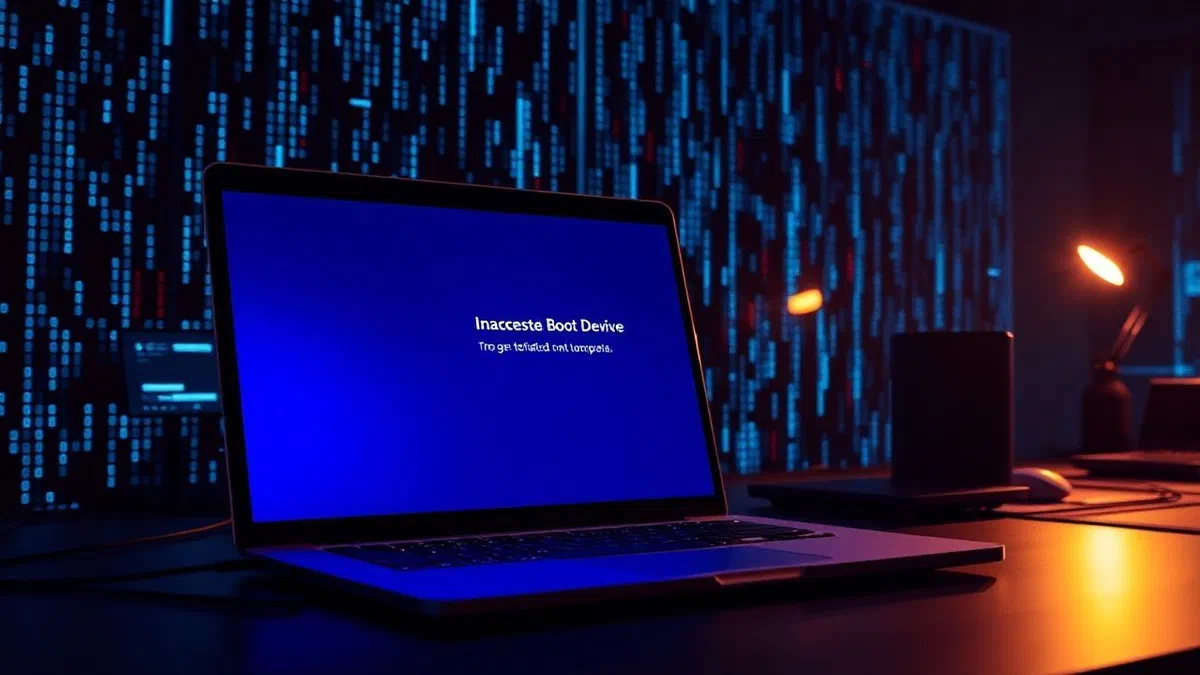
The inaccessible boot device windows* error is one of the most frustrating challenges for anyone using a modern computer, even in the current technological scenario of 2026. this particular blue screen of death (bsod) typically occurs during the critical start phase of the operating system, preventing the user from accessing even the login screen. the heart of the problem lies in the inability of the windows kernel to mount the system volume, i.e. the partition of the hard drive or ssd drive where the fundamental files for running the software are stored. causes can vary from simple driver conflicts to more serious hardware problems, passing through system updates not gone to good end or incorrect changes in bios or uefi settings. understanding the nature of this error is the first step for effective resolution, since the message itself indicates that communication between the motherboard firmware and the operating system has stopped at a crucial point in the initialization process. in this in-depth guide, we will explore every possible methodology of intervention, starting from the simplest and most automated procedures until we reach advanced techniques of manipulation of the register and management of packages by command line. despite the apparent complexity, most cases can be resolved without the need to format the entire system, provided that we carefully follow the technical steps that we will illustrate in subsequent paragraphs.
Main causes of inaccessible boot device error #
System updates and software conflicts #
One of the most common reasons that lead to the appearance of the annoying inaccessible boot device windows* is linked to the management of qualitative and cumulative updates released by microsoft. even in 2026, despite improvements in the windows update infrastructure, it may happen that an update package is not written correctly on the disk or that its installation is interrupted by a sudden voltage drop or forced restart. when this happens, the boot files can be in a state of “pendence”, where the system attempts to apply modifications to critical drivers of the storage controller without being able to complete the operation. this creates an infinite loop where windows tries to load a driver that is not yet ready or that has been partially replaced, inevitably leading to the blue screen. in addition, installing third-party software that interact at low level with the file system, such as some particularly invasive disk encryption or antivirus programs, can alter the storage stack so as to make the boot volume unrecognized during the boot phase protected.
In addition to official updates, we must not underestimate the role of sata or nvme controller drivers. often, the operating system attempts to update these drivers via windows update databases, but if the downloaded driver is not perfectly compatible with the specific firmware review of the controller present on the motherboard or ssd drive, the result will be the inaccessible boot device windows* error. this happens because windows literally loses the “pass” needed to read data from the disk just while trying to load the instructions to do so. the situation is made even more complex if the user has manually installed beta drivers or non-certified versions that promise superior performance but lack the stability required for the boot phase. resolution in these cases almost always requires access to the recovery environment to cancel the latest software changes or remove packages that corrupted the device’s boot sequence.
Hardware and bios/uefi configurations #
Switching to the purely physical environment or hardware configuration, the error can be triggered by an unexpected change in bios settings or the uefi interface. one of the most frequent cases is the sata controller mode: if for some reason the system passes from ahci to ide (or vice versa), windows will no longer be able to communicate with the storage unit using the protocol provided during the original installation, immediately activating the blue screen. similarly, activation or deactivation of the secure boot or tpm 2.0 module can sometimes interfere with the trust chain needed to mount the encrypted boot volume. in more serious contexts, the problem could result from a physical deterioration in the boot sectors of the ssd or hdd drive. even the most modern nvme units of 2026 are not exempt from electronic faults that can make temporarily or permanently inaccessible certain memory blocks necessary for booting.
Another often neglected factor is the wiring or physical connection of the disk drive. in a desktop pc, a slightly loose or damaged sata cable can cause intermittent data loss that translates into the inaccessible boot device windows** error just when the system requires a constant flow of information to load the kernel. in laptops, shocks or vibrations can move the unit slightly from its housing, especially if it is not properly fixed with safety screws. it is essential to exclude these mechanical problems before proceeding with long and complex software solutions. quick control in the bios to check if the unit is properly detected by the firmware is always the recommended starting point for each accurate diagnosis. if the disk does not even appear in the list of bios boot peripherals, it is useless to attempt software repairs, since the problem is located at the connection level or physical integrity of the component.
Use of automatic windows restoration #
How to access the recovery environment (winre) #
When windows fails to boot for two or three consecutive times, the system is designed to automatically activate the recovery environment, known as windows recovery environment (winre). this is a lightweight and independent partition that contains essential diagnostic tools to solve problems such as the inaccessible boot device windows error. if the automatic mechanism does not activate, you can force the access by manually switching off the pc via the physical ignition key as soon as the windows logo or motherboard manufacturer appears, repeating the operation three times. alternatively, using an external installation support (a usb pen created with microsoft’s media creation tool) allows you to start your computer and select the option “restore your computer” located at the bottom left of the installation screen.
Once you enter the winre environment, you will find yourself in front of a blue screen with different options. the correct navigation to attempt a command-line repair plans to select “resolution of problems”, then “advanced options”. from here, the first utility to test is undoubtedly the “restore at startup”. this tool performs a full scan of boot log files, checks the presence of errors in the boot configuration data (bcd) and attempts to automatically correct the pointers indicating to the system where the operating system is located. often, this procedure is sufficient to solve small corruption errors of files caused by improper shutdowns, making the boot device accessible again without any additional technical complications for the end user.
Execution of automatic repair at startup #
The auto repair process is a complex algorithm that analyzes different system parameters. when booting, windows check-ups critical drivers for startup, check the integrity of the registry and check if there are any updates left in a partial installation state. during this phase, the pc may restart several times. it is crucial not to interrupt this process, even if it seems stuck on a certain percentage, since manual interruption could worsen the situation by further corrupting the file system. if repair is successful, the computer will normally start by taking you to the desktop. if not, you will receive a message that informs that automatic repair could not solve the problem, suggesting to consult the log file (usually located in srttrail.txt).
Despite its usefulness, boot recovery is not infallible, especially when the inaccessible boot device windows** error is caused by a specific storage driver that is incompatible or by a deeply compromised registry. however, it is a procedure that we recommend to perform at least two or three times below. many users have reported that, inexplicably, the system manages to correct certain errors only after several consecutive attempts, probably because each step solves a subproblemacy that allowed the next one to emerge. if after these attempts the blue screen persists, the problem lies in an area that the standard algorithm cannot touch, making manual intervention necessary through the most powerful tools offered by the command prompt, of which we will talk in the next chapter of our guide.
Advanced resolution via command prompt #
Restore log files and boot record #
When graphic options fail, the command prompt becomes the ultimate tool to combat the inaccessible boot device windows* error. by accessing the console from advanced recovery options, you can interact directly with the operating system file structure. one of the most effective techniques is to manipulate log keys that manage pending update sessions. very often, the boot device is inaccessible because the system is “convinced” of having to complete an operation that is blocked instead. using the command to load the register hive (reg load), we can instruct the system to ignore the hanging sessions. this unlocks the boot sequence allowing windows to load the standard drivers instead of the corrupt ones being upgraded.
Here’s a set of key operations to run in the prompt:
- Identify the drive letter where windows is installed (often c: or d: in winre) through the command dir.
- Use the diskpart command followed by volume list to confirm which partition is marked as bootable.
- Run the boot record restore commands: bootrec /fixmbr and bootrec /fixboot to rebuild the master boot record.
- Upgrade the list of operating systems detected with bootrec /rebuildbcd to make sure the pointer is correct.
- Manually remove corrupt registry keys related to “component based servicing” that block the initialization of the disk.
File system integrity control with chkdsk #
Another silent but devastating cause of the error inaccessible boot device windows* is the presence of logical corruptions in the ntfs file system. if disk metadata is damaged, windows cannot find the files necessary for booting even if they are physically present on disk plates or flash memory chips. in these cases, the chkdsk /r* command is the sovereign solution. this tool analyzes each single cluster of the unit, identifies the bad sectors, attempts to recover the readable data and marks the irrecoverable blocks as “bad” to prevent the system from writing over it in the future. it is an operation that can take several hours, especially on large mechanical disks, but it is essential to ensure that the unit is healthy before attempting other software repairs.
When running chkdsk, it is common to see messages related to repairing indexes or restoring orphan files. these are clear signs that the file system was actually compromised. once scanning is completed, it is advisable to run the sfc /scannow** tool by pointing it to the offline installation directory of windows. this command will compare current system files with original versions stored in system cache or installation support, replacing any corrupt start drivers with functional versions. the combination of file system cleaning and binary system file recovery is often the key to permanently delete the inaccessible device problem, allowing a return to normal pc operation without data loss.
Management of corrupted updates and packages #
Manual removal of updates via dism #
In 2026, the deployment image servicing and management (dism) tool remains the offline maintenance pillar of windows. if you suspect that the inaccessible boot device windows* error has been triggered by a recent update, you can use dism to list and remove installed packages without having to start the operating system. this approach is extremely powerful because it acts directly on the image of the system stored on the disk. with the dism /image:c: /get-packages command, you will get a list of all updates present, with its installation date and status (installed or unfinished installation). identifying the last added package before the blue screen appears is the crucial step to solve the puzzle.
Once the package is detected, the removal command is as follows:
- Note the full package name (package identity) displayed in the dism list.
- Run the command dism /image:c: /remove-package /packagename:[name\ package] to uninstall it forcefully.
- Create a temporary directory (scratchdir) if necessary to manage temporary files during removal.
- Restart the system and check if the error has disappeared, allowing windows to finish cleaning operations.
- Check in system logs once the pc starts to understand why that specific update caused the conflict.
Uninstalling unstable third-party software #
Not only windows updates can cause the problem of inaccessible boot device. often, software that install filter drivers (filter drivers) for storage management can be the real faults. we are talking about tools for mounting virtual disks, optical drive simulators or backup software that constantly monitor changes to disk blocks. if these programs are not fully compatible with the latest version of windows or if they conflict with each other, they can block access to the main disk during boot. in temporary mode (if accessible) or through system restoration at a previous point, you can remove these applications to test system stability.
If you cannot access the temporary mode, a solution is to use the “system configuration reset” available in advanced options. this tool reports the registry and driver files to a previous state automatically saved from windows (the so-called restore points). if you have installed an unstable software a few hours before the error appears, turning back one day can instantly solve the problem of theinaccessible boot device windows. it is a less surgical technique of manual removal with dism, but often more effective for users who are unfamiliar with the technical names of update packages or who do not accurately remember which software component caused the initial disaster.
Hardware and controller driver configuration #
Sata settings: ahci vs ide in bios #
The hardware architecture on which windows rests is fundamental. many inaccessible boot device windows** errors arise from a discrepancy between how the operating system was initially configured and the current firmware settings of the motherboard. in modern motherboards, the ahci mode (advanced host controller interface) is the standard for high performance and support for advanced ssd features. however, if for an bios update or a buffer battery reset (cmos) the system returns to factory settings, it may reset to ide or raid mode. windows, not finding the drivers loaded for that specific mode during boot, fails booting by returning the blue screen.
To resolve this conflict, you need to enter the bios/uefi (usually pressing canc, f2 or f10 on startup) and search for the storage configuration section or the sata controller. here you will need to ensure that the mode selected is the same used when installing. if you don’t remember, you can proceed for attempts: change the mode, save and restart. if windows starts properly, you found the culprit. in some cases, especially with intel rapid storage technology systems, you may need to switch from raid mode to ahci mode if you don’t have the correctly configured disk array. this simple verification can save hours of work on completely useless software repairs if the origin of the problem is a trivial setting of the firmware.
Troubleshooting related to disk drivers #
In the driver context, the error can occur even if the correct driver is present but has been corrupted or replaced by a generic version of windows that does not fully support the features of your specific controller. this is especially true for the new nvme gen 5 or gen 6 units available in 2026, which require specific drivers to manage high transfer speeds and advanced energy saving functions. if the storage controller driver fails, windows loses contact with the “boot device”. a solution is to manually load the correct driver during the recovery phase or use the console to force windows to use the basic drivers (standard sata ahci controller) which, although less performing, ensure system startup.
Another useful operation is the control of driver parameters through the system log, acting on the “start” key of storage-related services. by setting the value to 0 (which means “starting load”), windows is obliged to load that specific driver immediately. many times, updates change this value by bringing it to 3 (upon request loading), but if the driver in question is required to read the system disk, setting 3 will inevitably cause theinaccessible boot device windows. acting on these settings requires medium-high technical knowledge and the use of the offline registry editor, but represents one of the deepest and most decisive solutions for cases that seem hopeless, avoiding the need for a complete reinstallation from scratch.
System reinstallation and data recovery #
When opting for a clean installation of windows #
There are situations where, despite all efforts, the inaccessible boot device windows error persists. this usually happens when system corruption is so deep that it has not only affected the log and drivers, but also kernel core files or partition table itself. in these cases, continuing to attempt partial repairs can be a valuable waste of time. the clean reinstallation of the operating system becomes the wisest and quickest choice to return to having a working and stable computer. thanks to the speed of modern internet connections and 2026 ssds, installing windows 11 or later requires less than 15 minutes, provided you have ready an updated usb installation support.
Before proceeding with formatting, it is important to consider the option “reset pc” available in recovery options. this feature attempts to reinstall windows while keeping your personal files. however, if the error is caused by a driver or hardware problem, the reset may also fail. a real “clean install” that provides for the elimination of all existing partitions on the system disk and the creation of new ones, is the only way to be sure to delete any trace of software corruption. it is a drastic operation, but guarantees that the new system starts from a solid base, without conflicts inherited from previous installations or failed updates that have left toxic residues in the file system.
Strategies not to lose important personal files #
The main concern during error resolution inaccessible boot device windows* is the protection of your data. if you do not have a recent backup, do not despair: the fact that windows does not start does not mean that your files are lost. as long as the disk is physically intact, the data is still there. an effective strategy is to use a “live” distribution of linux (such as ubuntu) started by usb. this independent operating system will load the drivers needed to read the ntfs partitions of windows, allowing you to copy your documents, photos and videos to an external hard drive before proceeding with the formatting of the main pc.
Alternatively, you can use the windows command prompt to start the notepad.exe. from the menu “file -> open”, you will have access to a kind of simplified “explore file” interface. from here you can see your folders, connect a usb pen and, through the right button, copy and paste important files from the c drive: to the external drive. although there is no progress bar and the interface is spartan, it is an integrated and fast method to save critical data. once your files are safe, you can face windows reinstallation with much more serenity, knowing that the problem of inaccessibility of the boot device will be solved by eliminating at the root any possible residual software cause.
The inaccessible boot device error is not a definitive condemnation for your hardware, but a signal that communication between software and storage must be reconstructed with patience and method.
Frequently asked questions #
What exactly does inaccessible boot device mean? #
This error indicates that the windows operating system, during the initial loading phase, lost connection with the main storage unit (ssd or hdd). the kernel fails to find the “boot device” needed to read the basic data, causing the system’s immediate shutdown with a blue screen. causes can be corrupt drivers, wrong bios settings or system updates that have created conflicts in the storage stack.
Can i lose my data due to this error? #
The error in itself usually does not erase data, but makes them inaccessible until the problem is solved. however, if the cause of error is a physical hardware failure of the disk, the data could be at risk. if you choose drastic solutions such as formatting without first making a backup via external tools or restore console, the files will be lost permanently. it is therefore essential to attempt recovery before formatting.
Can the problem depend on a virus or malware? #
Although less common in 2026 compared to driver conflicts, there are sophisticated malware called rootkit or bootkit that infect the master boot record (mbr) or the efi partition. these can alter the boot process by making the disk inaccessible to windows. in such cases, offline scanning with specific tools or restart record recovery via command prompt may be necessary to delete the infection and restore the correct system loading.
How can i prevent the error from repeating in the future? #
To prevent inaccessible boot device error, it is advisable to keep the drivers of the storage controller always up to date by downloading them from the motherboard manufacturer website. also, avoid forcing your pc shutdown during windows updates and keeping updated bios can drastically reduce your risks. using a continuity group (ups) is strongly suggested to avoid corruption of the file system caused by sudden surges in tension or blackout.
Is the error common on windows 11 and later? #
Yes, the error also persists in the latest versions of windows since the fundamental boot logic of the operating system remained similar. although windows 11 has introduced more stringent security requirements such as tpm 2.0 and secure boot, these same components, if configured badly or if its drivers fail, can trigger inaccessible device error. the resolution methodology remains the same for all modern versions of the microsoft system.
In conclusion, addressing the inaccessible boot device windows* error requires analytical approach that starts from hardware diagnosis to get to software surgery. we have seen how automatic windows steps can often solve simpler situations, but how true power lies in the wise use of the command prompt and tools like dism and chkdsk. always remember that prevention, through regular backups and careful maintenance of system drivers, remains the best defense against computer disruptions. if after following this guide your pc still has problems, do not hesitate to consult a specialist technician to exclude complex physical failures. now that you have all the necessary information, you can proceed to restore your operating system with greater technical awareness. learn how to make your pc faster after restoration by following our next tutorials.