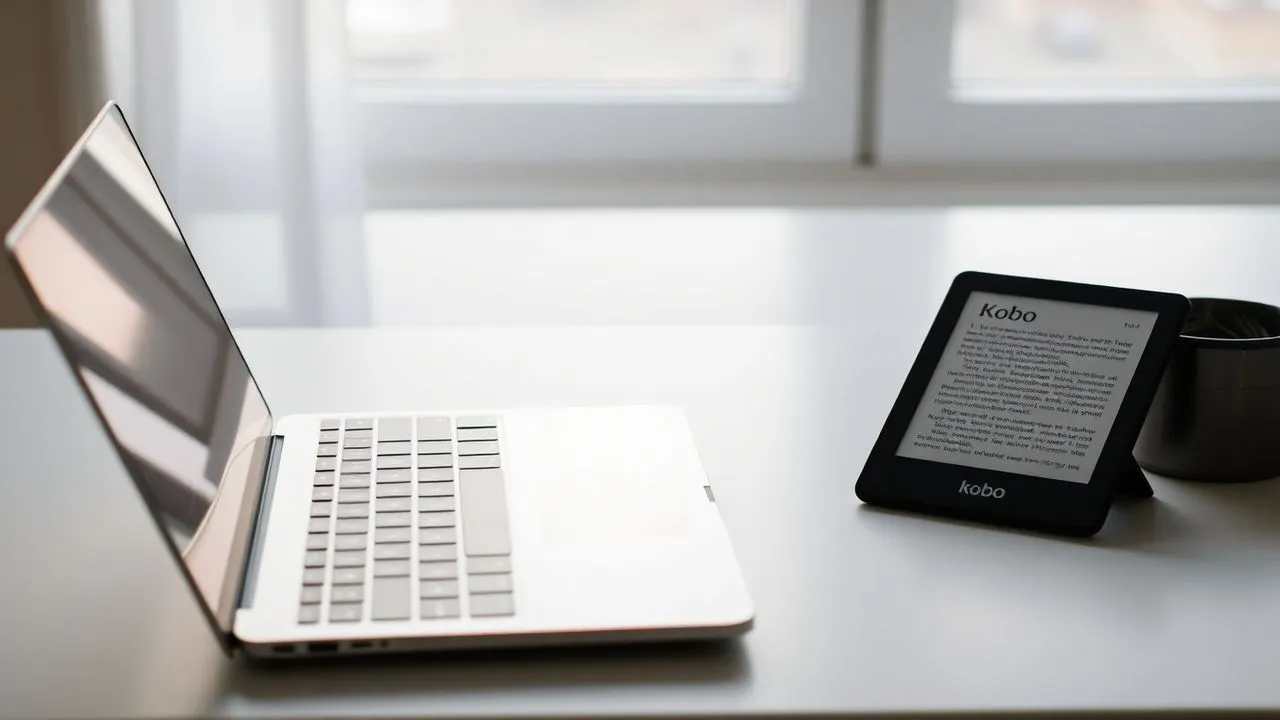
In the context of the 2026 digital reading, versatility has become a fundamental element for every fan of electronic books. Having a dedicated device is an invaluable experience, but knowing transfer books from Kobo to PC is an essential competence for anyone who wants a three hundred and sixty-degree management of their virtual library. Often you are in the condition of having to consult your purchases on a larger screen, or, in less fortunate cases, your eReader may suffer a hardware damage that compromises its readability. In these situations, the ability to move content on your computer is not only a convenience, but a real need not to lose access to your favorite titles. Kobo technology has taken giant steps, integrating increasingly refined cloud synchronization systems that allow a smooth passage of data between mobile devices, readers and desktop stations. In this technical guide we will deepen every single step necessary to correctly configure the Kobo ecosystem on your computer, ensuring maximum freedom of movement between the bits of your literary collection, regardless of the Kobo model in your possession or the operating system installed on your Windows or Mac PC.
Why transfer books from Kobo to PC and do backup
Protect digital collection from hardware failures
Conservation of your digital library is an absolute priority for every modern reader. Imagine you have accumulated hundreds of titles over the years and suddenly find yourself with a device that no longer responds to commands or a damaged e-ink display. Learning to transfer books from Kobo to PC allows to create a fundamental saving anchor. Although books purchased are linked to your account and reside on the cloud, having a local copy manageable through official software offers superior psychological and technical security. In 2026, the stability of online services is very high, but the ability to access their files even in the absence of connection or in case of malfunctions of the server remains a strategic advantage not indifferent to the experienced user who does not want to depend solely on the network.
In addition to the protection against physical damage, the transfer of books on the computer greatly facilitates organization operations. Manage metadata, create complex collections and view the previews of new purchases is an operation that on PC is much faster thanks to the higher computing power and the more responsive user interface than an eReader. When you decide to sync your content, you are actually creating a resilient ecosystem where your PC acts as a central hub. This approach is particularly useful for those who use Kobo not only for leisure, but also for study or work, where the need to quote texts or consult quickly different sources requires the typical speed of a professional and well organized desktop environment.
The advantages of reading on larger screens
Despite the electronic ink is the best choice not to affect the view, there are contexts where reading on PC becomes preferable. Many modern ebooks contain complex graphics, detailed tables or high-resolution illustrations that can be difficult to interpret on small six or seven-inch screens of portable readers. Using computer software, you can use the resolution of 4K monitors or UltraWide screens to display content with unprecedented clarity. This is one of the main reasons why users try to transfer books from Kobo to PC: transforming an intimate and portable reading experience into an in-depth text analysis session, supported by much more fluid research and annotation tools.
In addition, reading on computer allows multitasking. If you are writing a thesis, an article or simply taking notes on a digital diary, having the book opened in a window next to your favorite text editor dramatically increases productivity. The ability to adjust brightness, contrast and font size by mouse and keyboard provides granular control that many users find superior. We do not forget the aspect of accessibility: for those with vision problems, the ability to project the text on large screens or to use assisted reading software integrated into the computer operating system represents an invaluable value resource, making reading an inclusive activity without technological barriers.
Account setup to sync Kobo ebook
Step by step registration procedure
To properly start the process that will allow you to transfer books from Kobo to PC, the first basic requirement is the possession of an active account and correctly configured. Without a unique digital identity, the system would not be able to recognize your ownership rights on the purchased securities. Registration in 2026 was further simplified: by connecting to the official store homepage, you will find a guided path that requires only a valid email address and creating a secure password. It is vital to use the same credentials you use on your physical eReader, since the synchronization of the library takes place precisely through the unique correspondence of this data between the central server and your local applications.
Once you enter the required data, you will usually receive a confirmation email to validate your identity. During this phase, you will be asked if you want to receive updates on promotions: although it is an optional step, many readers choose to activate it not to miss the lightning offers that often characterize the Kobo catalog. Once you have completed the profile, you will have access to a personal dashboard from which you can monitor not only the books purchased, but also the associated devices and payment methods. Remember that account security is a priority: the use of two-factor authentication, now standard in 2026, is highly recommended to protect your digital collection from unauthorized access and ensure that book transfer always takes place in a protected environment.
Connect social accounts and third parties
Kobo offers great flexibility allowing you to use third-party service credentials to speed up access. If you do not want to create a new pair of usernames and passwords, you can opt for login via Google account, Facebook or, in the Italian context, through the LaFeltrinelli profile. This integration is particularly useful because it allows you to keep your digital ecosystem unified. Many users find it convenient to connect the LaFeltrinelli account because it allows you to accumulate loyalty points and manage in one place both physical purchases made in bookstores and digital ones destined to Kobo. This synergy between physical and digital is one of the strong points of the brand in our country.
However, it is good to pay attention to the consistency of data. If you have started buying books using a Google account, you will have to continue using the same method on your PC to see your titles appear. Many users find problems in transfer books from Kobo to PC simply because they log in with a different method, unintentionally creating an empty library. Always check in the settings of your eReader which email address is displayed in the Account section and make sure you replicate exactly the same pattern on your computer. A proper management of digital identity is the track on which all the synchronized reading experience flows, eliminating to the root most of the technical frustrations related to the lack of display of your purchases.
- Access the Kobo official website and click Register.
- Enter an active email address and a complex password.
- Optionally, select login via Google, Facebook or LaFeltrinelli.
- Check the email address via the link received in your mailbox.
- Check that credentials match those inserted in the physical Kobo device.
Installing Kobo software for Windows and Mac
System Requirements and Software Downloads
To manage and transfer books from Kobo to PC, it is essential to install the official application called Kobo Desktop. In 2026, this software was optimized to exploit the latest architectures, ensuring excellent performance both on Windows 11 and later, and on the latest versions of macOS. The download must be made exclusively from the official website to ensure the integrity of the installation package and protection against malicious software. Once you reach the download section, the site will automatically recognize your operating system, proposing the correct version (executable .exe for Windows or .dmg package for Mac). The lightness of the application also makes it suitable for computers not younger, provided they have an internet connection for the initial synchronization phase.
It is important to note that, although alternative methods exist to manage ePub files, the use of the official application is the only way guaranteed to manage the books protected by DRM (Digital Rights Management) owner of Kobo without incurring violations of service terms or insurmountable technical difficulties. While downloading, make sure you have at least 200 MB of free space on your hard drive, although the actual library can occupy much more space depending on the amount of books you decide to download for offline reading. Once the file is downloaded, the installation procedure follows the standard standards of modern software, requiring a few clicks and offering a clean, invasive advertising interface, focused entirely on the user experience.
Initial configuration of the desktop client
After completing the installation, the first Kobo Desktop startup will guide you through a short initial configuration. The most critical step is the inclusion of the previously created account credentials. Once logged in, the software will stop Kobo servers to recover the full index of your library. Don't be afraid if you don't immediately see the downloaded files: the program is simply building the local database of titles you own. This phase is crucial to those who want transfer books from Kobo to PC because it establishes the logical connection between the cloud and your local hardware. You can choose whether to automatically start the application on the computer or call it back when you actually need it.
On macOS, you may encounter a security alert for unidentified developers. This is a standard Apple procedure: just go to System Preferences (or System Settings in 2026) and authorize the app opening. On Windows, instead, the user account control request (UAC) may appear, to which you will have to respond affirmatively. Once inside the interface, take a moment to explore the settings. You can decide where to store downloaded files and configure view options. A correct initial configuration ensures that every future purchase made by smartphone or reader instantly appears on the PC, creating that smooth and seamless workflow that represents the main goal of each modern Kobo user.
- Download the installation package from the official Kobo website.
- Run the file and follow the screen instructions for Windows or Mac.
- Launch the Kobo Desktop application for the first time.
- Login with your Kobo account credentials.
- Wait for the initial synchronization of the book list.
Procedure to read Kobo books on computer
Cloud Library Synchronization
The button heart of the system for transfer books from Kobo to PC resides in its automatic synchronization ability. When logging in the desktop application, you do not need to physically connect the eReader device via USB cable to see your purchases appear. Kobo Cloud acts as an intermediary: whenever you purchase a book or add it to your list you want from any device, the PC application updates its database as soon as it detects an active internet connection. This means that your entire library is always within easy reach. The convenience of this system is obvious: you can start a chapter on your Kobo Libra or Clara during the train journey and continue it exactly from the same point on your PC once you arrive at the office or at home.
Synchronization does not only concern the book text, but also all associated metadata. Bookmarks, margin notes, underlines and even the last read page are transmitted to servers and replicated on all instances of the application. If you notice that a recently purchased book does not appear in the list, look for the Synchronize button (usually represented by two circular arrows) located in the upper corner of the interface. By clicking on it, you will force the application to check the status of your online library again. This “push” and “pull” mechanism of data ensures that the passage of information is always consistent, eliminating the need for boring manual copy and paste procedures that characterized the management of ebooks in past years.
Troubleshooting
Although technology is extremely reliable in 2026, situations may occur where the transfer of books does not occur as expected. The most common problem is related to the discrepancy between accounts, as mentioned above, but there are other variables to consider. Sometimes, operating system firewalls or antivirus software can lock out Kobo Desktop connections, preventing synchronization with servers. If you find it difficult to transfer books from Kobo to PC, verify that the application has the necessary permissions to access the network. Another useful test is to run the logout and login again: this action often resets the application cache and solves small database errors that can prevent the correct display of titles.
In rare cases, the problem may reside in the file format or in an uncompleted transaction correctly on the store. Always check your purchase history on the website if the book is actually paid and available. If the title is present on the site but not in the desktop app, try repairing the software installation or checking if there are pending updates. Kobo periodically releases security patches and performance improvements that solve known bugs related to connectivity. Keeping the software updated to the latest version available is the best way to prevent malfunctions and make sure that the transfer procedure remains fast and painless, allowing you to focus only on your reading without technical hitches.
Digital reading in 2026 is no longer just a question of files, but of continuity of experience between different devices. Knowing how to manage your library on PC is the first step towards true editorial freedom.
Advanced library management and offline download
Download ebook for reading without connection
A fundamental aspect in the process for transfer books from Kobo to PC is the ability to make your titles available offline. By default, the Kobo Desktop application shows the book covers in your account, but the text content is not downloaded until you explicitly request it or do not open the book for the first time. To ensure the consultation of texts even when you do not have a Wi-Fi or Ethernet connection, you need to download them locally. Just click on the arrow icon facing down that appears on the cover of each title not yet present on the hard drive. This process saves an encrypted copy of the book in a specific folder managed by the software, making it accessible at any time.
This function is particularly valuable for those who often travel with their laptop. Having your entire Kobo library resident on your PC turns your computer into a powerful portable archive. In addition, locally downloaded books tend to open much faster, since the software should not recover data from the network. In 2026, with the size of the ebook files that remain contained despite the addition of multimedia elements, you can store thousands of volumes on your computer without saturating storage. Managing downloads proactively means never having to depend on the availability of a network, ensuring that your books are always ready to be browsed, studied or simply rereaded, wherever you are in the world.
Organization of local folders and files
Although Kobo Desktop manages the location of files independently, the most advanced users often want to know where the data is stored for additional backup or system maintenance reasons. The downloaded files are not simple andPub readable with any program, because of DRM protection, but knowing the location helps to understand how much space your library is occupying. Typically, on Windows, these files are located in the AppData folder of the user, while on Mac are located in the Application Support folder. It is not recommended to manually rename or move these files, since this would break the link with the Kobo application database, making books unreadable.
For an optimal organization, it is better to act directly from the software interface. Kobo Desktop allows you to order books by author, date of purchase or by title. You can also create virtual shelves (collections) to group volumes according to personal criteria, such as literary genre, scope of study or read priority. This organization is then synchronized with other devices, ensuring that the structure you create on your PC is also reflected on your Kobo eReader. Learning to master these advanced management tools turns a simple list of titles into a professional library, where every information is easily available and the process of transfer books from Kobo to PC becomes only the beginning of a high-level bibliographical management.
- Locate the desired book in the I MIEI LIBRI tab.
- Click on the download icon on the cover for offline use.
- Use the search function to quickly find specific titles.
- Create custom collections to share the library.
- Periodically check the space occupied by books in the settings.
Buy and add new titles from your computer
Using the Kobo Store integrated into the app
One of the most obvious advantages in configuring the system for transfer books from Kobo to PC is direct access to the Kobo Store through the desktop application. Instead of surfing an e-ink screen that, as evolved in 2026, remains less fluid than an LCD or OLED monitor, you can explore the vast catalogue of millions of titles with the speed typical of web browsing. The integration of the store within the application allows you to purchase a book and see it appear instantly in your local library, ready to be read or downloaded. This immediacy is what makes the Kobo ecosystem extremely competitive and user-friendly for all types of users, from technophiles to occasional readers.
Within the desktop Kobo Store, you can take advantage of custom recommendations based on your previous readings, view detailed previews and read other users reviews with extreme ease. The advanced search bar allows you to filter results for price, language, publisher and even for average evaluation. Once you find the book of your interest, the purchase button will take you to a secure and pre-configured checkout screen with your data. It is a process that takes a few seconds and that eliminates every friction between the desire of a new book and the actual beginning of reading. In addition, the section of free books is easily accessible, offering thousands of classics out of copyright and promotional news at no cost.
Payment and security methods in transactions
Transaction security is a key pillar of the Kobo experience. When you decide to buy a new title then transfer books from Kobo to PC, you can count on the latest encryption protocols. The system supports a wide range of payment methods: from classic credit and debit cards to international circuits like PayPal, to modern payment systems via smartphone and gift card Kobo. You can manage your billing data directly from the user profile in the desktop app, always keeping total control over your expenses. Transparency is maximum: every purchase produces a digital receipt sent by email and saved in your account history.
In 2026, fraud protection is supported by artificial intelligence, which monitors suspicious activities ensuring that only the legitimate owner can make purchases. If you have discount codes or coupons, you can enter them in the final stage of the cart to see immediately recalculated the total. Once the purchase has been confirmed, the book is not only added to your account, but receives a “push” signal that sends it to all connected devices. If your PC is on and the app is open, you will see the new title appear almost in real time. This synergy between easy purchase and automatic content distribution is what makes books transfer on PC a modern, safe and incredibly fulfilling experience for every digital culture lover.
- Open the KOBO STORE tab in the desktop application.
- Use the search filters to find the title you want.
- Read preview or reviews to confirm interest.
- Proceed to secure payment through the preset method.
- Check that the book automatically appears in the I MIEI LIBRI tab.
Frequently asked questions
Can I transfer books from Kobo to PC if I downloaded them from other sources?
The official Kobo Desktop software is designed primarily to manage the titles purchased directly on the Kobo store or via official partners such as LaFeltrinelli. However, you can add books in unprotected ePub or PDF format by manually dragging them into the program, but automatic cloud synchronization may not be guaranteed for these external files. For advanced management of files from other sources, many users in 2026 continue to support Kobo Desktop with the use of open source software such as Calibre, which allows conversions and very detailed USB cable transfers.
What to do if your computer does not recognize the USB cable Kobo?
Although for most synchronization operations do not serve the cable, for manual transfer of external files USB recognition is essential. If the PC does not see the device, make sure you use an original or high quality cable, since many cheap cables only serve to recharge and not to transfer data. Try to change USB port, preferring direct ones on the motherboard if you use a fixed PC, or check that on the Kobo display the request for connection to the computer, to which you have to respond “Connect”. In 2026, most of these problems are solved by updating the operating system USB drivers.
Can I read Kobo books on multiple PCs at the same time?
Of course. One of the great benefits of the Kobo ecosystem is the ability to install the application on different computers (e.g. home and office) and access the same account. Your library will be synced everywhere and you can resume reading from the exact point where you left it, regardless of the PC you are using at that time. There are reasonable limits on the maximum number of devices allowed simultaneously to prevent abuse, but for standard personal use you will never encounter significant restrictions, making your library truly ubiquitous.
How do you update the Kobo Desktop application in 2026?
The Kobo Desktop application has an integrated automatic update system. Whenever a new version is released that improves stability or adds functionality to transfer books from Kobo to PC more efficiently, the program will alert you when you start. Simply confirm the intention to update and the software will independently manage the download and installation of new files, restarting in seconds. It is essential not to ignore these alerts, since updates often include critical security patches to protect your personal data and payment within the store.
Can I transfer and listen to audiobooks on your PC?
In 2026, Kobo fully integrated the experience of audiobooks within its ecosystem. While reading ebooks remain the main activity, the Kobo Desktop application allows you to manage and listen to the audio titles you purchased. The transfer process is identical to that of digital books: once you purchase the audiobook, it will appear in your library and can be downloaded for offline listening. The interface includes a dedicated audio player with controls for playback speed and automatic shutdown, turning your PC into a complete multimedia center for every type of editorial content.
In conclusion, learn to transfer books from Kobo to PC is a minimum time investment that repays abundantly in terms of safety, comfort and flexibility. Thanks to the tools made available by Kobo in 2026, the management of a digital library has never been so simple and integrated. Whether you are looking for a way to read your favorite titles on a large screen, whether you want to secure your purchases or need to manage your texts for professional purposes, the illustrated procedure in this guide guarantees you full control of your reading experience. Do not let your books remain confined to one device: use the power of cloud and desktop synchronization to live your literary passion without boundaries. Start today to configure your PC reading station and discover a new way to interact with the stories you love.


