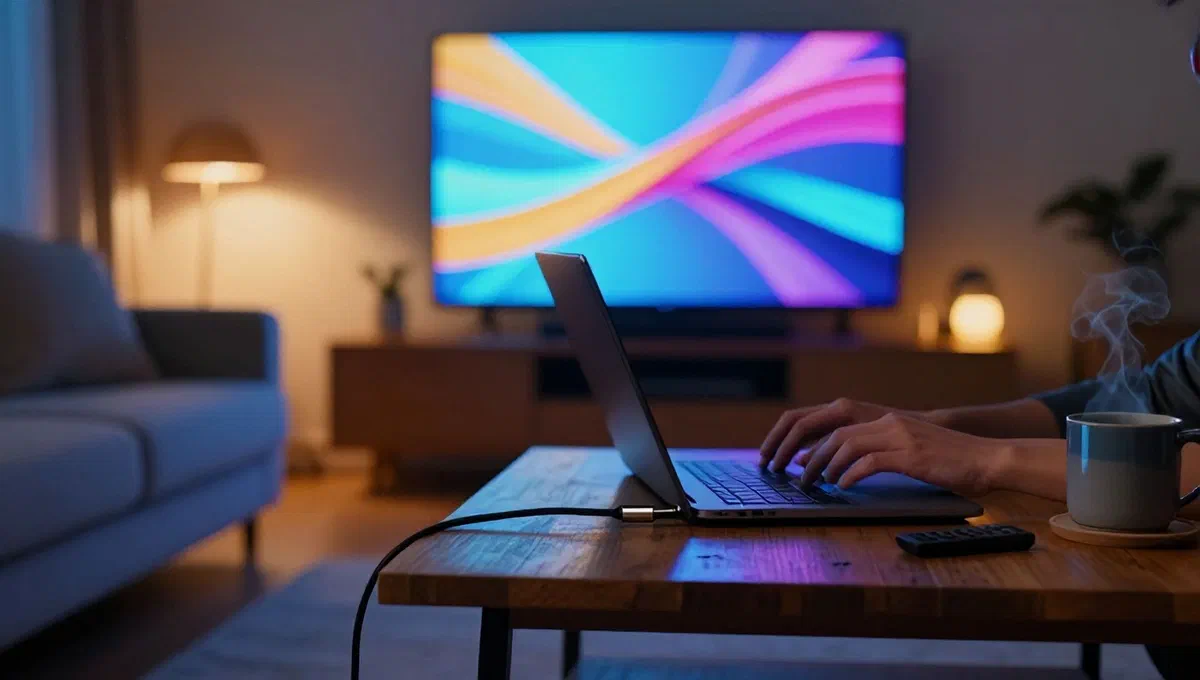
In the digital age, the desire to share and enjoy its multimedia content on larger screens is increasingly widespread. whether showing photos and videos to friends and relatives, presenting a work project or simply enjoying a film with a more immersive experience, connecting your pc to television is a versatile and accessible solution. many are often indecisive on which the most suitable method is, among the wide range of wireless cables and technologies available.
This complete guide has been designed to demist the process, illustrating in detail how to transmit your computer screen to a tv, both through the use of traditional wired connections, and through innovative wireless solutions. we will accompany you in choosing the most suitable cable or wireless device for your needs and explain how to configure your computer and television for a smooth transmission. prepare to transform your viewing experience!
Wireless transmission: your pc on the big screen without cables #
Wireless transmission offers unparalleled flexibility, eliminating cable footprint and allowing you to place your computer freely. there are several technologies that facilitate this connection, suitable for different tv configurations and operating systems.
For non-smart televisions (via external adapters) #
Even if your tv is not equipped with native smart features, it does not mean that you have to give up the convenience of wireless. there are special adapters that, once connected to a free hdmi port of the tv, give them wireless reception capacity.
Miracast (compatible with windows) #
Miracast is a communication protocol based on wi-fi direct technology, which allows direct data exchange between two devices without the need for a router or pre-existing wi-fi network. to use it, it is essential that your computer is equipped with windows operating system and a working wireless card.
To enable miracast on a non-smart tv, you will need to buy a good quality miracast**** adapter, connecting it to one of the free hdmi ports of the tv. this adapter will act as a receiver.
- **configuration and use: *
- After connecting the adapter to the tv and switching it on, select the correct hdmi source to activate the miracast receiver.
- On windows, right-click the start menu (the flag icon), select settings, then navigate system* and then scher*.
- In the section “more screens”, look for the voice wireless-screen connect*.
- Wait for the name of your miracast adapter to appear on the list of devices you locate and click on it. in a few moments, your computer screen should appear on the tv.
- To change the display mode (for example, expand these screens** to use the tv as an additional monitor, or duplicate these screens to replicate the desktop), use the drop-down menu in the “more screens” section. you can also reorganize the display layout by dragging or modifying settings such as resolution and brightness.
- Alternatively, you can access the wireless connection options via the windows 10 notification area (the comic icon near the clock) or the windows 11 control area (where the network and battery icons are located), by clicking on the connect/transmit button.
- note on audio: if the audio is not transmitted, click on the speaker icon on the application bar and make sure that the selected audio output device is the miracast adapter.
Miracast supports resolutions up to 4k, but performance depends on the computer video card and adaptor quality.
Chromecast (compatible with windows and macos) #
Chromecast, the google device, is a popular alternative to miracast. it is a “key” hdmi based on the proprietary protocol google cast, allowing you to receive content from any computer with google chrome browser.
Currently, chromecast is available in two main versions: a basic one, for full hd content, and the advanced chromecast with google tv, offering 4k hdr resolution, remote control and an integrated app store. after purchase, the device must be connected to a free hdmi tv port and an external power supply (also via usb), then configured and connected to the home wi-fi network via the free application google home* (available for android and ios/ipados).
- transmit from pc to tv with chromecast:
- Make sure your computer is connected to the same wi-fi (or ethernet) network to which the chromecast is connected.
- Open the browser google chrome.
- Click on the button with the three vertical dots (.) in the upper right corner of the browser.
- Select the transmit* entry from the menu that appears.
- In the display panel, click on the sources* menu and choose whether to transmit the “activate card” (only the current web page) or “desktop” (the entire computer screen).
- Finally, click on the name of your chromecast device to start broadcasting content on tv.
Apple tv / airplay (compatible with macos) #
For mac users, the ideal solution is the ecosystem Apple, which uses multimedia boxes Apple tv and proprietary transmission technology airplay*, built-in mac (and ios/ipados devices).
Apple tv is available in two main versions: Apple tv hd (for 1080p resolution) and Apple tv 4k* (with dolby vision and hdr10 support). both versions include a remote control and an app store. once you choose and purchase the device, connect it to a free hdmi port of tv and power, then follow the on-screen instructions for the initial configuration.
- **transmit from mac to tv with airplay: *
- Make sure your mac is connected to the same wi-fi network as Apple tv.
- To transmit the entire screen, click on the multifunction icon in the macos menu bar (often represented by a square with a triangle or two overlapping screens) and then on the *duplicable screen button.
- Select the name Apple tv from the list of detected devices to start broadcasting.
- By default, the tv could be used as a desk extension. to change this behavior, rewind the screens or alter resolution/colors, open system preferences** (dock gear icon), go to monitor* and then to disposition***.
- Alternatively, you can transmit the content of individual airplay-compatible applications by starting the app on your mac by clicking on the transmission symbol inside it (often a triangle with waves) and selecting the name Apple tv.
For smart televisions (with native integration) #
If you have a modern smart tv, it is very likely that you should not buy any external adapter. many of the wireless transmission technologies we talked about (miracast, google cast and airplay) are often integrated directly into the tv operating system.
Miracast on smart tv #
The miracast (wi-fi direct) technology is present in most modern smart tvs. to enable content reception, you usually need to access a dedicated section in your tv settings or start a specific app. the option name varies depending on the manufacturer:
- On smart tv lg, the app is often called screen share*.
- On samsung smart tv, the option is screen mirroring* or all share*.
- On smart tv philips, you can find the voice wireless screencast*.
Once the function is activated on the tv, the transmission modes from the windows pc are the same described in the paragraph dedicated to miracast.
Google cast on smart tv (android tv / google tv) #
All tvs with google tv or android tv are natively able to receive content via the google cast protocol. in this case, the receiver is active by default and manual adjustments are not required on the tv. the only condition is that all devices (computer and tv) are connected to the same wi-fi network. the transmission procedure from windows computer or macos via google chrome remains identical to the one described for chromecast.
Airplay 2 on smart tv #
Numerous latest smart tvs are natively compatible with airplay 2 technology Apple. you can verify this compatibility by looking for works with airplay 2* on the tv technical card, on the sales package or in the user manual. Apple also offers a web page dedicated to the list of compatible televisions. to enable the reception of airplay content, you must activate the appropriate option on your tv. the transmission modes from the mac are the same already illustrated for Apple tv.
Given the variety of models and operating systems, the exact procedure to enable these technologies on your smart tv may vary. however, we can examine some practical examples for the most popular brands.
Configuration on smart tv specific: practical examples #
Smart tv sat #
Most samsung smart tvs support miracast. to activate it:
- Press the home/smart hub*** button on the remote control.
- Access settings* in the virtual bar that appears.
- Navigate to rete > advanced settings > wi-fi direct*. make sure the name of the tv is visible.
- On more dated models, the path may be settings > general > network > screen mirroring*.
- In some cases, you may have to press the source/source** button (the screen icon with the arrow) and select screen mirroring from the menu.
If your samsung smart tv is compatible with airplay, you can activate it by going to settings > general settings Apple airplay. here you can activate/disable airplay and set preferences for the matching code (the first time or always). the tv must be connected to the internet for airplay.
Smart tv lg #
Almost all lg televisions integrate miracast technology in the form of the application screen share**. to activate it:
- Press the home* button on the remote control.
- Locate and select the screen share* app among those available on the screen.
- Press the ok****** button to enable the miracast receiver.
For airplay compatible lg smart tv, enable the system directly from home dashboard. open the dashboard by pressing the home button and select the airplay pane. check that the status of the service is active and choose the options for the association code. also for lg, an internet connection is indispensable for the use of airplay.
Wired connection: stability and simplicity with hdmi #
Despite the rise of wireless technologies, the wired connection remains an extremely reliable solution, which ensures signal stability and often the highest audio/video quality available. the hdmi cable is the universal standard par excellence.
Connection via hdmi cable #
Almost all modern computers, both desktop and portable, have at least one hdmi port. this digital connection allows you to transmit high quality audio and video signals with a single cable. the procedure is extremely simple:
- Connect one end of the hdmi cable to the hdmi output port of your computer.
- Insert the other end of the cable into a free hdmi input port of the tv.
Once you establish the physical connection, you will have completed the most difficult part. hdmi cables are capable of conveying video signals with resolutions ranging from full hd to 4k and beyond, accompanied by high fidelity multichannel audio (up to 32 channels).
Types of hdmi connectors #
It is important to note that there are different types of hdmi connectors:
- standard type a: the most common format, present on most computers and televisions.
- micro hdmi and mini hdmi:* more compact formats, mainly used on some ultra-portable notebooks, tablets or cameras. if your computer has one of these ports, you will need a specific cable with the appropriate connector at one end and a standard connector type a at the other, or an adapter.
- usb-c ports:* some latest-generation computers, such as Apple macbooks, many “convertable” and ultra-thin, have only usb-c ports. in such cases, you need to use a specific usb-c to hdmi adapter or usb-c cable with integrated hdmi connector.
Desktop configuration #
After physically connecting the two devices, you can configure desktop behavior and second screen settings (tv) directly from the operating system:
- on windows:** login to settings > system > screen* to choose between duplicate options (show the same content on both screens) or extension (use tv as a second independent monitor), change resolution, orientation and text size.
- up macos:* go to system preferences > monitor > provision* to manage the same duplication, extension and resolution options.
Conclusion #
Connecting your pc to tv has never been so simple and accessible, thanks to the wide range of options both wired and wireless. whether you prefer the stability and simplicity of an hdmi cable, the versatility of the miracast for windows, the multi-platform convenience of chromecast or the smooth integration of airplay for macos and compatible smart tvs, there is a solution for every need.
We hope that this detailed guide has provided you with all the information you need to choose the most suitable method for you and to configure the connection with ease. now you just have to enjoy your favorite content on the big screen, transforming your home multimedia experience.