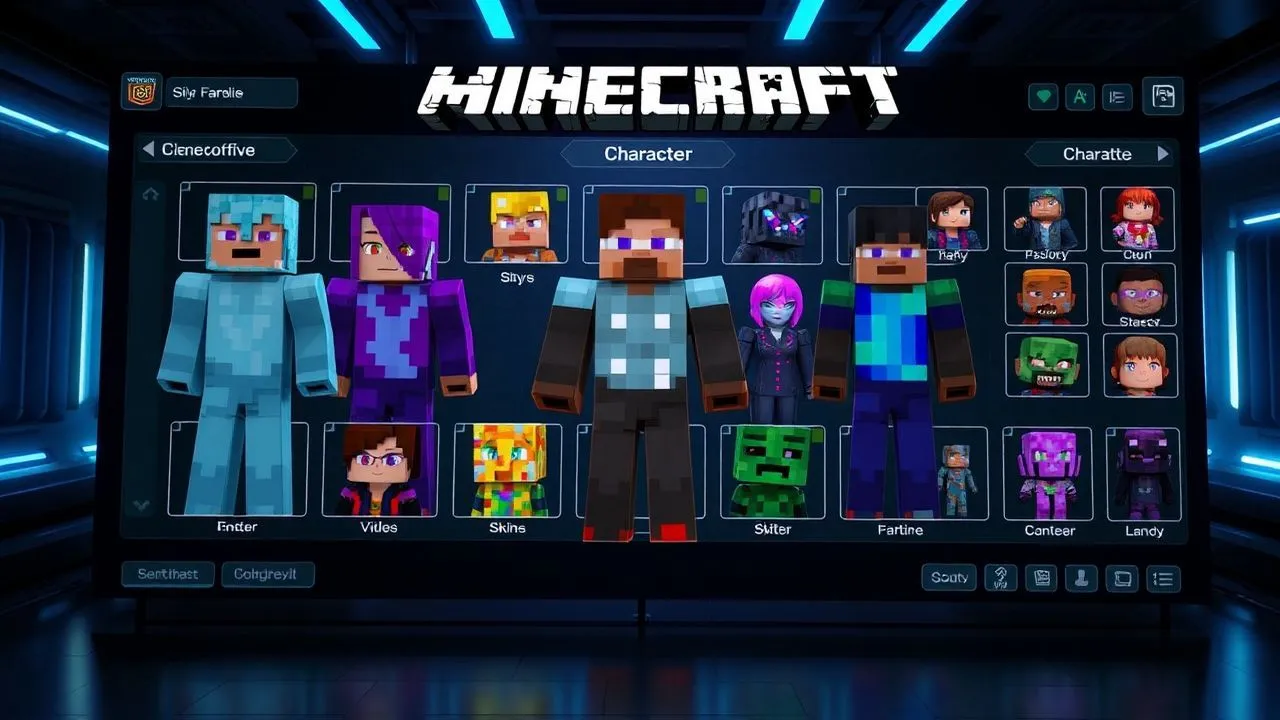
In the vast and boundless universe of Minecraft, personalization represents one of the fundamental pillars that have decreed the planetary success of the title registered Mojang. Since its debut, the game has allowed users to express their creativity not only through construction, but also through the aesthetic aspect of their digital avatar. If you're wondering how to change skins on Minecraft, you are in the right place, since in 2026 the options available to players have become even more numerous and intuitive than the past. Whether you’re a veteran of the Java Edition or a new lover of the Bedrock Edition, changing the appearance of Steve or Alex is an operation that takes a few simple steps, but which can radically transform your gaming experience, making it unique and immediately recognizable during multiplayer sessions on the most popular servers. Skin is not just a virtual “dress” but a real business card that tells who you are within the community. In this in-depth guide, we will explore every single method available today to update the look of your character, analyzing the differences between the various platforms and providing you with valuable advice on where to find the best designs created by users or how to make one from scratch using professional tools integrated in the game or available online.
Structural differences between Minecraft versions in 2026
The aesthetic flexibility of the Java Edition
Minecraft's Java Edition continues to be the favourite version of those who love deep modding and boundless customization. In this edition, the concept of how to change skins on Minecraft binds closely to local file manipulation and direct loading on official Mojang servers. Unlike the Bedrock version, the Java Edition allows you to use PNG files with complex transparencies and resolutions that, although limited by the game's graphic engine, offer a millimeter accuracy in the pixel arrangement. This freedom results in the possibility of drawing on historical databases that count millions of skins created in over fifteen years of game history. In 2026, the integration with the official Launcher was further optimized, allowing you to manage a real “free costume” without having to reload the file from the hard drive each time, facilitating quick look changes between one session and the other.
In addition to the management of classical files, the Java Edition natively supports the “Slim” (Alex) and “Classic” (Steve), which differ mainly for the width of the character's arms. Choosing the model correctly during the loading phase is essential to avoid annoying graphic artifacts or skin distortions. Many advanced users also use the “layers” or additional layers: modern skins are no longer two-dimensional, but allow to add hats, jackets or accessories that overlap the base body, creating a very realistic depth effect. This layering is manageable directly from the video settings within the game, where you can activate or disable individual parts of the skin (such as the right sleeve or the cape) to adapt to the different climatic or environmental situations that you encounter during the exploration of the most remote biomes.
Stability and trade in the Bedrock Edition
Switching to the Bedrock version, available on Windows, console (PlayStation, Xbox, Switch) and mobile devices, the approach to customization changes radically to favor security and cross-platform uniformity. Here, the procedure on how to change skins on Minecraft is mediated by the official Marketplace, a controlled ecosystem where professional artists and design studios publish certified skin packages. Although on PC and Android it is still possible to import custom PNG files, the strength of the Bedrock Edition lies in the “Crea Character”, an extremely powerful internal tool that allows you to assemble the avatar piece by piece. You can choose individually hair, eyes, mouth and dress, mixing free elements and payable to get a result that goes well beyond the simple application of a flat “texture” on the character model.
In 2026, the Bedrock Edition introduced new rendering technologies that allow skins to have bright properties or different materials, such as metallic reflections or translucent surfaces, making the avatar even more vivid. This system ensures that the chosen skin is correctly visible from all players, regardless of the platform used, eliminating compatibility problems that sometimes affect the modified versions. Security is another key factor: using the official Marketplace protects the user from the risk of downloading malicious files disguised as skins, a problem unfortunately common in third-party sites less reliable. In addition, many seasonal events organized by Microsoft and Mojang offer exclusive and limited skins over time, which are automatically added to the user profile once redeemed, greatly simplifying the management of their aesthetic inventory.
Detailed procedure for the Java Edition on PC
Download and prepare the skin file
To begin the customization process on the Java Edition, the first fundamental step is to find an image file in .png format that respects the technical specifications required by the game. There are numerous historical portals that act as aggregators for the community, where you can filter skins by category, popularity or creation date. Once you have identified the design that most represents you, you simply need to click on the download button and save the file to a easily accessible folder of your computer. It is important to note that the image will appear “composed” if opened with a normal photo viewer, since the body mapping of Minecraft follows a specific scheme that wraps the 3D model starting from a 2D texture. Do not attempt to rename or convert the file to other formats like JPEG, since the transparency required for additional levels should be irreparably lost.
A often underestimated aspect is the choice between the classic and the slender model. If you downloaded a skin designed for the Alex model (three-pixel arm) and apply it to the Steve model (four-pixel arm), you'll notice annoying black lines or pixels out under the character's armpit. For this reason, before loading, always check for which type of arms your new skin has been drawn. Many download sites clearly indicate this feature, allowing you to avoid trivial errors. Once you have your ready-to-use PNG file, make sure you have the credentials of your Microsoft account (which by now has permanently replaced the old Mojang accounts) underhand, since the upload takes place through the official portal or the integrated launcher, ensuring maximum security for your personal and gaming data.
Loading through the Minecraft Launcher
The fastest and most modern method to understand how to change skins on Minecraft Java Edition consists of using the official Launcher, which in 2026 became a real management hub for all franchise titles. After you open the application and select the “Minecraft: Java Edition” profile from the left column, you will notice in the top of the window several tabs, including an explicitly called “Skin”. By clicking on it, you will see your current skin and a history of those used recently. To add a new one, press the “New skin” button (usually marked by an icon with the sign plus). At this point an insertion mask will open where you can give a name to your creation, select the player model (Classic or Snello) and, pressing on “Browse”, select the previously downloaded PNG file from your PC.
After selecting the file, the Launcher will show a 3D preview in real time of your character. You can rotate it with the mouse to check that every detail is in the right place and that there are no mapping errors. If you are satisfied with the result, you have two options: “Save”, to add the skin to your personal library without applying it immediately, or “Save and Use”, which will instantly load the costume on Minecraft servers. From this moment on, whenever you enter a single-player world or a multiplayer server, your avatar will wear the new skin. Remember that the change is retroactive and visible to all players, provided that you are connected to the Internet during the start of the game so that the client can communicate with the Mojang authentication servers and download the updated aesthetic data of your user profile.
Advanced customization in the Bedrock Edition
Use of Marketplace and Character Creator
In the Bedrock version, the customization experience has been elevated to a new quality standard thanks to the introduction of the Character Creator. To access this feature, start the game on any platform (Windows, mobile or console) and, on the main screen, select the button “Spot” or “Profile”. Here you can manage up to five different character slots, each with their own independent aesthetic settings. The system allows you to change not only the clothes, but the physical characteristics of the avatar: you can change the height, the body, the skin color and even add robotic limbs or decorative wings. This depth makes the question about how to change skins on Minecraft much more articulated, since it is no longer just to apply a texture, but to build a dynamic and customized 3D model.
The Marketplace plays a central role in this process. Within it you will find thousands of skin packages created by official partners and selected community members. There are collections dedicated to famous films, TV series, other video games and original themes such as fantasy or cyberpunk. Many of these packages offer “animate” skins, where parts of the body emit light or particles, an impossible class touch to obtain in the standard Java version without the help of external mods. To equip a skin purchased or free from the Marketplace, just select it within your collection and click on “Equipaggia”. The game will automatically sync your choice to all devices where you have logged in with the same Microsoft account, ensuring perfect aesthetic continuity between your fixed console and your smartphone during mobile gaming sessions.
Importing custom skins on Windows and Mobile
Despite the push to the Marketplace, Mojang has wisely maintained the ability to import custom skins for users playing on PC (Windows 10/11) and Android or iOS devices. If you have a PNG file and you want to know how to change skins on Minecraft Bedrock without passing through the official store, the procedure is slightly different but equally effective. Inside the “Spogliatoio”, select the character you want to edit and click on “Edit Character”. Move to the tab dedicated to the classic skins (usually indicated by an icon with three omins) and select the item “Ownstatus”. Here you will find a blank box with the word “Import” or “Choose new skin”. By clicking on it, the system will open your computer’s resources or photo gallery of your mobile device.
Select the skin file and the game will promptly ask you to confirm the model type (if Steve or Alex). Once the choice is made, the skin will be applied and saved locally. It is important to note that, unlike the Marketplace skins, imported skins may not be visible in cross-play sessions with some consoles due to privacy and security restrictions on non-certified content imposed by hardware manufacturers. However, for single or private servers between friends, this remains the most loved option by those who want total control over their graphic appearance without spending virtual coins (Minecoin). Here are some key steps for proper import:
- Make sure the image is PNG 64×64 or 64×32 pixels.
- Check that the file is not protected by read-only permissions.
- Check background transparency to avoid white cubes around the character.
- Always keep a backup copy of your skin in the download folder of your device.
- Update the application periodically to avoid bugs in the loading of textures.
Where to find and how to create original skins
The best community portals in 2026
The search for the perfect costume can take time, given the immense amount of content available online. In 2026, some websites confirmed themselves as undisputed leaders in the industry, offering not only exterminated catalogs, but also advanced 3D preview tools that allow you to see the skin moving before even downloading it. Bring them as The Skindex or MinecraftSkins.net are mandatory stages for each player. These sites allow you to navigate between thousands of creations divided by tags: you could search for “heroes”, “animals”, “mithological creatures” or even “game blocks” to camouflage you in the environment during the PvP games (Player vs Player). The artistic quality of the skins has grown enormously, with a wise use of shading, which also gives volume and realism to a few pixels.
In addition to the generalist sites, many communities were born on social platforms and Discord where pixel artists offer custom skins on commission. If you want an aspect that no one else has, you can turn to these creatives to get a unique design based on your description or design. Many famous Minecraft servers also have their own dedicated sections where players share themed skins with the server itself, favoring the sense of belonging to a specific faction or game group. Always remember to pay attention to the terms of service of the sites you visit and never download executable files (.exe) that promise “free skin”, since the true skins are always and only static image files. Digital caution is essential to keep your account safe and progress in the Minecraft world.
DIY design tools
If none of the ready design suits you, the best solution is to roll up your sleeves and create your own skin. There are extremely intuitive free online publishers, such as Nova Skin, who work directly in the browser without installing heavy software. These tools offer 3D visualization in real time: while coloring a pixel on the 2D texture on the left, you will immediately see the effect on the three-dimensional model on the right. You can use classic tools such as brush, bucket to fill large areas and color selector (eyedropper) to maintain the chromatic consistency of your design. The most useful function is undoubtedly that of the layers (layers), which allows to draw separately the body and clothes, facilitating the creation of cappucci, masks or armor that seem detached from the character's body.
For the most demanding designers, you can use professional photo editing software such as Adobe Photoshop or free alternatives such as GIMP or Krita. In this case, you will need to download a basic template that accurately indicates where your head, bust, arms and legs are. Working this way allows you to apply filters, complex shades and photographic textures that simple online publishers do not support. Once you finish the job, you will have to export the file as an 8-bit PNG with active alpha channel to preserve transparencies. Creating your skin is not just a way to stand out, but it is a rewarding creative activity that allows you to better understand how video game graphics work and bring a piece of your personality into the cubic universe of Mojang. Here is a list of recommended tools for design:
- Nova Skin: Online editor with support of galleries and dynamic poses.
- Blockbench: Professional 3D modeling and texturing software, ideal for advanced skins.
- PMCSkin3D: The integrated Planet Minecraft tool for precise pixel editing.
- Skindex Editor: Simple, quick and perfect for fast changes to existing skins.
- Aseprite: Great for those who love pixel art and want to create animations or detailed textures.
Special accessories in 2026
Get and show off official coats
A separate chapter in the customization of the avatar covers the extremely rare (capes), accessories and areas that add a touch of nobility and prestige to any skin. Historically, the knives were granted only to MINECON participants or for special merits, but in 2026 Mojang expanded the possibilities to get them through in-game events, seasonal challenges or as a reward for the migration of accounts. Understanding how to change skins on Minecraft including a cape requires access to the advanced profile settings on the Minecraft official website. Once you get a cape, this will look like a selectable option over your standard skin. The coats are not simple static images: they own their own physics and move realistically while the character runs, jumps or flies with elitres.
The elitres (elytra), the object that allows you to plan, assume the texture of the cloak you wear, making your flight even more spectacular. If you do not have an official coat, there are mods for the Java Edition (such as OptiFine or Fabric-based variants) that allow you to view custom coats, but remember that these will be visible only to other users who use the same mod. In the Bedrock Edition, on the other hand, some Marketplace skin packages include decorative caps or dorsals that follow the same logic as normal skin equipment. Running a mantle is a distinctive sign that instantly communicates your experienced player status or your participation at historic moments of Minecraft life, adding a level of customization that goes beyond the simple body texture.
Seasonal customization and crossover
In 2026, the collaboration between Minecraft and other famous brands has reached incredible peaks. It is common to find official skins dedicated to the film successes of the year or to the most famous videoludic franchises. These crossovers offer high-quality skins, often accompanied by texture packages that transform the whole world of play to reflect the aesthetics of the partner brand. For example, you could turn your Steve into a Jedi knight or a Marvel superhero, with details including custom sounds or unique waiting animations. These contents are usually available in the Bedrock Edition Marketplace, but special promotions often bring similar content to Java users as rewards for accessing or completing specific targets on partner servers.
Seasonal customization is another dynamic aspect of the game. During holidays such as Christmas, Halloween or Easter, Mojang often releases free themed skins for a limited period. Many players love to change their appearance according to the time of year, wearing virtual Christmas sweaters or monstrous disguises to immerse themselves in the festive atmosphere. This social behavior strengthens the link between community members and makes the game world always new and vibrant. Manage these skins is very simple: once added to your library, they will remain yours forever and you can recover them every year in the “Spogliatoio” or in the Launcher, ready to be worn at the right time. The flexibility of the current system allows you to switch from a serious and professional look to a funny and festive in less than thirty seconds.
Frequently Asked Questions about Minecraft Customization
Why is my skin not visible to other players?
This problem usually occurs when there are connection problems with Mojang authentication servers or if you are playing offline. In order for your skin to be visible to everyone, your game client must be able to communicate with the central database to download the aesthetic information associated with your UUID (Unique User Identifier). In addition, if you use unofficial graphics or skins imported locally on some “cracked” servers (not official), visibility could only be limited to yourself. Always make sure you have logged in with a valid Microsoft account and have a stable Internet connection during the start of the game session.
Can I change skins while they are already inside a server?
In the Java Edition version, the change of the skin through the Launcher usually requires the reboot of the session or, in some cases, the reconnection to the server to force the update of the texture. However, some advanced multiplayer servers have specific plugins (such as /skin) that allow you to change appearance instantly by typing a command in the chat. In the Bedrock Edition, on the other hand, the process is much smoother: you can access the “Spogliatoio” directly from the pause menu, change your character or skin, and the changes will be applied almost instantly, allowing other players to see your new look without you having to leave the current game.
Are paid skins really worth shopping?
The answer depends on how much value you attach to aesthetics and safety. The skins purchased through the official Bedrock Edition Marketplace ensure superior quality, often including complex 3D models, animated parts or particle effects that you could not get with a standard PNG skin. In addition, you directly support community content creators who work full-time to enrich the game. However, if you prefer a classic look or want total control over your avatar design, the millions of free skins available online for the Java Edition and for manual import on Bedrock offer an almost endless variety without having to spend Minecoin.
How can I create a skin that resembles me in reality?
The most effective way in 2026 is to use the Character Creator of the Bedrock Edition. Thanks to the wide range of options for hair, somatic strokes, glasses and clothes, you can get a surprising similarity with your real counterpart. If you play on Java, the advice is to take a photo and upload it as a reference in a skin editor like Nova Skin. Try to locate the dominant colors of your favorite clothes and your incarnate, and report pixels after pixels on the grid. Remember to slightly exaggerate the contrasts (shading) to prevent the skin from appearing too flat and devoid of volume once inserted in the three-dimensional environment of Minecraft.
Is it possible to have different skins for different versions of the game?
Absolutely. Since the Java Edition and the Bedrock Edition manage skins independently, you can decide to look completely different on PC than when you play on your console or smartphone. Also within the same version, as we have seen, the Bedrock Edition allows you to save multiple character profiles including switching quickly. On the Java Edition, you can keep a collection of skins within the Launcher and decide which to activate before pressing the “Play” button. This separation is ideal for those who love to play different roles (roleplay) depending on the server or type of match that is facing.
In conclusion, master the technique on how to change skins on Minecraft is a fundamental step for every player who wants to immerse himself completely in the infinite possibilities of this legendary sandbox. Whether you choose the path of simplicity with the Marketplace or that of pure creativity by drawing every single pixel of your armor, the result will always be a reflection of your digital identity. Do not be afraid to experience different looks, to follow the fashions of the moment or to create a unique trademark that makes you recognizable among millions of users. Minecraft in 2026 continues to be a white canvas where the only limit is your imagination. Start today to transform your Steve or your Alex into the hero you have always dreamed of being and good adventure in the world of blocks!


