In the 2026 digital landscape, interruption management has become a fundamental competence for anyone who wants to maintain a high level of productivity and mental well-being. whatsapp, while being an indispensable communication tool, can quickly turn into a constant stress source due to the incessant flow of messages, reactions and alerts from groups. knowing how to disable whatsapp notifications is not just a technical need, but a real act of digital hygiene. whether you’re using a latest generation android device, an iphone with the latest ios features or desktop version on your work computer, there are numerous granular options to regain control of your time. in this in-depth guide, we will explore every single menu and setting available, analyzing how to silence specific contacts, manage louder groups and customize alerts so that only really urgent information can capture your attention. the meta platform has evolved dramatically in recent years, introducing artificial intelligence-based tools and new storage modes that require updated knowledge of procedures. it is not just about turning off a switch, but to configure a messaging ecosystem that respects your working and personal rhythms, eliminating that annoying sense of urgency that every phone vibration tends to generate on our hectic days.
Configuration of notifications on android smartphone in 2026 #
Global alert management through app settings #
For those using a smartphone based on google’s operating system, understand how to disable whatsapp notifications starting from the application’s internal settings is the first step. once the app opens, you need to tap the icon with the three vertical dots located in the upper right corner and select the settings item, and then continue towards the notifications section. in this area, the user has the possibility to act on different levels of interruption. for example, you can disable the toni conversation, that is those small acoustic signals that are played every time you send or receive a message while the chat is open. this option is particularly useful for those who work in shared environments and do not want to disturb colleagues with continuous sound feedback. continuing in the menu navigation, you will encounter sections dedicated specifically to individual messages and groups, where you can set the tone notifications on nobody and the vibration on spenta. these changes ensure that the phone remains completely silent while continuing to receive messages in the background, allowing an asynchronous and less compulsive consultation of the most widespread instant messaging platform in the world.
In addition to sound management, android offers advanced controls regarding the visual aspect of notifications, often underestimated but crucial element for concentration. within the same whatsapp notifications menu, there is the use high priority notifications option, which if disabled prevents the appearance of message previews at the top of the screen, drastically reducing the visual impact of new incoming communications. another interesting feature introduced in the most recent versions concerns the notifications reactions: deactivating this lever, you will no longer be interrupted whenever someone inserts a reaction emoji to your message, an activity that in numerous groups can generate tens of unnecessary alerts in a few minutes. for those who want an even more minimal experience, it is possible to intervene also on the light of the notification led, if the device is provided, setting it on non. this layered approach allows you to transform whatsapp from an invasive application to a discreet tool that patiently awaits the moment when you decide to consult it, inverting the dynamic of power between the user and digital technology that too often dominates our daily interactions.
Customization of notifications for iphones and ios devices #
Use of internal menus for feedback control #
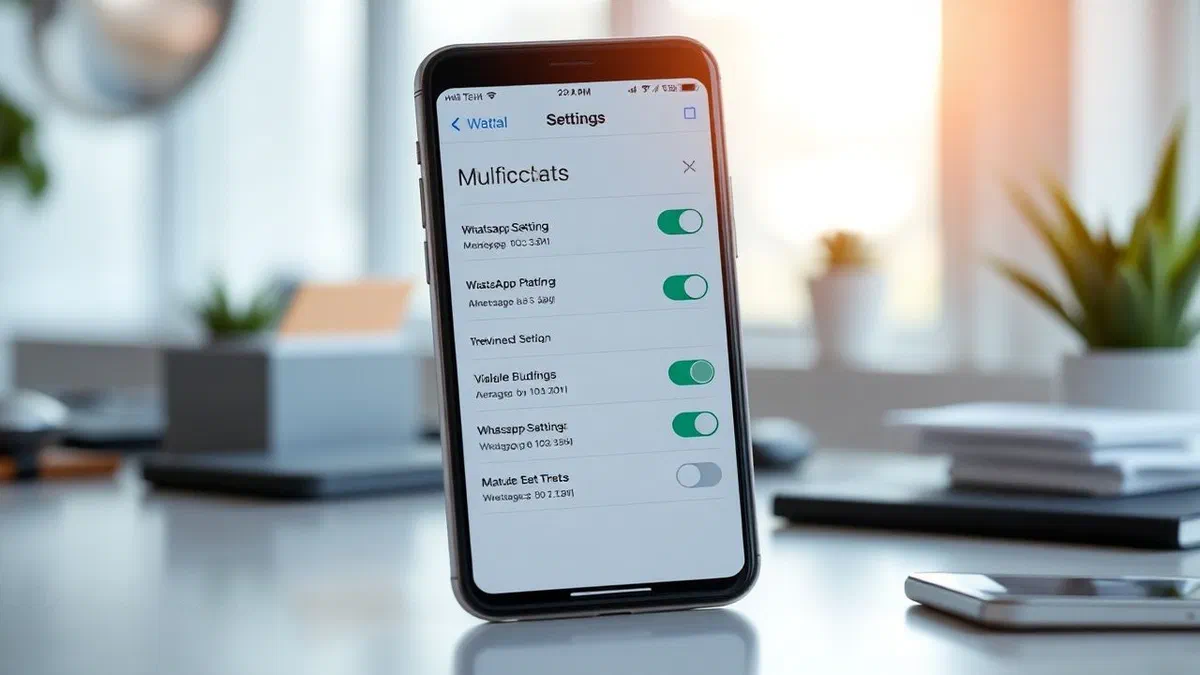
Users Apple have an extremely clean and functional interface to manage communication flow. if you’re wondering how to disable whatsapp notifications on your iphone, the procedure starts by tapping the settings button located at the bottom right of the application itself. entering the notifications section, you will find separate switches for individual messages and group chats. the philosophy of Apple in terms of privacy and focus is clearly visible here: you can choose to completely disable the display of alerts or, alternatively, act only on the sound component. by setting sounds on nobody and saving configuration, your device will receive messages silently, without emitting any acoustic alert. this is particularly suitable for those who use the iphone in combination with a Apple watch, as it allows to avoid that the wrist constantly vibrates for non-emergency communications, while still keeping the accessibility to information if you decide to manually check the notification center of the smartphone during a break or at the end of the working day.
A key aspect of ios management is the show preview feature, which can be configured to hide message text and sender name from the lock screen. by deactivating this option, you will protect your privacy from indiscreet looks and, at the same time, you will reduce the temptation to respond immediately to every new communication. in addition, whatsapp settings on iphone allow you to manage in-app notifications, i.e. those alerts that appear while you are already actively using your smartphone. you can choose from different warning styles, such as banners or pop-up alerts, or opt for total deactivation by selecting none. this level of customization is essential in 2026, a year when information saturation has reached very high peaks and the ability to filter important signals from background noise has become an absolute priority for professional and private users. always remember that every change made within the app is reversible at any time via the reset notification settings button, located at the bottom of the page, which will reset the default values of the platform.
- Access whatsapp settings for granular and specific application management.
- Use the android or ios system menus to block alerts at the operating system level.
- Allow individual contacts or groups for limited periods (8 hours, 1 week) or forever.
- Disable message previews to improve privacy and reduce visual distractions.
- Manage call notifications and video calls separately to avoid sound interruptions.
Manage whatsapp notifications on pc and desktop versions #
Procedures for windows users and native applications #
Using whatsapp on pc has become a standard for those working in the office or in smart working, but the continuous appearance of banners on the computer monitor can destroy productivity in seconds. if you want to learn how to disable whatsapp notifications on windows version, you need to access the gear icon that represents settings, usually located in the left sidebar. from here, by clicking on notifications, you can turn off the general switch that enables alerts on your desktop. you can be even more specific, deciding to keep notifications active only for incoming calls, however disabling those for text messages and reactions. in this way, you will be accessible for urgent voice communications, but you will not be interrupted by every single line of text written in your discussion groups. windows management also integrates with the operating system notifications assistant, allowing you to create automatic rules based on working hours or open-to-all-screen applications, such as during an important presentation.
Optimization for macos and management whatsapp web #
For users Apple using a mac, management follows similar logic but integrated into the macos ecosystem. inside the native app, the settings allow to silence the sounds and remove the numeric badges from the icon in the dock, which often represent a source of visual anxiety. if you use whatsapp web through browsers like chrome or safari, the procedure requires an additional step. in addition to disabling alerts in the internal settings of the whatsapp website, you may need to intervene on the permissions of the browser itself. by clicking on the lock icon next to the url in the address bar, you can deny permission to send notifications to the site. this is the most effective method for those who want to use web messaging without undergoing the pop-up bombardment appearing in the corner of the screen. remember that synchronization between devices is fundamental: silence a chat on the computer does not always silence the same chat on the phone, unless you act directly on the settings of the single conversation within the connected main account.
- Open the whatsapp desktop application on your windows or macos computer.
- Locate settings icon to access configuration controls.
- Select the notifications item to view all available alert options.
- Disable voices related to sounds, banners and previews of incoming messages.
- For whatsapp web, you also manage browser permissions through site settings.
Silence individual groups and chats without blocking the app #
How to act on the most active conversations #
Very often you do not need to silence the entire application, but only those particularly loquacious groups or contacts that generate hundreds of messages per day. understanding how to disable whatsapp* notifications for a single chat is an extremely simple and targeted operation. on any device, simply open the conversation in question, tap the contact name or the top group and select the silence notifications option. at this point, the app will propose three different durations: 8 hours, 1 week or always. by selecting always, the chat will remain silent indefinitely until you manually decide to reactivate it. this function is vital for family or community groups, where discussions can last for hours without a real urgency of intervention. the main advantage is that you can still see the number of unread messages entering the app, but you will not receive any sound signal or vibration at the time of their actual reception on the device.
Another advanced technique to keep your interface clean is the use of stored messages. in 2026, the mantieni chat function has become the standard for many users: by moving a conversation into the archive, this will no longer return to the main list even when new messages arrive, and its notifications will remain deactivated by default. to activate this behavior, just go to the chat settings and enable the dedicated option. this allows you to literally “hide” the least important conversations, consulting them only when you have time and desire, without them ever interrupting daily activities. it is an excellent way to manage whatsapp communities or information channels, which while being useful, must not necessarily have priority over your immediate attention. the combination of group silence and strategic archiving is the ultimate solution for anyone suffering from information overload and want a more tidy and less chaotic messaging experience.
The conscious management of notifications is not only a technical trick, but an essential strategy to protect our most valuable resource: attention. in a hyper-connected world, knowing how to silence digital noise is the key to productivity.
Frequently asked questions about deactivating notifications #
What if i silence a contact on whatsapp? #
When you decide to silence a specific contact, you will continue to receive all messages that this person sends you, but your phone will not emit any sound and will not vibrate. the message will appear in your chat list with an icon in the shape of a bar next to the time. this operation is totally invisible to the sender, who will not receive any notification of the fact that it was silenced. you can read messages at any time by opening the application, thus maintaining total control over your availability without offending any of your personal or professional contacts.
Can only disable the sounds but keep the vibrations? #
Of course, the granularity of whatsapp settings allows it. in the app notification settings, you can access the tone notifications section and set it on none, while in the vibration section you can choose between predefinite, short or long. this configuration is ideal for those who want a discreet notice that does not disturb the surrounding people but that is however perceptible physically. it is a very appreciated solution in contexts such as libraries, offices or during meetings, where absolute silence is required but you still need to stay up to date on any important communications.
Why do i keep receiving notifications even if i silenced the app? #
If after following the procedure on how to disable whatsapp notifications continue to receive alerts, there is likely to be a conflict with your smartphone’s system settings. on many models, operating system settings have precedence over application settings. we recommend that you check the notifications menu in the general settings of your phone and check that special permissions or derogations for whatsapp are not active. also, check if you have enabled the priority feature for certain specific contacts in android settings or if you have configured a full immersion on iphone that includes whatsapp among authorized apps.
Whatsapp calls are silenced along with messages? #
No, calls and video calls have separate management than text messages. to silence your incoming calls, you must go specifically to the calls section within the whatsapp notifications menu. here you can set the suoneria on nobody and the vibration on spenta. it is important to remember this step because you often forget that whatsapp is not only a chat app, but also a powerful voip communication tool, and receiving a sound call in the middle of a concentration moment can be much more disruptive than a simple text message.
How can i reactivate all notifications quickly? #
If you need to return to the original configuration, whatsapp provides a quick command. entering settings, then in notifications, you will find on top right (on android) or at the bottom (on iphone) the reset notifications item. by clicking on this button, all custom settings for individual chats, groups and calls will be deleted and the application will return to behave according to factory parameters. this is the quickest solution if you realize you have exaggerated with restrictions and themes of losing fundamental communications for your work or for your private life.
Learn how to disable whatsapp* notifications in 2026 is a must for anyone who wants to live a healthy relationship with their smartphone. we have seen how technology offers us all the tools necessary to filter communications, allowing us to decide surgically who can stop us and how. whether to silence a noisy group, hide privacy previews or completely turn off alerts on your pc during working hours, the power is in your hands. we invite you to put these tips into practice today to immediately experience a stress reduction and an increase in your concentration capacity. do not allow notifications to dictate the agenda of your day: configure whatsapp according to your needs and regain your time. learn how to optimize your device better by reading our other digital productivity guides.