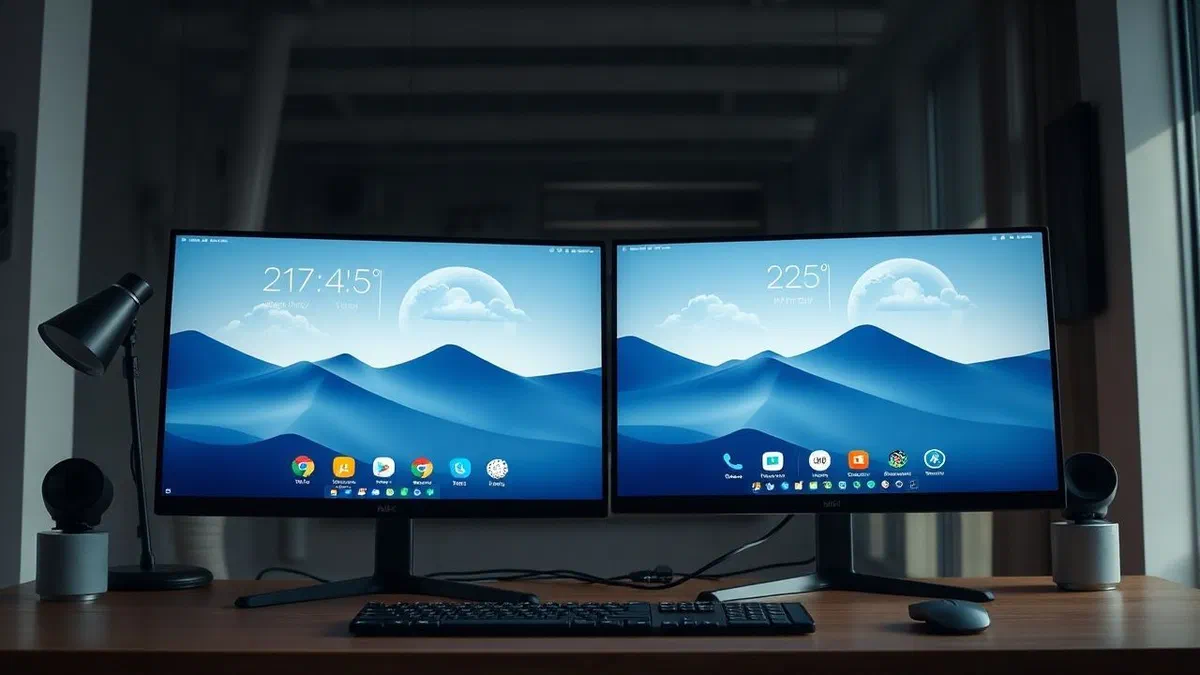
In an increasingly dynamic and interconnected world, having immediate access to climate information has become a daily necessity for millions of users. knowing whether it will rain in an hour or if the sun shines in the afternoon can make a difference in planning a work effort, a trip or a simple walk. however, the standard procedure to open the browser, type the address of a weather portal and look for your city is often slow and slender. to overcome this problem, modern operating systems have integrated elegant and functional solutions. learning how to put the weather on your desktop is the fastest and most effective way to transform your computer or mobile device into a real timely weather station. whether you are a windows user looking for precision, a fan of macos aesthetics or a mobile user who wants reactive widgets on android and ios, this updated guide to april 2026 will provide you with all the necessary tools. we will explore native solutions, third-party applications and advanced tricks to customize your digital desk, ensuring that you are never caught without a sudden storm or an unexpected heat wave, all with a simple look at the screen.
Native solutions to view weather on windows 11 #
Use of integrated widgets in the operating system #
With the evolution of windows 11 and subsequent updates released until 2026, microsoft has deeply renewed the concept of widget. for those who want to understand how to put the weather on windows desktop**, the first way to go is definitely that of system widgets. by pressing the windows + w** key combination or by clicking on the dedicated icon in the application bar, you can access an extremely smooth side panel. here, the weather widget often occupies a prominent position, providing real-time data extracted directly from the microsoft weather service. the accuracy of this information is guaranteed by advanced algorithms that cross data from different local weather stations. if the widget does not appear immediately, simply click on the “+” button (add widget) and select “meteo” from the list of available applications. you can customize the size of the box, choosing between a small size for a minimum encumbrance or a large format that includes hourly forecasts and details on winds and humidity.
In addition to displaying in the side panel, windows 11 now allows greater interaction with these information cards. although the widget does not remain technically “encouraged” over desktop icons as it happened with old windows 7 gadgets, its accessibility has been drastically improved. many users appreciate the possibility of dragging the main information directly into the expanded display. in addition, by clicking on the widget, the complete weather application opens, which offers high definition satellite maps and historical charts. to optimize the experience, it is essential to ensure that localization services are active in your pc privacy settings. in this way, the system will automatically update the forecasts based on your movements, a particularly useful function if you use a notebook or tablet surface during your work or pleasure trips during this 2026.
Configuration of the taskbar and news #
Another effective way to get the forecasts always under the eye without having to open any window is to integrate into the application bar. this function, known as “news and interests”, shows a small weather icon next to the system clock or on the left side of the taskbar. with a quick look, you can see the current temperature and an icon representing the state of the sky (sun, cloudy, rain). this implementation is ideal for those who constantly work with many open windows and do not want to interrupt their workflow to consult forecasts. simply passing the mouse over the icon, an informative popup will appear with the highlights of the day. you can customize this section by right-clicking the taskbar, selecting “application bar settings” and acting on the widget-related switch, deciding whether to show only the icon or even the descriptive text of weather conditions.
Customization of this feature allows you to filter content according to your specific interests. although the weather is the main function, the system also aggregates local news and traffic information. for those looking for a clean digital desk, you can configure the widget so that you only act on the click, avoiding visual distractions during high concentration hours. in 2026, artificial intelligence integrated in windows suggests even when consulting the weather, for example by proactively notifying severe weather alerts issued by civil protection or national weather centers. this level of integration makes the windows system one of the most comprehensive regarding the management of environmental information in real time, ensuring safety and informational accuracy at any time of the working day or leisure time.
Third party software to customize windows #
Use of 8gadgetpack for a classic style #
For many nostalgic users of the windows 7 interface, the lack of fixed gadgets on the desktop is seen as a limitation. fortunately, programs like 8gadgetpack allow you to overcome this obstacle even on the most modern versions of the operating system. this free and lightweight software reintroduces the classic sidebar and allows you to place small interactive tools at any point of the screen. once you have installed the package, you will have access to a large library of widgets, including several variations dedicated to weather forecasts. these gadgets are particularly appreciated because they always remain visible above the desktop background, allowing immediate consultation without having to press any key. you can choose between minimalist styles or more elaborate interfaces that show minimum and maximum temperatures, chances of precipitation and lunar phases, all with a design that fits perfectly with modern aesthetics.
The installation and configuration of 8gadgetpack are extremely simple. after downloading the file from the official website, just follow the wizard and, at the end, a sidebar will appear on the right of the monitor. right-clicking on a desktop blank point, you can select the “gadget” entry and drag the weather where you prefer. one of the most interesting features is the ability to configure different locations at the same time; for example, you may want to monitor time in your home town and where your family members live or where your workplace is located. each gadget can be customized in size and opacity, allowing it to be harmoniously integrated with the chosen wallpaper. in this way, desktop customization reaches high efficiency levels, combining classic design charm to modern data update technologies via web.
Rainmeter and advanced desktop customization #
If you are looking for total control over the aesthetics of your pc, rainmeter is undoubtedly the most powerful tool available in 2026. this is not a simple widget program, but a real customization platform that allows you to upload “skin” created by the community. there are thousands of weather skins ranging from simple, elegant textual writings to hi-tech dashboards that seem to come out of a science fiction film. rainmeter is extremely lightweight in terms of resource consumption (ram and cpu), which makes it ideal even for computers not younger. the strength of this software lies in its open-source nature and the ability for the user to change every single parameter, from font colors to data sources (such as openweathermap or yahoo weather), ensuring flexibility that no native solution can offer.
To start using rainmeter for the weather, you must download the program and search for a skin that includes a weather module on sites like deviantart or specialized forums. many modern skins are configurable via a simple graphical interface, where you just need to enter your city code or gps coordinates to activate the forecasts. in addition to aesthetic beauty, rainmeter allows you to create a cohesive information desktop, where the weather perfectly matches the clock, the use of the processor and the music player. although it requires a slightly steeper learning curve than other solutions, the end result is a unique and highly functional desktop. it is the preferred choice of gamers and design professionals who want every element of their digital environment to reflect their personality while maintaining an immediate and constant practical utility.
How to view the weather on the desktop of macos #
Exploit dynamic widgets on macos and later versions #
With recent versions of macos, Apple] has revolutionized how users interact with fast information. if you’re wondering how to put the weather on a mac’s desktop***, you’ll be happy to know that from macos sonoma the procedure has become intuitive and visually fulfilling. it is no longer necessary to limit yourself to the notification center; now you can drag the weather widget directly to the desk. these widgets are “intelligent”: when you open an application or window above them, they tend to become transparent or blur in the background to not disturb the view, regaining color and detail as soon as you return to the desktop. to add them, just right click in an empty desk area, select “edit widget” and choose the weather application from the gallery that appears below. the fluidity of animations is a trademark Apple, with icons that change dynamically according to current weather conditions.
The power of widgets on macos also resides in their synchronization with the ecosystem Apple. if you have configured your favorite locations on iphone or ipad, you will find them immediately available on your mac via icloud. you can choose between three different sizes of the widget: the small one shows only the temperature and the time icon, the average one adds the forecast for the next hours, while the big one offers a complete overview on the week, including uv levels and sunrise and sunset time. in addition, widgets are interactive; by clicking on them, you will be directed to the weather app of macos, which offers full-screen immersive views with animated backgrounds that reflect the external weather (for example, you will see rain drops flow on the screen if it rains out). this deep integration makes the user experience extremely consistent and enjoyable, transforming the mac into an excellent information tool.
Dedicated applications on the mac app store: weather widget for italia #
Despite the excellent native solution, many users prefer third-party applications to have special additional or aesthetic features. one of the most popular apps is widget weather for italy, available on the mac app store. this application was designed specifically for the needs of the italian territory, offering a localized accuracy often higher than international services. once installed, the app allows you to view a floating window on the desktop that can be blocked in a specific location or semi-transparent output. the distinctive feature of these apps is often the variety of graphic themes available, which allow you to switch from a modern “flat” look to photorealistic icons. they also offer push alerts for specific weather alerts in the selected area, a vital function for those living in areas subject to rapid climate change.
To configure such an app, the steps are as follows:
- Open the mac app store and look for a reliable weather application.
- After installation, grant permissions for geographical location.
- Access the app preferences to choose the style of the desktop widget.
- Drag the weather window to the desired location and set the transparency level.
- Configure any notifications for rain or imminent snow.
These applications often offer a small icon in the menu bar (the top one, next to the clock), providing a second quick consultation point. many professionals find it useful to have the temperature always visible in the menu bar, since it is a discreet but useful information during video calls or intensive work. the combination of an aesthetic widget on the desktop and a text indicator in the menu bar represents the ultimate configuration for those who do not want to lose even a detail on the external weather conditions, ensuring a perfect planning of the working day and the urban movements.
Management of weather widgets on android smartphone #
Configuration on samsung galaxy and huawei devices #
Android smartphones were pioneers in using widgets, and in 2026 this technology reached full maturity. on samsung galaxy devices, equipped with the one ui interface, the weather widget is often the protagonist of the home screen. if you accidentally removed it, you can easily restore it by holding it on an empty area of the home and selecting the “widget” item. from simple clock with temperature to more complex widgets that also show air quality (aqi) and forecasts for the next five days. samsung integrates data from “the weather channel”, ensuring high reliability. once you place the widget, you can resize it to your liking, occupying an entire line or just a small portion of the screen, depending on the density of icons you prefer to maintain.
As for huawei devices, the approach is similar but with a distinctive aesthetic linked to emui or harmonyos. huawei widgets are known for their elegance and ability to automatically adapt to the phone theme (key or dark). to add the weather, you use the gesture of the “pinch-in” (pizzicare the screen with two fingers) and you access the widget menu. huawei often offers very curated animations directly on the widget: you will see clouds moving or small flashes if a thunderstorm is in progress. in both brands, it is essential to tap the widget to access advanced settings, where you can add multiple cities. this function is very useful for commuters or travellers often, allowing you to switch from one location to another with a simple lateral swipe within the widget itself, always keeping under control the climatic situation of the most frequent destinations.
Weather widget for android stock and google pixels #
If you use a device with a “pure” version of android, such as google pixel, the experience is focused on cleaning and smart functionality. google’s “at a glance” widget is a perfect example of how to put the weather on your desktop discreetly. this widget automatically appears at the top of the home screen and shows the current temperature and conditions. however, it is not static: if rain is expected, it will alert you with a text message; if there is a weather alert, it will change color or show a danger icon. for those who want something more visible, google has introduced new widgets with the design language “material you”, which extracts colors from your background to color the weather widget harmoniously, creating a coherent and personalized system aesthetic.
Here are some key steps to customize the weather on android stock:
- Hold long on the home screen and tap widget.
- Search for google app or default system weather app.
- Choose from the various styles available (diagonal, pill, rectangle).
- Drag the widget to the desired page.
- If required, allow access to the “always” position for accurate background updates.
In addition to system solutions, the google play store offers extraordinary alternatives such as today weather* or overdrop*. these applications allow you to install widgets with minimalist or ultra-detailed design that often exceed the predefined ones. many of these widgets offer accurate rain charts per minute, a function based on radar technologies that tells you exactly how many minutes it will rain in your precise location. this millimetre precision became the standard in 2026, making the smartphone the most reliable tool to manage outdoor activities without fear of getting wet or undergoing sudden bad weather.
Integrate the weather on the home screen of iphone and ipad #
Use of the native widget of ios 17 and later #
The world Apple] mobile has made giant steps in integrating weather information. if you want to know how to put the weather on your iphone’s desktop* (or rather, on your iphone’s home screen), the answer lies in the widget system introduced with recent ios versions. Apple widgets are famous for their clean design and their ability to show a lot of information in little space. to add one, just hold down at any point on the home screen until icons start trembling, press the “+” button on the top left and search “meteo”. you can choose from different variations: the small square for the current temperature, the average rectangular one for the hourly and the large one for a detailed summary that includes temperature maps and precipitations. once placed, the widget is constantly updated using the data of Apple weather, which now integrates the advanced technologies of dark sky.
One of the most popular features from iphone users is the ability to interact with the widget. touching it, the meteo app opens immediately, which on ios has become one of the most complete on the market, offering details about visibility, atmospheric pressure and even a global interactive map of rainfall and wind. thanks to the “localization” function, the widget will automatically change the city shown as you move, making it perfect for those traveling or moving between different areas of the city for work. in addition, with ios 17 and later versions of 2026, widgets have become even more efficient in energy consumption, minimizing the impact on battery life while maintaining a very high data refresh rate. having this information on the home screen radically transforms the way we interact with the device, making it a proactive and always informed personal assistant.
Advanced customization with smart stack and widgetsmith #
For users who want to maximize space on their home screen, Apple provides the “smart stack” function. this is a stack of superimposed widgets that you can scroll manually, but the system rotates intelligently according to your habits and context. for example, the smart collection could show you the weather widget in the morning as soon as you wake up to help you choose the right clothing, and switch to the calendar widget or maps during the rest of the day. to create a collection, just drag a widget of the same size over another. this approach is ideal for those who want to maintain a clean home screen without sacrificing the informational wealth offered by the weather, ensuring that the right information appears when you need it more without any manual intervention.
If you are looking for total aesthetic customization, the widgetsmith* application is the mandatory choice. this app allows you to create fully custom weather widgets in fonts, colors and graphic style. you can choose to match the widget to the color of your background or to include only the information you feel vital, such as the speed of the wind if you are a fan of sailing or the perceived temperature if you practice running.
- Download widgetsmith from the app store.
- Select the widget size and choose the “weather” template.
- Customize the colors of text, background and borders.
- Save the widget and add it to the iphone home screen following the standard procedure.
- Use the “timed widget” function to make the weather appear only in certain hours of the day.
This extreme flexibility allows you to create unique layouts that stand out from the mass. in 2026, the aesthetics of your smartphone has become a way to express your creativity, and the weather, with its icons and colours, lends itself perfectly to this purpose. whether you choose the soberness of native solutions or the creativity of third-party apps, having the forecasts at hand is a technological advantage to which it is difficult to give up once tried.
Advantages of having forecasts always at hand #
Optimization of daily productivity #
Integrating the weather into your digital workspace is not just a matter of convenience, but a real tool of productivity. for professionals working in sectors such as building, logistics or event organization, knowing real-time weather conditions is essential to make quick operational decisions. even for those who work in the office or in smart working, knowing that a thunderstorm is scheduled for the afternoon can affect the decision to anticipate some commissions or plan an outdoor break at a more favorable time. the time saved by avoiding actively seeking this information accumulates over the week, allowing a smoother management of its activities and reducing the stress linked to climate imprevisers. the environmental awareness that comes from having an always visible widget makes us more prepared and less vulnerable to sudden changes of time.
In addition, the constant presence of the weather on the desktop can positively influence psychophysical well-being. seeing a shining sun icon can improve mood during a long computer working session, while being prepared for a gray day allows us to organize ourselves mentally for a more introspective and focused activity. many modern widgets also include information on air quality and pollen levels, essential data for those suffering from allergies or for those living in densely populated urban areas. being informed about when it is better to ventilate the office or when it is preferable to avoid intense outdoor physical activity contributes to a general improvement of health. ultimately, weather integration is an example of how technology can support our lifestyle in a discreet but significant way, making our digital environment a safer and more informative place.
Choice of best weather data sources #
One aspect often underestimated when choosing how to put the weather on the desktop is the source of data. not all weather applications use the same prediction models, and accuracy may vary greatly depending on the geographic region. in 2026, major services such as accuweather, the weather channel and european ecmwf models offer unprecedented levels of reliability thanks to the use of supercomputers and artificial intelligence. when you confiscate your widget, it is worth checking which provider is used. many third-party apps allow you to change the data source in the settings, allowing you to choose the one that has historically turned out to be more accurate for your specific area of residence. this possibility of technical customization ensures that the information displayed on the desktop is not only beautiful to see, but also extremely truthful and useful in everyday practice.
Finally, the evolution of “hyper-local” data has transformed widgets into real remote sensors. thanks to the sharing of data from thousands of amateur and professional weather stations spread over the territory, some widgets are able to tell you if it rains in your neighborhood even though a few kilometers away the sky is serene. this information granularity is what makes it really valuable to have the weather on the desktop in 2026. this is no longer a generic forecast for the entire city, but a specific data for your exact location. using these technologies means embracing a future where information reaches us at the moment and at the place where we need it, eliminating uncertainties and allowing us to live with greater serenity all our activities, protected by knowledge and precision of modern weather science.
Frequently asked questions about desktop weather #
Can i put the weather on the windows 10 application bar? #
Of course. although windows 11 is the flagship system in 2026, many users still use windows 10. on this system, the function is called “news and interests”. to activate it, right-click the taskbar, select “nights and interests” and then choose “show icon and text”. you will see the current temperature and a small weather icon next to the notification area. it is a discreet solution that does not occupy space on the desktop but guarantees an immediate and always updated consultation of local forecasts, with the possibility to expand an information panel with a simple mouse click.
Do weather widgets consume a lot of battery on my notebook or smartphone? #
The impact on the battery of modern weather widgets is extremely reduced thanks to the optimization of processes in the background typical of operating systems of 2026. both android and ios manage widgets so that they don’t constantly request data from the network, but update at regular intervals or when the device is already active for other purposes. on windows and macos, resource consumption is negligible, especially if you use native solutions or light software like rainmeter. if you notice excessive consumption, check in the settings that the app is not trying to access the gps location too frequently or turn off the most complex animations within the widget preferences itself.
How can i change the default city in the widget? #
The procedure varies slightly depending on the system, but it is generally very simple. on the smartphone widgets (android and iphone), just tap on the widget and select “edit widget” or the settings icon; from there you can search and add new locations. on windows and mac, clicking on the widget will open the main application where you can manage your favorite city list. remember that if you have enabled localization services, the widget will give priority to your current location, which is extremely convenient if you are traveling, but you can always block a specific city if you want to monitor the weather of a distant place.
Why does the weather widget not automatically update? #
If you notice that weather information is blocked on old data, the most common cause is the lack of an active internet connection or restrictions in energy saving settings. make sure that the weather application has permission to run background activities and that access to the location is guaranteed. on some smartphones, the battery optimization settings might forcefully close the widget processes to save energy; in this case, add the weather app to the exception list. a simple reboot of the device or removal and subsequent re-insertion of the widget on the screen usually solve these small temporary technical plasters.
Exist transparent weather widgets for a cleaner desktop? #
Absolutely. transparency is one of the most sought after aesthetic characteristics by users who love minimalism. on windows, software like rainmeter allows you to set the opacity of each skin to your liking, making only the forecast text visible without any background. on macos, native widgets become semi-transparent when they are not on fire, integrating with the wallpaper. also on android, many third-party applications such as “overdrop” or “today weather” offer widget packages specially designed with transparent or invisible backgrounds, allowing weather forecasts to fluctuate elegantly over your icons or photos of your gallery.
We have explored in detail the many possibilities that today’s technology offers us to have the weather forecast always at hand. whether you choose the simplicity of windows native widgets and macos or the versatility of android and ios applications, the ultimate goal remains the same: simplify your daily life through instant access to accurate and reliable climate data. putting the weather on the desktop is a small gesture of computer customization that brings great benefits in terms of organization and well-being. you just have to experience the solutions proposed in this guide and find the one that best fits your style and your needs. start now to customize your digital desk and face every day with the safety of those who always know what time it will do!