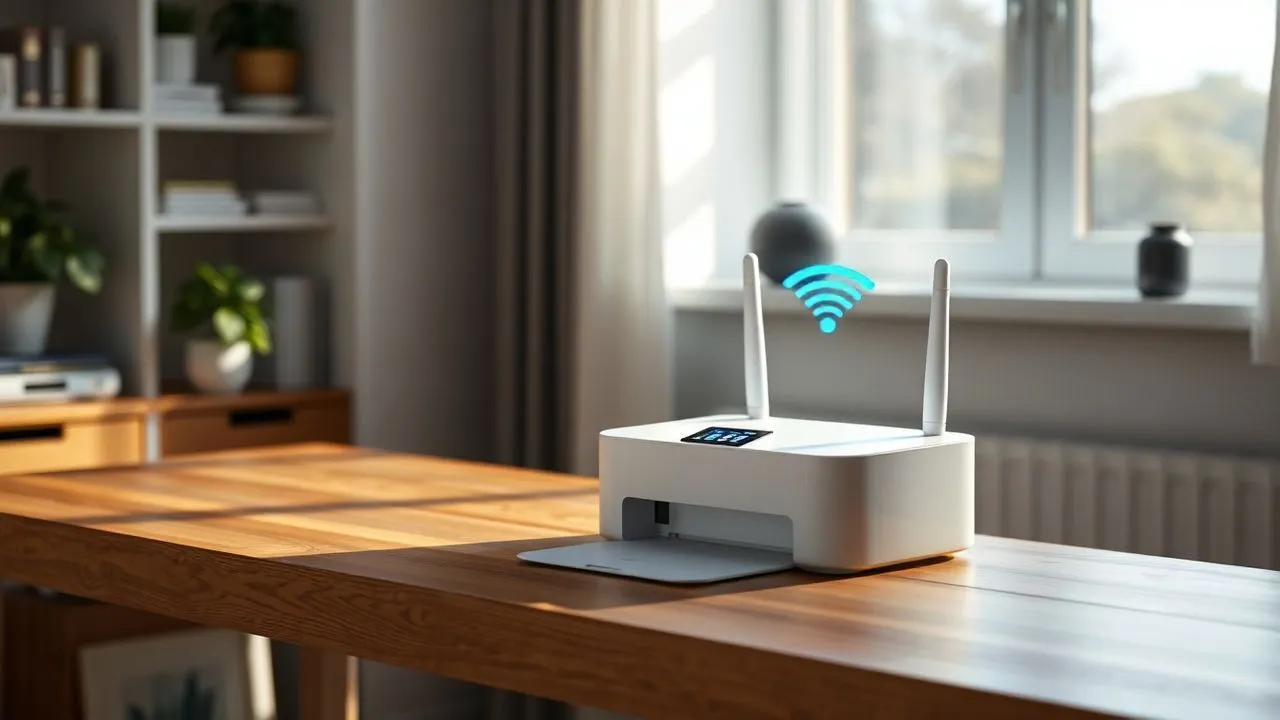
In the technological landscape of 2026, understand how to print WiFi has become a fundamental competence for anyone who works from home or wants to manage their home automation efficiently. Freedom from cables is no longer a luxury, but a consolidated standard that allows you to place the printer in any corner of the house, provided it is reached by the signal of the router. However, despite the great advances made by manufacturers such as HP, Epson, Canon and Brother, the initial configuration can still hide several pitfalls, especially when it comes to dialoguing different operating systems with modern network protocols such as Wi-Fi 6E or Wi-Fi 7. In this detailed guide, we will explore every single step necessary to make your new device operational, analyzing procedures for Windows PCs, macOS systems, Android smartphones and iOS devices. Approaching the concept of wireless printing requires minimal understanding of home networks, but thanks to simplified interfaces and the latest intelligent applications, the process has become much more intuitive than the past. Whether you're an experienced user or a first-time user, the next paragraphs will provide you with all the tools you need to master your network printer without frustration, ensuring professional results in just a few clicks and maximizing the potential of wireless connectivity in today's digital context.
Preliminary operations and wireless network configuration
Hardware preparation and first ignition
Before immersing yourself in software settings on how to print WiFi, it is essential to properly prepare the hardware. Start by placing the printer in a strategic place, ideally halfway between your router and your usual workplace, ensuring that there are not too many physical obstacles or electromagnetic interference that could degrade the signal. After removing all protective seals and inserting ink cartridges or bottles, connect the power cord and turn on the device. In 2026, most media and high-end printers are equipped with color touch screens that greatly facilitate the first configuration. During this phase, the printer will run a cycle of self-balancing and will ask you to select the language and region. It is the ideal time to check if the firmware is updated, since manufacturers often release critical security patches immediately after launching a model on the market.
Once the physical setup is completed, the next step to understand how to print WiFi is to access the network settings menu directly from the printer's LCD panel. Look for the “Wireless Setup” or “Window Configuration”. Here you will usually find a guided assistant who will scan the available networks nearby. Select your SSID (the name of your Wi-Fi network) and enter the security key. If your router supports 5GHz or 6GHz bands, make sure that the printer is compatible with these frequencies, otherwise opt for the classic 2.4GHz band, which offers greater coverage at the expense of a slightly lower transfer rate, however more than enough for text documents. Remember that a stable connection is the minimum requirement to prevent the printer from being offline at times of greatest need.
Use of WPS protocol and quick configuration
If your printer and router have the WPS button (Wi-Fi Protected Setup), the procedure to learn how to print WiFi becomes even faster and without technical hitches. The WPS allows you to establish a secure connection between two devices without having to type long and complex alphanumeric passwords. To proceed, activate the WPS search mode on the printer via the appropriate menu or pressing the dedicated physical key, and then do the same on your router within a time span of about two minutes. The two devices will start “dialogue” by encrypting communication automatically. Once the Wi-Fi spy on the printer stops flashing and remains fixed, the connection is successfully established and the device is officially part of your local network, ready to be identified by computers and smartphones.
However, the use of WPS may not always be the best choice in environments that require extreme safety or in the presence of latest-generation routers that prefer more modern protocols such as WPA3. In these cases, or if the printer does not have an integrated screen, the configuration may require the use of a temporary USB cable or a dedicated mobile application provided by the manufacturer. These apps often use the Bluetooth Low Energy (BLE) to detect the printer nearby and transmit the Wi-Fi credentials securely. Understanding these different methodologies is an integral part of the learning process on how to print WiFi, allowing you to adapt to any technological scenario you are facing, whether it is a modern office or a more dated but still functional home configuration.
How to print WiFi from Windows PC in 2026
Driver installation and automatic detection
On the most recent Windows operating systems, such as the latest Windows 11 builds or the new Windows 12, the procedure on how to print WiFi was greatly simplified thanks to an increasingly vast and accurate universal driver database. When you connect a printer to the same computer Wi-Fi network, the system often detects it automatically by sending a notification to the operating area. If this does not happen, you must go to Settings, select the item “Bluetooth and Devices” and then “Stampers and Scanners”. Clicking on “Add Device”, Windows will start a deep scan of the local network looking for print peripherals. If the model is displayed, just click on “Add” to start downloading and automatic installation of the files necessary for proper operation, allowing you to start printing in a few moments without complex manual interventions.
Despite automation, it is often advisable to download the full driver package from the manufacturer's official website (HP, Canon, Epson or Brother). Windows drivers are sometimes generic and may not include software utilities specific to monitor ink levels or to clean heads. Once you download the executable, start it and follow the screen instructions, ensuring that you select “Wireless Connection” when required. This will ensure that the PC communicates with the printer through the correct local IP address, ensuring superior stability and minimizing the annoying communication errors that could affect the least recent versions of the Microsoft operating system.
Preference management and conflict resolution
When installing the device, it is important to configure preferences to optimize the process on how to print WiFi. By opening the printer control panel on Windows, you can set the default print quality (burn, normal or high) and the paper type used. In 2026, many printers also support cloud printing, allowing you to send documents to your device even when you are not physically at home, provided it has remained on and connected to your router. If you encounter visibility issues, make sure your PC’s network profile is set to “Private” and not “Public”, since the latter mode secures the discovery of network devices, making it impossible to locate the printer even if properly configured and working.
In case of conflicts or if the printer appears as “Not online”, a useful technique is to assign a static IP address to the device directly from the router settings or the printer panel itself. This prevents the IP address from rebooting the router, making the drivers installed on the PC unable to track the hardware. Printing queue management is another crucial aspect: if a document crashes, you can empty the print spooler via Windows services to restore the correct workflow. Knowing how to print WiFi also means knowing how to manage these small technical inconveniences that, although less frequent than ten years ago, can still occur due to signal interference or micro-interruptions of the electric current that disorient the wireless modules of the less modern devices.
Wireless configuration and printing on macOS systems
Native integration through AirPrint technology
For Apple users, understanding how to print WiFi is a very smooth experience thanks to AirPrint technology, which is deeply integrated in macOS. AirPrint allows you to print high quality photos and documents from a Mac without the need to download or install specific drivers, provided that the printer is compatible with this standard (which is now ubiquitous in 2026). To add the printer, simply click on the Apple logo on the top left, select “System Settings”, navigate up to “Stamps and Scanners” and click on the “+” button. The system will automatically search for devices on the Bonjour network and, once the correct printer is selected, it will configure it in seconds. This ease of use makes the Mac the ideal platform for those who want a “plug-and-play” approach to wireless technology.
If your printer is a professional model or an old device not compatible with AirPrint, macOS still allows manual installation via drivers downloaded from manufacturers' sites. Again, management is centralized and intuitive. A peculiarity of Apple systems is the ability to manage print queues in a very granular way, allowing you to see in real time the progress status and manage any accessories such as additional paper drawers or finishing units. When you learn how to print WiFi on Mac, you will notice that the print dialog box offers a very faithful preview of the final result, reducing paper and ink waste. The stability of the Bonjour protocol also ensures that the printer remains visible in the network persistently, even after long periods of inactivity or stand-by of the computer.
Optimizing print settings on Mac
In addition to the basic configuration, macOS offers advanced tools for those who need to manage complex workflows. Inside the print menu, you can create custom “Presets” or settings profiles that remind you, for example, to print always in black and white and forehead for text documents, or in high resolution on gloss paper for photographs. This level of customization is essential for those who understand how to print WiFi and want to maximize efficiency. Moreover, thanks to the integration with the iCloud ecosystem, you can share the printer with other users of the same home network or office with ease, managing permissions directly from the operating system sharing settings, effectively turning a simple Mac into a small print server for the whole family.
A often underestimated aspect concerns the maintenance of the connection. If the printer loses the connection with the Mac, it is useful to check that both are connected to the same subnet (especially important if you use signal extenders or WiFi mesh systems). Often, a simple reboot of the print service in system settings can solve detection problems without having to reinstall the entire device. The guide on how to print WiFi for Mac emphasizes the importance of maintaining the updated operating system, since Apple regularly introduces improvements to color management and security of network transmissions, ensuring that your travel documents are encrypted by your computer to the printer, protecting your privacy and sensitive data contained in the files sent in production.
Mobility print from Android smartphones and tablets
Use of Print Plugins and dedicated apps
The Android operating system has dramatically evolved its printing subsystem in recent years, making the operation on how to print WiFi extremely accessible. To start, you need to make sure that your smartphone and printer are connected to the same wireless network. Within the Google Play Store, each major manufacturer (Canon, Epson, HP, Brother, Samsung) provides a specific plugin or full management app. Download the official plugin is the fastest method to enable direct printing from system applications like Google Chrome, Gmail or Google Drive. Once the plugin is installed, just open the desired document, click on the three dots on the top right (or on the share button), select “Stamp” and choose the device automatically detected from the list of available devices.
Complete applications, such as “HP Smart” or “Epson Smart Panel”, offer a much deeper control, allowing not only to understand how to print WiFi, but also to scan documents directly from your smartphone using the camera or scanner of the multifunction printer, control ink levels and even order new consumables. In 2026, these apps also integrate artificial intelligence functions to automatically correct scan perspectives or optimize photos uploaded by social media. This makes the mobile device a real control center for document management, eliminating the need to turn on the computer for most daily operations, ensuring unprecedented operational flexibility both in the domestic and professional sectors.
Print via Wi-Fi Direct and Cloud Printing
A very useful option when you are in situations where a traditional Wi-Fi network is not available is Wi-Fi Direct. Many modern printers create their own private wireless network to which Android smartphone can connect directly. This is a key step in understanding how to print WiFi in mobility, as it allows you to send files to the printer even in a new home without router or office by a customer. To activate it, you need to enable Wi-Fi Direct in the printer settings and search for its network in the Wi-Fi list of your phone. Once connected (often by entering a password shown on the printer display), you can print as if you were on a standard local network, although the smartphone could temporarily lose access to the Internet during this phase.
Finally, we must not forget the cloud printing solutions that, although Google has removed the official support to Cloud Print years ago, have been replaced egregiamente by the owners services of manufacturers or by universal solutions such as Mopria. These services allow you to learn how to print WiFi via the Internet: you can send a document to the home printer while you are still in the office, finding it ready when you arrive. This technology is based on printer registration on a secure remote server, associating it with your personal account. Security is guaranteed by end-to-end encryption protocols, ensuring that no one can intercept your documents during transit on external servers. Mastering these tools radically transforms the way we interact with paper, making physical support a digital extension of our smartphone.
Use AirPrint on iPhone and iPad
Immediate setup and sharing menu
On iOS and iPadOS, the procedure on how to print WiFi is a masterpiece of technological minimalism, thanks to the standardization set by Apple with AirPrint. There is no need to download drivers or configure network ports: if the printer is AirPrint compatible and is on the same network as the iPhone, it will automatically appear among the available options. To proceed, open the Photo app, File or Safari browser, press the sharing icon (the square with the arrow turned upward) and scroll the options until you find “Stamp”. Taping on “Select Printer”, the iPhone will scan instantly and show the name of your device. After selecting it, you can define the number of copies, the range of pages and other basic options before giving the definitive way to the operation.
This native integration is particularly powerful on iPad, where multitasking allows you to drag documents directly to the print interface. Understanding how to print WiFi from iPhone also means knowing the limitations and benefits of this system: AirPrint is perfect for simplicity, but if you need very specific functions (such as printing on special media or managing custom ICC color profiles), you may still want to download the manufacturer’s dedicated app from the App Store. These apps act as a bridge between iOS flexibility and hardware technical capabilities, offering pre-print editing tools that Apple’s standard interface tends to quit to maintain maximum visual cleanliness and ease of use for the average user.
Resolution of visibility issues on iOS
Despite Apple’s reliability, it can happen that the iPhone does not “see” the printer, making frustrating the attempt to understand how to print WiFi. The first control to be carried out concerns the frequency band of the router: some mesh systems or dual-band router create two separate networks for 2.4GHz and 5GHz. If the printer is connected to the first and the iPhone to the second, they may not be able to communicate correctly. Make sure both are on the same frequency or the router has activated the function of “AP Isolation” disabled. Another useful tip is to turn off and turn on Wi-Fi on your iPhone or, in extreme cases, restart the router to clean the ARP address table, allowing Bonjour technology to map the device properly.
Also, always check that the printer has not activated too aggressive energy saving modes that completely turn off the Wi-Fi module when not in use. Some printers require a quick pressing of the power button to “wake” and return visible to iOS devices. While the guide on how to print WiFi focuses on connectivity, software maintenance remains essential: periodically check the App Store for print updates and make sure your iPhone performs the latest version of iOS available. System updates often contain fix for network protocols that improve the discovery of wireless devices and the speed of transfer of heavy data, such as high resolution photos or multipage PDFs rich in graphics.
Turn an old printer into WiFi and error resolution
Sharing via Router or Print Server
If you own an old printer that works perfectly but does not have the integrated wireless module, do not despair: understand how to print WiFi is also possible with dated hardware. The most common and economical solution in 2026 is to use the USB port on the back of almost all modern Wi-Fi routers. By connecting the printer to the router via a USB cable, you can access the router configuration panel (usually typing 192.168.1.1 in the browser) and activate the “Print Server” function. In this way, the router will be charged with managing wireless communication, making the printer visible to all devices connected to the network as if it were a native WiFi model, although with some limitation in the two-way scanning functions.
Alternatively, you can buy small devices called “Print Wireless Server” outside, which connect to the USB or parallel port of the old printer and provide you with an independent WiFi connectivity. Another creative solution involves using an old computer or a Raspberry Pi configured as a print server through software like CUPS (Common Unix Printing System). This approach, while being more technical, offers enormous flexibility, allowing to add AirPrint or Mopria support to laser printers of the 2000s. Learning how to print WiFi through these technological “bridges” is a great way to recycle hardware still valid, reducing environmental impact and saving on buying new devices when not strictly necessary.
Diagnosis of common problems and network maintenance
The last towel to master how to print WiFi is the ability to diagnose and solve problems independently. The most common error is the classic “Stamping not found”, which often comes from an involuntary change of the local IP address. To solve permanently, as mentioned above, the assignment of a static IP is the winning move. Another frequent problem concerns interference: too crowded Wi-Fi channels (especially in condominiums with many routers) can cause loss of data packets, leading to incomplete or slow prints. Using Wi-Fi analysis apps to find a less congested channel and set it manually in your router can do wonders for the stability of your wireless printer.
Finally, consider the security of your network. A WiFi-connected printer is a network node that can be vulnerable if not protected. Make sure your Wi-Fi password is robust and your printer has an administrator password set to access its web panel. Many recent models support the encryption of data sent in print, a vital function if you treat sensitive documents. Knowing how to print WiFi not only means sending a file to a paper roller, but managing an entire digital ecosystem safely, efficiently and consciously, ensuring that technology remains a valuable ally in your daily productivity, free from unnecessary cables and complications.
- Connectivity check: Make sure your printer and device is on the same 2.4GHz or 5GHz WiFi network.
- Driver update: Always download the latest version of the software from the manufacturer's official website for maximum compatibility.
- Use AirPrint: Use Apple native technology to print from iPhone and Mac without installing additional software.
- IP Static: Set up a fixed IP address for the printer to prevent it from "offline" after a router restart.
- Network security: Protect your printer with password and use WPA3 encryption protocols if supported by your router.
Wireless printing is the perfect combination of modern convenience and office needs, eliminating physical barriers between digital creation and final paper support.
- Switch on: Connect the printer to the current and wait for the initialization of the system.
- WiFi configuration: Enter your network credentials via the LCD panel or WPS key.
- Software installation: Add the device to Windows settings, macOS or via mobile app.
- Press test: Send a test page to verify the correct communication between the devices.
Frequently Asked Questions about How to Print WiFi
Why is my WiFi printer always offline?
The offline printer problem is usually linked to a disconnection between the IP address assigned by the router and the one recorded in the computer driver. This often happens when the router is restarted and assigns a new address to the printer via DHCP. To resolve, it is advisable to set a static IP address directly from the printer network settings or by booking the MAC address in the router settings. Alternatively, try removing the printer from the PC control panel and add it again, allowing the system to track it with the new current network parameters.
Can I print in WiFi if I don't have a router at home?
Yes, it is absolutely possible thanks to the technology called Wi-Fi Direct. Many printers produced in recent years act as an independent mini-router, creating their own dedicated wireless network to which you can directly connect your smartphone or your computer. Just activate this function from the printer menu, search its name between the available networks on your device and enter the password provided. In this way you can print your documents even in the absence of a fixed internet connection, making the printer autonomous and versatile for any emergency or mobility situation.
How do I print from an iPhone if the printer does not support AirPrint?
If your printer is not natively compatible with AirPrint, the best solution is to download the official manufacturer application (such as HP Smart, Canon PRINT or Epson iPrint) from the App Store. These applications act as external drivers and allow the iPhone to communicate with the printer using proprietary protocols. Once you have installed the app and configured the printer within the app, you can select the documents or photos directly from the app and send them to the press. There are also paid third-party apps that can “emulate” AirPrint support for almost all printer models on the market.
Is the WiFi print less secure than the USB cable?
In principle, any data transmission via ether can be subject to interceptions, but with modern security standards the difference is negligible. Using security protocols such as WPA2 or, better yet, WPA3, the data sent from your device to the printer is heavily encrypted. To increase security, make sure you change the default password of the printer web interface and disable the network services you do not use (such as the FTP or Telnet if present). Following these simple precautions, wireless printing is as secure as cable printing, protecting the confidentiality of your personal documents.
What can I do if the printer's WiFi signal is weak?
A weak signal can cause endless delays or errors in the middle of printing a long document. The first solution is to try to move the printer closer to the router, avoiding to close it inside metal furniture that shield the radio waves. If the move is not possible, you can consider buying an Extender Wi-Fi or, better, implementing a Mesh Wi-Fi system that ensures uniform coverage throughout the house. Some printers also offer the possibility to connect an optional external antenna or use the 2.4GHz band, which has a higher penetration capacity than the 5GHz band.
In conclusion, master the procedure on how to print WiFi requires a mix of correct hardware configuration and minimal knowledge of software tools made available by modern manufacturers. Whether it’s a home office or a simple study station, eliminating bulky cables greatly improves the ergonomics and flexibility of your work environment. Following the steps outlined in this guide, you will be able to manage every unexpected and fully exploit the potential of wireless technology in 2026. If you have any further difficulties, do not hesitate to consult the specific manuals of your model or contact the technical assistance of the brand involved. Start today to enjoy the freedom of wireless printing! Learn how to optimize your home network by reading our next articles.


