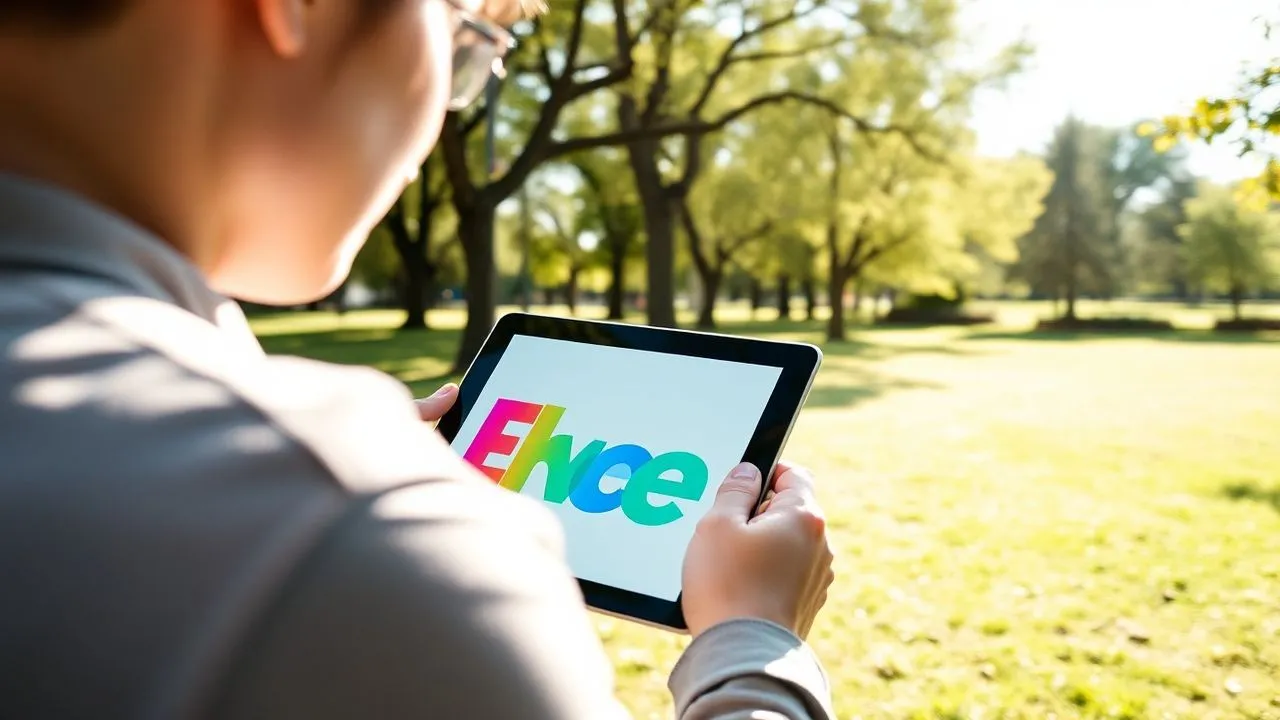
Learning how to put the writings on the photos today represents a fundamental competence for anyone wishing to communicate effectively in the digital panorama of 2026. Whether to capture a special moment spent at the park with friends, to document an unforgettable journey or to create captivating content for their social profiles, adding a textual element turns a simple image into a complete visual story. Many people mistakenly believe that in order to achieve professional results it is necessary to invest exorbitant figures in complex software or to possess qualities innate by advertising chart. In fact, thanks to the technological evolution of recent years, we have at our disposal a wide range of intuitive tools, many of which are completely free, which allow you to insert names, bizarre quotes or service information such as date and place with very few clicks or touches on the screen. This guide is born with the goal of providing you with all the necessary information to move with ease between computer programs, cloud-based platforms and mobile applications, ensuring maximum flexibility regardless of the device you are using right now. Prepare to discover how to give voice to your images in a creative and original way, transforming your memories into small digital works of art ready to be shared with the whole world.
Desktop software to add text to images
Use Microsoft Paint on Windows
If you use a computer with Windows operating system, the most immediate solution to understand how to put the writings on the photos is undoubtedly Microsoft Paint. Despite being one of the historical programs included in the Microsoft package, in its version of 2026 Paint has benefited from numerous updates that make it still extremely current for quick and functional changes. To begin with, just open the desired photo within the application and locate the icon with the letter A located in the top toolbar. Once selected, you can click at any point of the image to create a dynamic text area. The simplicity of this tool lies in its clean interface that allows you to instantly choose the character, size of the text and color, viewing the changes in real time over your original shot. Many users appreciate Paint because it does not require high loading times and integrates perfectly with the PC file system, allowing you to save the final result in different formats such as JPEG, PNG or WebP, maintaining a good visual quality without weighing too much the resulting file.
In addition to the basic functions of text input, the latest versions of this software allow a smoother management of the elements thanks to the introduction of simplified levels, a function that was once reserved only to professional photo editing programs. This means that, after adding your writing, you can reposition it with extreme precision or modify its content without having to cancel all previous operations. If you want a more elaborate effect, you can play with the transparency of the text background or apply small contour effects to make words readable even on particularly detailed or chaotic backgrounds. Always remember to save a copy of the original image before proceeding, so you can experience different graphic variations without the fear of losing the starting shot. Paint’s minimalist approach makes it ideal for those who don’t have time to lose with endless user manuals and seeks a concrete and immediate result for their daily needs, demonstrating that often the most effective solutions are just what we already have at hand on our desktop.
Text management with MacOS Preview
Apple users have an equally powerful and versatile integrated tool: Preview. This application, often underestimated, is actually a real Swiss knive for the treatment of images and PDF documents. To insert a writing on a photograph, the procedure is extremely linear: open the file with Preview and click on the icon depicting the tip of a marker (See toolbar) located at the top of the window. At this point, a new line of options will appear where you will find the text icon, usually represented by a T within a square or simply by letter A. Clicking on it, a text box will appear in the middle of the photo that you can drag anywhere you want using the mouse cursor. It is the perfect tool for those looking for speed and integration with the macOS ecosystem, also allowing you to sync jobs via iCloud to immediately find them on other devices of the morsicata apple.
The customization of the text in Preview takes place through the Aa key, which opens a panel dedicated to typographic formatting. Here you can tap into the entire font library installed on your Mac, adjust the alignment, choose custom colors from the system palette and even set the style (fat, lane, underlined). One of the main advantages of using Anteprima is metadata management: the program saves changes in a non-destructive way or allows fast exports optimized for the web. If you need to add quick notes to screenshots or digitally sign a photo before sending it via email, Preview turns out to be the most logical and performing choice. You do not need to install third-party software that could slow down the system; the fluidity with which the application also manages large files makes it a valuable ally for both the home user and the professional who needs quick graphic annotations during his working day.
Advanced solutions for watermarks and series texts
Add massive writings with XnConvert
There are situations where the need is not limited to a single image, but one needs to understand how to put the writings on the photos for hundreds of files simultaneously. In these cases, software like XnConvert become indispensable. XnConvert is a powerful batch image processor, compatible with Windows, macOS and Linux, which allows you to apply a series of “actions” to a whole set of photographs in one step. The most sought-after feature in this area is the insertion of watermarks or watermarks, which are essential for photographers and content creators who want to protect their works or promote their brand. The program supports over 500 image formats, ensuring that whatever the origin of your shots, you can process them without compatibility problems. Its free nature for personal uses makes it one of the favorite choices from the global community of technology enthusiasts.
The workflow in XnConvert is logical and structured: after adding the files in the dedicated tab, you move to the Actions section where you can select Image and then Filigrana or Text. If you choose to insert a text, you will have granular parameters to define the exact position (for example, lower right with a specific margin), the degree of opacity to make the writing discreet but visible, and even the angle of rotation. This automation eliminates repetitive and boring work, ensuring that every photo of your collection features the same typographical style and formatting. It is an ideal solution for those who return from a holiday with thousands of shots and want to add to all the words of the place and of the year, or for those who manage an e-commerce and must mark the photos of the products in the catalog in a uniform and professional way.
Professional digital printing tools
When simple writing is not enough and an artistic fusion between text and image is sought, it is necessary to turn to tools that offer advanced typographical control. Programs such as GIMP or the most modern open source alternatives of 2026 allow you to manage texts as real vector graphic objects. This means that you can apply color shades, external shadows, reflections and perspective distortions that make the writing an integral part of the photographic scene. For example, you may want to make a word appear as if it was leaning on a physical surface in the photo, tilting the text according to the correct perspective. This level of detail requires a slightly steeper learning curve, but the results obtained are comparable to those of the great communication agencies, allowing you to create posters, video covers or editorial posts of the highest quality level.
The use of these software also allows you to install external fonts downloaded from specialized portals, expanding creative possibilities beyond the default operating system characters. Level management is the heart of this approach: each writing resides on a separate plane, allowing you to apply layer masks to pass the text “back” to a prominent object, creating a fascinating 3D depth effect. Although the interface may seem complex at first, mastering these techniques will give you a huge competitive advantage in creating visual content. The versatility of these tools also extends to color management, allowing you to sample a specific shade directly from the photo to apply it to the text, ensuring a perfect color harmony that makes professional design and consistent with the atmosphere of the original shot.
- Choose readable fonts that contrast well with the image background.
- Use transparency (opacity) to make watermarks less invasive.
- Always keep an original copy of the photo before applying batch changes.
- Experiment with alignment of the text to balance the visual composition.
Best online tools to write about photos
Browser-based editing with Photopea
In the era of cloud and agile work, many users prefer not to install heavy software on their hard disk, looking for solutions on how to put the writings on the photos directly through the web browser. Photopea has established itself as the undisputed leader in this category, offering an interface that faithfully follows that of the most famous photo editing programs in the world. Being a fully online service, it is accessible from any location, either a Windows PC, a Chromebook or a Linux device, requiring only an active internet connection. To start, just drag the photo into the browser window. The Text tool (identified by the T icon) allows you to click and type immediately, but the true strength of Photopea lies in its ability to manage complex files and offer formatting options that are usually found only in paid software, such as the management of cracking, inline and paragraph styles.
Using Photopea means having access to hundreds of free fonts already loaded into the system, ready to be applied to your shots. Once you insert the text, you can open the Level Styles panel to add effects such as traces, glows or shadings, which help the writing stand out even on very bright or varied backgrounds. A fundamental aspect of this service is privacy: despite being a web app, most processing takes place locally in your browser, ensuring that your photos are not uploaded to servers unless specific functions are required. At the end of the work, export is fast and supports a multitude of extensions. If you are a user who often travels and frequently changes workstations, relying on an online editor like Photopea guarantees you unprecedented operational continuity, maintaining high quality standards for your graphic design.
Quick and creative design with Canva
If your goal is not only to add an informative writing, but to create a real design content, Canva represents the ideal solution in 2026. This platform has revolutionized the way non-professionals approach graphics, offering thousands of preset models and font combinations already studied to be aesthetically pleasing. On Canva, adding text to a photo becomes a playful and creative experience: you can choose between ready-to-use “text kits” that include titles, subtitles and text body with coordinated styles. This eliminates the risk of matching characters that do not harmonize with each other, a common mistake among beginners. The ease with which you can drag items and resize them makes creating quotes for Instagram or digital postcards a process that takes a few minutes, while maintaining an extremely nice and modern look.
Canva also offers tools based on artificial intelligence that can automatically suggest the color of the most suitable text according to the color palette of your photograph. In addition, the platform allows you to add graphic elements such as frames, stickers or geometric shapes that can act as a background for your text, increasing its readability. The free version is very generous and covers most of the needs of ordinary users. Another strength is collaboration: you can share a link to your project with friends or colleagues, allowing them to view or edit real-time writings. This makes Canva the perfect tool for group projects, such as creating a shared photo album or preparing materials for a special event, where everyone's contribution is essential to obtain the best possible result.
- Access the official website of the selected online editing tool.
- Upload the image from your computer or drag it into the work area.
- Select the text tool and type the desired message on the photo.
- Customize font, color and size using side control panels.
- Export the final file to the desired format (JPG or PNG) to your device.
Mobile applications for Android and iPhone
Insert text with Google Photos on Android
For most Android users, the answer to the question on how to put the writings on the photos is already preinstalled in your device: Google Photos. This application is not only an excellent cloud backup service, but it integrates increasingly sophisticated editing tools that exploit the power of Google’s artificial intelligence. To proceed, open the photo you want to edit and tap the Edit button. Going through the options available below, you will find the Markup section or Writing Tools. Here you can choose between different tips (pen, highlighter) or the actual Text tool. By typing your message, you can choose from a selection of styles and colors optimized for viewing on mobile screens, ensuring that your words are always clear and well readable.
The main advantage of using Google Photos lies in its perfect integration with the operating system. Once the writing is added, you can save a copy of the image with a simple touch, keeping the original intact in your cloud archive. In addition, Google’s search features are able to recognize the added text within images, making it easier to find that specific shot in the future by simply typing the words you had written above. It is the quickest solution for those who are on the move and want to send a photo with a funny comment or an important indication via WhatsApp or Telegram. The simplicity of use and the speed of execution make Google Photos the reference standard for millions of users looking for a reliable editor and always ready to use without having to download additional applications that would occupy valuable space in the memory of the phone.
Native editing on iOS with the Photos app
IPhone and iPad users have an extremely powerful integrated editing function within the native Photo app. To add text to an image on iOS in 2026, just select the photo, tap Edit to the top right and then the pen tip icon (Markup). Pressing the + symbol will appear the Text option that will immediately insert a editable box on your image. Apple has taken care of the user experience in this section, allowing you to change not only the content, but also the font (chosing between system ones), size and alignment through a very responsive and precise touch interface. The ability to use Apple Pencil on iPad makes this operation even more natural and similar to writing on paper, allowing surgical precision in positioning writing.
An interesting aspect of the iOS Markup is the possibility to combine text and geometric shapes or arrows, ideal to create visual instructions or emphasize specific details in a photo. If you have multiple Apple devices, the changes made are synchronized instantly via iCloud, allowing you to start writing on a photo on your iPhone while traveling home and finishing your work on your iPad or Mac once you arrive. The quality of rendering of the text is exceptional, keeping sharp edges even after saving. This native feature is so complete that for most daily needs you do not need to resort to third-party apps, while ensuring maximum security of your personal data, since the whole editing process takes place locally on your device, protecting your privacy while you push your photo creativity.
Write on photos for social networks
Instagram story editor
Instagram remains the main platform for visual sharing and its internal editor is one of the most popular tools to understand how to put the writings on the photos dynamically and engaging. When you upload a photo to the Stories, the Aa icon on the top right opens a world of typographical possibilities. In 2026, Instagram introduced animated fonts and styles that react to the rhythm of music or the movement of the device, making the writings a live element of digital narrative. You can choose from different styles, from the classic “Modern” to the most artistic “Neon”, and apply colored backgrounds to words to improve its contrast. The ease of resize and rotation through the fingers makes the text position extremely intuitive, allowing you to perfectly frame the words between the visual elements of the shot.
In addition to aesthetic functions, Instagram editor allows you to insert mentions, hashtags and geographic tags that work as interactive text. If your goal is to save the image to use it elsewhere, remember that you can always download the creation on your photo roller before posting it, by clicking on the three dots up and selecting Save. This trick allows you to use the beautiful Instagram fonts to create graphics to use on other social media or send privately. Many influencers and content creators use this method because Instagram offers one of the most modern and attractive character sets on the market, constantly updated to follow the latest trends in digital design. The versatility of this tool makes it ideal not only for entertainment, but also for small commercial promotions or fast styled ads.
Customize posts for TikTok and Facebook
Although TikTok was born as a video platform, in 2026 the “Photo” mode gained enormous importance, becoming a very strong textual expression place. The editor of TikTok allows you to overlay texts to images with temporary input and output effects, creating a sort of narrative slideshow. This approach is perfect to tell stories longer, where the text guides the user through a series of shots. Even Facebook, while being a more traditional social, offers editing tools in its mobile apps that allow you to add colored writings and textual stickers to posts and stories. The logic remains similar to that of other social media: speed, visual impact and ease of sharing are the slogans that guide the development of these integrated features.
Using native social media editors has the great advantage of ensuring that the text is optimized for viewing on that specific platform. For example, TikTok fonts are designed to be readable even on small screens and moving videos, while Facebook fonts focus on clarity and sobriety. A useful advice is not to exaggerate with the amount of text: social media are visual channels and a writing too long or too small could discourage the user from continuing the vision. Better to bet on short, impact phrases, strategically positioned to not cover the faces or main subjects of the photo. Remember that social communication in 2026 is fast; capturing attention in seconds with an effective title above your photo is the key to increasing the engagement and visibility of your digital content.
- Keep text away from the edges of the image to avoid unwanted crops.
- Use colors that require elements in the photo for a consistent design.
- Use the shadows or edges of the text if the background is too clear.
- Never cover the focal point of photography with the writing.
Creative techniques for graphic impact texts
Choose the font and the ideal color
Choosing typographic character is the first crucial step for anyone who wants to learn seriously how to put the writings on the photos with professional results. Each font conveys a different emotion: a “Serif” character (with thanks) evokes elegance, tradition and authority, ideal for architectural photos or formal portraits; on the contrary, a “Sans Serif” (without thanks) communicates modernity, cleanliness and minimalism, perfect for technological or lifestyle shots. In 2026, the trend is to use custom fonts or calligraphics to give a human and artisanal touch to digital content. When choosing a font, make sure it is consistent with the message you want to convey: a bizarre phrase on a friend will require a playful character, while an information note on a landscape will need something more sober and readable.
The color of the text plays an equally vital role in composition. A golden rule is to seek contrast: clear text on dark background and vice versa. However, for a more refined result, you can use the technique of color sampling, choosing for writing a shade that is already present in the image (for example the color of the sky at sunset or that of a flower in the foreground). If readability remains a problem because of a background too uneven, you can apply a light “drop shadow” or insert a semi-transparent band behind the text. These small graphics not only make writing easier to read, but give the whole image a much more accurate look, demonstrating a mastery of the tools that goes beyond the simple random insertion of words over a graphic file.
Management of visual hierarchy and composition
Knowing how to place the text requires a careful eye to the photographic composition. Visual hierarchy is the principle that the most important elements must draw attention first. If your writing is the main element, it will have to be larger or have a more vibrant color; if it is only a note in margin or a watermark, it will have to be small and possibly semi-transparent in a corner. Many experts recommend that you follow the “third party rule”, placing the text along the imaginary lines that divide the photo or intersection points. This creates a natural balance that guides the eye of the observer in a harmonious way between the image and the written message, avoiding that the two elements compete excessively among themselves for the visual priority.
Another effective technique is to exploit the “negative spaces” of the photo, i.e. those less detailed areas such as a dark sky, a monochromatic wall or a portion of blur (bokeh). Inserting the text into these areas allows you to maintain the cleansing of the original shot without sacrificing the font size. Also remember to consider the direction of the looks or movements within the photo: if a person is looking right, positioning the text in that direction will create a logical and dynamic connection. The composition is a silent language that, if used correctly, greatly enhances the effectiveness of your message. Experience different positions and sizes before deciding the final one, always trying to respect the integrity of the original photographic work, which must remain the stage on which your text moves elegantly.
"The typography applied to photography is not only information, it is the art of giving voice to the silence of a captured moment. " – Digital Design Expert, 2026.
Frequently asked questions
How can I write about photos without losing quality?
To maintain the high quality of the original image, it is essential to use software that support saving in uncompressed formats such as PNG or that allow you to set 100% quality during export to JPEG. Avoid making screenshots of the final result; always use the “Export” or “Save as” function of the chosen program. Moreover, it always works on the original resolution of the photo without resize it before adding the text, since each pixel reduction involves an inevitable loss of visual detail.
What are the best free apps to put on the photos?
The best free apps depend on your specific needs. For quick and social use, Instagram editor and Google Photos are unbeatable. If you are looking for more creative options, Canva offers an infinity of free graphics models. For those who want more similar tools to Photoshop on mobile, apps like Snapseed or Phonto offer granular control over fonts and typographical effects, allowing you to upload custom characters downloaded from the web, all without mandatory costs.
Is it possible to add writings to online photos without registration?
Yes, there are several platforms that allow you to edit photos online without having to create an account. Photopea is a great example: just connect to the site and start working immediately. Other services such as Pixlr or BeFunky offer free basic versions. However, keep in mind that recording often unlocks additional functions such as saving projects in the cloud or accessing larger font libraries, but for a single quick change anonymous browsing is absolutely enough.
How do you put the copyright symbol or a transparent watermark?
To insert a copyright symbol or a watermark, the best technique is to adjust the opacity of the text. After writing your name or entering the logo, search for the cursor “Opacity” or “Transparency” in your editor and lower it up to 20-40%. This will make the written visible but discreet, allowing you to protect the image without disturbing too much the vision of the subject. In software like XnConvert, this operation can be automated for hundreds of photos at once, ensuring uniform protection across your portfolio.
How do I choose the right color to make the text stand out?
The secret to highlighting the text is tonal or chromatic contrast. If the background is dark, use white or pastel colors very clear. If the background is clear or very bright, opt for black or dark and dense colors. A professional make-up consists in adding a thin outline (outline) outline of color opposite to that of the text: for example, a white writing with a thin black edge will be readable on any background, regardless of the complexity of the image below.
Mastering techniques on how to put the writings on the photos allows you to communicate more fully and professionally in the modern digital world of 2026. We have explored solutions for every need: from integrated programs in Windows and Mac like Paint and Preview, to powerful web apps like Photopea and modern social media editors. Each tool has its strengths, but the key to success lies in your creativity and respect for the visual balance between text and image. Now that you know all the secrets, you just have to switch to action and start customizing your favorite shots. Practice font, color and positioning tips to impress your friends and followers. Experience with the different suggested platforms and find out what best fits your workflow. Good creation and fun with your new graphic project!


