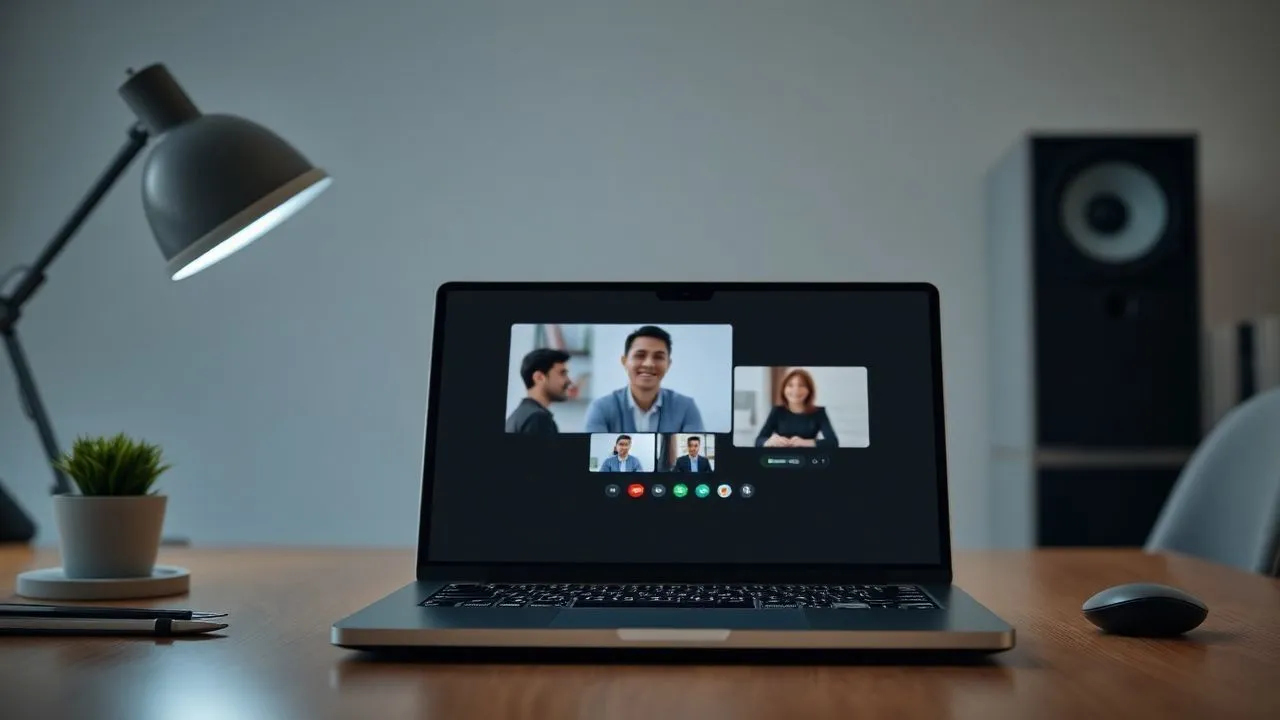
In the technological landscape of 2026, digital communication reached incredible heights of efficiency, making tools such as Zoom fundamental not only for business, but also for private life and distance education. If you're wondering how to start a meeting on Zoom, know that today the platform has become even more intuitive than the past, integrating artificial intelligence features and unprecedented connection stability. Whether you need to organize an international business meeting, an online lesson or simply a quick greeting with your loved ones, knowing the correct procedures to configure your virtual room is essential to avoid technical hitches of the last minute. In this in-depth guide, we will explore every aspect of creating a video conferencing, starting from minimum system requirements to advanced security settings that characterize the latest software versions. Being an organizer (or host) requires minimal preparation to ensure that all participants can access without difficulty and that the user experience is smooth for each connected user, regardless of the device used. Prepare to discover how to transform your computer or smartphone into a command center for your global communications, optimizing time and resources in a professional and fast way.
Preliminary requirements and setup of the Zoom account
Registration and tariff plans updated at 2026
Before understanding in detail how to start a meeting on Zoom, it is essential to make sure you have an active account and correctly configured. In 2026, Zoom offers different types of subscriptions that fit every user's needs. The free base plan remains an excellent choice for those who need sporadic, although it maintains the historical limit of 40 minutes for sessions with more than two participants and a maximum roof of 100 users connected simultaneously. For those who work in professional contexts, Pro, Business and Enterprise plans offer significant advantages, such as automatic meeting transcription through AI, unlimited cloud storage and the ability to accommodate up to 1000 participants. Registration can be done quickly by connecting to the official website and using a corporate or private email address, or using the Single Sign-On (SSO) via Google, Apple or Microsoft accounts, a solution that guarantees greater security and access speed.
Once the registration is completed, it is highly recommended to devote a few minutes to customizing your profile. Upload a professional photo and correctly set the time zone are steps that seem trivial, but that greatly improve the perception of your online presence. In addition, it is right at this stage that you can decide whether to use a static Personal Meeting ID (PMI) or generate random IDs for each new session. The use of SMEs is ideal for recurring meetings with trusted people, while the ID generated automatically is preferable for security reasons when interacting with external parties or in public contexts. Remember that the platform now requires two-factor authentication as a standard to protect sensitive data, an essential element in today’s digital ecosystem where privacy has become the top priority for millions of professionals worldwide.
Software installation on Windows, macOS and Linux
Although Zoom is accessible via browser, the full and more stable experience is achieved by installing the dedicated desktop client. To download the application, just visit the download section of the official portal, where the system will automatically detect your operating system by providing you with the latest version, optimized for hardware architectures of 2026. Installation on Windows and macOS is quick and requires few clicks; on Linux, compatibility has been further extended to cover all major distributions, ensuring the same functionality of other systems. Once the program is installed, log in with the credentials created previously to access the main dashboard, from where you can manage not only the start of meetings, but also your integrated calendar, contacts and persistent chat settings between one meeting and the other.
The importance of using the official client lies in managing hardware resources. The 2026 versions of the software are designed to minimize the impact on CPU and RAM, allowing other heavy applications to remain active without slowing down. In addition, the client allows you to configure audio and video in advance. We suggest you go to the Settings menu (the gear icon) to test the microphone and the webcam before you launch your first meeting. Here you can enable functions such as the suppression of intelligent background noise, which filters unwanted sounds like the ticking of the keyboard or ambient noise, and the retouching of the video aspect to always appear at the best. Verifying that everything works correctly before you start is the secret of every successful organizer who wishes to convey seriousness and technical expertise to their interlocutors.
- Check the internet connection (minimum 10 Mbps recommended for HD video).
- Make sure the webcam is clean and positioned properly.
- Use a pair of headphones with integrated microphone for better audio output.
- Check that the software is updated to the latest version available.
How to start a Zoom meeting from computer
Quick start via Zoom web portal
If you are on a shared computer or simply do not want to install additional software, the fastest way to understand how to start a meeting on Zoom is going through the browser. After accessing your profile on the official website, you will notice the item Organize a meeting on the top right. By clicking on it, you can choose whether to activate the video immediately, keep it off or share the screen exclusively. This flexibility is essential for those who need to make quick presentations without having to show their face. Once you have made your choice, your browser will try to launch the app; if you have not installed it, just click on the Enter link from the browser that will appear below. This web mode has been greatly upgraded in 2026, offering almost all desktop counterpart functions, including breakout rooms management and data encryption.
Within the browser session, you will be welcomed by a window asking you to activate the computer audio. It's a mandatory passage to hear others and make you feel. Once inside, the interface will be clean and essential. Upstairs you will see the meeting ID and password, items that you can copy and send to your guests immediately via email, WhatsApp or any other messaging service. Remember that browser management could be slightly more demanding in terms of computer RAM memory than the native client, so it is good to close unnecessary tabs to ensure the maximum fluidity of the video stream. This option remains the ideal saver to manage emergencies or to participate in fast meetings when you do not have your main device configured.
Using the desktop client for professional functions
For granular and professional control, use of the desktop application is the recommended choice. Once you open the app, the Home tab will show you a large orange button with New Meeting written. Next to it, you will find a small downward arrow: by clicking it you can decide whether to start the videoconference with the already active video and whether to use your personal meeting ID. By clicking the main button, the virtual room will be created instantly. At this point, you will be officially the host of the session and you will have full control over what happens inside. The command bar located below will become your main tool, allowing you to manage audio, video, security, participants, chat and screen sharing with extreme simplicity thanks to clear and well identified icons.
The main advantage of the desktop client in 2026 is integration with advanced workflows. For example, you can activate automatic recording of the session both locally and on the cloud, allowing those who are absent to recover the content at a later time. In addition, the desktop application better manages gallery display (Gallery View), allowing you to see up to 49 participants simultaneously on a single screen if you have a properly large monitor. If your goal is to learn how to start a meeting on Zoom that it is impeccable at every point of view, mastering the desktop client is the ultimate step. You can also use third-party apps integrated into the Zoom marketplace directly from the meeting window, such as timers, interactive surveys and real-time collaboration tools that make each meeting much more dynamic and productive.
Videoconference Management and Organiser Tools
Screen sharing tools and digital board
One of the most powerful aspects of knowledge how to start a meeting on Zoom resides in the ability to share content in real time. By pressing the green button Share screen, a world of possibilities opens: you can show the entire desktop, a single window of an application (such as PowerPoint or Excel) or even a specific portion of the screen. In 2026, the Whiteboard function was completely redesigned to allow simultaneous multi-user collaboration. All participants, if authorized by the host, can write, draw and add virtual post-it on the board, making creative brainstorming much more effective than traditional physical meetings. This function is particularly appreciated in the educational and design sector, where immediate visualization of ideas is essential for the progress of projects.
In addition to the simple display, the screen sharing allows you to transmit high quality audio, useful if you have to show a video or sound track. During the sharing, the organizer keeps access to a mobile toolbar that allows you to annotate above the content shown or to move quickly from window to window. It is important to note that, for privacy reasons, Zoom automatically obscures system notifications that might appear during sharing, avoiding personal messages or private emails to be accidentally displayed by other participants. Knowing how to manage these options not only makes you a more experienced host, but ensures that the flow of the presentation is not interrupted by technical plasters or external distractions, keeping the attention of your audience high throughout the duration of the meeting.
Management of participants and audio/video permits
As an organizer, your main role is to moderator. Clicking on the Participant icon will open a side panel that lists all connected people. From here you can manage individual permissions: you can silence the microphone of a user who has too much background noise, ask someone to activate the video or even promote a co-host participant to help you in managing the room. In situations with many guests, the silence button is a manna from the sky to immediately restore order and silence. In 2026, Zoom introduced smart filters that automatically recognize when a user is trying to talk but has the mike disabled, sending him a discreet reminder on his screen.
Another vital function is the ability to manage the Waiting Room (Waiting Room). This option prevents users from entering the meeting directly until the host admits them manually. It is a fundamental security barrier to avoid the phenomenon of “Zoombombing” and to ensure that only people actually invited take part in the discussion. Within the panel participants, you can also send private messages to individuals or start group chat. The mastery in managing these human and technical dynamics at the same time is what distinguishes a common user from a true digital communication professional. Always remember that a good host is the one who puts guests at ease, guiding them through the features of the platform without overloading them with unnecessary information.
- Open the participating panel to monitor access.
- Use the waiting room to filter suspicious entrances.
- Assign co-host roles if the meeting exceeds 20 participants.
- Monitor the chat to answer questions without interrupting who speaks.
- Close the meeting for everyone at the end of the session.
How to start a Zoom meeting from smartphones and tablets
Starting setup on Android and iOS
Mobility is one of the pillars of modern productivity and understanding how to start a meeting on Zoom from a mobile device is essential for those who work on the road. The official Zoom application, available free of charge on the Google Play Store and Apple App Store, offers an optimized interface for the touch screen that does not sacrifice the power of desktop functions. Once you have installed the app on your smartphone or tablet (which is an iPad or latest Android device), you will need to log in. The design of the application in 2026 is extremely clean, with the main functions grouped at the bottom of the screen. On the first start, the app will ask you for permission to access the camera, microphone and, optionally, to your calendar and contacts: granting these permissions is indispensable for the proper functioning of video conferencing.
Integration with mobile operating systems is such that you can start a meeting also via voice commands using Siri or Google Assistant, an incredible comfort when you are driving or you have your hands engaged. On the tablet, the interface expands to take advantage of the larger screen, allowing you to view multiple participants simultaneously and use multitasking functions like Picture-in-Picture. This means that you can continue to see the meeting in a small window while you consult a document or answer an email on another application. The stability of the mobile version in 2026 is comparable to that desktop, thanks to the optimization of the video codec that instantly adapts to network changes, flowing from Wi-Fi to 5G or 6G without interrupting the flow of communication.
Start a meeting in mobility with a touch
To create a new encounter from your mobile phone, just touch the New Meeting icon (identified by an orange camera) located in the main board Meetings and Chat. It will open a preview screen where you can decide whether to activate the video and whether to use your personal ID. Once you press a meeting, you will be immediately catapulted into your virtual room. Audio and video controls will appear by touching the center of the screen. An important detail for those who use the smartphone is the Safe Guide mode, which is activated by scrolling right: this feature silences the video and enlarges the microphone button to allow you to participate in a discussion by minimizing distractions while you are on the move, ensuring your security and that of others.
From the smartphone it is equally easy to invite other people. Touching the Participant icon and then the Invite button, you can choose to send the link via SMS, email or copy it to paste it into a group chat on Telegram or WhatsApp. Despite the small screen size, you can also share documents saved on the cloud (such as Google Drive or Dropbox) or show your phone screen directly. This function is very useful to provide remote technical assistance or to show the operation of a mobile app to a customer. In summary, the mobile version of Zoom is not only an emergency alternative, but a real portable office that allows you to maintain the leadership of your projects wherever you are, with the same effectiveness as a fixed location.
"Effective communication is not just talking, but creating the perfect virtual space where ideas can flow without technical barriers, wherever you are. "
Invitations and security: how to protect your virtual room
Share invitation link and password
A crucial part of the process on how to start a meeting on Zoom about how you bring people into your space. Each created session generates a unique URL that usually contains an encrypted password code, allowing guests to enter with just one click without having to type anything manually. However, for greater security, you can decide to communicate the meeting ID (a set of 10 or 11 digits) and its password separately. This is particularly useful in business contexts where you want to prevent links from being forwarded to unauthorized persons. In 2026, Zoom introduced timeline links, which stop working a few minutes after the scheduled start time, drastically reducing the risk of posthumous intrusions.
When sending an invitation, make sure to include all the necessary information: the exact time (specifying the fuse if international), the agenda and any instructions for the audio connection. The platform allows you to automatically generate a standardized invitation text that you can copy in your notes. A practice recommended by Senior Strategist is to customize this message, adding a human touch or specific instructions on meeting policy (for example, if it is mandatory to keep the webcam on). Correctly managing the invitation phase means reducing the technical support requests of the last minute by confused participants, allowing you to start the meeting punctually and with the utmost professionalism possible.
Privacy and waiting room settings (Waiting Room)
Security is not an option when it comes to professional video conferencing. In addition to the password, the waiting room is the most effective tool at your disposal. When it is active, every person who clicks on your link does not enter directly, but is placed in a “limbo” where he can see a personalized message from you (e.g. your corporate logo or a short introduction). You, as a host, will receive a notification and you can decide whether to admit the user or not after checking his name. In 2026, the waiting room has a unique chat, allowing you to write to those who are waiting for phrases like “We will start in 5 minutes, thanks for patience”, keeping a direct thread with your guests even before the official start.
Other key security settings include the possibility of blocking the meeting (Lock Meeting) once all expected participants entered. This prevents anyone else from joining, even if they have the link and password. Also, you can restrict screen sharing only to the organizer or disable private chat between participants to avoid distractions during important presentations. All these options are easily accessible by clicking on the security shield in the command bar. Being aware of these tools and knowing how to activate them quickly is what guarantees data protection and intellectual property discussed during your meetings, an invaluable value in the age of advanced cyber-security.
- Never share meeting links on public social networks.
- Always use a complex password for each session.
- Enable the waiting room to control the identity of the guests.
- Lock the meeting after the start to avoid unwanted entrances.
Advanced functionality and common problems resolution
Meeting registration and AI integrations
Knowing how to start a meeting on Zoom in 2026 it also means being able to exploit the incredible potential of integrated artificial intelligence. Once you start the session, you can activate the AI Companion, a virtual assistant who is able to generate real-time summaries, highlight the highlights of the discussion and even simultaneously translate what is said in over 50 different languages. If you decide to register the meeting, you can choose between local rescue (on your hard disk) or Zoom cloud. Cloud recording is particularly advantageous because it automatically provides a content index and the ability to search keywords within the speech, making the meeting review a very fast and targeted process.
Recordings can be password protected and set to expire after a certain number of days, ensuring that information does not remain online more than necessary. In addition, thanks to integrations with productivity suites such as Microsoft 365 and Google Workspace, registered files can be automatically sent to shared project folders or reference Slack channels. These automations save hours of manual work and ensure that each participant, even if absent, can be aligned on the decisions taken. Mastering these advanced features transforms a simple video meeting into a valuable business asset, documented and easily consultable over time, raising the standard of collaboration in your work team.
Microphone and webcam problems solutions
Although technology is increasingly reliable, small technical problems can still happen. If after you understand how to start a meeting on Zoom you realize that others don't feel you or don't see you, keep calm. 90% of the problems are due to the incorrect selection of the device in the settings. Next to the microphone and camera icons, there is a small arrow: click it to ensure that Zoom is using the correct hardware (for example, the microphone of your headphones and not the laptop). If the video appears at shots, it could be a broadband problem; in this case, try to disable the HD function or close applications that consume a lot of connection, such as video streaming or ongoing downloads.
Another common problem is audio echo. This often happens when a participant has both the speakers and the microphone active at too high volume. As a host, you can intervene by silenceing the user concerned and suggesting to use the earphones. If the connection falls completely, Zoom in 2026 has a quick reconnect function that tries to bring you back to the room in less than three seconds. In extreme cases, you can provide your guests with a phone number to connect to the meeting via traditional voice call, a always available backup function that guarantees the continuity of the meeting even in the absence of stable internet. Being prepared for these eventualities demonstrates your technical expertise and ensures that no one's time is wasted in disproportionate expectations.
Frequently asked questions
Can I start a Zoom meeting without downloading the app?
Of course. Also in 2026, you can use the web version of the platform directly from your browser (Chrome, Firefox, Safari or Edge). After clicking on the invitation link or choosing to organize a meeting on the official website, just select the Enter from the browser. This mode is ideal for quick use or on devices where you do not have installation permissions, yet offering the main features of audio, video and screen sharing without excessive compromises.
How much does it cost to start a meeting with many people?
The cost depends on the number of participants and the desired duration. The Free plan allows meetings up to 100 people but with a limit of 40 minutes. To overcome this threshold and accommodate up to 300 or 500 participants, it is necessary to subscribe to a Pro or Business plan, whose prices in 2026 start from about 140 euros per year. There are also web-inar-specific add-ons that allow thousands of viewers in broadcast mode, ideal for business events or large-scale online courses.
Are you sure to use Zoom for private and sensitive meetings?
Yes, as long as you follow the good integrated safety standards. Zoom uses end-to-end encryption (E2EE) to protect communications from external interceptions. To maximize privacy, it is essential to always set up a password for access, activate the waiting room to moderate inputs and never publicly share meeting IDs. With these precautions, the platform meets the highest international data protection standards, making it suitable for high-level legal, medical or government communications.
How can I record the meeting I started?
Recording is very simple: once the meeting starts, click on the Register button located in the toolbar below. If you have a free account, the registration will be saved locally on your computer at the end of the session. If you have a paid account, you can choose a cloud registration, which allows you to access the file from any device and easily share it via a link. Always remember to inform the participants that the session will be registered to comply with the privacy regulations in 2026.
Can I start a meeting and then leave it to another host?
Yes, this is a very useful function called the Host Passage. If you have to leave the meeting but you want others to continue the discussion, you can click on the name of a participant in the appropriate panel and select the Rendi Host option. Alternatively, if you plan the meeting, you can design a co-host in advance. This ensures that the virtual room remains active and functional even without your constant physical presence, allowing an extremely flexible and dynamic workflow management.
In conclusion, learning how to start a meeting on Zoom today represents a basic digital competence, but capable of making a difference in the quality of your daily interactions. We have seen how the platform offers solutions for every need, from computer to smartphone, always focusing on ease of use and data security. Whether you are a newbie or an experienced user, the important thing is to approach these tools with curiosity, testing the various features and always being updated on the latest software news. Proper technical preparation, combined with careful management of participants and safety, will allow you to conduct professional and effective video conferencing, eliminating physical distances with a simple click. Now that you have all the information you need, you just have to put into practice how much I learned and launch your next great idea in the virtual world. If you want to further deepen the potential of this tool, please consult our other guides dedicated to remote work optimization and advanced digital collaboration.


