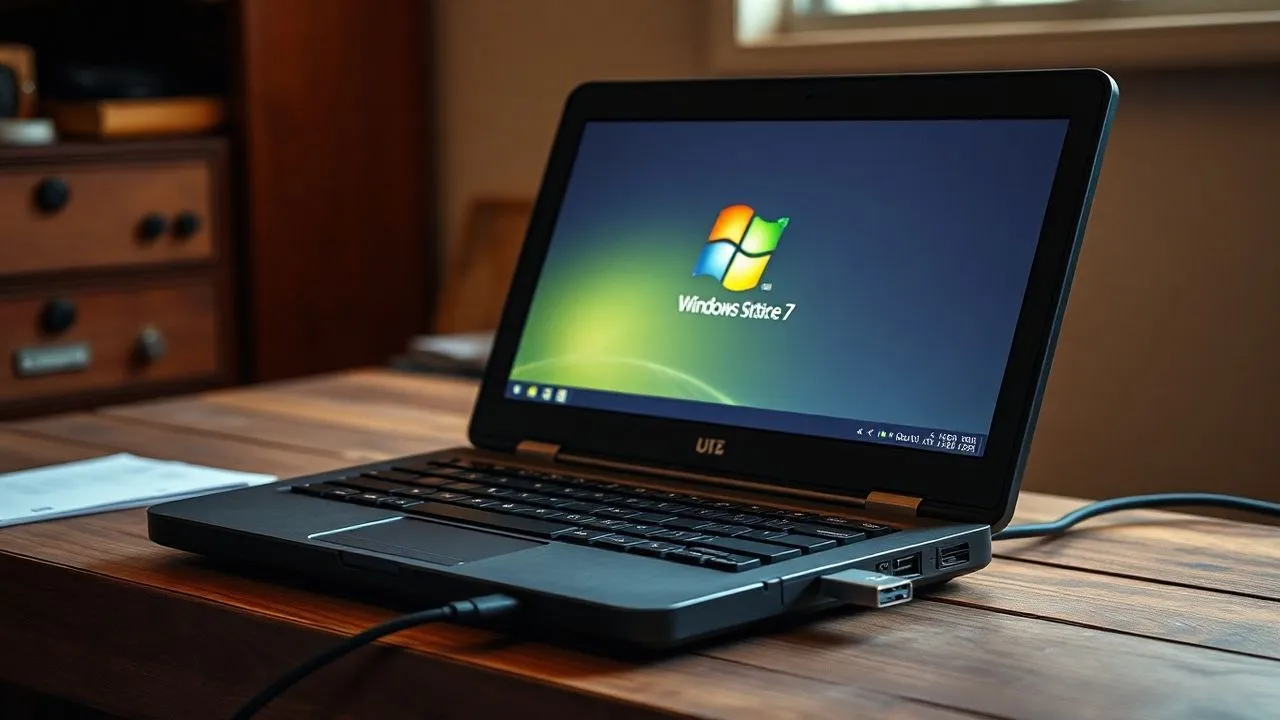
In the technological landscape of 2026, the need to understand how to install Windows 7 from USB could seem, at a first superficial glance, an anachronistic operation dedicated exclusively to the nostalgic of computer science. However, the reality of technical laboratories and retro-computing enthusiasts tells a different story, made of legacy hardware that needs specific operating systems to turn industrial machinery, diagnostic software not updated or simply to test the efficiency of old components in a controlled environment. Windows 7, despite Microsoft's official support for over six years, remains a benchmark for stability and lightness, especially on machines with limited hardware resources that could not support the workload imposed by the most modern versions of Redmond's operating system. The main challenge today is not only the installation itself, but the overcoming of the physical barriers: CD and DVD players have become museum finds and most of the notebooks recovered from the attics has damaged or completely absent optical units. Using a USB stick then becomes the only way to travel, transforming a small flash drive into a powerful recovery tool capable of bringing back life to a PC you believed intended for the electronic landfill. In this guide we will explore each step with surgical precision.
Computer security and hardware requirements in 2026
Use Windows 7 in a modern ecosystem
Addressing the process on how to install Windows 7 from USB in 2026 requires a deep awareness of cybersecurity risks. Since Microsoft has interrupted the release of security patches in January 2020, the operating system is intrinsically vulnerable to a wide range of exploits that have been discovered in recent years. Installing Windows 7 today means exposing the machine to threats that modern systems like Windows 11 manage natively through the TPM 2.0 module and the Secure Boot. It is essential that this operating system is used exclusively in isolated environments, preferably not connected to the Internet, or protected by extremely restrictive hardware firewalls. If your goal is daily web browsing or managing sensitive data such as bank accounts and digital identity, Windows 7 is no longer a rational choice. However, if your need is linked to recovering files from old databases or using particular peripherals that do not have drivers for modern 64-bit systems, then the installation procedure via USB port represents the fastest and most efficient solution at your disposal, provided you carefully follow the network isolation precautions.
Minimum requirements and compatibility of components
Before proceeding, it is essential to verify that the target computer meets the minimum system requirements, which although today appear modest, were the reference standard over a decade ago. For a smooth installation, you will need a processor from at least 1 GHz, either 32-bit (x86) or 64-bit (x64). RAM is a critical factor: although the minimum stated is 1 GB for the 32-bit and 2 GB version for the 64-bit version, in 2026 we strongly recommend that you have at least 4 GB of RAM to ensure an acceptable reactivity of the Aero interface. The disk space required is about 16 GB for the base system, but considering the necessary cumulative updates and drivers, a hard disk or better yet a 60 GB SSD is the minimum recommended choice. Finally, the video card must support DirectX 9 with WDDM 1.0 drivers. If you have a PC produced between 2009 and 2015, you will almost certainly enter these parameters. Also remember that modern USB 3.0 or 3.1 ports may require manual driver integration in installation support, since Windows 7 natively only supports USB 2.0 standard.
- Processor with minimum frequency of 1 GHz (Single Core sufficient).
- RAM memory of at least 2 GB for a stable user experience.
- Hard disk drive with at least 20 GB of free space available.
- Video card with DirectX 9 support and WDDM 1.0 driver or higher.
- USB stick with minimum capacity of 8 GB to hold the ISO image.
Get the ISO image of Windows 7 legally
Official resources and historical digital archives
One of the main obstacles in understanding how to install Windows 7 from USB today lies in finding the official ISO image. Microsoft has long removed direct links from its public servers, making it impossible to download through the standard channels we used to use ten years ago. In this scenario, the only reliable and safe resource is the Internet Archive (archive. org). This portal acts as a global digital library, keeping software that would otherwise be lost. You can find different editions of Windows 7 uploaded by users, but it is essential to pay attention to the verification of the integrity of the file through the control of the hash (SHA-1 or MD5). Downloading a modified ISO or containing malware is a real risk, so always make sure to take pictures that match the original “Retail” or “OEM” versions. Remember that possessing the ISO image is not equivalent to owning a license: you will still need a valid Product Key code to activate the operating system once you complete the installation, code that is often still stuck in the form of a label (COA) on the back of old laptops or desktops of that time.
Extract ISO image from physical support
If you are among the lucky ones who still retain the original Windows 7 installation DVD, the procedure becomes much simpler and safer. In this case, you do not need to rely on external downloads of dubious origin, but you can create your own custom ISO image starting from physical support. To do so, you will need a PC with working optical reader and a software burning and managing images like ImgBurn or CDBurnerXP. The process is to insert the disk, select the option “Create image from disk” and save the resulting file on your desktop in .iso format. This copy will be an exact bit replica of the original support, ensuring maximum compatibility and absence of malicious alterations. Once you get this file, you will be ready to transfer it to the USB stick by following the technical steps that we will illustrate in the next sections of the guide. This method is particularly recommended for those who have specific licenses related to Professional or Ultimate versions that could be difficult to find online in 2026 without capturing in counterfeit or incomplete versions.
- Insert the original Windows 7 DVD into the computer optical reader.
- Launch ISO creation software such as ImgBurn or similar utility.
- Select the source drive and destination folder for the .iso file.
- Launch the reading process and wait for the file integrity confirmation.
Create bootable USB stick with Rufus
Configuration of writing parameters
Rufus is undoubtedly the most reliable and lightweight tool to turn a simple key into a bootable support. After connecting the USB drive to the computer (make sure it does not contain important data, since it will be formatted completely), start the Rufus application. In the “Device” section, select your key. Next, click on “Select” to upload the ISO image of Windows 7 you have previously downloaded or extracted. A crucial step is the “Schema partition”: for most PCs dated, you will have to set “MBR” (Master Boot Record) and as “Destination System” select “BIOS (or UEFI-CSM)”. If the computer you want to install the system is more recent and supports UEFI, you may try the GPT option, but Windows 7 has a limited compatibility with the native UEFI boot without some technical adjustments. Rufus will automatically configure the correct file system, usually NTFS or FAT32 depending on the size of the files contained in the image. This phase is crucial for the success of the entire operation, since an incorrect parameter will prevent the BIOS from recognizing the key as a startup unit at the time of ignition of the PC.
USB 3.0 driver management and integration
A frequent technical problem when you learn how to install Windows 7 from USB on slightly more modern machines (produced after 2014) is the absence of drivers for USB 3.0 controllers within the original ISO image. If you connect the key to a blue port (USB 3.0), the installation could start properly, but once you get to the language selection screen, the mouse and the keyboard will stop working because the system does not recognize the doors. To overcome this inconvenience, there are tools such as “Gigabyte Windows USB Installation Tool” or similar utilities provided by motherboard manufacturers, which allow to “inject” the necessary drivers directly into the USB support created with Rufus. Alternatively, make sure you always connect the flash drive to a USB 2.0 port (usually black) during the entire setup procedure. Understanding these hardware nuances is what distinguishes an expert user from a beginner, especially in an era like 2026 where the interoperability between old and new standards is increasingly complex to manage without the help of third-party utilities dedicated to the preservation of legacy software.
"The creation of a bootable support for Windows 7 requires meticulous precision in choosing the MR partition scheme, which is essential for compatibility with legacy BIOS systems that characterize the gold age hardware of this operating system. "
Alternatives for macOS users: Balena Etcher
Use Etcher on modern Apple systems
If your main computer is a Mac, the procedure to create the USB stick undergoes some significant changes. Since Rufus is not available for macOS, the recommended tool is Balena Etcher. This open-source utility is extremely intuitive and allows you to write ISO images on USB drive with very few clicks. After downloading and installing the application, you will need to grant the necessary permissions in macOS’s “Privacy and Security” settings, as Apple systems are very restrictive in running non-certified software that requires direct access to physical disks. Once you open Etcher, select the ISO image of Windows 7, choose the target USB drive and click on “Flash!”. It is important to note that Etcher performs a “raw” writing, which means that the key will be unreadable for the macOS Finder once the operation is completed. Do not alarm yourself: this is perfectly normal, since the file system created is specific for Windows boot and not for data storage on Apple systems. The key will be ready to be inserted into the target PC as soon as the final verification process is successfully completed.
Troubleshooting boot on Mac
One aspect often neglected by Mac users concerns compatibility between the Windows 7 ISO image and how Etcher manages the boot record. In some cases, especially with 64-bit Windows 7 versions, the target PC may not recognize the key created on Mac due to differences in boot management. If you encounter this problem, the alternative is to use the macOS terminal via the 'dd' command, but this is a complex operation reserved to the most advanced users who know the risks of accidental overwriting of the main hard drive. Another effective method in 2026 is to use a virtual machine with Windows (also a trial version) within the Mac, and from there use Rufus as explained previously. This ensures maximum compatibility of the MBR scheme, which is the real heart button of the process on how to install Windows 7 from USB on machines that originally fitted this operating system. Patience is the main virtue at this stage, since each hardware configuration could react slightly differently to the stimuli of the supports created in cross-platform environments.
- Download Balena Etcher from the official website for the correct macOS version.
- Authorize the application in system settings under the security item.
- Carefully select the ISO file and the key to avoid data loss.
- Ignore Finder's error messages regarding disk unreadability after flash.
- Securely expose the key before physically disconnecting it from your Mac.
BIOS configuration and setup start
Access the motherboard settings
Once the key is prepared, the next step to understand how to install Windows 7 from USB is to configure the target computer to read the USB drive before the internal hard drive. Turn off the PC and turn it on repeatedly pressing the button dedicated to accessing the BIOS or UEFI. It is usually F2, F10, F12 or Canc (Del) key, depending on the motherboard manufacturer (ASUS, HP, Dell, Lenovo have different standards). Within the BIOS menu, navigate with keyboard arrows to the “Boot” or “Start Order” section. Here, you will need to move the USB port or the name of your drive (e.g. “Kingston DataTraveler”) to the top of the list. If your machine is equipped with UEFI, make sure that the “Secure Boot” option is disabled and that the “Legacy Support” or “CSM” mode (Compatibility Support Module) is enabled. Without these steps, the system will search in vain a modern digital signature certificate that Windows 7 does not possess, blocking the boot of the USB support and preventing you from proceeding with the actual installation of the desired operating system.
The installation process step by step
After saving the BIOS settings and rebooting, the PC should show the written “Premere a button to start from USB”. Do it immediately. You will see the classic white loading bar on black background with the written “Windows is loading files...”. Next, the graphical interface of the installation program will open. Select the Italian language, time format and keyboard layout, then click on “Installa”. Accept license conditions and, on the next screen, always choose “Personalized” option. This will allow you to manage the partitions of the hard drive. If your goal is a clean installation, delete all existing partitions on the system disk (beware: this will delete all data!) until you see only “Unlocated Space”. Select this space and click on “Next”. Windows 7 will begin to copy files, expand them and install the basic features. The computer will restart a couple of times: during these restarts, do not press any button and let the system continue initialization from the internal hard disk, thus completing the final configuration process of the user and desktop.
- Access the BIOS/UEFI by pressing the specific key to igniting the PC.
- Set the boot priority on the USB drive and disable the Secure Boot.
- Launch the installation and select the 'Personalized' mode.
- Format existing partitions to ensure total system cleanliness.
- Wait for the completion of copying files and user configuration.
Frequently asked questions (FAQ)
Can I install Windows 7 on a modern PC of 2026?
Although it is technically possible through emulation procedures or forced driver integration, installing Windows 7 on hardware produced in 2026 is extremely not recommended and difficult. Modern processors and current chipsets do not have compatible drivers for Windows 7, leading to malfunctions of critical components such as integrated video cards, Wi-Fi and USB ports. It is preferable to use a virtual machine if you need to run legacy software on a modern and powerful PC.
Why does the PC not recognize my USB stick at boot?
This problem is usually related to an incorrect configuration in the BIOS or an error when creating the key with Rufus. Make sure that the partition scheme is set to MBR for old PCs and that the Legacy Boot function is active in the BIOS. Also, try to change USB port, preferring USB 2.0 (black) ones compared to USB 3.0 (blue), since the latter often require drivers not present in the basic kernel of Windows 7 during the pre-installation phase.
Where can I find drivers after installation?
Since official manufacturers sites are removing drivers for Windows 7, the best resource in 2026 is represented by portals such as DriverPack Solution or Snappy Driver Installer. These tools contain offline databases of legacy drivers. Alternatively, you can search in the Microsoft Update catalog or on sites specialized in vintage hardware. Remember to download the drivers from another PC connected to the Internet and transfer them via USB stick on the newly configured machine.
Does the Windows 10/11 Product Key work on Windows 7?
No, activation keys are not retrocompatible in this sense. A Windows 10 Product Key cannot be used to activate Windows 7. On the contrary, in the past it was possible to pass free from 7 to 10. For Windows 7, you must have a specific code for the installed version (Home, Professional or Ultimate). If you do not have a code, the system will work in test mode for 30 days, after which some features will be limited and the background will become black.
Do you need to install an antivirus on Windows 7 in 2026?
Yes, but with great limitations. Most modern antivirus ceased support for Windows 7. If you want to connect your PC to a local network, you should search for “Legacy” versions of software like Avast or AVG, or rely on external hardware firewalls. However, the best protection remains user behaviour: do not navigate unknown sites and do not download suspicious files, since vulnerabilities at the kernel level cannot be repaired by a simple antivirus.
Conclusion and final advice
In conclusion, learning how to install Windows 7 from USB in 2026 is a valuable technical expertise for anyone who is involved in hardware maintenance or digital heritage preservation. By carefully following the steps described, from the creation of the support with Rufus or Etcher to the oculated configuration of the BIOS, you can restore life to historical machines with an operating system that marked an age for efficiency and design. Always remember to prioritize security, limiting system exposure to external threats and using this configuration mainly for specific or professional purposes. If this guide has been useful to you, we invite you to explore the other tutorials on our site to deepen driver management and optimization of legacy operating systems. Good installation!


