Your mac is more than just a work tool or entertainment: it is a digital companion that deserves attention and care. regular maintenance, including both physical cleaning and software, is crucial not only to preserve aesthetics, but also to ensure flawless operation and prolonged useful life. dust accumulations, fingerprints and invisible residues can compromise the performance and reliability of your device, transforming a smooth experience into a frustrating.
This in-depth guide has been designed to provide you with all the necessary directions to clean your mac, regardless of the model (macbook, imac, mac pro, mac mini) and its peripherals. we will accompany you step by step through external cleaning procedures, to bring your computer back to shine, and software cleaning, to free it from unnecessary files and optimize the space, until preparation for a possible resale. prepare to return to your mac the splendor and efficiency it deserves.
External care: renew the appearance of your mac #
Your mac’s surfaces are constantly exposed to external agents: dust, prints, stains. an external meticulous cleaning is not only an aesthetic question, but prevents the accumulation of dirt that could infiltrate and cause internal problems. dealing with this with the right tools and techniques will allow you to achieve excellent results without any risk to your device.
Essential preparation #
Before starting any external cleaning operation, security is priority. shut up your mac and unplug all connected cables and peripherals, such as external disks, mouse, keyboards and docking station. this not only prevents accidental short circuits or damage to electronic components, but also allows you to handle your computer freely and reach every corner with ease.
Eliminate dust and surface residues #
Powder is the invisible enemy of every electronic device. it nests everywhere, compromising aesthetics and, long go, also heat dissipation. for effective cleaning you will need:
- *microfiber, suede or dam: make sure they are clean, dry and, preferably, new to avoid scratching surfaces.
- pennellino with soft bristles:* ideal to reach the most cramped spaces without damaging.
- little laptop vacuum cleaner:* useful to remove dust from the recesses without pushing it deeper.
- pasta gel detergent:* specifically formulated for keyboards, collects dirt between keys.
Here’s how to proceed:
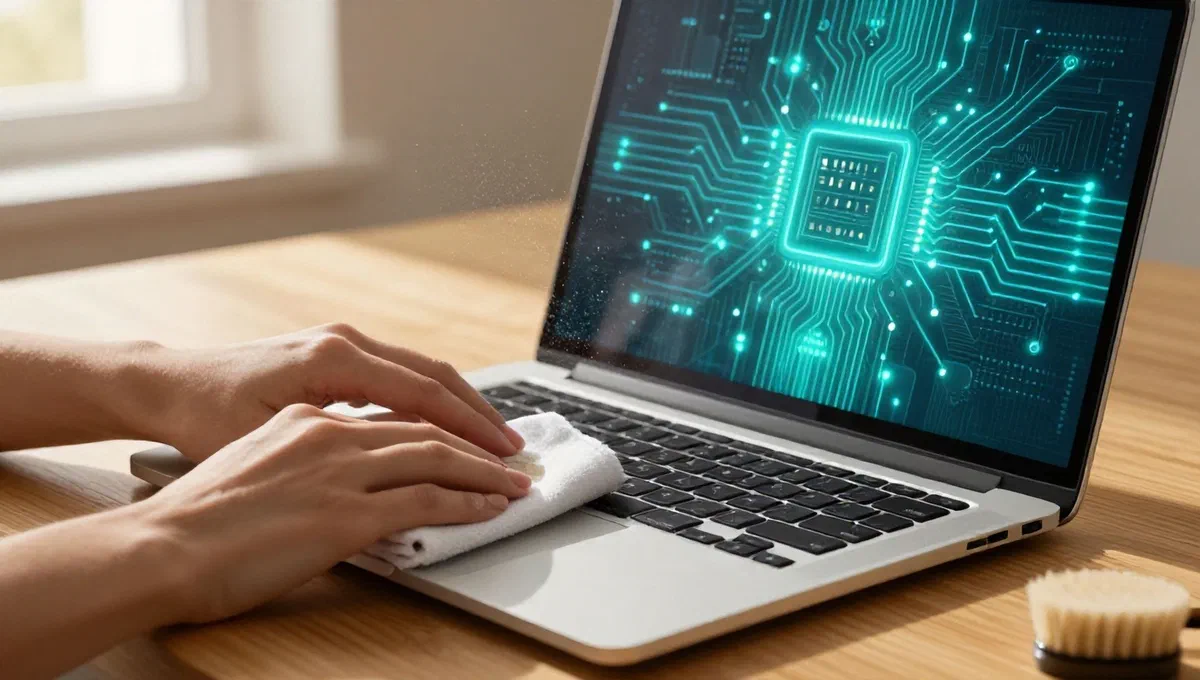
- smooth surfaces:* use the dry cloth to gently clean the entire computer surface, including the screen (with the turned off mac, the stains are more visible), the shell and the base. avoid applying excessive pressure, especially on the display.
- incaves and slots: locate ventilation openings and cracks. use the brush to wipe out the accumulated dust. if available, use the vacuum cleaner with a thin vent to remove residues without leaving traces.
- tastiera:* after removing the surface powder with the cloth, pass the brush between the keys to raise any solid residue. subsequently, lay the detergent gel paste on the keyboard, apply a slight pressure to make it adhere to the interior spaces and then remove it. repeat the operation until the keyboard is clean.
- external peripherals:* do not forget to dust mouse, external keyboards and other peripherals with the same cloth and brush.
Goodbye ditate and dirty stubborn #
The fingerprints and stubborn stains require a slightly different approach. for this stage, get:
- tre microfiber cloths:* one for the display, two for the remaining surfaces.
- ** cold water*** to moisten the cloth.
- specific device for monitor:* delicate, without alcohol or ammonia.
Detailed procedure:
- superfici non-display:* lightly moisten the first cloth with cold water and squeeze it perfectly to eliminate excess. pass it on the computer surfaces with fingerprints or dirt, applying a slight pressure if necessary. be careful not to wet cracks or doors. with the second dry cloth, remove any moisture residue.
- display:* take the third clean cloth. spray a small amount of monitor-specific detergent directly on the cloth*, never on the screen. clean the display with delicate and circular movements without applying pressure. this method ensures deep cleaning without damaging the coating of the display.
Internal optimization: free space and improve performance #
Even if invisible, the digital “sports” can slow down your mac, occupy valuable storage space and, in extreme cases, compromise its security. internal cleaning is a crucial process to keep the system responsive and protected.
Integrated macos tools: smart space management #
Macos offers a suite of integrated tools to help you manage your storage space. it is not necessary to immediately resort to external solutions: often, native features are surprisingly effective.
To access these options, open the system settings (via the Apple] menu or the gear icon in the dock), go to the general section and select space*. here you will find a visual summary of the space occupied on the disk, divided by categories (applications, documents, macos, etc.), with a comfortable legend.
The ********* section is particularly useful, offering quick actions to recover space:
- ** automatic basket emptying:*** set the system to automatically delete the items left in the basket after a certain period.
- optimizing space for movies and tv programs: if you use the tv app, you can configure it to download only the content you have not seen yet, freeing valuable space after viewing.
- ** icloud archives:** you can choose to automatically store the files of the desk and documents folders on icloud, making them available on-demand and freeing space on the local disk.
- elimination of applications not used: the utility will suggest the apps you haven’t used for a long time, allowing you to uninstall them easily.
- development cache and other system files:* it may propose to delete temporary and support files no longer needed, such as xcode caches or other development environments.
By exploring the individual categories of files (clicking on the “i” symbol next to each), you can access more specific operations, such as removing obsolete mail attachments or large files that you no longer need.
Beyond the essential: deep cleansing of files #
Although macos tools are effective, sometimes more targeted intervention is required to eliminate unnecessary and temporary files that escape standard optimization. this is where advanced cleaning and optimization software comes into play.
Unnecessary and duplicate files #
On your mac you accumulate countless files that no longer have any utility: forgotten downloads, obsolete backup files, involuntary duplicates, or large documents you used once. these elements, added, can occupy gigabytes of space. there are ** third-party optimization software**** that thoroughly scan the disk to locate and categorize these files, offering you the ability to safely delete them. these programs usually identify:
- old large files:* documents, videos or archives that have not been opened for a long time.
- duplicates:* identical copies of photos, documents or other files scattered in the system.
- file in the download folder: often forgotten after initial use.
- ** similar images:*** almost identical photos that you may want to delete to save space.
Many of these tools allow a manual review before deletion, but also offer quick cleaning options. always remember that deletion of these files is generally irreversible, so proceed carefully and check carefully what you are about to delete.
Cache and temporary files #
Each application and the same operating system constantly generate temporary files and caches to improve speed and efficiency. however, with time, these “system spacings” can become excessive and counterproductive. let’s talk about:
- system spacing and applications:** temporary files, system logs, browser caches and apps.
- ** mail algats:*** filled attachments remaining on the disk.
- file in the recycle bin:* although you have emptied the basket several times, some residues may persist.
- exterior binaries:* optimised applications for different processor architectures, some of which may not be necessary anymore.
Also in this case, advanced cleaning utility can scan these file categories, quantify the recoverable space and offer you the possibility to delete them. often, these software can also temporarily disable active applications that prevent removal of certain files, ensuring a more complete cleaning. the elimination of these elements not only frees up space, but can also help improve the general reactivity of the system.
Protect your mac: face digital threats #
Macos is renowned for its robustness and integrated security features, such as gatekeeper, which verifies the downloaded apps. this makes the system less vulnerable to malware than others. however, it is not completely immune. threats such as adware, spyware and occasional viruses can still find a way to infiltrate, especially if you download software from untrustworthy sources or neglect system updates.
If you notice abnormal behaviors (unwanted advertising, sudden slowdowns, unauthorized changes to settings), you may have an infection. in these cases, a ** third-party antivirus or anti-malware software** may be a valuable ally. these programs perform in-depth scans of the system, identify threats and guide you in their neutralization, restoring the security and integrity of your data. it is essential to maintain the operating system always updated and not to disable the standard protections, to maximize safety.
Prepare mac for sale: a safe new start #
When you decide to sell your mac, cleaning takes even greater importance. it is not only a question of presenting an aesthetically flawless device, but above all of protecting your privacy and your personal data while guaranteeing an experience of “new beginning” to the future owner.
Protect your data: full initialization #
Before giving up your mac, it is absolutely crucial to ensure that it does not contain any trace of your sensitive data. it is not enough to erase personal files in the basket. you must complete the mac*******, bringing it back to factory settings. this process includes formatting the disk and reinstalling macos, deleting each track of your accounts, documents, applications and settings.
To start, disconnect all memory cards, usb flash drives, external drives or any other storage device that belongs to you and may contain personal data.
The exact procedure to initialize the mac varies slightly depending on the model and version of macos, but generally involves booting in recovery mode and using the disk utility to delete and reinstall the operating system. it is an indispensable step for your safety and that of the new owner.
Delivery and final cleaning #
Once you have completed the reset to factory settings, your mac will restart, and you should see the language choice screen, typical of the first configuration. at this point, you immediately turn off your mac**. in this way, the new owner will be able to perform the initial configuration of macos in total autonomy, customizing the device according to their preferences, as if it had just left the box.
Finally, disconnect any residual external peripherals, such as mouse and keyboard (if not included in the sale), and perform an accurate external physical cleaning of the computer, following the indications given in the first chapter of this guide. a clean and reset mac to factory values is not only more attractive to the buyer, but also testifies your seriousness and care in preparing the device for a new use.
Conclusion #
Taking care of your mac, both externally and internally, is an investment in its longevity and performance. from meticulous removal of dust and fingerprints to intelligent storage space management and digital threat protection, each gesture helps maintain your device efficient, responsive and visibly impeccable. integrating these practices into your maintenance routine will ensure you always have a top user experience and will significantly extend the life of your faithful digital companion.