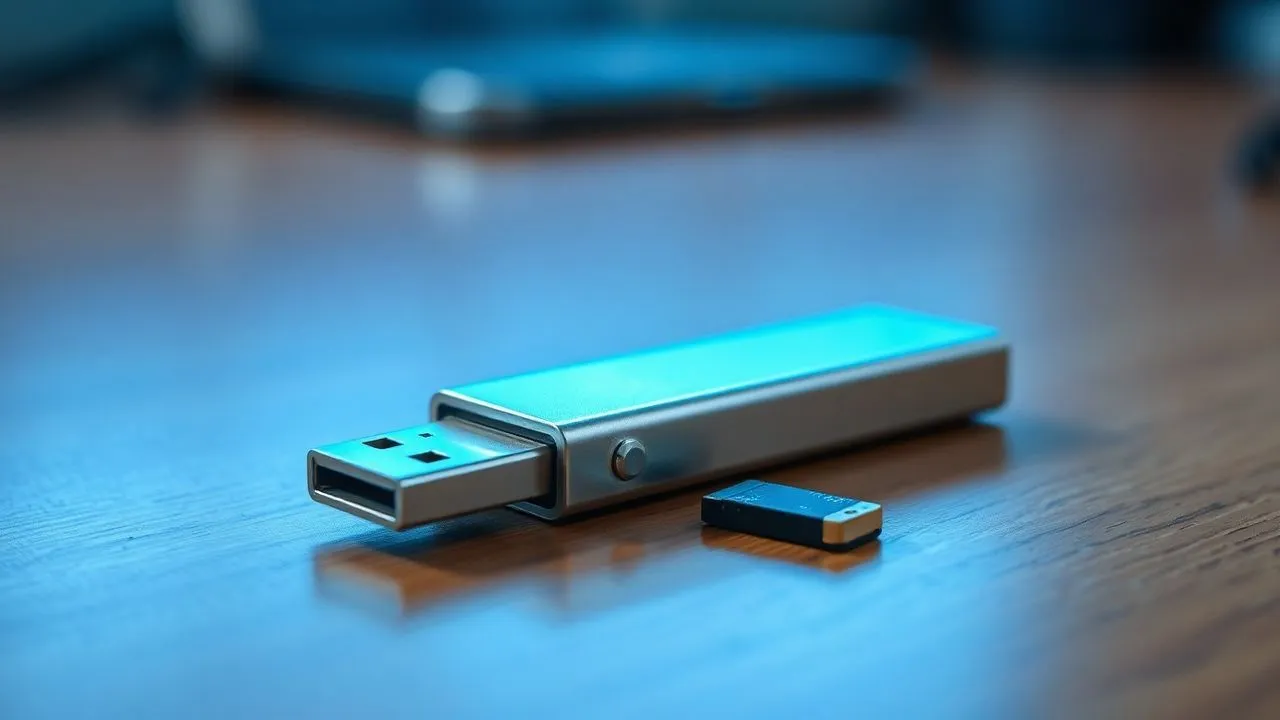
Have you ever tried to connect a USB stick or an external hard drive to your computer and receive the hateful message that indicates that your device is protected from writing? It is one of the most common and frustrating problems for those who work daily with the archiving of digital data, especially when it is urgent to release space or transfer important files. In this comprehensive and thorough guide, updated to the latest technological innovations and the most recent operating systems of 2026, you will learn exactly how to format a disk protected from writing, exceeding every technical obstacle in both Windows and macOS environment. Often, this block is not the signal of irreparable hardware failure, but a simple software security setting or a file system configuration error that can be solved with few targeted steps. Whether you're using Windows 11, the latest versions of macOS or optical media like rewriteable CDs and DVDs, you'll find the ultimate solution in this article. We will explore professional methods ranging from simple physical unlocking of protection switches to advanced use of the System Registry and command-line interface. Do not let a read-only error prevent you from using your precious devices: follow our expert advice to restore the full functionality of your hardware safely, quickly and without encountering unexpected errors during the procedure.
Hardware checks and physical block switches
Physical lever control on SD and pendrive
Before immersing ourselves in the most complex software configurations to understand how to format a writing protected disk, it is essential to exclude the most trivial physical causes. Many removable storage devices, such as SD cards, microSDs (via their adapter) and some specific models of old-fashioned USB flash drives or external hard drives, have a small mechanical switch placed sideways. This component aims to protect data from accidental deletion, physically blocking the memory chip's ability to receive new electrical inputs for writing. If the lever is set to Lock position, the operating system will receive a hardware signal that prevents any change, including full formatting of the drive. Therefore, the first action to be done is visually inspect the perimeter of the device in search of this switch and make sure it is placed towards the open lock icon or towards the Unlock wording. By moving this small lever, you can instantly solve the problem without having to touch a single line of code in your system.
In the technological context of 2026, some high-end hardware manufacturers have introduced bio-mechanical locking systems or touch switches that work similarly. If you have an encrypted storage drive or an external hard drive with advanced protection, check on the manufacturer’s manual if there is a key combination or a necessary physical unlocking procedure before attempting formatting. Many users forget that writing protection is, first of all, a hardware security feature designed to preserve data integrity. Once the switch is in the correct position, try re-enter the device in the USB port or SD slot of your PC. If the error message persists, the block is almost certainly logical or linked to the operating system, which requires a more analytical approach through the disk management utilities integrated in Windows 11 or macOS. Remember that forcing writing on an active physical blocker device is impossible, so this step should never be jumped to avoid unnecessary time losses.
Connector and cable wear status analysis
Another often underestimated hardware cause that prevents you from understanding how to format a writing protected disk is about the integrity of electrical connections. Over time, USB-C connectors or external hard disk inputs can accumulate dust, oxidation or undergo small structural damage that interfere with the correct communication of writing protocols. If the computer does not receive a clean signal from all pins of the connector, it could interpret the connection as unstable and automatically activate a read-only protective mode to avoid file system corruption. To exclude this possibility, try to gently clean contacts with compressed air or a dry microfiber cloth. In addition, if you are using an external hard drive with removable cable, replace the cable with a new and certified high-speed data transfer, ensuring that the connection is secure and free of mechanical games within the door.
There are also situations where the internal disk controller detects an excessive number of bad sectors or a principle of exhaustion of flash memory writing cycles (typical of low quality USB flash drives). In these extreme cases, the device’s firmware autonomously sets the protection from writing as an emergency measure to allow the user to recover existing files before the support becomes completely unreadable. If you notice that the disk is detected correctly but any formatting attempt fails despite physical unlocking, it may be useful to test the drive on another computer or on a different USB port, preferably a back port if you use a desktop PC, to ensure a constant and sufficient power supply. If the problem persists on multiple machines, it is very likely that the hardware controller is damaged, making it necessary to replace the physical support to ensure the security of your future data.
Software Error Management on Windows 11 and later
Check available storage space
It looks like a paradox, but one of the reasons why you might find it difficult to figure out how to format a writing protected disk on Windows 11 is the total exhaustion of the available space on the drive. When a disk reaches zero free space bytes, the file system (especially if NTFS or exFAT) can enter a logical error state where the operating system struggles to initialize the allocation table of the files needed to start the formatting process. To check the status of your disk, open File by clicking on the folder icon in the Taskbar, select This PC from the left column and locate the incriminated drive. Right-clicking on the icon and selecting Properties, you can view a pie chart that indicates the space used and the available. If space is zero, Windows may show a generic error message related to writing protection instead of clearly indicating the lack of space for system temporary operations.
In this scenario, a quick solution is to try to manually delete one or two large files, if possible, or to restart the computer to empty any pendent writing caches that could keep the drive busy. In 2026, modern operating systems are much more efficient in I/O code management, but small bugs in the storage driver can still occur. If classical right-click formatting does not work, try accessing advanced management via the Windows 11 Settings app, navigating to System, then Storage and finally Advanced Storage Settings. Here you will find the Disks and Volumes option, which offers a more modern and powerful interface to manage units that have abnormalities. Often, forcing volume deletion from this interface allows you to overcome the blocks that the traditional File Explorer fails to manage, finally allowing you to format the device and bring it back to the factory state.
Disable read-only mode from disk properties
Sometimes, the block that prevents you from discovering how to format a writing protected disk is simply a software attribute applied to operating system level or single root folder. Windows allows you to set disks in read-only mode for security reasons, especially if they were previously used as recovery disks or installation media. To verify and remove this attribute, right click the drive in File Explorer and select Properties. On the General tab, check below if the Read Sola box is selected; however, this option usually affects the contained files and not the entire volume. For deeper management, you must ensure that the user account you are using has complete script permissions in the Security tab. If your user does not have complete control, Windows will deny any formatting attempt, mistakenly reporting that the disk is protected by writing.
To resolve permission conflicts, click the Advanced button in the Security tab and check who the Owner of the Unit is. If the owner is an unknown user or a residual SID of a previous Windows installation, click Change and enter your current username or Everyone group. Once you have the unit, select the Replace all child object permission entries with inherited permission entries from this object and click OK. This resets permissions on every single logical field of the disk, eliminating any software blocks that prevented formatting. It is a crucial step especially for external hard drives that are frequently moved between different computers with different security configurations, since NTFS permits tend to persist among the various systems creating access conflicts that seem, in the eyes of the less experienced user, of insurmountable hardware failures.
Using the Command Prompt and Diskpart utility
Diskpart execution with administrator privileges
When graphic methods fail, the most powerful solution to learn how to format a writing protected disk resides in the Windows command line interface. The Diskpart tool is a text-based disk partitioning utility that acts at a much lower level than the standard user interface, allowing you to manipulate the disk attributes by ignoring many of the file system security restrictions. To start, click the Start button and type cmd in the search bar. It is essential to right-click the Prompt result of commands and select Run as administrator, since changes to disk partitions require high privileges that a standard user does not possess. Once the black window opens, type the command diskpart and press Enter. You will see the cursor change in DISKPART>, indicating that you are now within the disk management environment and ready to impart direct commands to the hardware.
Using Diskpart requires extreme attention: an incorrect command could lead to accidental deletion of data on disks other than what you intend to format. To proceed safely, type list disk to view all drives connected to the computer. Identify your protected disk by observing the Size column; for example, if you have connected a 32GB stick, look for the disk that shows a similar capacity. Once you have identified the associated number (e.g. Disco 2), type select disk X (replace the X with the correct number) and press Enter. A confirmation message will tell you that the selected disk is now the focus of your operations. At this point, you are ready to analyze and edit attributes that prevent writing, a fundamental step to permanently unlock any unit that seemed irreparably compromised by persistent software errors or incorrect firmware configurations.
Removal of read-only attributes from the selected drive
After selecting the correct disk within Diskpart, the magic command to understand how to format a disk protected by writing is that related to the cleaning of attributes. Type exactly attributes disk clear readonly and press Enter. This command communicates directly with the disk controller and Windows registry to remove any flag that imposes read-only mode to physical or logical support. If the operation succeeds, Diskpart will display the Deleted Disk Attributes message correctly. This means that the software block has been removed and that the operating system now has explicit permission to write data on the device, including creating a new partition table and formatting the desired file system.
Although the attribute has been removed, for total cleaning it is often recommended to execute the command clean, which deletes any partition and formatting information from the disk, reporting it to a non-initialized state. Next, you can proceed to creating a new primary partition by typing create partition primary and finally format it with the command format fs=ntfs quick (or fs=exfat if you want more compatibility with other devices). Once the procedure is finished, type exit to exit Diskpart and close the Command Prompt. If everything has gone according to the plans, your unit will now be visible in File Explorer, completely empty and ready to be used for archiving new files, no more trace of those protection errors that had caused you so many scratches initially.
- Open the Command Prompt as administrator to have full powers on the system.
- Use the list disk command to correctly map the connected drives.
- Run attributes disk clear readonly to force hardware/software unlocking.
- Use the clean command to remove corrupt partitions that cause blocks.
- Always formatted in exFAT if you expect to use the disk on both Windows and Mac.
Advanced Solutions through System Registry
Creation of the StorageDevicePolicies key
If not the use of Diskpart has created the desired effect, it is necessary to intervene directly in the heart of the Windows operating system: the System Registry. In fact, there is a specific key that can force writing protection globally for all USB storage devices connected to the computer, often used in business contexts to prevent data theft. To understand how to format a writing protected disk by acting on the registry, simultaneously press Win+R keys on the keyboard, type regedit in the window that appears and press Enter, confirming the security authorization. Once the Registry Editor opens, use the folder structure on the left to navigate to the following path: HKEYLOCALMACHINESYSTEMCurrentControlSetControl. Here you will need to search for a folder called StorageDevicePolicies. If this key does not exist, you need to create it manually to apply the necessary modification to the unlock.
To create the missing key, right click the Control folder, select New and then Key, assigning the exact name StorageDevicePolicies (Be careful of capital and lack of space). This task instructs Windows to search for specific instructions on managing removable storage devices. Many users get discouraged in the face of these advanced procedures, but following the steps you can solve problems that would otherwise require full formatting of the PC or abandoning the external disk. Intervention on the register is a surgical action that corrects a setting that, by mistake or for the action of a third-party software (such as some antivirus or security programs), could have been modified by preventing the normal operation of your USB media in your daily life.
Change the DWORD WriteProtect value
Once you have selected or created the StorageDevicePolicies folder, move your look to the right panel of the Registry Editor. If inside you find a value called WriteProtect, double-click it. If the panel is empty, right click at any point in the white area, select New and then DWORD (32 bit) value, naming it precisely WriteProtect. This value acts as a binary switch for the system: if the given value is set to 1, the protection from writing is active globally for each external unit; if instead it is set to 0, the protection is disabled. To proceed to your purpose, type 0 in the Value Data field and make sure that the base is set on Hexadecimal or Decimal (for zero does not make a difference), then click OK to confirm the change.
After completing this operation, it is absolutely essential to restart the computer so that Windows will load the new log configurations during the boot phase. After rebooting, reconnect the device and try to format it again following the standard procedure. In many cases, this change acts as a “reset” of local group criteria, allowing you to finally understand how to format a writing protected disk that previously seemed inaccessible. Remember that if you want to reactivate protection for security reasons in the future, just return to this path and change the value from 0 to 1. This flexibility makes the System Registry one of the most versatile tools for solving storage problems in 2026, ensuring the user a total control over the behavior of their hardware to the operating system.
Intervention on the System Registry is a powerful procedure that requires precision. Before making changes, it is always advisable to create a system restore point to ensure maximum safety in case of accidental errors while navigating between HKEY keys.
Unlocking and formatting procedures on macOS
Using Disk Utility for Safe Cancellation
Apple users are not immune to the problem of blocked devices, but the procedures on macOS to understand how to format a writing protected disk are slightly different and often more intuitive thanks to Disk Utility. This application, included in all versions of macOS (including the recent macOS Tahoe 26), manages every aspect of storage. Connect the disk to your Mac, open the Finder and start Disk Utility looking for it in Applications > Utility or Spotlight. Once opened, select the external drive from the left sidebar. If the Initiality button is grey or if the operation fails with a read-only error, the first attempt to do is click on the S.O.S. key (First Aid). This utility will scan the file system for errors and try to repair them automatically, often removing the blocks caused by unsafe removal of the device.
If the S.O.S. do not solve, proceed by clicking Initilizza. In the opening window, you will have the option to choose the Name, the Format (such as APFS for optimal performance on Mac or exFAT for universal compatibility) and the Partition Scheme (usually GUID partition map). If standard formatting continues to give error, click the Security Options button. Here you can drag the cursor to the right to perform a lower-level formatting deeper, which writes zeros on the entire surface of the disk. Although this operation takes a lot more time, it is extremely effective to overcome persistent logical blocks that prevent normal data writing. Once you set everything, click Start and wait until the progress bar reaches the end: your disk should now be free from any restriction and ready to use on any computer.
Terminal controls to force the disassembly of the disk
In some rare cases, macOS may refuse to format a disk because a background process keeps it busy or “blocked” in read-only mode. To solve this situation and understand how to format a disk protected from writing on Mac, you need to resort to the Terminal. Open the Terminal and type the command diskutil list to obtain the list of all connected units and their identifiers, such as /dev/disk4. Once you have correctly identified your key or hard disk, you need to force the volume disassembly so that the operating system will release any control over it. Type the command diskutil unmountDisk force /dev/diskX (replace the X with the number of your unit) and press Enter. If required, enter your administrator account password.
Once you disassemble the disk, you can try to initialize it directly from the command line, bypassing the graphic restrictions. The command is as follows: diskutil eraseDisk ExFAT NOME_DISCO /dev/diskX. This command instructs your Mac to format the entire physical support using the exFAT file system and assigning the name chosen, ignoring any software protection flags that may have blocked Disk Utility. This procedure is particularly useful when dealing with disks that have previously been used in different operating systems or having corrupt partition tables. If the Terminal also returns a hardware error (such as “Input/Output error”), unfortunately the chances that the disk is physically damaged increase significantly, suggesting that it is time to consider buying a new storage media.
- Open Disk Utility and select the drive in the left sidebar.
- Run the S.O.S. to repair any logical file system errors.
- If it fails, use the Terminal with the unmountDisk force diskutil command.
- Format via command with diskutil eraseDisk to force rewriting.
Optical media formatting and hardware troubleshooting
Windows Procedures for RW optical media
If your problem is about how to format a writing protected disk and refer to optical media like a CD-RW or DVD-RW, the situation is slightly different than flash memory or magnetic disks. Rewriteable optical media can be formatted and reused hundreds of times, but often the burning software or Windows itself can consider them “finalized” (closed to writing) if the multi-session mode has not been used. To format them on Windows 11, enter the disk in the burner, open this PC and right click on the optical drive icon. Select the Format option or, if available, Delete rewriteable disk. In this phase it is essential to choose the correct file system, usually UDF (Universal Disk Format), which allows you to use the disk as if it were a common USB stick, dragging the files directly into it.
If the formatting option did not appear, you may need to use a third-party software dedicated to burning, such as ImgBurn or similar programs updated to 2026. These tools offer functions of “Full Erase” that perform a complete deletion of photosensitive dyes of the disc, bringing it back to the virgin state. However, always make sure the disk is actually a RW (Re-Writable) model and not a simple R (Recordable). A common error is to try to format a DVD-R or CD-R that has already been written: in this case, the protection from writing is a physical and chemical feature of the disk material, which can not be reversed in any way. If the support is deeply scratched or has signs of deterioration of the reflective layer, the burner may not be able to calibrate the laser for deletion, returning an error of writing protection that actually masks a hardware failure.
Management of optical disks on modern macOS systems
On macOS, rewriteable CD and DVD management is integrated into Finder and Disk Utility, although many modern Macs require an external burner connected via USB-C. To figure out how to format an optical type writing protected disk on Mac, enter the support and wait for the icon to appear on the desktop. Right-click the icon and choose the Delete disc option rewriteable from the context menu. If the icon does not appear or if the option is absent, open Disk Utility, select the external burner and click the Start or Delete button. macOS manages the burn and deletion in a very linear way, but is sensitive to the quality of the support and power of the external burner: make sure that the latter is connected directly to the Mac and not through a USB hub not powered, to avoid voltage drops during the delicate phase of laser erasure.
In case Disk Utility fails to proceed, you can try the free Burn application, very popular among Mac users for its simplicity and power. It allows you to force the deletion of RW disks that the Finder does not recognize correctly. If in spite of all these efforts the disk is still protected by writing, try to clean the surface with a soft cloth starting from the center to the edges. Circular scratches or fingerprint accumulations can prevent the laser from reading disk control information, leading the system to block any writing operation for security. If the problem persists with different new discs, it may be the optical of the burner to be dirty or exhausted, requiring the use of a specific cleaning disk or the replacement of the device itself to return to burn properly in 2026.
Frequently asked questions
What exactly does writing protected disc mean?
The writing protected disk error message indicates that the storage media (USB key, SD card or Hard Disk) is in a read-only mode (Read-Only). In this state, the operating system can read and copy the files present on the disk, but cannot add new ones, edit them or delete them. This block can be hardware type, such as a physical switch on your device, or software type, caused by system registry settings, denied security permissions or file system corruption. Solving this problem usually requires using advanced tools such as Diskpart on Windows or Disk Utility on macOS.
Can I recover data from a disk protected from writing before formatting it?
Absolutely. As the disk in read-only mode, the existing data does not take immediate risks of deletion during the consultation phase. It is strongly recommended to connect the device and copy all important files to another secure drive before attempting any unlocking or formatting procedure. Since formatting will permanently erase every bit of information on the support, the preventive backup is the most critical step of the whole procedure. If the disk is readable, take advantage immediately to save your documents, photos and videos before proceeding with the repair tools.
Why does the Diskpart command not work on my USB stick?
If the Diskpart command fails to remove the protection from writing, the causes can be two. The first is a hardware failure of the key controller: when flash memory reaches the end of its useful life or detects critical errors, it enters permanently in read-only mode to protect data, and no software command can reverse this physical state. The second cause is the absence of administrator privileges when you started the Command Prompt. Always make sure you run the CMD with maximum powers, otherwise the commands sent to Diskpart will be ignored by the Windows kernel for security reasons.
Are there free software to unlock protected disks?
In addition to integrated tools in Windows and macOS such as Diskpart and Disk Utility, there are several trusted third-party utilities. Programs such as HDD Low Level Format Tool or manufacturer specific software (such as Kingston, SanDisk or Samsung) offer advanced restore functions. These tools are designed to communicate directly with the device firmware and can sometimes overcome blocks that the operating system tools fail to manage. However, it is always good to download these programs only from official manufacturers sites to avoid the risk of malware or further damage to the file system.
Can writing protection be caused by a virus?
Yeah, it's a real possibility. Some types of malware or ransomware may change the registry keys or change the file and drive attributes to prevent you from deleting infected files or formatting the drive to clean it. If you suspect that the problem is viral, we recommend that you perform a full disk scan with an updated antivirus before proceeding. In many cases, once the malicious software is removed, the protection from writing disappears and the disk returns to be fully operational and formattable through the standard procedures described in this guide.
In conclusion, we have explored every possible way to understand how to format a disk protected from writing in 2026, starting from simple hardware checks to advanced interventions in the Windows registry and the macOS terminal. Dealing with this problem requires patience and a methodical approach, but in the vast majority of cases the solution is at your fingertips. Always remember to prioritize the security of your data by making regular backups and never force components physically. If after following all the steps the disk is still blocked, it is likely that physical wear had the best, making a replacement necessary. For further information on the best current storage units or other technical guides, continue to explore our updated content to keep up with technological evolution!


