In the technological landscape of 2026, wireless connectivity has become an indispensable standard, yet many users still wonder how to know if the fixed PC has WiFi after purchasing a new workstation or a regenerated computer. Unlike notebooks, which have been integrating wireless modules for decades, desktop computers can vary enormously in their hardware equipment: some are born with advanced motherboards equipped with integrated antennas, others rely exclusively on the Ethernet port to ensure maximum network stability. Understanding whether your system is ready for wireless connection is not just a technical curiosity, but a practical need for those who want to eliminate the cable footprint or place the computer in a room without dedicated network outlets. In this comprehensive and exhaustive guide, we will explore every corner of your operating system and physical homes to identify the presence of a wireless module, analyzing the differences between the various generations of technologies, from WiFi 6E to modern WiFi 7. You will learn to distinguish between a deactivated network card and a totally absent, using integrated diagnostic tools in Windows and macOS, with an eye on solving common driver issues and hardware configuration.
Physical examination of the computer and external components
Visual analysis of the case and back panel
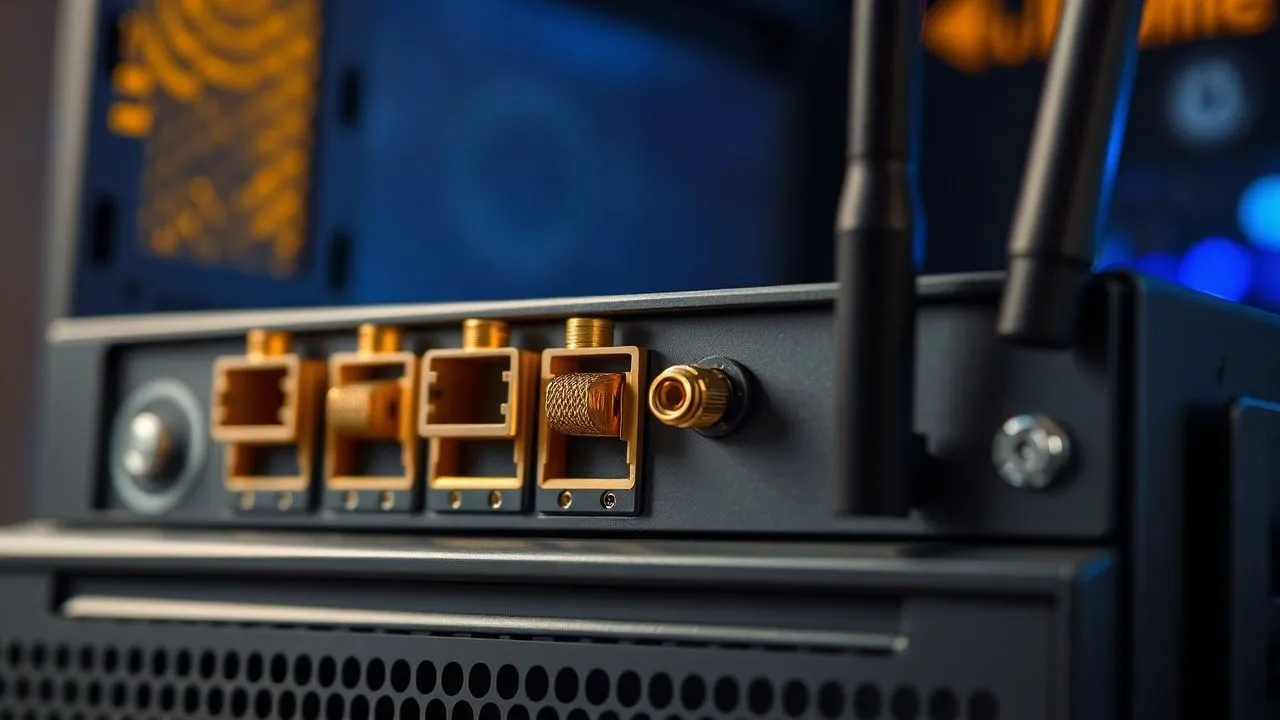
The first fundamental step to understand if your desktop computer is equipped with a wireless network card consists of an accurate visual analysis of the back panel of the case. Looking where USB ports and power are connected, look for golden or silvery screw-shaped connectors, technically called SMA connectors. These small cylindrical pins are the unequivocal signal that your motherboard has an integrated WiFi module or that a dedicated network card has been installed on an internal PCIe slot. Often, these connectors require external antennas to function properly; if you see connectors but not antennas, it is likely that the signal is extremely weak or absent. In some modern pre-assembled PC models of 2026, antennas could be integrated into the plastic shell or hidden behind the front panel, making visual identification slightly more complex, but the presence of threaded holes in the I/O Shield area remains the most reliable physical test for the common user.
In addition to fixed connectors, it is important to inspect all available USB ports, both front and back of the computer. Many users choose to add wireless connectivity via a small uSB WiFi adapter, commonly known as “dongle” or wireless flash drive. These devices can be incredibly compact, protruding only a few millimeters from the door, or they can present a small adjustable antenna. If you find a plastic object inserted in a USB port that does not belong to a mouse or wireless keyboard, it is very likely that it is your network interface. Check if there is a wireless signal symbol on the device’s body or as “AC1200”, “AX3000” or the latest WiFi 7 nomenclatures. This preliminary inspection will save you a lot of time, confirming immediately if the hardware is physically present before you turn on the monitor and interact with the operating system.
Technical and specific documentation of the motherboard
If visual inspection did not lead to certain results, another excellent method for check computer hardware is consult the manufacturer's official documentation or the motherboard technical sheet. Each hardware component has a unique code or model name that can be searched online. If you have assembled your PC yourself, the motherboard box will clearly indicate the word “WiFi” or “Wireless” in the product name (for example, “ASUS ROG Strix Z790-E Gaming WiFi”). For pre-assembled computers of famous brands such as Dell, HP or Lenovo, you can find an adhesive label on the case that reports the serial number or Service Tag. By entering this code on the manufacturer's official support site, you can access the original configuration of the machine and find out if the wireless module was part of the factory equipment, saving you unnecessary research within the software menu if the piece was physically missing.
In the current technological context, it is useful to remember that not all motherboards with wireless support declare it in a striking manner. Some professional workstations use internal M.2 modules located under metal heat sinks that completely hide the hardware to the view. In these cases, the only way to be sure of the hardware is to read the user manual in PDF format downloadable from the brand’s website. Remember that in 2026, the distinction between the various versions of WiFi is crucial: a motherboard could support WiFi 6 but not the 6GHz frequencies of WiFi 6E or 7, drastically affecting the performance of your wireless connectivity. Therefore, the search for specifications does not only serve to know “if” the WiFi is present, but also “any” type of technology you have available to optimize your home or business network.
- Check the presence of gold threaded connectors on the back of the PC.
- Search for small USB adapters inserted in free ports.
- Recovers the serial number of your PC for a search on the manufacturer's website.
- Check the presence of external antennas in the accessory box.
- Search for WiFi 6, 6E or WiFi 7 logos on your computer's shell.
Check Windows software through the user interface
Using Windows 11 Quick Settings
For those who use Windows 11 in 2026, the most immediate method to understand if the system recognizes a wireless card is the use of the fast settings area. Clicking on the system icons area at the bottom right (where the volume and battery indicator usually appear), a panel containing different switches will open. If you see a button with the radio wave icon called “Wi-Fi”, you have the definitive proof that your computer has a properly installed compatible adapter. If the icon is gray or turned off, it means that the module is present but disabled; by clicking on it, the system will start scanning the available networks nearby. This passage is fundamental because often wireless connectivity is disabled for energy saving or for interference with the Ethernet wired connection, leading the user to mistakenly believe that the component is completely absent.
In case the icon is not visible between the quick settings, it is not necessary to disperse immediately. By clicking the pencil icon (“Edit Quick Settings”), you can check if the Wi-Fi button was simply removed from the main view. Adding it manually, you can test the functionality. If even after this attempt the option does not appear, it is a strong signal that the operating system fails to communicate with wireless hardware. This can happen for three main reasons: the adapter is broken, is not inserted correctly in the slot, or are missing network card driver necessary for Windows to interpret the electrical signals from the module. At this stage, software diagnostics moves towards deeper and more administrative tools, which allow you to directly question the operating system kernel to obtain definitive answers on the status of connected peripherals.
In-depth control through the Control Panel
Despite the evolution of the Windows interface, the classic Control Panel remains an irreplaceable tool for precise diagnostics. To access it, you can type “ncpa.cpl” in the Run function (Windows + R) and press Enter. This shortcut will take you directly to the “Network Connections” window, where all the physical and virtual interfaces present on your computer are listed. In this list, look for a voice called “Wi-Fi” or “Wireless Network Connection”. If the icon is present but has a red “X”, it means that the card works but is not connected to any network. If the icon is gray with the word “Disabled”, you will need to right-click it and select “Enable” to reactivate it. This screen is particularly useful because it also shows the commercial name of the wireless chip (for example, Intel Wi-Fi 7 BE200), providing valuable technical details for the search for updated drivers.
If only the “Ethernet” or “Bluetooth” icon appears in the network connection window, it is very likely that the WiFi card is not detected by the system or is not present. However, there is a special situation: sometimes Bluetooth works while WiFi does not, despite being part of the same hardware module. This happens because the two protocols use different communication buses (usually USB for Bluetooth and PCIe for WiFi). Analyzing this screen allows you to exclude bugs from the modern Windows interface and act directly on the low-level network configuration. Remember that in 2026, network management has become more complex with the introduction of advanced security protocols such as WPA3, so make sure that your card is also enabled at the level of security protocols to avoid authentication errors that might seem hardware failures.
- Press the Windows button on the keyboard and write "Network Status".
- Select "Network and Internet settings" from the results.
- Look for the Wi-Fi section in the side or central menu.
- Check if the switch is set to "Activated".
- Check if the list "Show available networks" populates correctly.
Technical analysis through Windows Device Management
Detection of hidden hardware peripherals
When visual methods and rapid settings fail, the supreme authority within Windows is the Manage Devices. To open it, right click the Start button and select the corresponding item. This tool lists every single hardware component that the processor is able to see. Expand the category “Network card” by clicking on the side dart. Here you should find a list of devices that include Ethernet controllers, virtual interfaces and, if present, the wireless adapter. Search for names containing keywords “Wireless”, “802.11”, “Wi-Fi” or “Dual Band”. If the device appears in the list without error symbols, your computer physically has WiFi and the system recognizes it correctly. If you don’t see anything like this, try clicking on the “Action” menu at the top and select “Delete hardware changes” to force a new PCIe bus scan cycle.
In some complex scenarios, the wireless card may appear under the category “Other devices” with a generic name like “Network controller” and an icon characterized by a yellow triangle with an exclamation point. This indicates that how to know if the fixed PC has WiFi has had positive response (the hardware is there), but Windows does not know how to use it because it did not find a compatible driver in its internal database. This situation is common with the latest generation network cards or with very cheap USB adapters that require specific manufacturer software. Identifying the hardware in this state is a fundamental step: it means you don’t have to buy new hardware, but simply connect temporarily via Ethernet cable or use another computer to download the necessary drivers from the manufacturer’s official website (such as Intel, Realtek or Broadcom).
Driver management and device status
Once you locate the wireless card in Device Manager, it is essential to verify its operating status. Double-click the name of the tab to open the property window. In the “General” tab, read the “Station Device” pane. If you see the word “The device works properly”, then the problem of the lack of WiFi is purely software or related to an incorrect network configuration. If you read error codes like “Code 10” or “Code 43”, it means that there is a hardware conflict or a power problem. In 2026, with the spread of energy-saving PCs, it is also possible that the system has disabled the card to save current; check the “Energy Saving” tab (if present) and make sure that the option “Consent to the computer to turn off the device to save energy” is unchecked.
For those who want to deepen, the tab “Avanzate” inside the property offers an overview of the technological capabilities of the module. Here you can see if the card supports the 5GHz band or the most modern at 6GHz, and if it is configured to use the widest channels offered by WiFi 7. If you notice that the card is set to obsolete mode (such as only 802.11b/g), you may encounter connection problems with modern routers. Update the network card driver directly from this interface you can click on the “Driver” tab and then on “Update driver”, but it is always preferable to manually download the package from the chip manufacturer site to ensure maximum stability and access to all the latest security features, fundamental to protect your data during wireless navigation.
The absence of a device in Device Manager usually indicates a physical lack of hardware or an electrical failure of the PCIe slot, while a yellow triangle error almost always suggests a problem solved through software and drivers.
How to control the presence of WiFi on Apple Mac systems
Check through the MacOS Control Center
Unlike the PC world, where hardware variety is immense, Apple systems like iMac, Mac mini and Mac Studio almost always have wireless connectivity integrated series. However, to be sure that the WiFi module works correctly on the latest version of macOS of 2026, the first point of reference is the Control Center, located in the menu bar at the top right (the icon with two stylized switches). Clicking on it, you will immediately see the Wi-Fi icon. If the icon is blue, the WiFi is active and working; if it is transparent or grey, it is switched off. Clicking on the icon itself will open a list of available networks. If you do not see the Wi-Fi icon in the Control Center, you may have to rehabilitate it from System Settings, but it is a rare case since Apple tends to keep these options always visible by default.
In macOS, WiFi management is extremely integrated into the ecosystem. If you own a latest-generation Mac Studio or Mac Pro, WiFi is not only for the internet, but it is essential for functions like AirDrop, Universal Control and unlock it via Apple Watch. If these functions do not work, it may be the first signal of a problem to the wireless module. In the “System Settings”, under the heading “Networks”, you can view the status of all network services. WiFi should appear on top of the list with a green ball next door. If you see a red ball or if the WiFi item is missing entirely from the left column, it means that the operating system is not detecting the internal hardware, which could indicate a physical failure or the need for a deep system restoration, more complex procedure than the Windows world given the closed nature of Apple hardware.
Consultation of the Professional System Report
To obtain a definitive technical confirmation on how to know if your Mac has WiFi, it is necessary to consult the “System Report”. Press the Option (Alt) button on the keyboard and click on the Apple menu ( di) on the top left, then select “System Information”. In the window that opens, look for the “Network” section in the side column and select the “Wi-Fi” item. Here you will find an incredible detail of information: the type of card installed, firmware versions, MAC address and, above all, supported protocols (such as 802.11ax or 802.11be). If this section appears empty or reports “No Wi-Fi hardware found”, then your Mac has a serious hardware problem, since there are no modern Mac desktops without this feature from the factory.
This screen is also useful for diagnosing interference or performance issues. You can see which channel you are connected to and what is the current transmission speed (Tx Rate). In 2026, with networks that easily exceed the gigabit per second, verify that your Mac is actually using 6GHz bands (if supported) it is essential not to create bottlenecks during heavy file transfer or video installation on wireless NAS servers. If you notice that the interfaces listed do not include standard terms, you may face a software problem solved with a macOS update or, in models with Intel processor still in circulation, with the reset of NVRAM or SMC. For Macs with Apple Silicon chips (M series), management is automated, but the System Resocon remains the nine test for each professional diagnosis.
- Open the Apple menu and select Information on this Mac.
- Click on System Report for technical details.
- Navigate to the Network section > Wi-Fi.
- Check the presence of nominated interfaces en0 or en1.
- Check 2.4GHz, 5GHz and 6GHz frequency support.
Problem diagnostics and connectivity recovery
Resolution of common connectivity issues
If after confirming that your computer has a wireless network card however, you cannot navigate, the problem may be in the software configuration or router. The first action to be done is to use the built-in troubleshooting tool in Windows. Go to Settings > System > Troubleshooting > Other troubleshooting tools and start the “Internet Connections” or “Networkcards”. This automated process resets the TCP/IP stack, emptys the DNS cache and checks if there are IP address conflicts that prevent navigation. Often, a simple Windows update of 2026 can accidentally corrupt the registry keys dedicated to the network, and this wizard is able to repair them in a few minutes without requiring advanced technical skills from the user.
Another frequent cause of malfunction, especially in fixed PCs, is poor signal reception. Since the case of a desktop computer is almost entirely metallic, it acts as a Faraday cage, blocking radio waves. If your antennas are placed on the back and the PC is recessed under a desk or against a wall, the quality of the wireless connectivity it'll be bad. Try repositioning the antennas or buying them with extension cable, which allow you to place the receivers over the desk. Also, check that there are no interference from Bluetooth devices or microwave ovens, which operate on the 2.4GHz frequency. Switching to the 5GHz or 6GHz band via the router settings can instantly solve problems of slowness or frequent disconnections that seemed initially attributable to a computer hardware failure.
Restore network services and driver management
If the WiFi card appears but does not show any network available, there may be a problem with the Windows service “Windows Automatic Configuration”. Press Windows + R, type “services.msc” and search for the service in the list. Make sure the status is “In execution” and that the boot type is set to “Automatic”. If the service is still, the PC will never actively look for wireless access points, regardless of the quality of the hardware installed. This type of software block sometimes happens after the use of third-party software for system optimization or privacy, which disable services considered not essential to save resources, forgetting that WiFi is now fundamental for most daily activities.
If everything else fails, complete uninstallation of network card driver is the latest software beach. From Device Manager, right-click the adapter and select “Uninstall device”, taking care to check the “Tent to remove the driver for the device”. After restarting, Windows will try to reinstall a clean and generic version of the driver. This operation cleans any corrupt configuration files or incorrect settings stored in the system. If the situation doesn't change, you might find yourself facing a power problem on the motherboard or a loose M.2 module. In a fixed PC, open the case to make sure the card is well inserted in the slot is a simple procedure that can save the cost of a professional repair or purchase not necessary of a new USB adapter.
Hardware solutions to add WiFi to a fixed PC
Benefits of PCIe WiFi 7 cards
If you have discovered that your computer does not have wireless hardware or that existing hardware is obsolete, the best solution for performance and stability is the installation of an internal PCIe card. In 2026, the move to WiFi 7 is the most forward-looking choice, offering multi-gigabit speed and reduced latency almost to the level of a wired connection. These cards fit into a free slot on the motherboard and usually include support to the latest Bluetooth standard. The main advantage of a PCIe solution compared to a USB lies in the heat management and signal stability: the internal cards have larger and more powerful external antennas, and do not suffer from the typical power limits of the USB bus, guaranteeing a wireless connectivity solid even during intense loads such as online gaming or downloading massive files.
The installation of a PCIe card requires you to open the PC case, but it is an operation within reach of all. Simply remove one of the metal plaques on the back, insert the card into the slot (usually a x1 or x16) and screw the antennas. Many of these cards also require connecting a small cable to an internal USB header of the motherboard to enable Bluetooth functions. This hardware combination offers the best possible experience on a fixed PC, since it frees external USB ports for other peripherals and provides a direct connection to the processor. Moreover, being modular components, you can easily replace the card in the future when new technological standards are released, keeping your desktop computer always updated with the latest developments in the wireless network.
Simplicity of modern wireless USB adapters
For those who do not want to open the computer or use compact systems with little internal space, theuSB WiFi adapter represents the most practical and fast solution. Modern 2026 USB flash drives have made giant steps: “Nano” models are almost invisible and ideal for a clean office, while high-gain models with adjustable antennas can compete with internal cards in terms of signal flow. The main benefit is portability: you can move the adapter from one PC to another in seconds, and the installation is usually plug-and-play on Windows 11 and later. It is the ideal choice for those who need an immediate solution and do not want technical complications related to internal hardware installation.
However, when buying a USB adapter, it is essential to pay attention to the version of the PC ports. To take full advantage of a WiFi 6 or WiFi 7 adapter, you need to connect it to a USB 3.0 or higher port (usually blue or red). Connecting a powerful modern adapter to an old USB 2.0 port would create a bottleneck, drastically limiting the speed of navigation regardless of the quality of your router. Although less stable than PCIe solutions for extreme usage sessions, high-quality USB adapters are now reliable and sufficiently powerful for 8K streaming, high-definition video calls, and daily work, making the how to know if the fixed PC has WiFi a problem of the past with a contained expense and a minimum commitment.
- Choose from internal PCIe card or external USB adapter.
- Check compatibility with WiFi 6E or WiFi 7.
- Make sure the adapter includes drivers for your Windows or macOS version.
- Check the presence of adjustable antennas for better reception.
- Connect the device to a fast USB port to avoid slowdowns.
Frequently asked questions
Can I add WiFi to an old PC that is free?
Absolutely. Adding WiFi to an old desktop computer is one of the easiest and cheapest upgrade operations. The quickest solution is to purchase a USB adapter, which is installed in seconds. If your PC has free internal slots, a PCIe card provides better performance. In 2026, make sure you choose a device that supports at least WiFi 6 to ensure compatibility with modern routers and network security tailored to current standards.
Why does my fixed PC not see any WiFi network?
If the hardware is present but there are no networks, the causes can be multiple. Check first of all that antennas are screwed correctly on the back of the case; without them, the card does not receive signal over a few centimeters. Then check if the air mode is active on Windows. If the problem persists, you may need to update the drivers or restart the WLAN configuration service. Finally, try changing the radio channel on your router, as local interference may obscure the signal.
Better Ethernet cable or WiFi for a fixed computer?
The Ethernet cable remains the top choice for stability, latency and pure speed, especially for gaming or work on professional servers. However, with the advent of WiFi 7 in 2026, the performance difference was drastically reduced. WiFi offers greater flexibility in the positioning of the PC without having to pierce walls or spread unsightly cables. The choice depends on your needs: if you are looking for absolute perfection use the cable, otherwise a good modern wireless system will be more than enough.
How do I understand if my WiFi card supports 5GHz or 6GHz?
To verify it on Windows, go to Device Manager, right click on your network card and select Properties, then Advanced. Look for the item “Wireless Mode” or “Banda”. If you see references to 802.11ac, support 5GHz; if you see 802.11ax, support WiFi 6/6E (6GHz); if you see 802.11be, you have a WiFi 7 card. Consult the site of the chip manufacturer with the exact name of the model remains the most accurate method to know the technical specifications.
Is the built-in WiFi card better than the USB card?
In general, yes. Integrated cards or PCIe have direct access to the system bus, larger antennas and better thermal management. This results in a more stable connection under prolonged load. However, USB solutions are extremely comfortable and, in high-end models, offer very close performance to internal counterparts. The choice depends on your will to open the computer and the need to release external USB ports for other uses.
In conclusion, determine how to know if the fixed PC has WiFi requires a methodical approach that starts from the physical analysis of the hardware to reach the deepest settings of the operating system. Whether it's a Windows computer or a Mac, diagnostic tools available in 2026 make this operation accessible to anyone, allowing you to easily distinguish between a lack of components, obsolete drivers or simple configuration errors. Remember that wireless connectivity is a vital element of modern productivity and that, even if your PC is unproven, there are economic and effective solutions to update it in a few minutes. Do not allow a missing cable to limit your digital freedom: check your hardware today and, if necessary, make that small investment that will transform your everyday experience. If you still have doubts about the configuration, consult the official guides of manufacturers or contact an expert technician to optimize your wireless home network.


