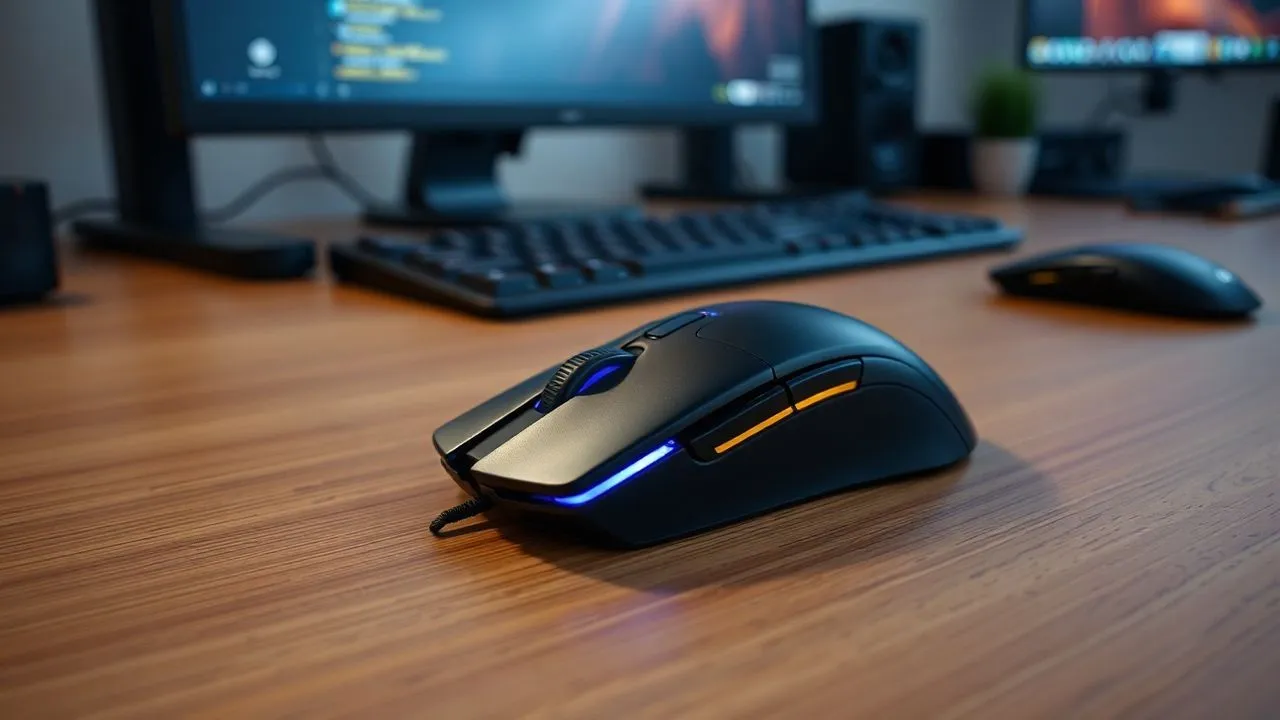
In the technological landscape of 2026, although tactile interfaces and voice commands have made giant steps, the mouse remains the key tool for productivity and gaming. Knowing how to connect the mouse to the PC is a basic but essential competence for anyone who wants to interact with a computer precisely and efficiently. Whether you have just purchased a modern Bluetooth ergonomic mouse or you are trying to reuse a classic USB cable model, the configuration procedure can vary significantly depending on the operating system and transmission technology used. In this updated guide, we will explore every possible scenario, from the simplest plug-and-play connections to the most advanced configurations that require the installation of specific drivers or the use of adapters for USB-C ports, now become the universal standard. No matter if you use Windows 11, macOS or a legacy system: you will learn how to manage each pointing device with extreme naturalness. Prepare to find out how to optimize your workspace by eliminating unnecessary cables or ensuring maximum responsiveness through a stable wired connection, analyzing in detail the differences between the various wireless communication protocols and physical doors present on modern homes and the latest ultra-thin notebooks.
Use Bluetooth technology for a desk without cables
Starting configuration on Windows 11 and modern versions
To connect a Bluetooth mouse to a Windows 11 computer, the first operation is to ensure that the PC radio module is active. By browsing the system settings, accessible via the Start button or the combination of Windows+I keys, you need to select the dedicated section on your devices and Bluetooth. Once inside, move the lever to Activated and prepare the mouse for mating. Most modern devices have a physical button, often located at the bottom, which must be pressed for a few seconds until a LED starts flashing rhythmically. This signal indicates that the mouse is in detection mode and can be seen from other devices nearby. At this point, click Add Device in the Windows menu and select the Bluetooth category: your mouse name will appear in a few moments in the list of available results.
After selecting the device name, the operating system will automatically complete the installation of the generic drivers needed for basic operation. It is interesting to note that in 2026 Microsoft’s Swift Pair technology has become extremely refined, allowing you to connect your mouse simply by approaching the computer, with the appearance of a pop-up notification that requires user confirmation without having to dig in the menus. Once the connection is established, you can see how the cursor responds promptly to your movements. Remember that the Bluetooth connection is subject to energy saving: if you do not use the mouse for a prolonged period, this may enter suspension mode and require a small click or movement to wake up and reconnect instantly to the system, thus ensuring a battery life that can exceed twelve months with a standard use in the office.
Troubleshooting and Adapters for Desktop PC
Not all desktop computers, especially those assembled or dated, have a motherboard with integrated Bluetooth. In these cases, the ideal solution is to purchase a small Bluetooth USB adapter, also known as dongle. In 2026, Bluetooth 5.3 and 5.4 standards offer exceptional stability and reduced latency, making them perfect for intense work sessions. Once you insert the adapter into a free USB port, Windows will automatically recognize it, allowing you to follow the matching procedure described above. It is essential to place the dongle in a door that is not overly screened from the metal case of the PC, preferring front doors if available, to avoid interference that could cause shots or slowdowns of the cursor during daily use, especially if there are other wireless devices or Wi-Fi routers on the desk.
If the mouse is not detected, it always checks the battery status or the internal charge level if it is a USB-C rechargeable model. Another common obstacle is the limit of connected devices simultaneously; although modern Bluetooth supports multiple connections, saturating the module with headphones, keyboards and mouse could degrade performance. If you experience instability, try to remove unused devices from the Settings menu and repeat the association from scratch. Also, make sure that the mouse is not already connected to another device, such as a tablet or smartphone, since many recent models support multi-pairing and could attempt to connect priority to the last active source, ignoring the request for matching your main PC until the manual pairing mode is forced through the dedicated key.
Connect wireless mouse with radio frequency USB receiver
2.4 GHz Plug and Play protocol
Wireless mice using a radio frequency receiver (RF) are still one of the most popular choices for their ease of use and the absence of perceived delays. This technology usually uses 2.4 GHz bandwidth and requires no complex software configuration. To start, simply extract the small USB receiver, often placed in a compartment inside the mouse itself to avoid losing it during transport, and insert it into a USB-A port of the computer. The operating system will immediately identify the device as a HID (Human Interface Device) device and load the standard drivers in seconds. After switching on the mouse via the On/Off switch, the communication between the two components will happen instantly thanks to a factory mating that makes the kit ready for use as soon as extracted from the package.
A significant advantage of this connection is its independence from the Bluetooth stack of the operating system. This means that the mouse will work perfectly even within the computer BIOS or during the installation phases of a new operating system, times when the Bluetooth drivers have not yet been loaded into memory. If you use a modern notebook with USB-C ports only, you will need to use a small adapter or a multiport hub to connect the traditional receiver. However, many leading manufacturers in the field of peripherals have started distributing native USB-C receivers, extremely compact and designed precisely not to protrude from the sides of thinner laptops, keeping unchanged the practicality and transmission speed that characterizes this technology tested over time.
Interference management and signal flow
Despite extreme reliability, the 2.4 GHz connection can sometimes suffer from interference caused by other electronic devices present in the home or working environment. Microwave ovens, Wi-Fi routers and even some poorly shielded monitors can cause disturbances that lead to a pointer that moves at shots or stops responding suddenly. To mitigate these problems, it is advisable to place the receiver in a visual line as free as possible compared to the mouse. If the PC is placed under the desk, the use of a small USB extension to bring the receiver to the worktop can make a huge difference in terms of fluidity. Many high-end mouses include a small adapter for this purpose, allowing you to position the “dongle” a few centimetres from the mat, ensuring a stability of the signal comparable to that of a cable.
To optimize the experience of use with RF receivers, here are some practical tricks:
- Avoid connecting the receiver directly next to an external USB 3.0 hard drive, since these ports can generate electromagnetic interference on the 2.4 GHz band.
- Keep the mouse within a radius of 2-3 meters from the receiver for optimal performance, although many models declare flowing up to 10 meters.
- If your mouse owns a proprietary management software, it regularly checks the presence of firmware updates that can improve the management of radio channels.
- In case of missing the receiver, check if your mouse supports universal receivers of the same manufacturer, which allow you to match more peripherals to a single dongle.
The return of the cable: maximum stability and performance
USB-A connections and modern USB-C standard
Despite the convenience of wireless solutions, many professionals and video game enthusiasts still prefer to connect the mouse via cable today. The main reasons lie in the total absence of latency, in the lack of batteries to recharge and in a stability of the signal that does not fear any external interference. The procedure for connecting a wired mouse is the simplest of all: just insert the connector into the corresponding computer port. In 2026, we are witnessing a definitive transition to the USB-C also for pointing peripherals, but millions of devices still use the classic rectangular USB-A connector. If your computer only has USB-C ports, buying a native mouse with this connector will allow you to enjoy a more solid connection and a more consistent design with the aesthetics of current devices.
Once the cable is inserted, the Windows or macOS operating system will issue a short acoustic signal to confirm the hardware recognition. In a few moments, the cursor will appear on the screen, ready to be used. For standard office mouse, no manual installation is required, since generic Microsoft or Apple drivers are perfectly able to manage motion functions, left and right click and scroll wheel. However, for models with programmable side buttons or complex RGB lighting, you may need to download the software dedicated by the manufacturer's website to customize every aspect of the device. The cable also ensures that the mouse is always powered, eliminating battery anxiety just during an important presentation or an online competition, factors that continue to make the physical connection an extremely rational and reliable choice.
Use of USB Hub and management of cable management
With the reduction of the number of doors available on modern notebooks, the use of a USB hub has become almost mandatory for those who need to connect different peripherals. When choosing to connect the mouse to a hub, it is important to opt for quality models, preferably powered if you also use external disks or other energetic peripherals, to ensure that the mouse always receives the correct voltage. A mouse connected to a passive hub of poor quality could present random disconnections or delays in the response. For those who use a desktop PC, the advice is to connect the mouse directly to the rear doors of the motherboard, which usually offer superior electrical stability compared to the front doors of the case, often connected via long and less shielded internal cables.
For those who want to maintain an ordered desk while using a mouse with wire, there are several cable management solutions that can dramatically improve the user experience:
- Use a "mouse bungee", a flexible support that lifts the cable preventing it from rubbing against the mat or hanging on the edge of the desk.
- Use the cable channels integrated into modern monitors or door-monitor arms to hide the wire from the view.
- Roll the excess cable and fix it with a Velcro strap, leaving only the length necessary to move the mouse freely throughout the mat area.
- Prefer mouse with "paracord" cables, an extremely soft and lightweight material that simulates the feeling of a wireless device, eliminating the typical resistance of old rubber or rigid plastic cables.
Apple Magic Mouse: configuration on Mac and Windows
Native match and management on macOS
Apple’s Magic Mouse represents a design and functionality icon in the world of morsicata apple computers. If you have purchased an iMac, you will find the mouse already pre-paired to your system, ready to use as soon as it is turned on through the small switch placed on the bottom. If you purchased a Magic Mouse separately to use it with a MacBook Pro or Mac mini, the connection procedure is incredibly fluid. For second and third generation models (rechargeable ones), simply connect your mouse to your Mac using the Lightning to USB-C cable (or USB-C to USB-C for the latest versions of 2026). As soon as the cable is inserted, the system recognizes the device and completes the Bluetooth pairing in the background; at that point, you can disconnect the cable and start using the mouse wirelessly.
Once connected, the Magic Mouse offers a series of multitouch gestures that make it unique. Within the MacOS System Settings, in the Mouse section, you can activate or deactivate natural scrolling, switching between the full-screen pages with a fingertip and quick access to Mission Control. It is important to note that, unlike traditional mouse, the Magic Mouse cannot be used during charging due to the positioning of the door on the base of the device. However, thanks to the optimized energy management of the Apple Silicon chip, a few minutes of charging are sufficient to ensure several hours of autonomy, allowing you to quickly exceed an emergency during the working day without having to wait for complete charging cycles.
Use the Magic Mouse on Windows 11 systems
Many users appreciate the aesthetics of the Magic Mouse to the point they want to use it on Windows PC. Although the basic connection via Bluetooth is supported as for any other mouse, Windows does not natively include the drivers needed to manage the touch slide (scrolling) or side gestures. Without these drivers, the Magic Mouse will act as a simple one-click pointer, making the user experience frustrating and limited. To solve this problem, you need to install the drivers extracted from Apple’s Boot Camp package or use very popular third-party utilities in 2026, such as the “Magic Mouse Utilities”, which perfectly emulate macOS touch functions on Windows environment, also adding the battery percentage display in the taskbar.
To manually proceed without external software, you will need to download the Boot Camp support software from Apple's official website, extract the archive and search in the Drivers/Apple folder the executable file dedicated to the Magic Mouse (usually AppleWirelessMouse64.exe). After running the installation and restarting the system, you can finally scroll the web pages by touching the mouse surface, just like you would do on a Mac. It is an ideal solution for those who work in cross-platform environments and want to maintain the same ergonomics on all their machines. However, remember that some advanced functions, such as intelligent zoom, may remain exclusive to the Apple ecosystem due to deep differences in how the two operating systems interpret complex tactile input signals sent from the mouse surface.
Advanced customization and pointer settings
Speed, slide and accessibility adjustment
After learning how to connect the mouse to the PC, the next step to improve productivity is the fine configuration of the pointing parameters. Both Windows and macOS offer ample customization possibilities within their control panels. On Windows 11, going to Settings > Bluetooth and devices > Mouse, you can adjust the speed of the cursor, which determines how much space runs the pointer on the screen compared to the physical movement of the hand. This setting is subjective: those who work on high resolution monitors (4K or 8K) will tend to prefer high speeds, while graphs or those who perform precision work might opt for a moderate speed to have a millimeter control over the interface elements.
Another crucial aspect is the configuration of the scroll wheel. You can decide how many rows jump with each wheel snap or activate the scrolling of a whole screen at a time. For mancini users, it is essential to reverse the functions of the primary keys, so that the right button becomes the main one for selection and dragging. There are also accessibility options that allow you to enlarge the pointer or change the color, making it more visible on complex backgrounds or improving the experience for those with visual difficulties. These changes do not require additional software and are applied instantly to system level, ensuring that each interaction with the computer is comfortable and natural from the first moments after connecting the new pointing device.
Proprietary software and management of DPIs
If you have chosen a high-end gaming mouse or professional device (such as those produced by brands like Logitech, Razer or SteelSeries), the simple connection to your PC is just the beginning. These devices integrate advanced optical sensors capable of reaching very high DPI (inch points) values. By installing the official management software, you can create different sensitivity profiles to change to the flight via a dedicated mouse button. For example, you could set 800 DPIs for photo editing accuracy and 3200 DPIs to quickly move between multiple monitors during multitasking. These programs also allow you to record macros, i.e. complex commands sequences that can be activated with just one click, drastically increasing the speed of performing repetitive tasks in software such as Excel, Photoshop or during the most intense game sessions.
Here are some of the typical features that you can configure through manufacturers' software:
- Key assignment: reprogram the side buttons to perform functions like "Back/Night" in the browser or "Copy/Back".
- Polling Rate: adjust the frequency with which the mouse sends data to the PC (up to 8000Hz in the most advanced models of 2026 for the minimum latency possible).
- RGB lighting: customize the colors and light effects to match the aesthetics of your setup or to indicate the active DPI profile.
- Surface calibration: optimize sensor response based on the type of mat used (woven, plastic or glass).
- Firmware Update: Fix software bugs or improve sensor performance via secure official downloads.
Frequently Asked Questions about Mouse Link
What to do if the PC does not recognize the USB mouse?
If after entering the cable or receiver the mouse does not give signs of life, first try changing USB port, preferring a port located directly on the motherboard if you use a desktop PC. Check that the device is on and that the batteries are not discharged. If the problem persists, go to Device Manager on Windows, search for Mouse item and other pointing devices, right-click the driver and select Uninstall device; after restarting the PC, the system will automatically reinstall the correct drivers by solving any software conflicts that prevented proper device recognition.
Can I connect a Bluetooth mouse to a PC that does not have it?
Of course. The most economical and functional solution is to purchase a USB Bluetooth adapter. These small devices cost a few euros and fit into a normal USB-A or USB-C port. Once the adapter is installed, your PC will acquire all the wireless features needed to connect not only the mouse, but also keyboards, headphones and smartphones. In 2026, make sure you buy an adapter that supports at least the Bluetooth 5.0 standard to ensure a stable connection, greater flow and reduced energy consumption for both your computer and your device.
How do you connect your mouse to a tablet or smartphone?
Both Android devices and iPads now natively support mouse usage. If the mouse is Bluetooth, the procedure is identical to that of the PC: activate the pairing mode on the mouse and look for it in the Bluetooth settings of the tablet. If you have a wired mouse or RF receiver, you will need to use an OTG (On-The-Go) adapter that converts the USB-C port of the mobile device to a female USB-A port. Once connected, a circular slider or an arrow will appear on the tablet screen, allowing you to navigate the interface just like yourself using a traditional computer, greatly improving productivity in mobility.
Why does my wireless mouse sometimes run?
The “lag” or the snap movement of a wireless mouse is usually caused by signal interference or almost discharged batteries. If you use a USB receiver, try moving it to a door closer to the mouse or use a USB extension to remove it from the electromagnetic interference of the back of the case. If the mouse is Bluetooth, make sure there are not too many active devices simultaneously on the same frequency. In some cases, the problem can also depend on the dirt accumulated on the optical sensor: a quick cleaning with a cotton stick and a little compressed air can often restore the original fluidity of the movement.
Can I use the same mouse on two different computers?
There are several solutions for this scenario. Some modern mouse have a switching button that allows you to switch between 2 or 3 different Bluetooth channels, connecting to separate devices with the pressure of a button. Alternatively, you can use physical KVM switches that allow you to share the same USB device between two PCs. At software level, there are programs such as “Mouse without Borders” or “Logitech Flow” that allow you to move the cursor over the edge of a PC screen to make it appear on another computer connected to the same local network, even allowing the copy-paste of files and texts between different machines transparently.
In conclusion, we saw how how to connect the mouse to the PC is an operation that, although seemingly banal, hides different technological nuances that can dramatically affect your everyday experience. Whether you choose Bluetooth freedom, radio frequency reliability or unbeatable cable speed, the important thing is to correctly configure drivers and system settings to adapt the device to your specific needs. Always remember to keep the manufacturer's software up to date and to treat the ergonomics of your location to prevent fatigue. Now that your pointing device is ready and configured perfectly, you just have to enjoy maximum precision in work and leisure. Learn how to further customize your setup by reading our other guides dedicated to the optimization of the latest hardware and gaming peripherals.


